What the Security tab is
The Security tab is about how you get into your account, and it is yours alone. It has three cards: your password, the browsers you are signed in on, and two-factor.
There is no save bar here. Each thing happens the moment you do it, and each asks for your current password first, so that somebody who finds your screen open cannot lock you out of your own account.
Change your password
Open Settings, then Security.
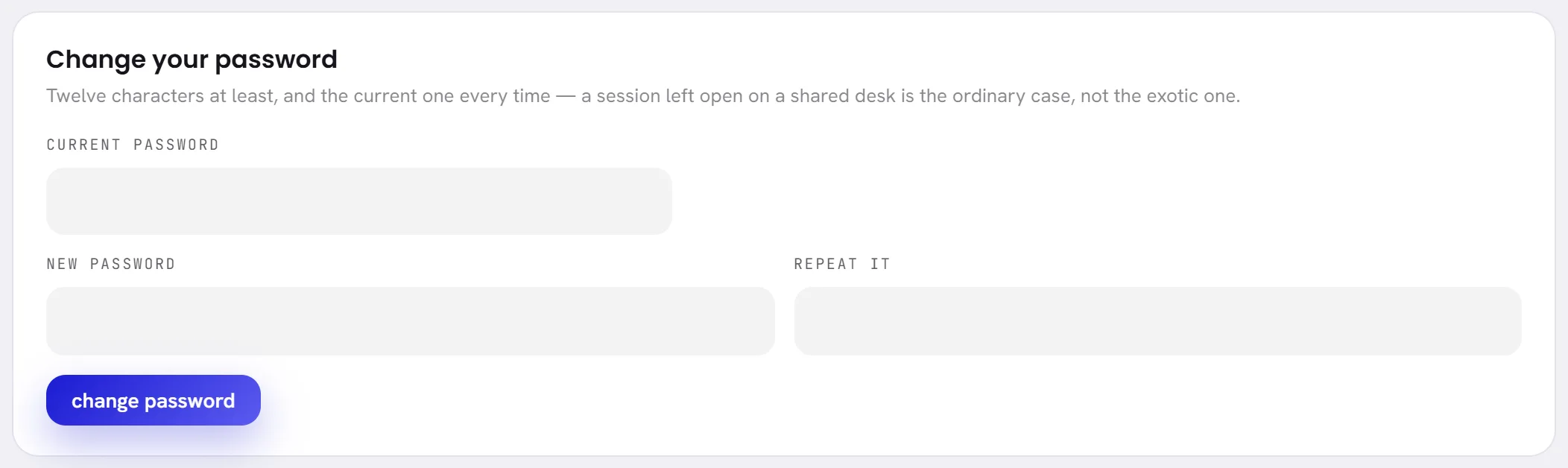
Type your password in Current password.
Type the new one in New password, and again in Repeat it.
It needs at least twelve characters, and the two must match.
Choose change password.
The card answers Password changed. If the current password is wrong, or the new one is too short, the reason is written under the field and nothing changes.
If you have forgotten your current password, you cannot change it here. Sign out and use the link on the sign-in page: see Sign in and reset your password.
Turn on two-factor
With two-factor, signing in takes your password and a six-digit code from an app on your phone. Somebody who learns your password still cannot get in without the phone.
You need an authenticator app on your phone. Any of them works: the set-up screen names Google Authenticator, 1Password, Authy and Bitwarden.
On the Security tab, in the Two-factor card, choose Turn on two-factor.
The set-up screen opens: Set up two-factor.

Open your authenticator app, add an account, and scan the square code on the screen.
If you cannot scan it, type into the app the key printed under or type this in by hand. It is the same secret.
Type the six digits your app now shows.
The screen sends them as soon as the sixth is typed. If it answers that the code is not right, check that the clock on your phone is correct, and type the code that is showing now: a code only lasts a short time.
After five wrong codes in a row, the screen makes you wait up to a minute before the next try.
Keep your recovery codes.
The next screen, Your recovery codes, shows eight codes. Each one gets you in once, without your phone. This is the only time they are shown. Print them, or choose Copy all and paste them into a password manager.
Then choose Open the console to go back to the app.
To leave the set-up screen without turning two-factor on, choose Not now.
Sign in once two-factor is on
After your email and password, a screen called One more thing asks for the six digits your app is showing. Type them; the screen sends them at the sixth, or choose Continue. You are asked once for each session: after signing out, or after closing the browser, the next sign-in asks again.
If your phone is not with you, choose Use a recovery code instead and type one of your eight codes. A recovery code works once, and the Security tab then shows one fewer left.
Sign out instead takes you back to the sign-in page.
Look after your recovery codes, or turn two-factor off
Once two-factor is on, its card on the Security tab shows two facts and two actions:
| On the screen | What it does |
|---|---|
| State | Says that two-factor is on, and since which date and time. |
| Recovery codes left | How many of your eight codes you have not used yet. At two or fewer, a warning under it tells you to make a new set. |
| Make new codes | Type your Current password in the box beside it, then choose it. A new set of eight is shown, once, and the old ones stop working. Use it when you are running out, or when you have lost your codes. |
| Turn it off | Type your Current password in the box beside it, then choose it. The card answers Two-factor is off. and your password is again all that is needed to sign in. |
When two-factor is required
xconversions can require two-factor of a role: org admins, managers or agents. That is decided for the whole platform, not on this screen. When it is required of your role:
- the set-up screen opens when you sign in, and nothing else opens until you have turned two-factor on. The only other way out of it is Sign out instead;
- the Turn it off button is replaced by a line saying that two-factor is required of your role and cannot be turned off here.
When it is not required of you, two-factor is your own choice, and you can turn it off again at any time.
See where you are signed in, and sign your other browsers out
Where you are signed in lists the browsers that are signed in to your account at this moment, the one you are using first, then the most recently used. Each line gives the browser and the system (Chrome and Windows, for example), the internet address it connects from, and when it was last active. The browser you are looking at carries the mark this browser.
A line you do not recognise means that somebody else may be in your account. Sign every other browser out:
Type your password in Current password, under the list.
Choose the red button, sign the other session out.
When there are several, the button says how many. Every browser but the one you are using is signed out at once, including any that had been told to stay signed in. The card answers Every other session is signed out.
Change your password.
Otherwise whoever knew it can sign in again.
When the browser you are using is the only one, the card says This is the only browser signed in to your account. and there is no button.
Everything on the tab
| On the screen | What it does |
|---|---|
| Current password | Asked by every action on this tab: changing the password, signing the other sessions out, making new recovery codes, turning two-factor off. Each has its own box, beside its own button. |
| New password | At least twelve characters. |
| Repeat it | The new password a second time. |
| change password | Changes it at once. |
| Where you are signed in | The browsers signed in to your account, with the address and the last activity of each. |
| this browser | Marks the browser you are using now. |
| sign the other session out | Red. Signs out every browser but this one. Shown only when there is another one. |
| Two-factor | The card for the second step of your sign-in. While it is off, it says so and offers Turn on two-factor. |
| Turn on two-factor | Opens the set-up screen. |
| State | Shown once two-factor is on: since when. |
| Recovery codes left | Shown once two-factor is on: how many unused codes you have. |
| Make new codes | Replaces your recovery codes with a new set of eight. |
| Turn it off | Red. Turns two-factor off. Not offered when two-factor is required of your role. |
Good to know
- Everybody in the workspace has this tab, and it only ever concerns their own account.
- Sign-ins, failed sign-ins, password changes and every two-factor event are written to the workspace’s activity log, where whoever manages the workspace can read them. The log never holds a password or a code.
My six-digit code is refused.
Check that the time on your phone is set automatically, then type the code that is showing now. After five wrong codes, wait a minute.
I have a new phone.
Sign in with one of your recovery codes. If two-factor is your own choice, turn it off on the Security tab and set it up again on the new phone. If it is required of your role, or you have no code left, write to support.
I lost my recovery codes.
Make a new set with Make new codes on the Security tab. The lost ones stop working.