Where Meta’s answer is shown
Meta reviews every template, usually within minutes and at most within a day. When it refuses one, xconversions says so in three places.
- In Notifications, the bell: the template’s name, with rejected by Meta.
- Under Templates, on the template’s card: the status Rejected on its picture, Meta’s reason in a red box, and under it, when Meta gives one, its advice after Meta suggests.
- In the template’s own window, opened with the eye, Look at it: the reason at the top, above what the template holds.
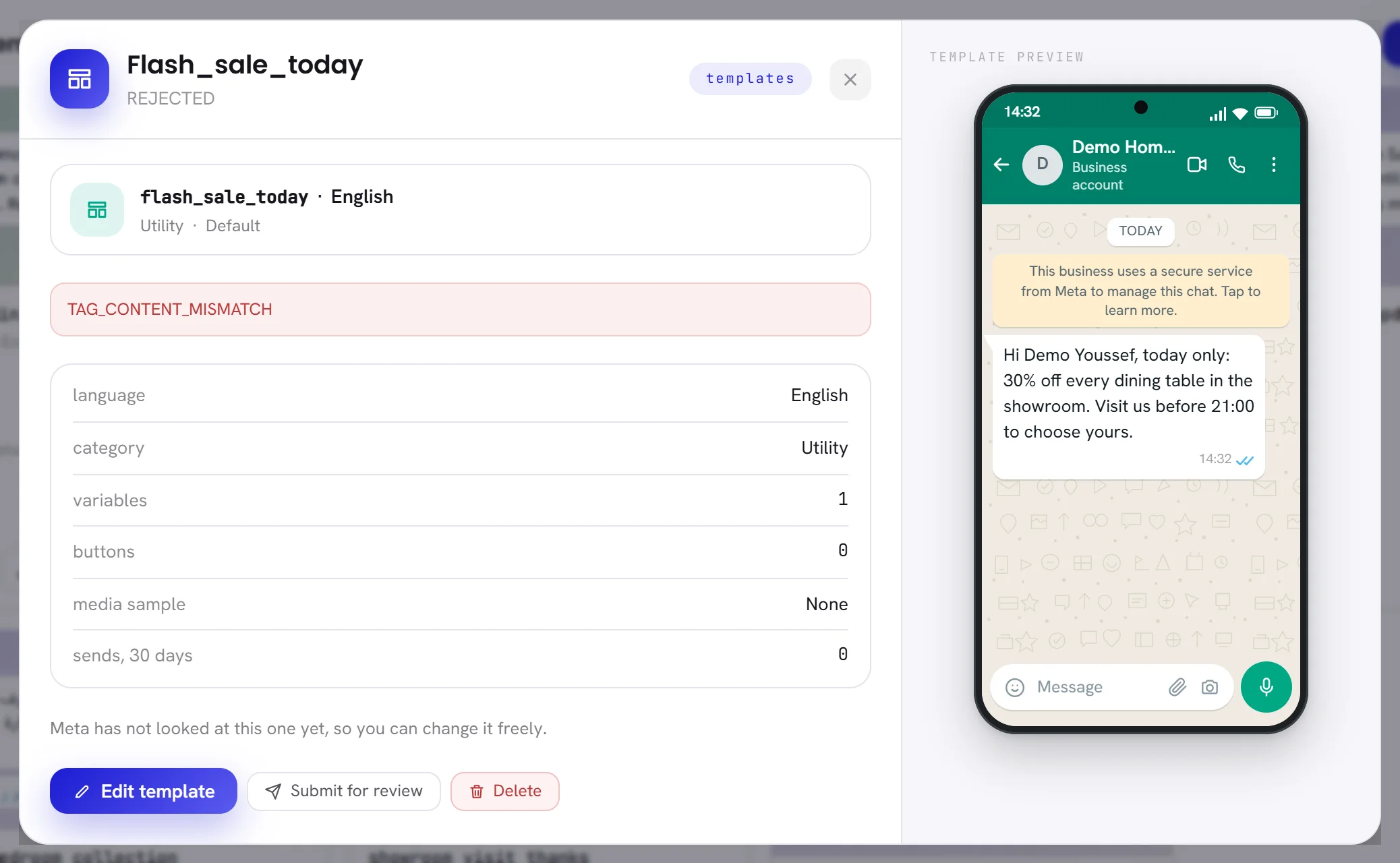
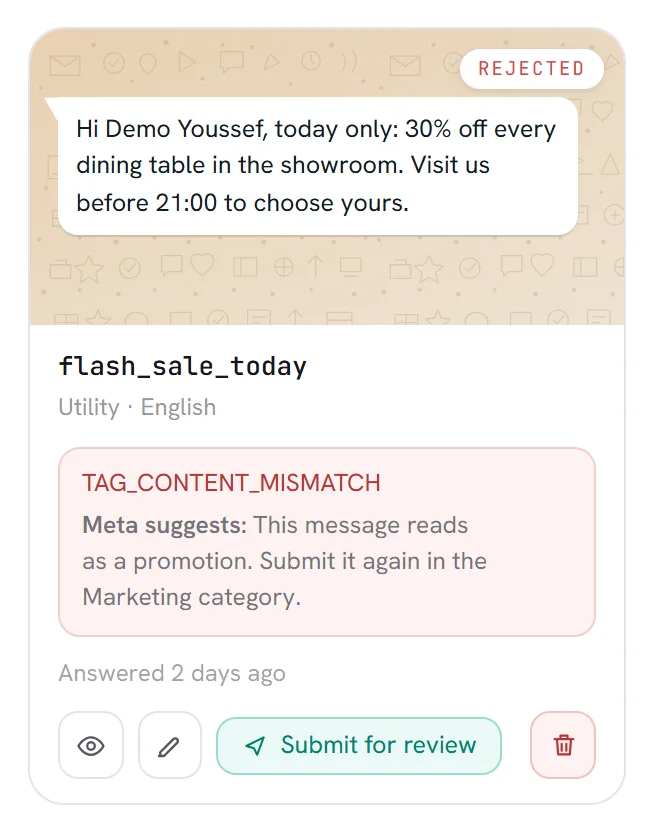
The reason is Meta’s own word for it, kept exactly as Meta sent it, in capitals. Nothing is paraphrased, so that the same fault is not submitted twice.
The usual causes
| Meta’s reason | What it means | What to change |
|---|---|---|
TAG_CONTENT_MISMATCH or INCORRECT_CATEGORY | The words do not match the category you chose. The commonest case: an offer filed as Utility. | Choose the category the message really belongs to. A promotion is Marketing. |
INVALID_FORMAT | Something in the layout breaks Meta’s rules: a variable at the very start or end, two variables side by side, a variable without a sample, a link that is not written in full. | Rewrite the sentence around its variables, and give every variable a sample. |
ABUSIVE_CONTENT, PROMOTIONAL or SCAM | The content breaks one of WhatsApp’s policies. | Read Meta’s advice on the card, and remove what the policy forbids. |
NONE | Meta gave no reason. | Compare the template with the rules, then change it and submit it again. |
The rules themselves, and what belongs to each category, are in Template categories and review.
Change it and submit it again
Under Templates, press the pencil, Edit, on the rejected template’s card.
The window Edit template opens on the template’s words. It has the same three steps as creating one: see Create a template.
Change what Meta refused.
On a rejected template everything can be changed: the words, the variables and their samples, the buttons, the media. To change the category, press Previous to go back to Set up template.
Press Next, and on the last step choose Submit for review.
The template’s window opens and says Sent to Meta. They usually answer within minutes. Its status is Pending until Meta answers. Save as draft keeps your changes without sending them.
If the template needs no change, Submit for review on its card sends it as it is.
| If the app answers | Why | What to do |
|---|---|---|
| Meta allows one edit a day on an approved template. This one can be edited in 5 hours. | Meta takes one change a day for a template it already holds, and this one was sent back to it less than 24 hours ago. | Your changes are saved. Submit again at the time given. |
| Meta allows 10 edits a month on an approved template, and this one has had them. | Meta’s limit for a month is reached. | Wait, or write a new template under another name. |
| A PENDING template cannot be edited. | Meta is still reviewing it. The word in capitals is the template’s status. | Wait for Meta’s answer. |
| WhatsApp would not take that template. Try again in a moment., or a sentence of Meta’s own | Meta would not take the submission at all. When it says why, its sentence is shown as it came. | Correct what it names, or try again in a moment. |
| Connect a WhatsApp number first. Templates live on its WhatsApp Business Account. | No number is connected. | Connect a WhatsApp number. |
A template Meta paused, disabled or moved
Meta goes on watching a template after approving it. What it decides shows on the template’s card.
| On the card | What it means | What to do |
|---|---|---|
| Quality: Slipping or Poor | People are blocking or reporting the message. It still sends. | Send it to fewer, better chosen people, or rewrite it before Meta pauses it. |
| Flagged | It has received bad feedback and is at risk. It still sends. | The same. |
| Paused | Meta has stopped it for a time because of low quality. Campaigns and workflows that use it skip people while it is paused. | Wait for it to come back, or edit it. Editing sends it back to Meta for review. |
| Disabled | Meta has stopped it for good. It cannot be edited or deleted. | Write a new template. |
| Meta moved this from Utility to Marketing | Meta decided the message is marketing. It still sends, and each message now costs the marketing rate. | Nothing has to be done. See What WhatsApp charges. |
Changing a template Meta has approved has a cost, and the window says so before you save: Meta has approved this. If you change it they look at it again, and it stops sending until they say yes. Its name, language, category and header stay as they are. What each status allows is in Template statuses.
Good to know
- Who can do this: people with the Campaigns and templates access. See Roles and access.
- A rejected template costs nothing and harms nothing: it cannot be sent until Meta approves it.
- xconversions asks Meta again twice a day for the status of every template, in case an answer was lost on the way.