Where your requests are
Every request you make stays in the Help panel. Press the round button in the bottom corner, Get help: under the box, Your tickets lists them, the one where something happened most recently first.
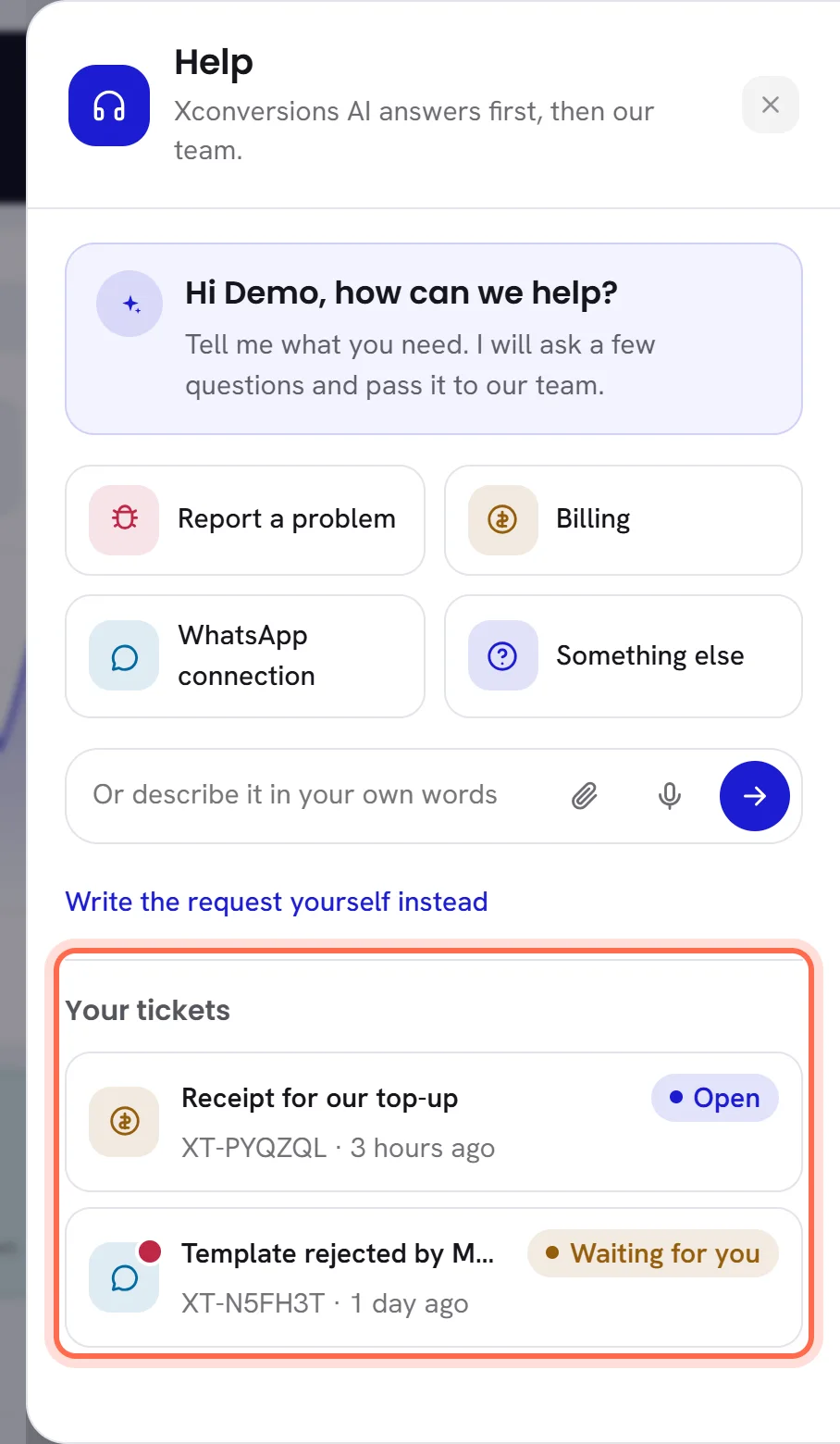
- Each line shows the request’s title, its status, its reference, such as
XT-7KQ4MX, and how long ago something last happened on it. Its icon and colour say which part of our team it went to. - A request our team has written on since you last opened it carries a dot. The number on the round button counts those requests.
- The list shows eight requests at a time. Back and Next move through it, and the line between them says where you are, for example Page 1 of 2.
- A request with no title yet is listed as Request without a title.
Open a request
Press its line in Your tickets.
The panel shows the request: its title, its reference and where it went at the top, with its status beside them.
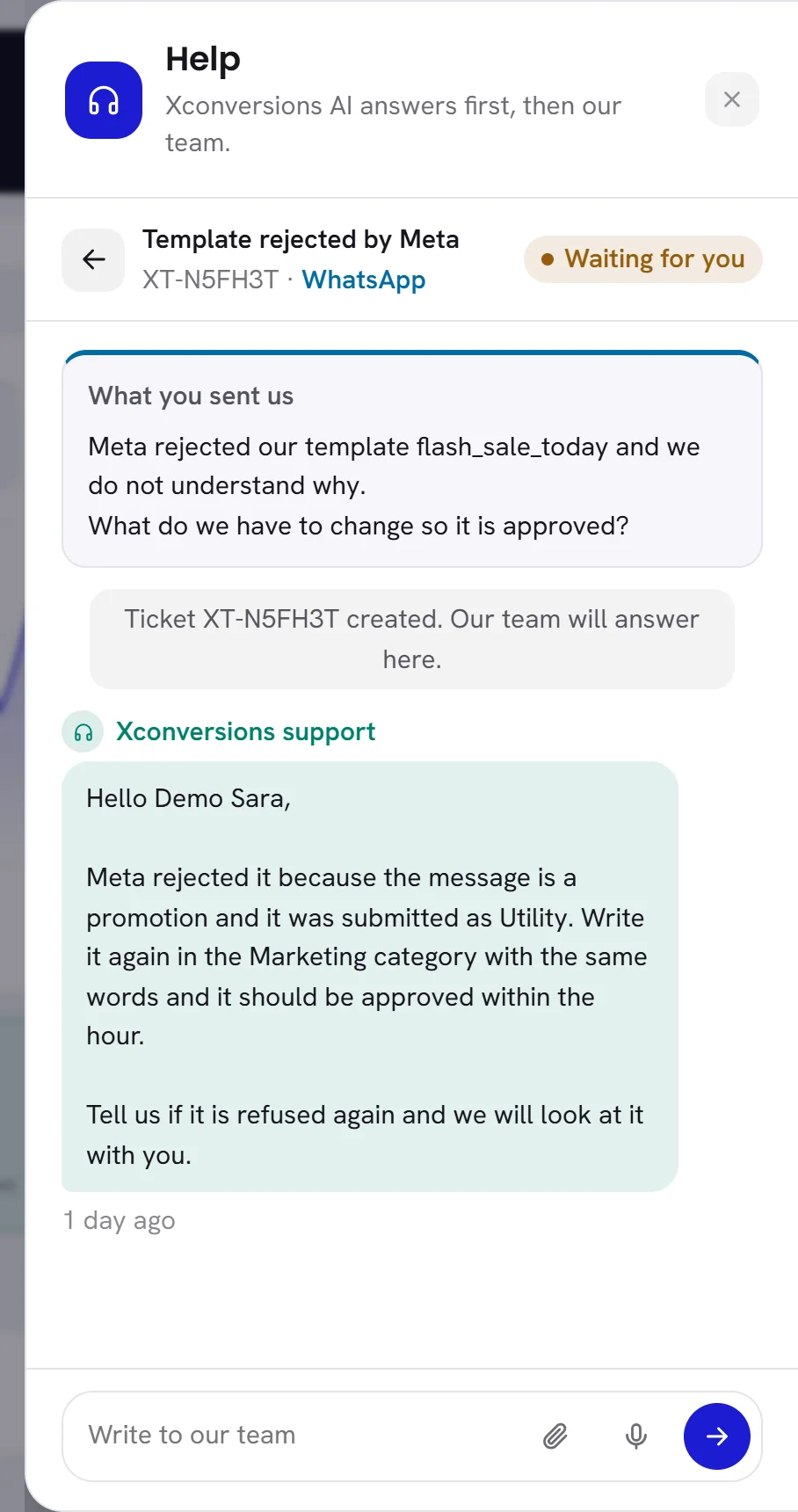
Read from the top.
What you sent us is your request as our team received it. Under it, the conversation runs from the oldest line to the newest: your messages on one side, the answers on the other.
An answer from our team is signed as our support team, never with a person’s name. What happened to the request is said in a line across the middle, for example Our team marked this as resolved.
Open what came with a message.
A picture is shown and opens at full size, a voice note plays in the panel, and any other file is downloaded.
Press the arrow at the top, Back to your tickets, to return to the list.
Opening a request marks its answers as read. While the panel is open, a new answer from our team appears by itself.
What each status means
| On the screen | What it does |
|---|---|
| Not sent yet | You started it and have not sent it. It has no reference, and only you see it. |
| Open | It is with our team, and the next word is ours. |
| Waiting for you | Our team has answered and is waiting for your reply. |
| Resolved | Our team considers it done, and asks you whether it is. |
| Closed | It is finished. Nothing more can be written on it. |
| Answered | It was never sent: a help article answered it, and you said so. |
Answer our team
Open the request.
Write in the box at the bottom, Write to our team.
Add a screenshot, a file or a voice note with the paperclip and the microphone if it helps. The limits are the same as for a new request: see Screenshots, files and voice notes.
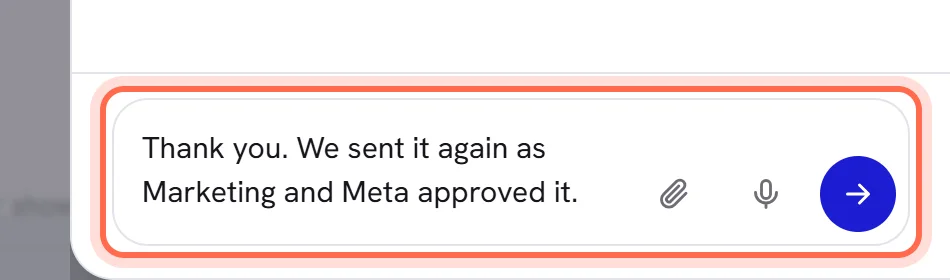
Press Enter, or the arrow, Send.
Shift+Enter starts a new line.
Writing on a request that is Waiting for you or Resolved puts it back to Open: it is our team’s turn again.
Say whether it is solved
When our team marks a request as resolved, its status becomes Resolved and the panel asks Was this solved? Under the question it says how long the request waits for your answer, for example If we hear nothing, this ticket closes by itself in 7 days.
| On the screen | What it does |
|---|---|
| Yes, it is solved | Closes the request. The panel says Confirmed as solved. This ticket is closed. |
| No, not yet | Opens the request again: Not solved yet: this ticket is open again. Then say what is still wrong in the box, so our team knows where to look. |
If nobody answers the question in that time, the request closes by itself, and says so: This ticket was closed: nobody told us it was not solved.
Reopening, and closed requests
- A request that is Resolved is reopened by pressing No, not yet, or by writing on it.
- A request that is Closed cannot be written on. The panel says This ticket is closed. For anything new, start a new request. If it is about the same matter, give the old reference in the new request.
- Our team can reopen a request from its side. You then read This ticket was reopened. in the conversation.
What arrives by email
Three emails follow a request, so you do not have to keep the app open. They go to the person who opened it, at the address they sign in with, in their language.
| When | Its button | |
|---|---|---|
| We have your request | When you send a request. It gives the reference. | Follow the request |
| Our support answered | When our team answers. The answer itself is in the email. | Open the request |
| Is it solved? | When our team marks the request as resolved. | Answer yes or no |
Files are not sent by email. When an answer came with files, the email says how many, and you open them in the app.
The page the email opens
The button in each email opens the request’s own page in your browser, without signing in.
- It shows the request’s title, reference, where it went, the day it was sent and its status, then What you sent us, our team’s answers, what you wrote afterwards, and what happened in between.
- It does not show your exchange with Xconversions AI from before the request was sent. Files are counted, not shown, for example 2 files were sent with this. Open the request in the app to see them.
- When the request is Resolved, the page asks Was this solved? and you can answer there: Yes, it is solved, or No, not yet with a few words in What is still wrong? (optional).
- Anything else is written in the app. The page says To write to our team, open Help in the app., and Open the app takes you to the request in the Help panel, after signing in if you are not.
The link works for as long as the request is open, and for 30 days after it is closed. A closed request’s page gives the day, for example This page stays open until 12 November 2026. After that, the request is still in the app.
How the app tells you
- The number on the round help button counts your requests with an answer you have not opened.
- The bell lists what our team did, for two weeks or until you write back: Our support answered · XT-7KQ4MX, Resolved: is it solved? · XT-7KQ4MX or Closed · XT-7KQ4MX. Pressing the line opens the request in the Help panel.
Notifications describes the bell.
Who sees which requests
- You see the requests you opened.
- Somebody whose access includes The workspace and billing also sees every request sent from the workspace, with the name of the colleague who opened it, and can answer on any of them. Admins have that access unless it was changed: see Roles and access.
- A request that is Not sent yet is seen by its writer only.
- The emails go to the person who opened the request, not to the rest of the workspace.
Questions
I cannot find the email with the link.
You do not need it. Open the Help panel in the app: the request is in Your tickets, with everything the page shows and more.
A colleague opened the request. Can I follow it?
Only if your access includes The workspace and billing. Otherwise ask the colleague, or somebody with that access, to tell you where it stands.
Can I take back a request I sent?
No, a sent request cannot be deleted. Write on it that it is no longer needed, so that our team can close it.
The request closed by itself, and it is not solved.
Start a new request and give the old reference. Our team finds the earlier one from it.