The bell
The bell is at the top of every screen. It gathers what needs you or what you would want to know: a conversation waiting for a person, a customer waiting for your reply, a new conversation, Meta’s decision on a template, news about your AI wallet, your trial, your number and your requests to our support.

The number on the bell counts what is new since you last opened it, up to 99+. The same number is written in front of the page’s name in your browser tab, so you see it while you work in another tab.
Read your notifications
Select the bell.
A panel opens at the side of the screen, over whatever you were doing. Notifications in the menu under your name opens the same panel.
It lists up to 30 lines, the newest first. Above them, a count such as 4 new says how many you had not seen, and those lines are tinted with a dot at the end.
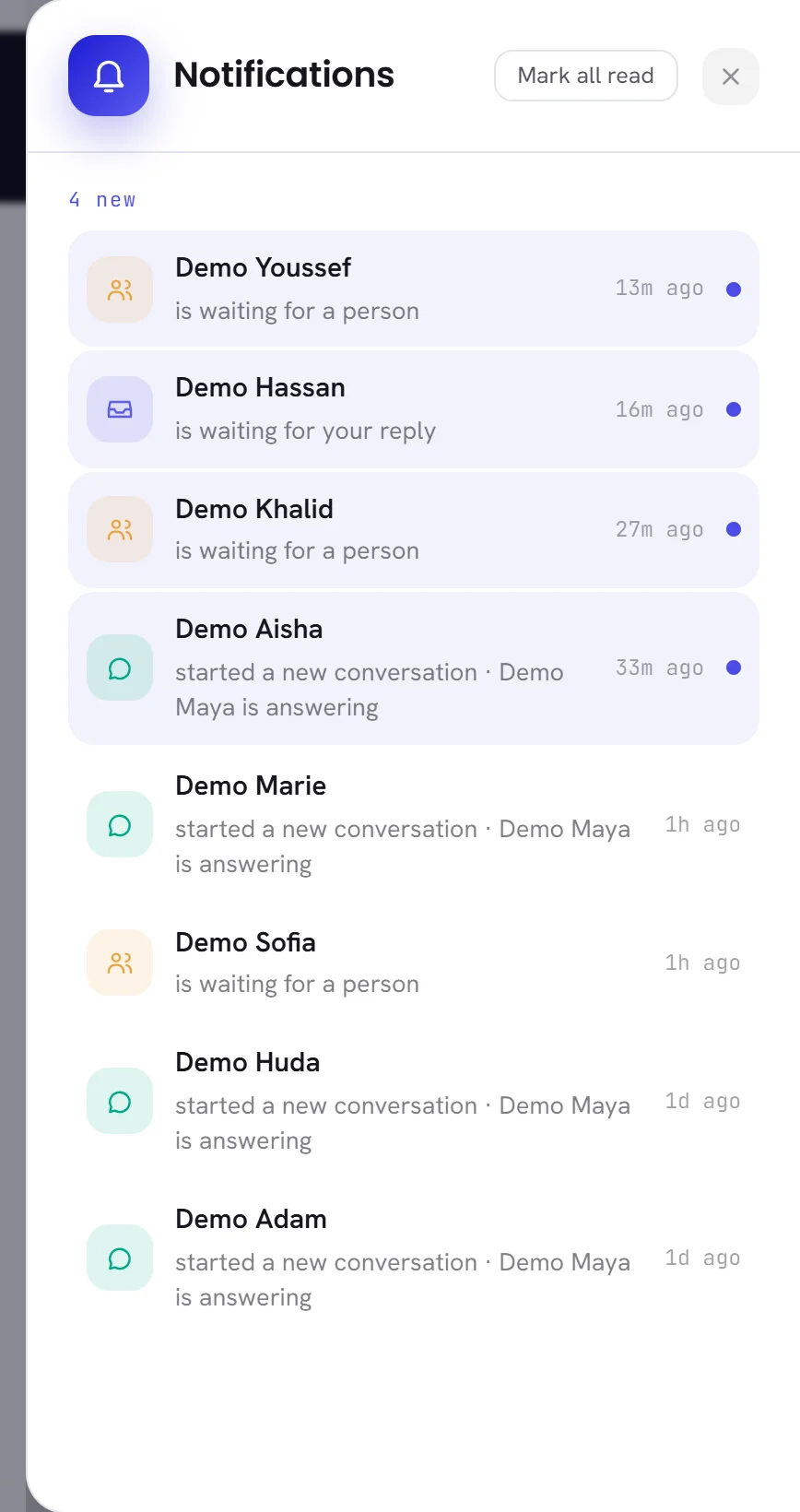
Select a line to open what it is about.
The panel closes, and the conversation, template or screen opens.
Select Mark all read to clear the tint and the dots.
The button is there while the panel shows something new.
Opening the bell is reading it. The number goes the moment the panel opens, and what was new is shown as new this once. The next thing to happen brings the number back.
A line is not a message kept in a box: it is read fresh from the thing it is about each time you open the bell. When a waiting conversation is taken, or you answer the customer who was waiting for you, its line is gone. When nothing is left, the panel says Nothing needs you right now.
What raises a notification
Each line has a name in bold, the contact, the template, the number or the amount it is about, and under it what happened. You only get the lines that lead to something you are allowed to open.
| On the screen | What it does |
|---|---|
| started a new conversation | A customer wrote to you for the first time, in the last two days, and your AI agent holds the conversation. With an agent live, the line adds its name, for example Demo Maya is answering. Opens the conversation. |
| is waiting for a person | A conversation was handed to a person and nobody has taken it. The line stays until somebody does. Opens the conversation. |
| is waiting for your reply | In a conversation assigned to you, the customer wrote last. The line goes when you answer. Opens the conversation. |
| approved by Meta | Meta approved a template in the last 14 days. Opens Templates. |
| rejected by Meta | Meta turned a template down in the last 14 days. Opens Templates, where the reason is. See Template statuses. |
| added to your AI wallet | A top-up was credited in the last 14 days. The name of the line is the amount. Opens AI usage. |
| not credited | A top-up was turned down in the last 14 days. The line gives the reason. Opens AI usage. |
| free trial | Your free trial ends soon: the name of the line says in how many days, one line a day. Opens Plan & billing. |
| needs reconnecting | The WhatsApp access of one of your numbers ends within a week, or has ended. The name of the line is the number. Opens Channels: see Reconnect a number. |
| our support answered | Our support team wrote on one of your requests in the last 14 days and is waiting for you: an answer, a question whether it is solved, or a closure. Opens the request in Help: see Follow a request. |
The lines about conversations go to people who work in the inbox, the ones about templates to people who can open Templates, the ones about money and the trial to people who manage the workspace and its billing, and the ones about numbers to people who manage them.
Messages in the corner of the screen
A few things are also said the moment they happen, in a small message at the bottom corner of the screen, on whatever screen you are: a new conversation starting, a top-up credited or turned down, and our support answering one of your requests.
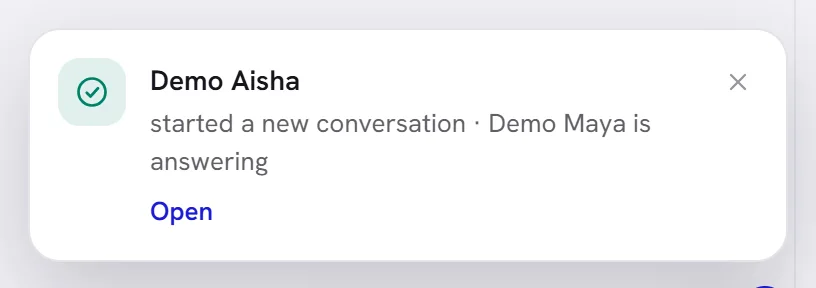
Select Open to go to what it is about, or the cross to put it away. It leaves by itself after eight seconds, and stays while you point at it. At most four are shown at once.
Alerts on your desktop
xconversions can raise your browser’s own notifications, the ones that appear over your other windows, for four things: A new conversation starts, A conversation needs a person, A customer writes back to you and Meta decides on a template.
Open Settings, then Notifications.
Under Desktop notifications, switch on Alert me in this browser.
The first time, your browser asks for permission to show notifications. Allow it.
Switch on the things you want to be alerted about, and save.
Notification settings describes each switch.
- An alert shows the same name and words as the line on the bell. Select it to open what it is about.
- Alerts come while xconversions is open in a tab, even a tab behind another window, where it checks every 30 seconds. With the tab or the browser closed, nothing is raised.
- What is already on the bell when you open the app is not announced again: only what arrives afterwards.
- The permission belongs to the browser. On another computer or in another browser, allow it there too.
If the browser is blocking them, the screen says so under the switch: This browser is blocking notifications for this site. Allow them in its site settings, then reload.
The email digest
The digest is a short email with four figures: the conversations opened, how many your AI agent answered, how many it handed to a person, and how many are waiting for somebody now.
Each person chooses their own under Email digest in Settings, Notifications: daily at 08:00, once a week on the day your workspace’s week starts, or off. The time is your workspace’s clock, not your own. See Notification settings.
Two emails go to the workspace’s owner whatever is chosen: when a WhatsApp number is disconnected, and when the WhatsApp Business app on the phone has not been used for a while.
Good to know
- Notifications are yours alone. A colleague opening their bell changes nothing on yours.
- There is no sound from xconversions itself. A desktop alert follows the sound your computer gives its notifications.
- The inbox shows news of its own: rows on an amber background for conversations with something new for you. See Inbox overview.
Why did the number on the bell disappear?
Opening the bell reads everything on it. The lines stay in the panel for as long as they are true. The number comes back with the next new thing.
I switched alerts on and nothing appears.
Check that your browser allows notifications for xconversions, that the thing you expect is switched on in Settings, Notifications, and that xconversions is open in a tab. Your computer’s own do-not-disturb setting also holds alerts back.
Does the bell tell me when a colleague assigns a conversation to me?
Not by itself. The conversation appears under You in your inbox, and on your bell as is waiting for your reply when the customer wrote last.