What the preview is
The preview is a chat with your agent in which you play the customer. It sits beside every page of the agent, so you can change something, save, and ask again without leaving what you were reading.
It is the real thing with the delivery removed. The agent answers from the same knowledge, instructions, skills and rules as it would for a customer, and its reply goes through the same checks. But nothing is sent, no conversation is opened and no contact is created: the top of the preview says Nobody is messaged.
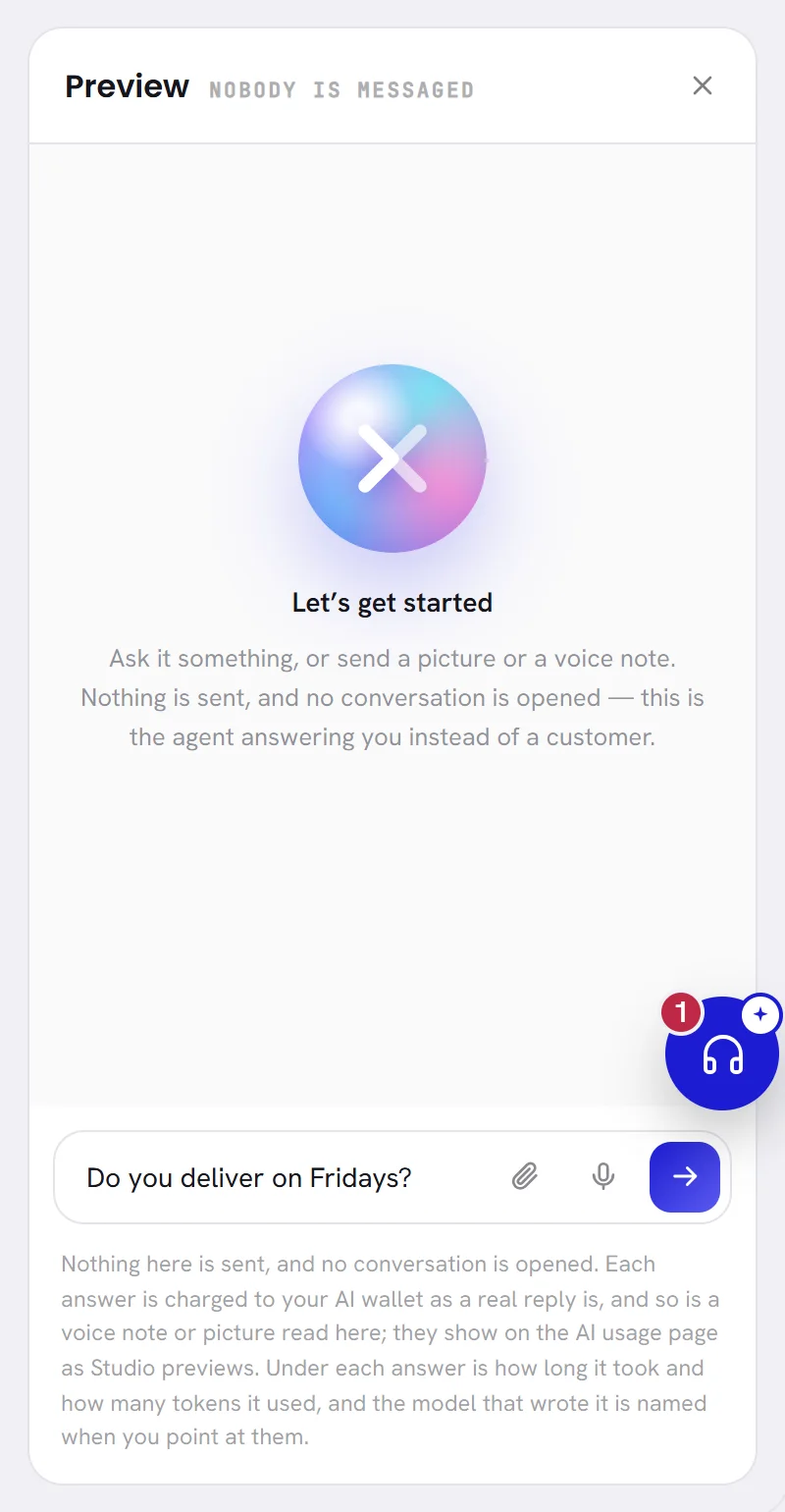
Open the preview, or put it away
On a wide window the preview is open beside the page. The cross at its top, Close the preview, puts it away, and the button Preview in the header of the page brings it back. On a narrower window it starts put away. The app remembers your choice in this browser.

Ask it something
Save what you changed.
The preview answers from what is saved, not from what is typed in the page and not yet saved. On the live agent it answers from your saved draft, before you publish: that is what it is for.
Type a question in Experience the conversation and press Enter.
The arrow beside the box, Send, does the same. Write the way a customer would, in the language a customer would use. A question can be up to 1,000 characters.
Wait for the answer.
The agent’s name appears with three dots and Typing…. After ten seconds the line changes to Taking longer than usual…. One question goes at a time: what you type meanwhile waits in the box.
Read the answer, and the lines under it.
They say what the agent would have done and how the answer was made: see the next section.
Carry on the conversation.
The agent reads the whole test chat, as it reads a real conversation, so “and in blue?” is understood after a question about a sofa.
What an answer shows
The answer is drawn as the inbox draws a conversation: you on one side, the agent on the other, under its name. Under the answer, the preview adds what a customer would not see.
| Under the answer | What it means |
|---|---|
| Small buttons marked ↩, or one marked ↗ | The quick reply buttons, or the link button, the reply would have gone out with. |
| Would save their email: demo-sam@example.com | The agent would have saved this on the contact. |
| Would tag them: hot-lead | It would have added this tag to the contact. |
| Would send Demo price list.pdf | It would have sent this attachment after its reply. |
| Would hand the conversation to The owner | It would have handed the conversation over, and to whom. |
| Would close the conversation | It would have closed the conversation. |
| Would follow up after 5 min: “Just checking you are still there.” | It would have sent this message if the customer stayed silent that long. And close it is added when that follow-up would also close the conversation. |
| from all 14 pieces of your knowledge | The agent’s knowledge is small enough to be read whole for every reply. |
| from the 8 pieces of your knowledge nearest the question | The knowledge is larger, and these are the pieces that were read for this answer. If the answer missed something you know is there, the right piece was not among them: a question and answer written for it fixes that. |
| 1.8 s · 1,240 tokens | How long the answer took, which is how long a customer would have watched “typing…”, and how many tokens it used. Tokens are what AI usage is counted in. |
Nothing in these lines is done. In the preview there is no customer and no contact, so the agent says what it would do and does not do it.
When it does not answer
An answer that a customer would never have received is shown, marked, with the reason. It is the most useful thing a test can show you.
| What the preview says | Why | What to do |
|---|---|---|
| Not answered: asked for a discount. On a real conversation a colleague takes it over here, and the agent stops. | One of the handover rules applies to your message. The AI was not asked, so nothing was used. | Nothing, if that is what you want. Otherwise switch the rule off under Always escalates on the Profile. |
| A figure it could not find in what you have written: 2500. A customer would have been handed to a colleague instead. Either the number belongs on the knowledge page, or the agent was reaching. | The reply held a number of four digits or more that is nowhere in what you gave the agent. You see the reply; a customer would not have. | If the number is right, add it to the knowledge. If it is wrong, the check did its work. |
| It had nothing to say. | The agent wrote no reply and asked for no action. A customer would have been handed to a person. | Give it something to answer that question from, and ask again. |
| The AI is busy right now. Try again in a moment. | The AI did not answer this time. | Ask again. |
| The AI could not answer this one. | The AI failed on this question. | Ask it another way. If it keeps happening, write to us. |
| Your AI wallet is empty, so the agent is paused and the preview with it. Top it up on the AI usage page to try it again. | A preview is charged as a reply is, and the wallet has nothing left. | See Top up your AI wallet. |
Send a voice note or a picture
Customers send voice notes and photos, and the agent reads both. The preview lets you hear what it makes of them.
Choose the paperclip, Add a picture or a voice note, and pick a file. Or choose the microphone, Record a voice note.
The microphone is shown when your browser can record. The first time, the browser asks to use it. If it is refused, the preview says The browser did not allow the microphone.
When recording, choose the same button again, now Stop recording, to finish.
A recording stops by itself after two minutes.
Check what is about to go.
A chip above the box names the file. On a voice note, the button on the chip plays it: Listen before sending. The cross on the chip, Remove, takes the file back.
Add a question if you want one, and send.
A voice note or a picture on its own is a question too.
Read what the agent was given.
While it works, the preview says Listening to the voice note… or Looking at the picture…. Then, under your message, Transcribed shows the words heard in the voice note, or the text read off the picture with a sentence describing it, and how long that took. The agent answers those words, as it would for a customer.
- A picture can be JPG, PNG or WebP, and a file can be up to 18 MB. Anything else is refused: Send a picture (JPG, PNG or WebP) or a voice note.
- A file that could not be read gets no answer, and the preview says Couldn’t read this media. A customer’s would go to a person, not to the agent.
- You can play the voice note or open the picture again from the test chat, to compare what was said with what was heard.
Start a test again
Choose Start over, the round arrow at the top of the preview. The test chat is emptied, with the files you sent in it. The button is there once the chat holds at least one message.
- Start over when you change subject: the agent reads the earlier messages of the test, as it does in a real conversation.
- The test chat is yours alone, for each agent, while you are signed in. A colleague who opens the same agent starts with an empty preview.
- It keeps the last 12 questions with their answers.
What a test uses
Each answer in the preview is charged to your AI wallet as a real reply is, and so is a voice note or a picture read there. They are listed on AI usage as Studio previews. A question stopped by a handover rule uses nothing, because the AI is never asked. See AI usage overview.
What to try before you go live
- The ten questions your customers ask most.
- A question whose answer is not in the knowledge. The agent should say it does not have that information, and not guess.
- A price, and a question whose answer holds a large number.
- A request for a discount, and a request to speak to a person, to see the handover rules at work.
- The same question in each language your customers write in.
- A voice note.
- A message that should start each of your skills.
Good to know
- Anyone who can open AI Agent can use the preview.
- You can test an agent that has never been live, and without any number connected.
- There is no real customer in a test. What the agent would know about one, such as their name, their email or their tags, is not known here, and the agent is told so.
- Nothing is done in a test: no tag is added, nothing is saved, no file is sent, no follow-up goes out, and nobody is notified.
Questions
Why does the preview answer differently from what my customers get?
The preview answers from your saved draft. Customers get the version you published. When the two differ, the profile says you have unpublished changes: publish, and they match. Knowledge is the same for both.
Does a test show up in my inbox or my reports?
No. No conversation is opened and no contact is created. A test appears only on the AI usage page, under Studio previews.
The agent worded the same answer differently the second time. Is that a problem?
No. The wording can change from one reply to the next. The facts should not: they come from the knowledge.