Before you import
The import takes a CSV file, or rows you paste. It shows what it understood, then what it would do, and writes nothing until you press the last button.
- The file is a CSV: one row a person, columns separated by commas, semicolons or tabs. An Excel workbook has to be saved as CSV first.
- The first line is the column names. A header row is required.
- One column holds the phone numbers, written with
+and the country code. See what happens to the numbers. - The file is 10 MB at most. The import reads its first 5,000 rows and leaves out the rest without a warning: split a longer list into several files and import them one after the other.
- Save the file as CSV in UTF-8, so that Arabic and accented names arrive intact: the import does not convert other encodings.
Step 1: choose the file
Open Contacts and click Import CSV.
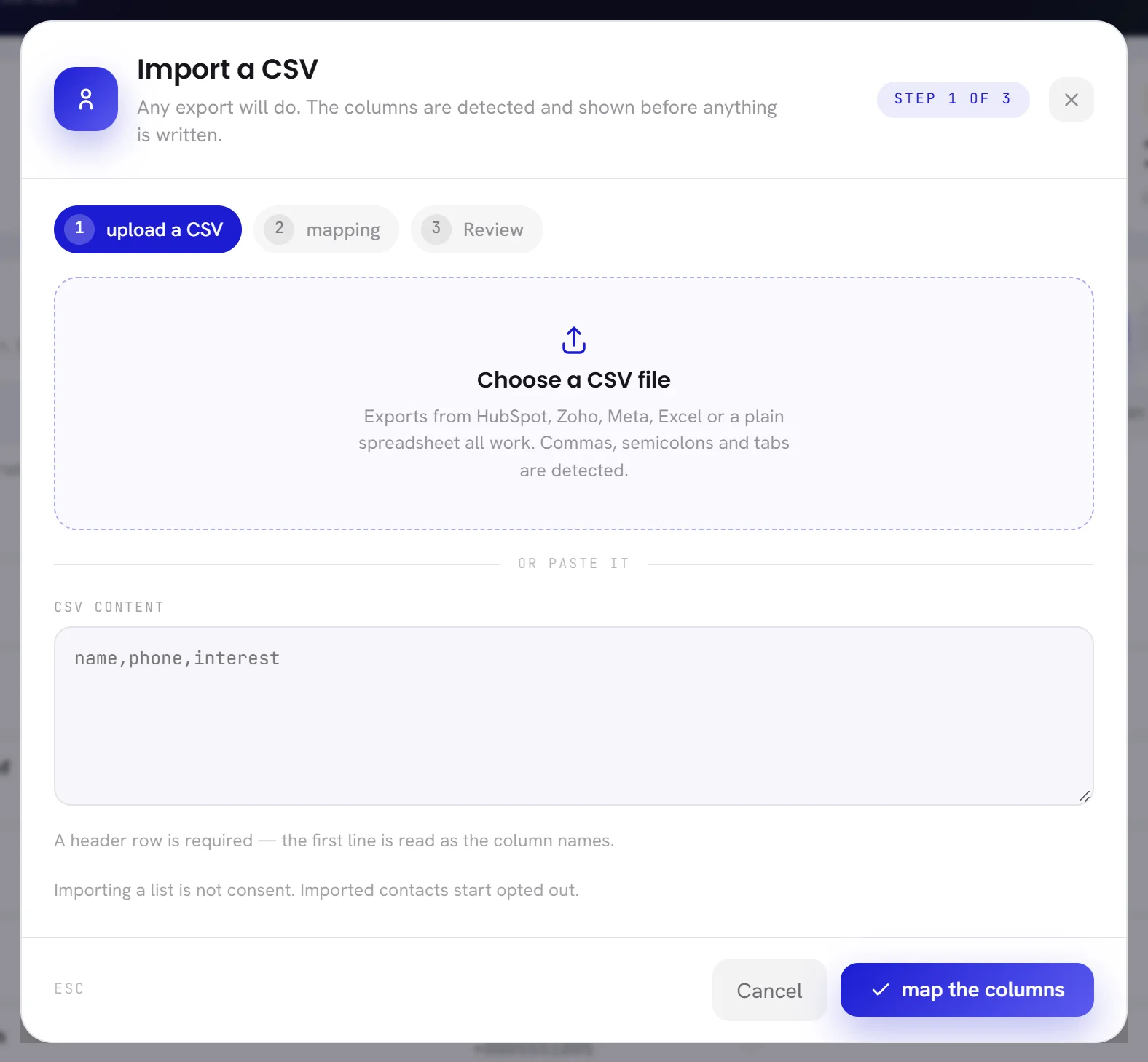
Drop your file on Choose a CSV file, or click the box and choose it.
The file’s name then shows in the box.
Or paste the rows under CSV content, header line first.
Cells copied from a spreadsheet can be pasted as they are. If you give both a file and pasted rows, the file is used.
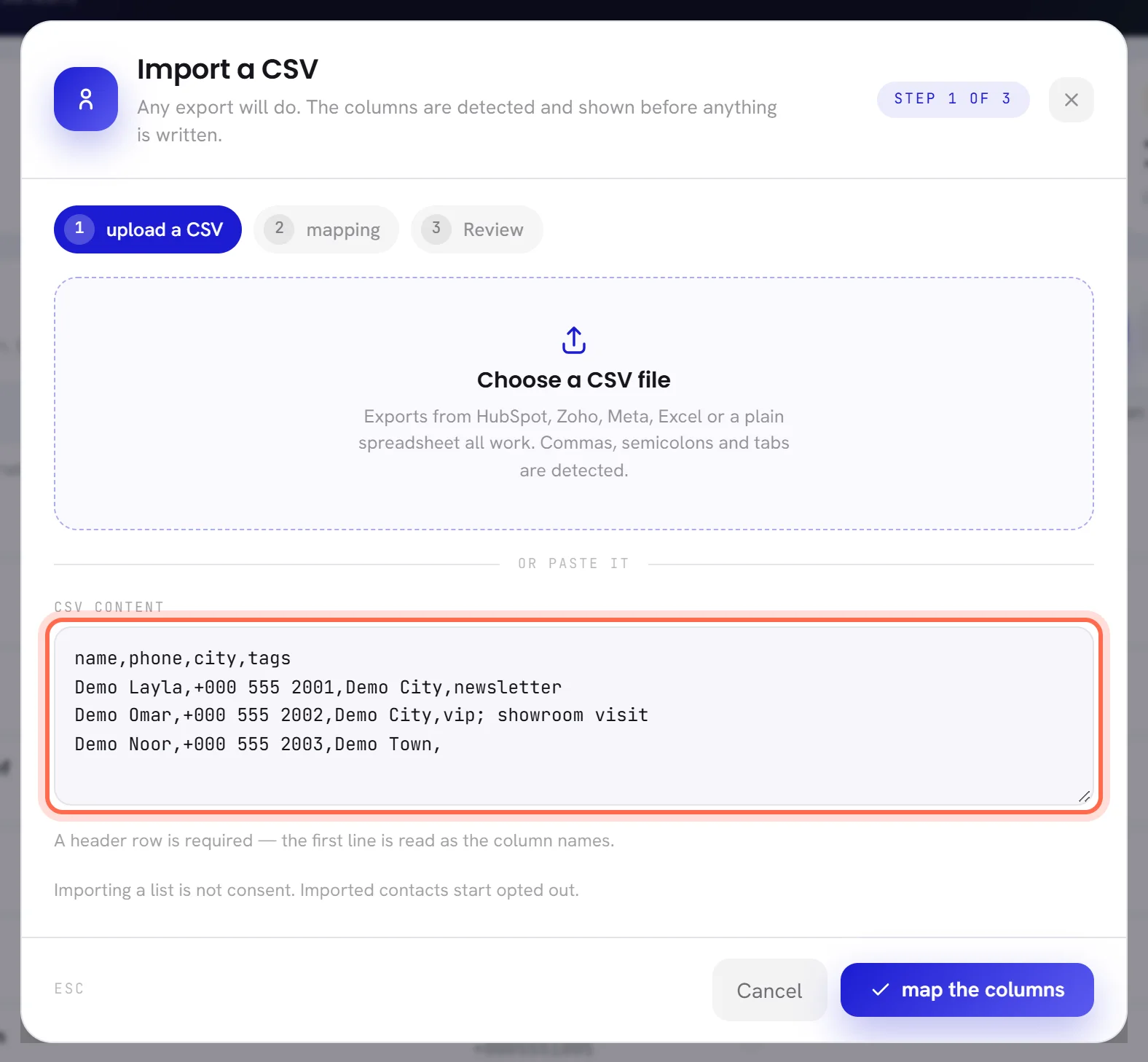
Click map the columns.
The app reads the file. If it says
That file has no rows we can read., the file is empty or has only its header line.
Step 2: match the columns
The window now lists every column of your file, one line each, with the first value found in it under Sample data, its name under Column name, and what it will become under Map to contact field. The app has guessed from the column names and from what the columns hold. Check every line: a wrong guess is corrected here, not after.
For each column, choose what it is in Map to contact field.
Untick the columns you do not want.
An unticked column is left out of the import. The box at the top of the ticks ticks or unticks every column shown. search columns narrows a long list to the columns whose name or sample contains what you type.
Click review the import.
| On the screen | What it does |
|---|---|
| Phone number | The column with the numbers. Exactly one column must be this: it is how a contact is recognised. The list of choices marks it identifier. |
| Name | The contact’s name. |
| Email address | Kept on the contact. Nothing is sent to it. |
| Language | English, Arabic or French, written as a name or a code (Arabic, ar, fr-FR). Any other value is left empty. |
| Where they came from | A word of your own for the origin of these contacts. It shows under the name in the list. Without this column, new contacts get import. |
| Keep as a custom field | Keeps the column on the contact under the column’s own name, for segments and for template variables. This is what the app chooses for a column it does not recognise. |
One more choice turns a column into tags. It reads Tags · several in one cell, separated by , ; or |: a cell may hold several tags, and they are saved in small letters.
| The window says | What to do |
|---|---|
Choose which column holds the phone number. | Set one column to Phone number. |
Every ticked column needs a field. Untick the ones you do not want. | A ticked column is still on select a field: choose a field for it, or untick it. |
Two columns are both set to Name. Pick one. | A field takes one column. Keep the better column, and set the other to Keep as a custom field or untick it. |
Step 3: review, then import
The last step shows what the file would do. Nothing has been written yet.
| On the screen | What it does |
|---|---|
| New contacts | Rows whose number you do not have yet. Each becomes a contact. |
| Existing, updated | Rows whose number you already have. That contact is updated: no second one is created. |
| repeated in file | Rows whose number appeared earlier in the same file. Only the first row of a number is used. |
| unusable rows | Rows left out because the number is missing or wrong. They are listed under the table with their row number and the reason: no number given, not a number or wrong length for a phone number. |
Under the four figures, What this would do shows the first rows: the number as your file writes it under As written, and the number as it will be saved under Will be stored. A number shown in amber was changed on the way. Check its country code.
Read the figures and the first rows.
If something is wrong, click Back to mapping: your choices are kept. If the window says
Nothing in this file can be imported yet., the wrong column was probably set as the phone number.Click the last button, for example Import 34 contacts.
The contacts are written. The window closes, and a green line above the list gives the result, for example
32 added, 2 updated., then how many rows were unusable or repeated.
What happens to the numbers
Every number is brought to one form, + then digits, so that the same person written three ways is one contact. Spaces, dashes, dots, brackets and the apostrophe Excel puts before a number are dropped, and 00 in front becomes +.
- A row is unusable when its number is empty, holds letters or other signs, has fewer than 8 digits or more than 15, or is written with digits other than 0 to 9.
- A number that starts with one
0is read as a local number of the United Arab Emirates: the0is taken off and+971is put in front. - A number with no
+and no0in front gets a+put in front as it is.
What an import changes, and what it never does
| For | The import |
|---|---|
| A number you do not have | Creates the contact with what the row holds, marked No consent. |
| A number you already have | Replaces the name, email, language and origin with the row’s values where the row has one. Adds the row’s tags to the contact’s tags. Adds or replaces the custom fields the file carries. |
| An empty cell | Changes nothing. An empty cell never erases what you know. |
| A contact marked Opted out | Stays opted out. No file can undo it. |
| A contact’s consent, in general | Is never touched. A file can neither give consent nor take it away. |
| Tags a contact already has | Are never removed. |
An import cannot change a number, and does not set the remark name, the owner or the note.
Consent after an import
Bringing in a list is not permission to write to it, so imported contacts start as No consent. The window says it as Imported contacts start opted out: it is not the permanent Opted out, and you can change it.
To record that an imported person agreed, open the contact with the pencil, tick They agreed to be messaged and save. This is done one contact at a time: there is no way to record consent for many contacts at once, and a contact does not become Can message by writing to you after the import.
Until then a campaign sent to a segment leaves these contacts out, and a workflow’s message to them is refused. See Consent and opt-outs.
If the import was wrong
An import cannot be undone. What you can do depends on what it did.
- New contacts that should not be there: remove them. See Select several contacts and remove them. Removing is 50 at a time, the rows of one page.
- Existing contacts that were updated: the earlier values are not kept. Correct them by hand, or import a corrected file.
- Before a large import, export the list: the file is your record of the names, tags and fields as they were.
Good to know
- Who can import: people whose access includes Contacts and segments. See Roles and access.
- Your file is deleted the moment the import finishes. A file left on step 2 or 3 is deleted by itself within two days; if you come back after that, the app says
That upload is no longer available. Choose the file again. - Reloading the page in the middle of an import brings you back to the list. Nothing was written: start again from Import CSV.
- The import is written to the activity log with who ran it.
Questions
Can I import an Excel file?
Not as a workbook. In Excel, save the sheet as CSV UTF-8, then import that file. Or select the cells, copy them, and paste them under CSV content.
Will importing the same file twice create duplicates?
No. The second time every row is an existing number: the contacts are updated with the same values, and none is created.
Can the file say who agreed to be messaged?
No. There is no consent column to map: consent is recorded on each contact, by hand. A column that says yes or no can be kept as a custom field, for your own reference.