What a skill is
A skill is a way of handling one particular situation, written by you: a title, a start trigger that says when to use it and when not, and the steps to follow in order. Booking a visit, taking a return and answering “where is my order?” are typical skills.
There are no ready-made skills to switch on: every skill is one you write for your business. The agent is given every skill that is switched on, together with its instructions. When a conversation matches a skill’s start trigger, it follows the steps one message at a time, and leaves the skill when the conversation moves on.
Skills are on the agent’s page. Open AI Agent, choose Edit on the agent’s card, then the tab Skills, beside Profile.
Skill, instructions or knowledge?
| You want the agent to | Put it in | Because |
|---|---|---|
| Know a fact: a price, an address, a policy | Knowledge | Facts are quoted from the knowledge, and from nowhere else. |
| Behave a certain way in every conversation | Instructions, on the Profile | The instructions are read for every reply. |
| Follow set steps in one situation | A skill | It applies only when its start trigger matches, so the instructions stay short. |
| Close, hand over, tag or save | Actions, on the Profile | An action is what the agent may do. A skill can say when to do it. |
Write a skill
On Skills, choose New Skill.
A blank skill opens, with Skill and its name at the top.
Type a title where the page says Enter title here.
Up to 100 characters. The title is for you and your team: the list shows it. A skill saved without one is listed as Untitled.
Fill in Start trigger.
Say when the agent should use the skill, and when it should not, in up to 1,000 characters. For example: “Use this skill when a customer wants to return or exchange an item they bought. Do not use it for an item that arrived damaged.”
Fill in Step-by-Step instructions.
Write each step on its own line: what to ask, what to say, and when to hand over. Up to 5,000 characters. Under the box, Variables, Hand off and Add contact tags type the same things as they do under the instructions.
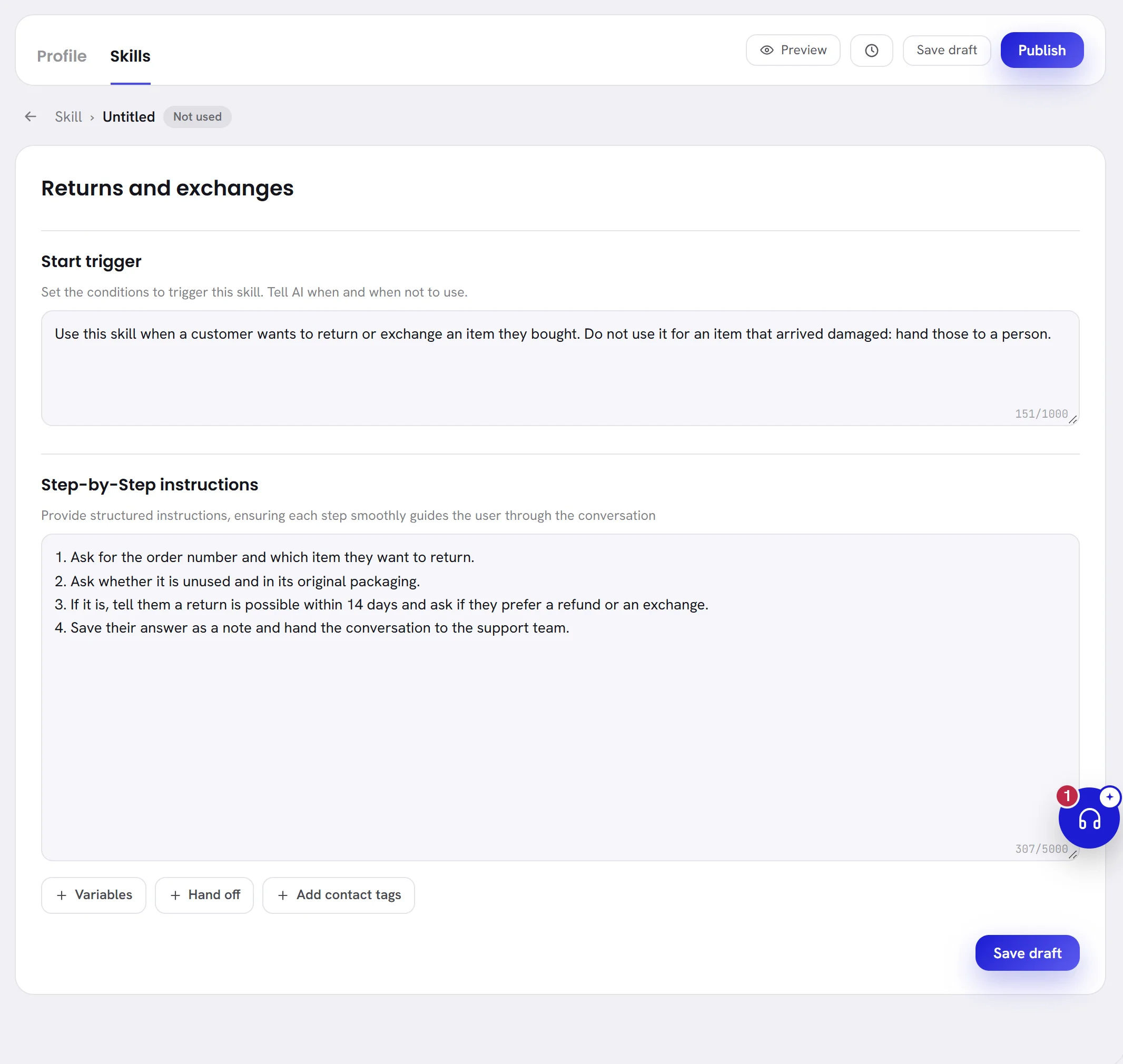
Choose Save draft, at the top of the page or under the skill.
The page says Skill saved. A new skill is switched on from the start. On the live agent, choose Publish when customers should get it.
The start trigger and the steps are both needed. Without one of them the skill is not saved, and the page says Please enter a start trigger or Please enter step-by-step instructions.
Write a skill that works
- One situation for each skill. Two situations are two skills.
- Make the start trigger exact, and say when not to use the skill, so that two skills do not fit the same conversation.
- Number the steps, and keep each one to one thing: ask, say, save, hand over.
- End with what closes the situation: hand the conversation to a team, add a tag, or close it.
- Leave the facts in the knowledge. A step can say “tell them the delivery fee”; the fee itself belongs on Knowledge.
- A step can only use an action that is switched on. Handing over needs Escalate to human agents, a tag needs Add contact tags, saving needs Update contact attributes, all on the Profile.
- Try it in the preview with the words a customer would use. See Test your agent.
The list of skills
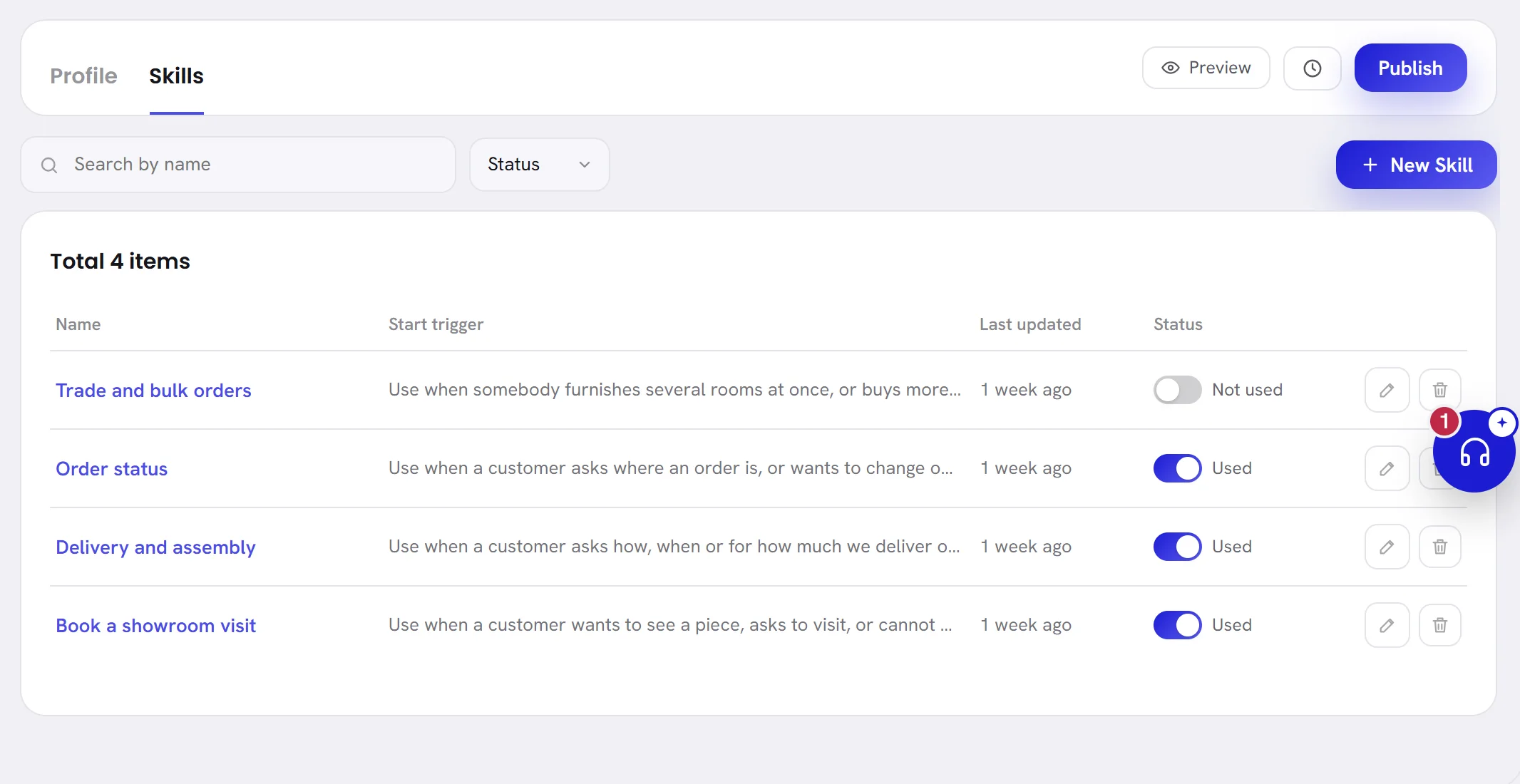
| On the screen | What it does |
|---|---|
| Search by name | Type part of a title or of a start trigger and press Enter. |
| Status | Shows only the skills that are Used, or only those that are Not used. |
| New Skill | Opens a blank skill. |
| Name | The skill’s title. Click it to open the skill. |
| Start trigger | The beginning of its start trigger. |
| Last updated | How long ago the skill last changed. Point at it for the date and the time. |
| Used | The switch is on: the agent follows the skill. |
| Not used | The switch is off: the skill stays on the list and out of every reply. |
| Edit | The pencil: opens the skill. |
| Delete | The bin: deletes the skill, after you confirm. |
The total is at the top of the list. The skill that changed last comes first, and the list shows 20 skills a page.
Change, switch off or delete a skill
To change a skill, open it from the list, edit it, and choose Save draft.
The arrow and Skill at the top lead back to the list.
To stop the agent using a skill without deleting it, click its switch in the Status column.
The page confirms it, for example The agent no longer uses “Order status”. Click the switch again to put it back.
To delete a skill, choose the bin on its row, or Delete this skill under the open skill.
The app asks you to confirm, naming the skill.
Good to know
- An agent can have up to 30 skills. Past that, a new one is refused: At most 30 skills.
- Admins and managers can write skills. Other members need access to the AI agent: see Roles and access.
- The preview follows your skills as they are saved now, before you publish.
- Duplicating an agent does not copy its skills.
Questions
Does the customer see that a skill is being used?
No. A skill only shapes what the agent asks and says. Its title and its text are never sent.
Two skills fit the same message. Which one is used?
The agent picks one, and you cannot rank them. Write each start trigger so that only one fits, and say in it when not to use the skill.
Can a skill make the agent do something its profile does not allow?
No. An action that is switched off stays off, the rules it always keeps still apply, and a figure still has to be in its knowledge.