Search the inbox by name or number
Open Inbox.
Type in Search a name or a number, above the list.
The list narrows as you type. It keeps its groups, so you still see who holds each conversation.
Any part of the contact’s name works. For a number, type its digits in a row, as they are written at the top of a conversation, with no spaces.
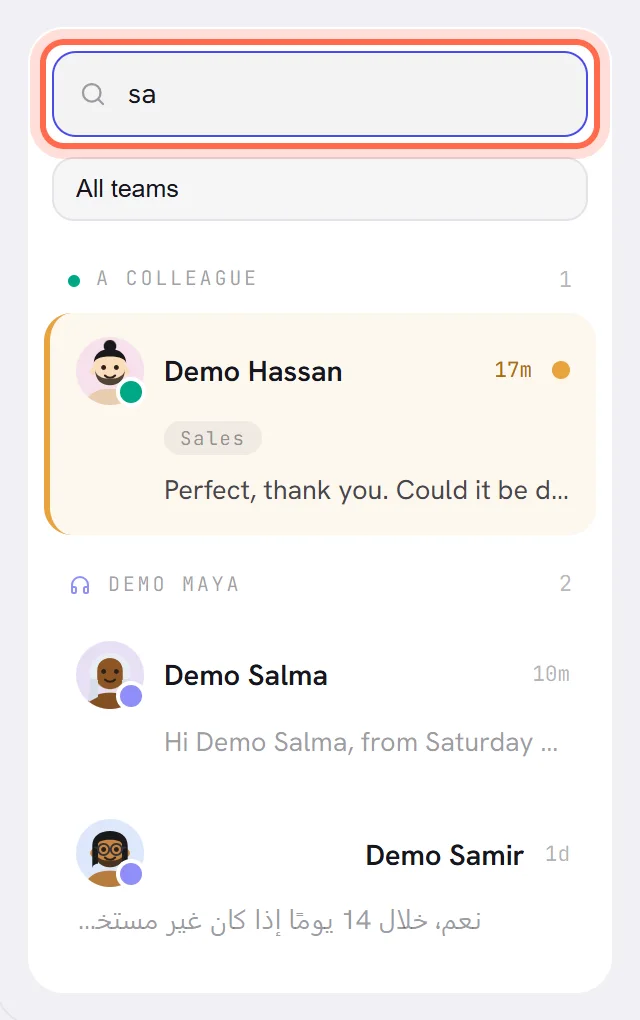
Select the conversation.
It opens, and the list goes back to showing every conversation.
- The search looks through every conversation you are allowed to see, including the older ones the list leaves out.
- It looks at the contact’s name and number. It does not look inside messages.
- It looks in every team: a search puts the team menu back to All teams.
- When nothing fits, the list says No conversation matches that name or number. Clear the box to see everything again.
Show one team’s conversations
Once your workspace has a team, a menu under the search box shows All teams.
Choose a team in the menu.
The list keeps only the conversations that belong to that team, whoever holds them: on the team’s queue, yours, a colleague’s, or the agent’s.
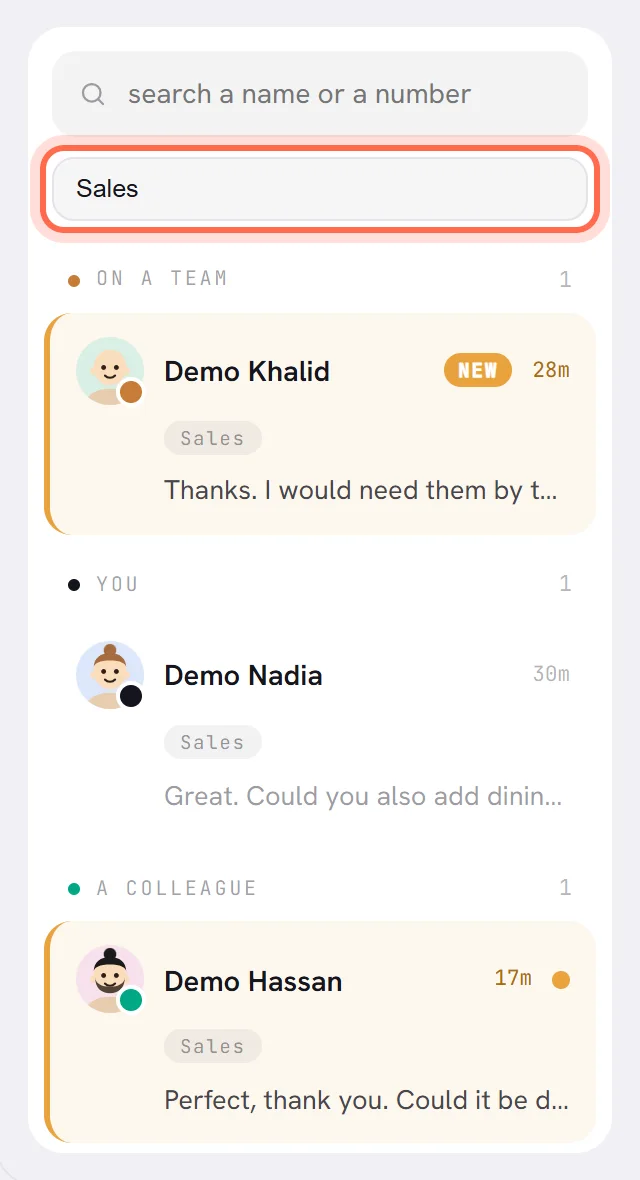
Choose All teams to see everything again.
Opening a conversation also puts the list back to every team.
A conversation is put on a team by the agent when it hands over, or by a person from the top of the conversation. See Assign and hand over.
How the list is ordered
There is no sort menu. The groups always come in the same order, from what needs a person to what does not:
| Place | Group | What is in it |
|---|---|---|
| First | Waiting | Handed to a person, taken by nobody. |
| Second | On a team | On a team’s queue. |
| Third | You | Assigned to you. |
| Fourth | A colleague | Assigned to somebody else. |
| Last | The name of your AI agent | The agent is answering. |
Inside each group, the conversation with the most recent message is first. A campaign or a workflow sending a template does not move a conversation up.
Rows on an amber background are what is new for you: New on a conversation you have never opened, an amber dot where the customer has written since you last looked. See Inbox overview.
The list has no pages. It shows the 150 conversations with the most recent messages, and says at its foot how many older ones are left out. The search reaches those.
Open a conversation from another screen
| From | How |
|---|---|
| The bell | A line about a conversation opens that conversation. See Notifications. |
| AI Agent, an agent’s Performance | The agent’s recent turns are listed with the contact’s name. Select one to open its conversation. |
| AI Agent, an agent’s Recommendation | Each question the agent could not answer has the link Open the conversation. |
| AI usage | The conversations that used the most are listed. Select one to open it. |
In each case the conversation opens only if you are allowed to see it.
Search the whole workspace
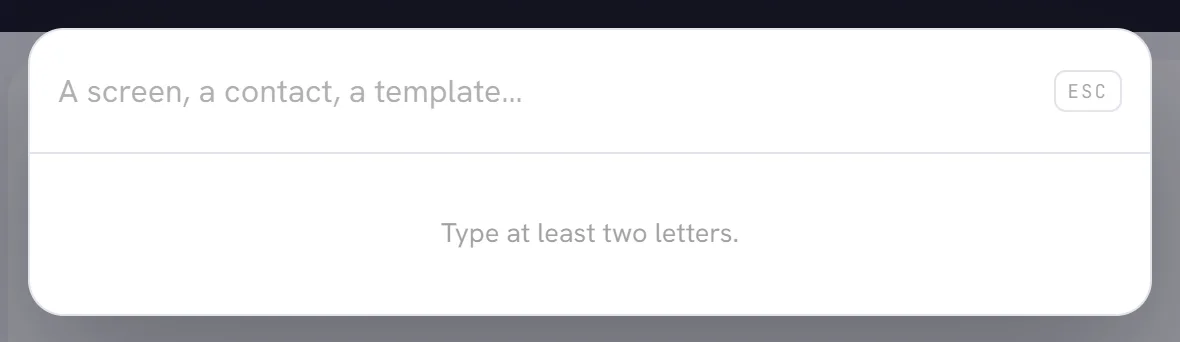
One search box works from every screen. It finds screens and things by their name. It does not search conversations or messages.
Select Search at the foot of the menu, or press Ctrl+K (⌘K on a Mac).
Type at least two letters.
Results come as you type, grouped by what they are, up to five of each. The arrow keys move through them, Enter opens the one picked, and Esc closes the box.
| Group | What it finds | Selecting a result opens |
|---|---|---|
| Screens | The screens in your menu, by name. | That screen. |
| Contacts | Contacts by name or by number. A number can be typed with spaces or dashes. | The contact on Contacts, ready to edit. Not their conversation. |
| Templates, Campaigns, Segments, Workflows | Each by its name. | That template, campaign, segment or workflow. |
| Knowledge | What your agents know, by name: a document, a page, a question. | The agent’s knowledge, searched for it. |
| AI Agent | Your agents, by name. | That agent. |
You are only offered what you can open. When nothing fits, the box says Nothing matched that.
Find an older message in a conversation
A conversation opens with its 50 most recent messages. When it holds more, select the link above them, such as Show 120 earlier messages, to load the whole conversation, then scroll up. There is no search inside a conversation: your browser’s own find, Ctrl+F, works on what is loaded.
Good to know
- You find only what you are allowed to see. Without Everyone’s conversations in your access, a colleague’s conversations and another team’s queue are not in your list or your search. See Roles and access.
- A contact has one conversation, so a name or a number leads to one row.
- A contact you added or imported who has never written, and was never sent a template, has no conversation yet.