What a variable is
A variable is a gap in a template that is filled in for each person when the message is sent. It is written between double braces: {{name}}, or {{1}}. In “Hi {{name}}, your order is ready”, every customer reads their own name.
The body can have several variables, the header one, the footer none. You write them in step 2 of the window that creates a template: see Create a template.
Add a variable
Choose how variables are written, under Type of variable.
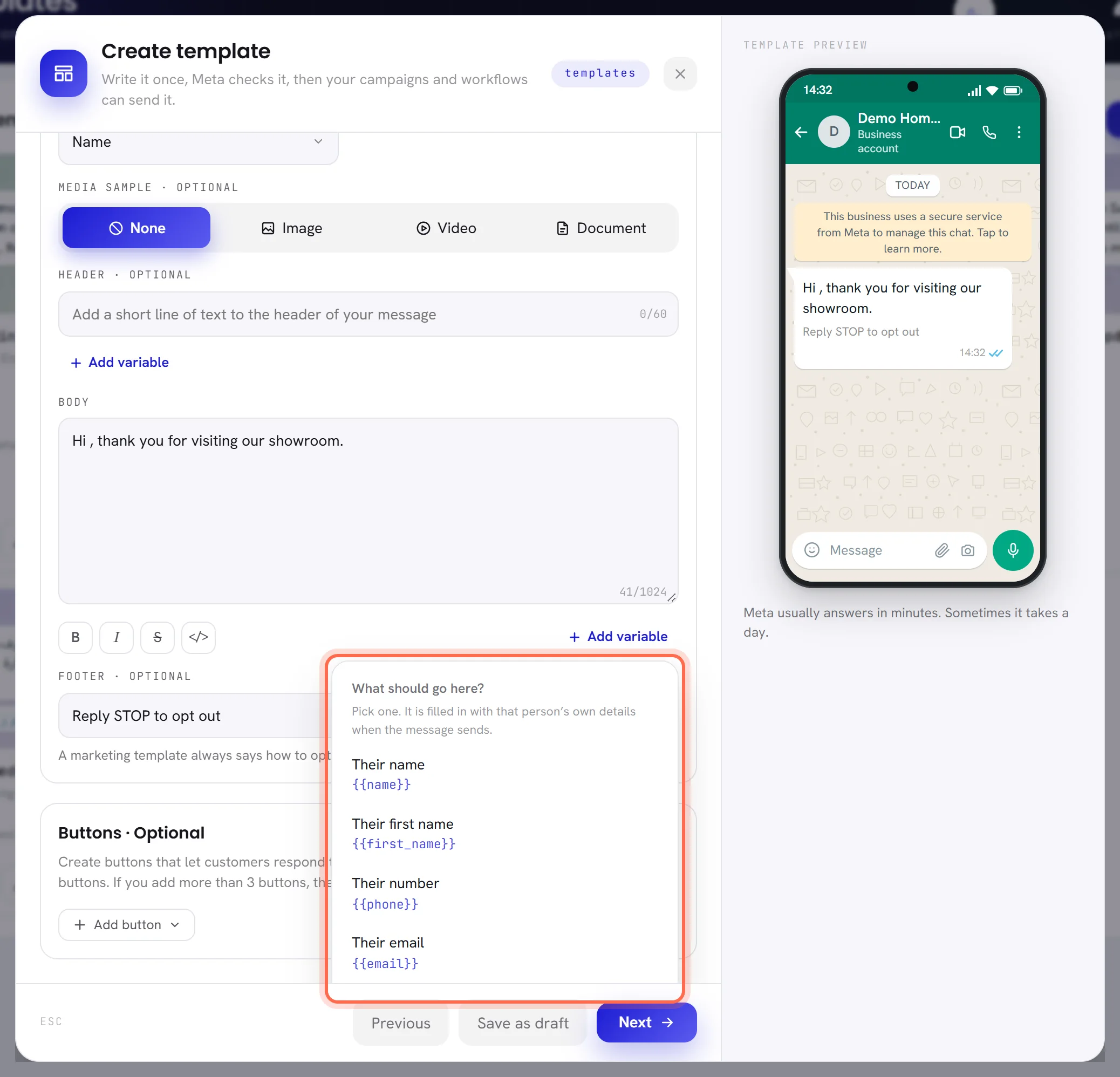
Name writes a word that says what the gap is for, such as
{{name}}. Number writes Meta’s numbered form,{{1}},{{2}}. Both work the same when the message is sent; names are easier to read.Click in the body where the variable goes, then click Add variable under it.
With Name, a list opens under What should go here?. Pick a line and it is typed where your cursor is. With Number, the next number is typed at once.
Give a sample for it under Variable samples.
See Samples below.
| On the screen | What it does |
|---|---|
| Their name | Writes {{name}}. |
| Their first name | Writes {{first_name}}. |
| Their number | Writes {{phone}}. |
| Their email | Writes {{email}}. |
| The language they read | Writes {{locale}}. |
- Under those five, the list has one line for each custom field your contacts carry, such as a
Budgetcolumn you imported, written as{{budget}}. - You can also type a variable yourself: two opening braces, a name made of letters, digits and underscores, two closing braces.
{{order_number}}is a variable. - A name used twice in the body is one variable: it is filled with the same value in both places.
- The header takes one variable. Once it has one, the Add variable under the header does nothing more.
- A variable’s name only says what the gap is for. What goes into it is chosen when the template is sent: see How variables are filled.
Samples
Meta’s reviewer reads the finished sentence, not the gaps. So every variable needs a sample: an example of what will be in it.
- As soon as the header or the body has a variable, a box for it appears under Variable samples. A named variable is labelled in words with its variable beside it; a numbered one asks you to enter content for it. Remove the variable and its box goes.
- Type a realistic example, up to 120 characters: a first name, an order number, a date. Do not use a real customer’s details.
- The phone on the right shows your samples in the message, and so do the cards of the Templates screen.
- A template cannot go to Meta without a sample for every variable. A draft can be saved without them.
What the app checks
Meta rejects a template for a handful of faults in its variables. The app refuses them when you save, with a sentence at the top of the window. These sentences call a variable a placeholder, and are shown in English.
| The window says | The rule |
|---|---|
The body cannot be empty. | A template needs a body. |
The body cannot begin with a placeholder. | Put at least a word before the first variable: “Hi {{name}},” and not “{{name}}, hi”. |
The body cannot end with a placeholder. | Put at least a word, or a full stop, after the last variable. |
Two placeholders cannot sit next to each other. | Put a word between two variables. |
There is too little text around the placeholders for Meta to review. | The body needs at least three words of ordinary text for each variable it has. |
A placeholder is not closed properly. | A brace is missing: every variable opens with two braces and closes with two. |
| A sentence saying that a placeholder may use letters, digits and underscores only | A variable’s name has a space, a dash or another sign in it. Rename it. |
The body is longer than the 1024 characters Meta allows. | Shorten the body. |
The app also holds each box to Meta’s length: 60 characters for the header and for the footer, 1,024 for the body, 120 for a sample. A counter in the header, the body and the footer shows how much is used.
How variables are filled when the template is sent
The values are given where the template is sent from: in a campaign and in a workflow’s step Send templates, under Fill in the blanks. Each variable of the body has a box there.
- Pick a contact field from the box’s list, and every person receives their own: their name, their first name, their number, their email, their language, or one of your custom fields.
- Or type words, and everybody receives the same: a date, an address, the name of an offer.
- A contact who has no value for a field you picked, for example no name, is not sent a message with a hole in it. They are skipped, and the campaign’s results say which value was missing.
See Create a campaign and Workflow steps for the screens themselves.
Buttons
A template can carry up to 10 buttons under its message. A phone shows up to three; with more, it shows the first two and See all options, which opens the list.
In step 2, under Buttons, click Add button.
A menu opens with the four kinds of button. A kind is greyed out once the template has as many of it as Meta allows.
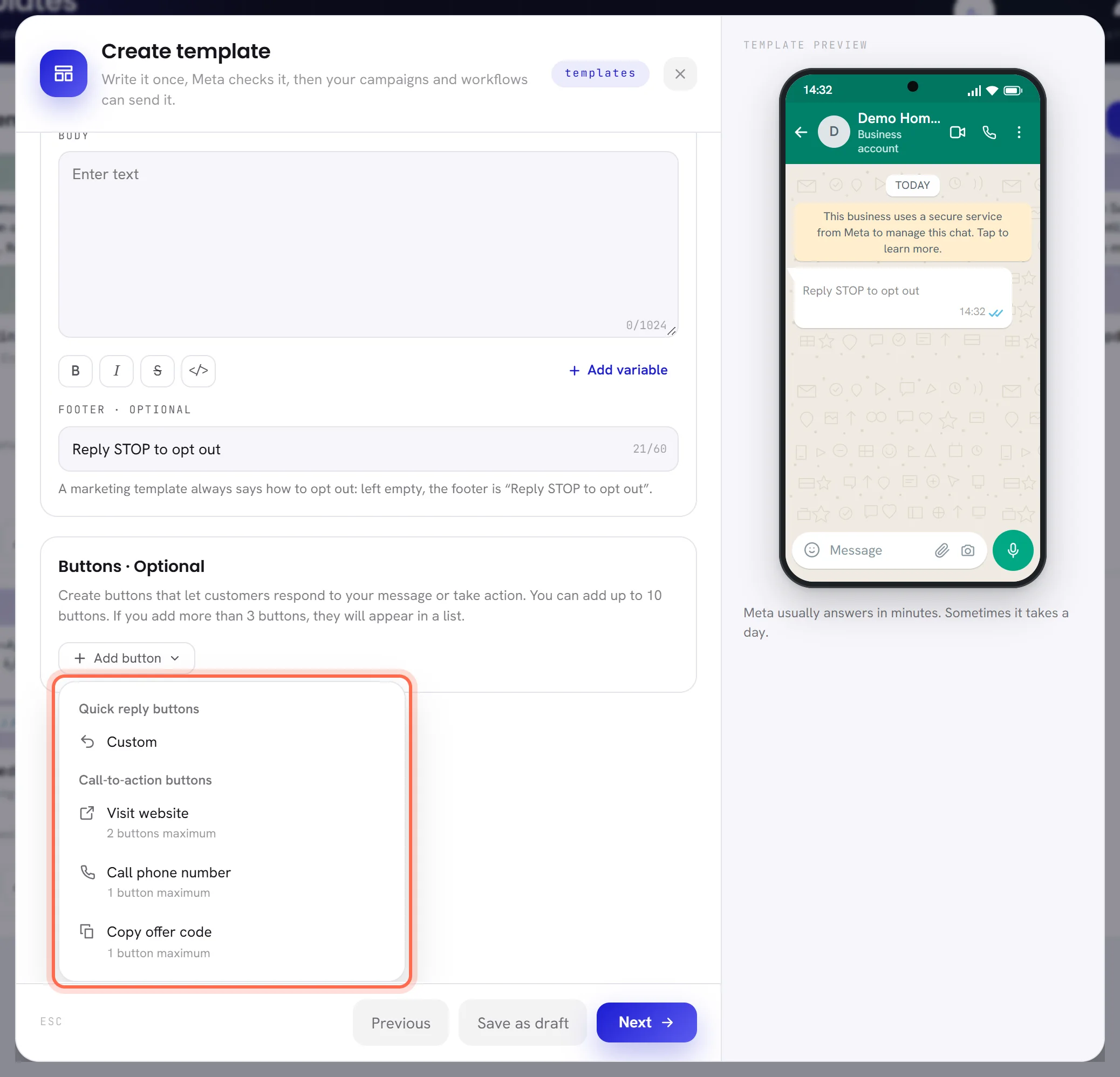
Choose a kind, then fill in its boxes.
Quick replies are always listed first, then the calls to action: Meta refuses them mixed. The preview shows each button as you type.
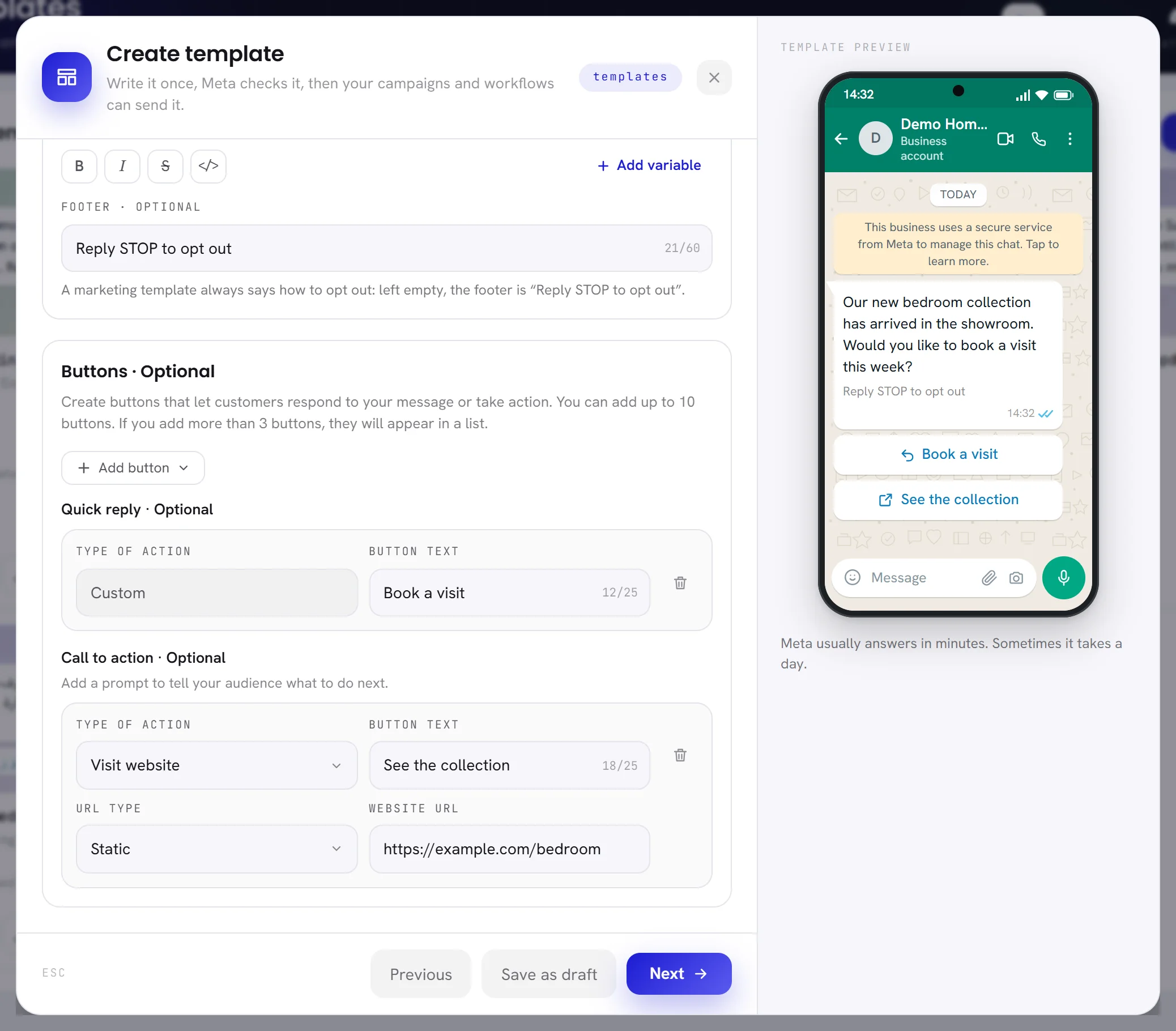
To take a button away, click the bin at the end of its row.
| On the screen | What it does |
|---|---|
| Custom | A quick reply button. Button text is up to 25 characters. When a customer taps it, its text comes back to you as their message, and the conversation goes on from there. Up to 10. |
| Visit website | Opens a link. Button text is up to 25 characters. Website URL is the address, starting with https://. URL type is Static for a link that is the same for everybody, or Dynamic for a link that ends with a variable, shown as {{1}} after the address; a dynamic link also needs a Sample URL, the whole link as it would really be. Read the warning above before you choose Dynamic. Up to 2. |
| Call phone number | Calls a number. Button text is up to 20 characters. Choose the Country and type the Phone number; the country starts on your own number’s. A number typed with + chooses its country by itself. One only. |
| Copy offer code | Copies a code to the customer’s phone. The words on the button are Meta’s and cannot be changed. Offer code is the code Meta reviews the template with, up to 15 characters. Read the warning above before you use this button. One only. |
| Type of action | On a call-to-action button, changes its kind. |
| Remove button | The bin at the end of a row. |
- Two buttons cannot have the same text. The window says so under the second one as you type.
- A button left half filled stops Next: finish it or remove it.
- An Authentication template has one button only, the one that copies the code.
Questions
Does a variable called {{name}} fill in the contact’s name by itself?
No. Its name is a label for you. In the campaign or the workflow you choose what goes into it, under Fill in the blanks.
Can I put a variable in the footer or in a button’s text?
No. Variables go in the body, one in the header, and one at the end of a Dynamic link.
Can I use bold or italics in a template?
Yes, in the body. Select the words and press Bold, Italic, Strikethrough or Monospace under the box. The preview shows the result.
What happens when a customer taps a quick reply?
Its text arrives in the Inbox as a message from them. Your AI agent or your team answers it like any other, and because the customer wrote, you can reply freely for 24 hours.