Sign in
Type your Work email and your Password.
If a colleague added you to the workspace, both are in the email you received when they did.
Tick Keep me signed in if this is your own device.
What it does is described just below.
Press Sign in.
You arrive on the page you were trying to open, or on the Dashboard. While your workspace’s onboarding checklist has steps you can do, you arrive there instead.
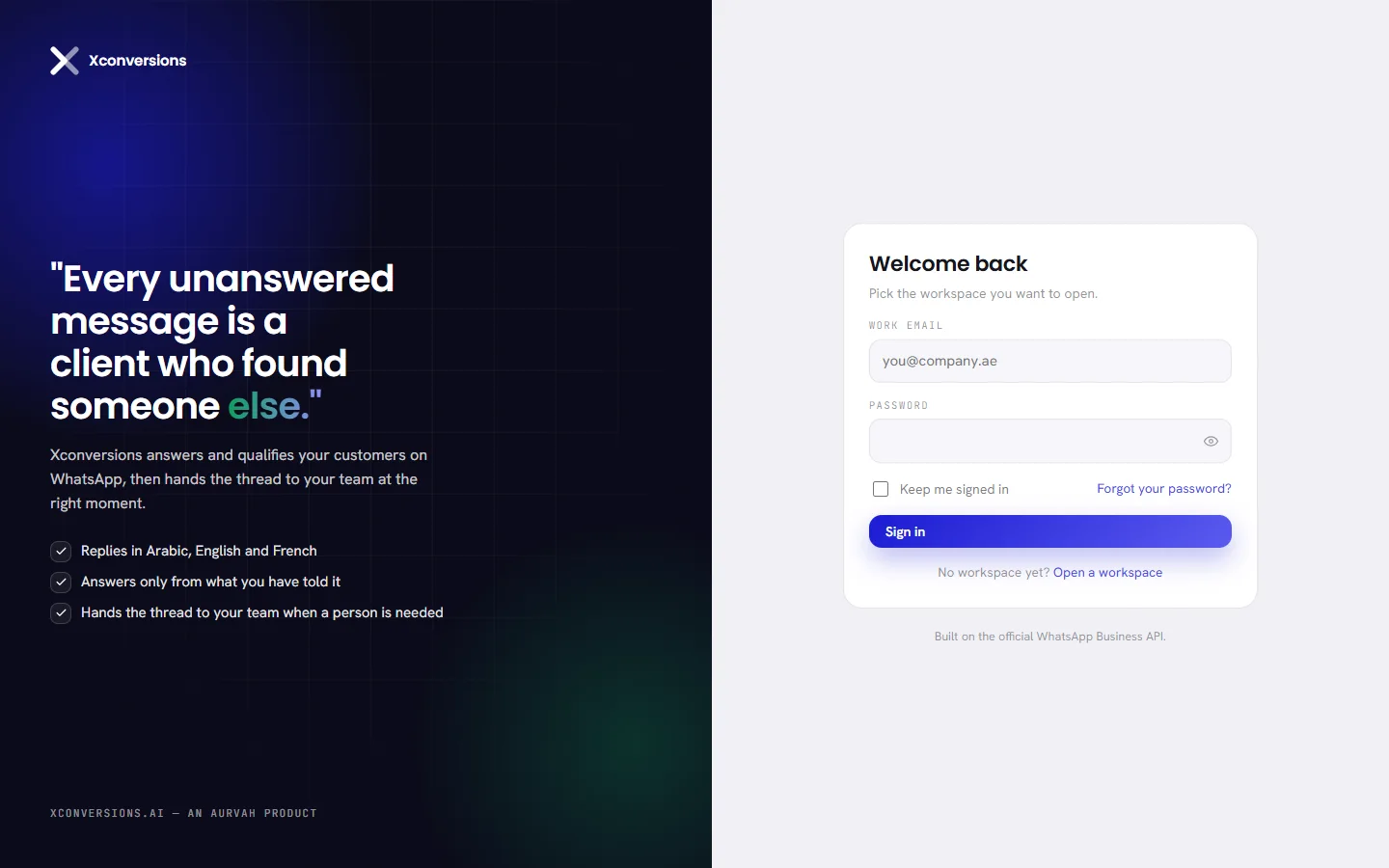
| On the screen | What it does |
|---|---|
| Work email | The address of your account. |
| Password | Your password. The eye at the end of the box, Show password, shows what you typed. |
| Keep me signed in | Keeps you signed in on this browser after you close it. |
| Forgot your password? | Opens the page that sends you a link to choose a new one. |
| Sign in | Checks the two and opens your workspace. |
| Open a workspace | For a business with no workspace yet: opens the sign-up page. See Create your account. |
If the address or the password is wrong, the form says “Those details do not match an account.” It says the same for both, on purpose: it never tells anybody which addresses have an account. After five wrong tries in a row it asks you to wait before the next one, a minute at most.
How long you stay signed in
- Without Keep me signed in, you are signed out when you close the browser, or after two hours without using the app.
- With it, that browser remembers you until you sign out there, or until every other session is signed out from Settings.
If you forgot your password
On the sign-in page, press Forgot your password?
The page Reset your password opens.
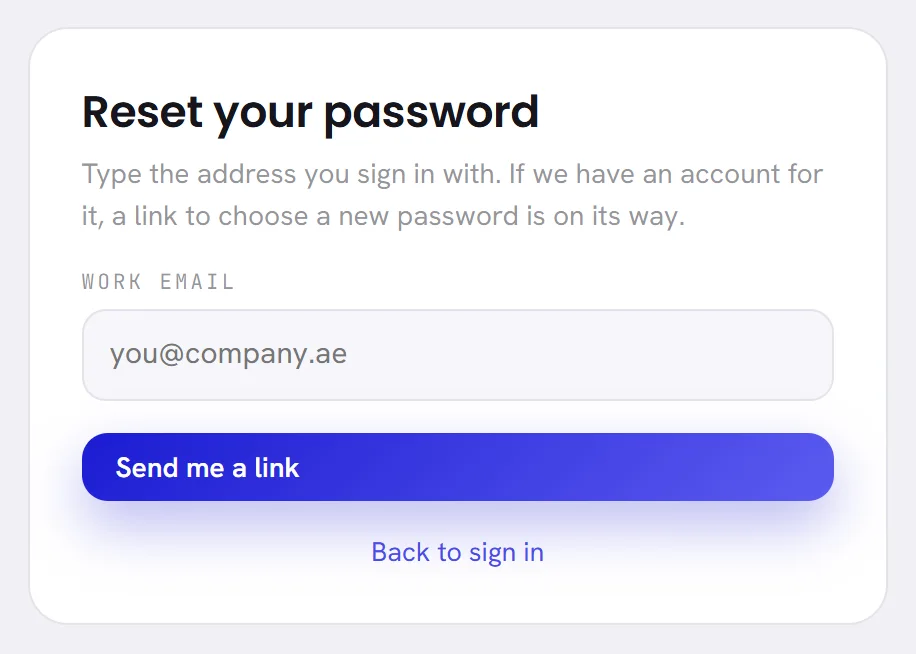
Type the address you sign in with and press Send me a link.
The page answers If that address has an account, a link is on its way. It works once and lasts an hour. It answers the same whether or not the address has an account.
Open the email and press Choose a new password.
The email’s subject is the same words.
Type your new password in New password and again in Type it again.
The rule is under the first box: At least 10 characters, and not one that has turned up in a known breach. The line turns green once the password is long enough.
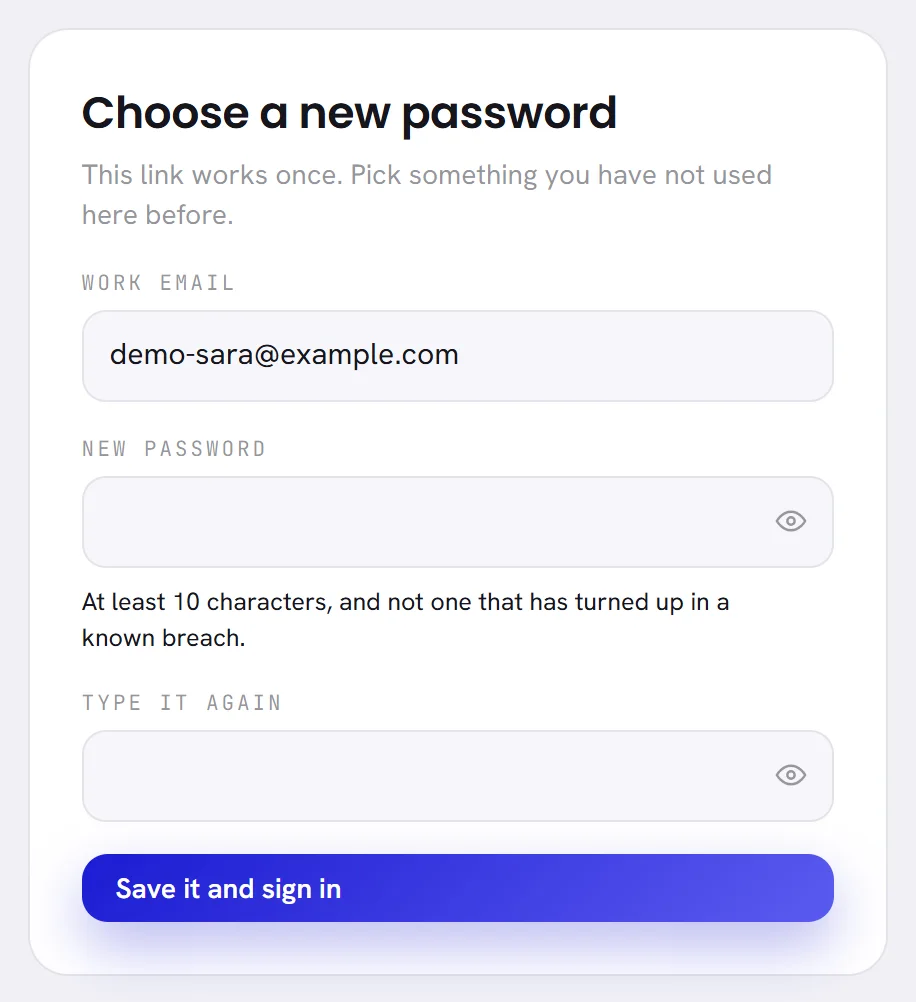
Press Save it and sign in.
You are back on the sign-in page, which says That is set. Sign in with your new password.
- The link works once and lasts an hour. After that the page says That link has expired or has already been used. Ask for a new one.
- One link is sent to an address each minute. If you ask again sooner, the page gives the same answer and nothing more is sent.
- A new password ends Keep me signed in on every browser that had it. A browser that is open on your account at that moment stays open: to close those too, see Signed in on several devices.
If you know your password and want another, change it in Settings, under Security → Change password. See Security settings.
The two-factor check
If you have turned on two-factor, signing in has a second step: a six-digit code from the authenticator app on your phone. It is asked once each time you sign in on a browser.
Sign in with your email and password.
The page One more thing opens and asks for The six digits your authenticator is showing.
Type the six digits your app shows now.
The code is sent as soon as the sixth digit is in. Continue does the same.
| On the screen | What it does |
|---|---|
| Use a recovery code instead | For when your phone is not with you. It swaps the six boxes for one, where you type one of the recovery codes you were given when you set two-factor up. Each code works once. |
| Continue | Sends the code. |
| Sign out instead | Leaves without finishing the sign-in. |
A wrong code is answered with That code is not right. Check the clock on your phone, then try the one showing now. After five wrong codes in a row you wait before the next try, a minute at most.
If your role is required to use two-factor and you have not set it up, signing in takes you to Set up two-factor before anything else opens. Setting it up, turning it off and making new recovery codes are in Security settings.
Sign out
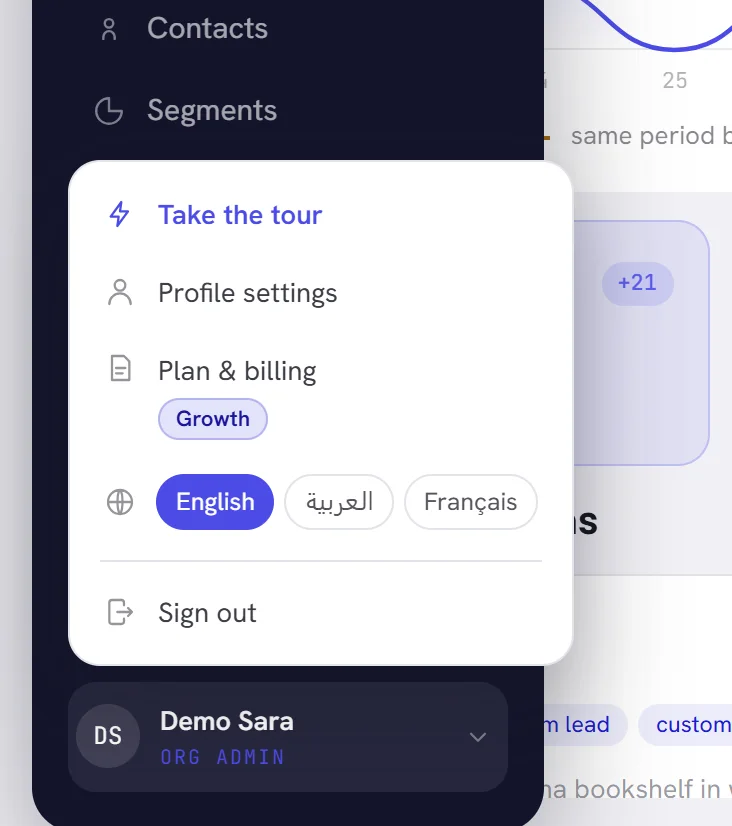
Open your account menu: the button with your name at the foot of the menu.
Press Sign out.
You are signed out on this browser only, and back on the sign-in page.
Signed in on several devices
You can be signed in on several browsers and devices at once, for example a computer at the office and your phone. Each has its own session, and signing out on one leaves the others open.
- In Settings, Security lists every browser your account is signed in on, under Where you are signed in.
- From there you can sign every other session out at once, after typing your password: Sign the other session out. Use it when a device is lost, or when you think somebody else has your password, and then change the password.
- In Settings, Profile shows your Last sign-in, so you can tell whether the one before this was you.
Security settings describes that screen.
Questions
The reset email does not arrive.
Look in your spam folder, and check that you typed the address you sign in with: the page gives the same answer for an address with no account, and sends nothing. Wait a minute before asking again. If it still does not come, write to our support.
A colleague added me. Where is my password?
In the email you received when they added you. It was made for you: change it once you are in, in Settings under Security.
Can I use one address in two workspaces?
No. An address is one account, and an account works in one workspace.
Can two people share one account?
They can sign in at the same time, but everything they do is recorded under one name. Add each person from the Team screen instead: see Add a team member.
I lost my phone and my recovery codes.
Write to our support from the address of your account. Without the phone or a recovery code, the second step can only be reset from our side.