The list of connected numbers
Open Channels, under Setup in the menu. Connected numbers lists every WhatsApp number of your workspace, the newest first, with their count on the right. Each number has a card that answers three questions: can it receive, can it send, and who answers.
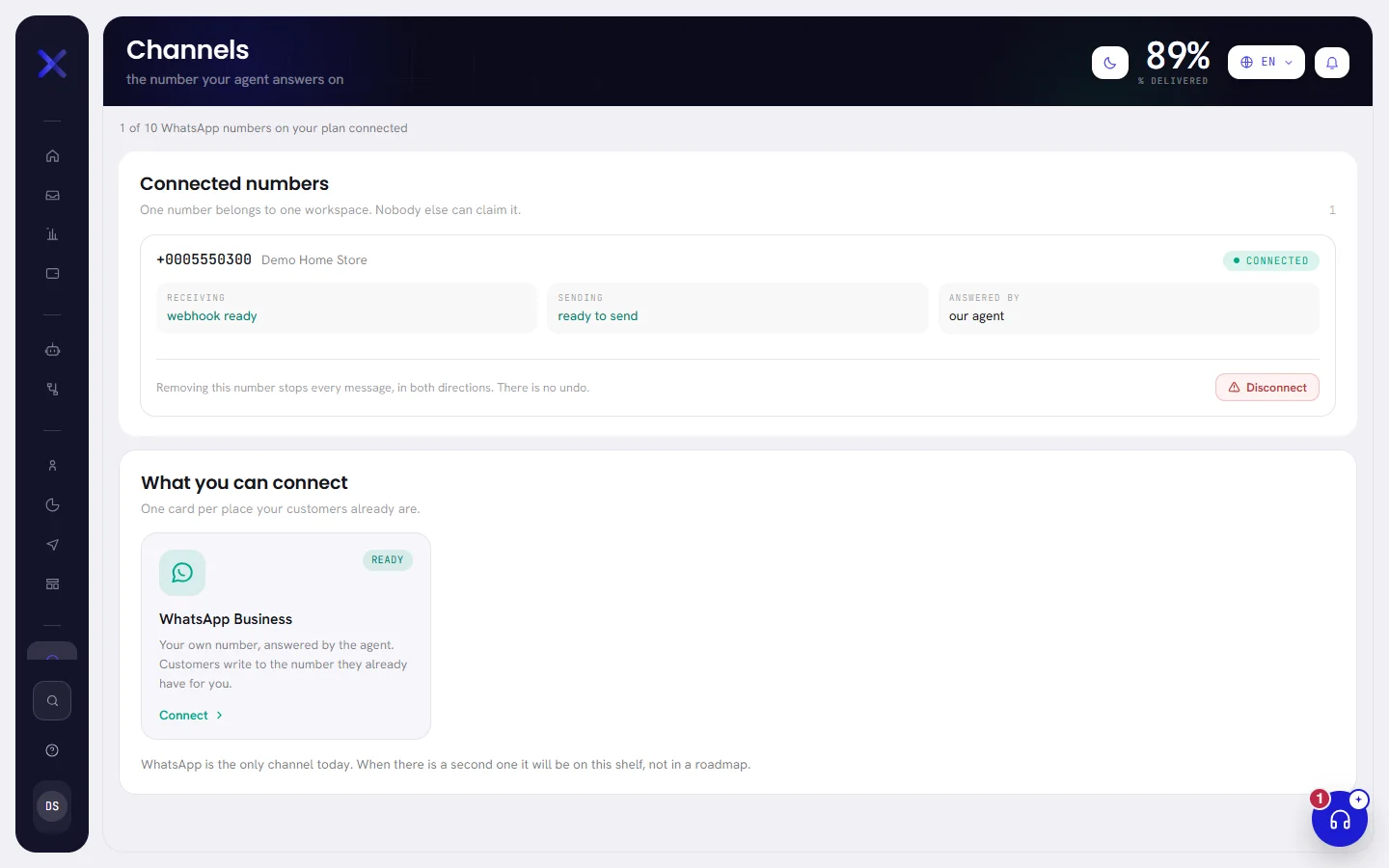
Under the list, What you can connect is where another number is added: see Connect a WhatsApp number. If the list reads No numbers connected yet., start there.
What a number’s card shows
The first line of a card gives the number, the name customers see on WhatsApp once Meta has passed it on, and the status with its coloured dot. Under it are three lines, then anything the number is waiting for, and the way to disconnect it.

| On the screen | What it does |
|---|---|
| Receiving | webhook ready: the connection WhatsApp delivers this number’s messages through is in place. This line reads the same for every number. Whether the number works is said by its status and by Sending. |
| Sending | Whether a message can go out from this number, and if not, the one reason that matters. The values are listed under this table. |
| Answered by | our agent: the AI agent you set up in xconversions answers on this number, and your team takes over from it in the inbox. |
| Also answered from the phone | Shown on a number that stays on the WhatsApp Business app. See A number shared with the phone. |
| Disconnect | Removes the number from your workspace, for good. See Disconnect a number. |
| Sending says | What it means |
|---|---|
| ready to send | The number is connected. Messages go out. |
| not ready yet | WhatsApp has not finished setting the number up. It changes by itself. |
| waiting for a payment method | Meta has no card it can charge for this number’s messages. The panel under the three lines says what to do: see Add a payment method at Meta. |
| Access ended: reconnect it | The number’s WhatsApp access has ended. Nothing sends until it is reconnected: see Reconnect a number. |
| refused by WhatsApp | WhatsApp will not let this number send. Its status is Needs attention. |
| disconnected | The number is no longer connected. |
What each status means
| Status | What it means | What to do |
|---|---|---|
| Connected | The number sends and receives. | Nothing. |
| Pending | The number is in your workspace and WhatsApp has not reported it working yet. | Wait: it turns to Connected by itself. If it has not after a day, write to us. |
| Registering | A payment method has arrived and xconversions is registering the number with WhatsApp. | Wait a few minutes. |
| Needs a card | The number is connected and cannot send: the WhatsApp Business Account behind it has no payment method. | Add a payment method at Meta. |
| Payment problem | The number was working, and WhatsApp could not charge the account. Sending from this number is on hold: what was queued waits. | Fix the card: Add a payment method at Meta. |
| Disconnected | The number was taken off the WhatsApp Business Platform, its account was deleted, or xconversions was removed from your business at Meta. Nothing is sent or received. | Connect it again: Reconnect a number. |
| Needs attention | WhatsApp refused the number: its registration failed, or Meta has banned or disabled the number or its account. Waiting does not change it. | When a number has a problem. |
A number Meta has restricted or rated low stays Connected: a restriction limits what a number may do without taking it away. The card does not show the quality rating or the messaging limit. They are in WhatsApp Manager, and Messaging limits and quality explains them.
While your only number is not live, a banner at the top of every screen says so: Your number is with Meta while it is being set up, Your number needs attention when WhatsApp refused it. Track status on the banner opens this screen.
How many numbers you can have
As many as your business has, unless your plan sets a limit. Plan & billing, in Settings, says how many are connected and whether your plan has one.
When your plan sets a limit, a line above the list says how many of your plan’s WhatsApp numbers are connected. A number holds its place until it is disconnected: one that is still being set up counts, one whose status is Disconnected does not.
When all are in use, the line becomes a notice: The numbers you have stay connected. No other can be connected until your plan has room: upgrade it for more numbers. Nothing is taken away. Whoever manages the account sees Upgrade beside it, which opens Plan & billing in Settings. See Plan limits.
With several numbers, a customer is answered from the number they wrote to, and each campaign and each workflow is given the number it sends from.
Disconnect a number
On the number’s card, press Disconnect.
It is at the foot of the card, apart from everything else, beside the sentence Removing this number stops every message, in both directions. There is no undo.

Read what is gone and what is kept.
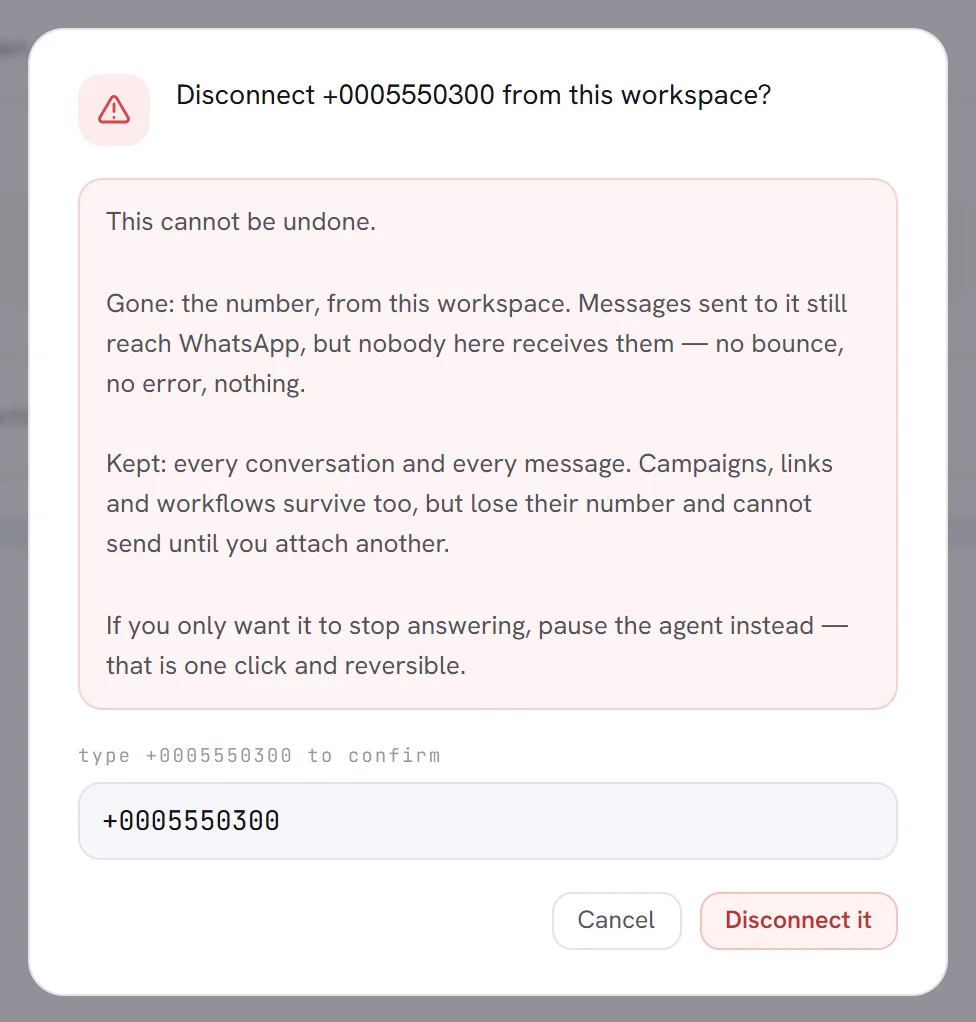
A pop-up asks Disconnect +0005550300 from this workspace? and spells it out.
Type the number in the box type +0005550300 to confirm.
Type it exactly as it is written, with the plus sign. Disconnect it works only once it matches. Cancel closes the pop-up and changes nothing.
Press Disconnect it.
The number leaves the list.
| Gone | Kept |
|---|---|
| The number, from this workspace. Messages sent to it still reach WhatsApp, and nobody here receives them: no bounce, no error. | Every conversation and every message. |
| Its place on your plan is free again, when your plan sets a limit on numbers. | Campaigns and workflows. They lose their number, and cannot send until you give them another. |
Disconnecting here tells Meta nothing: the number stays on your WhatsApp Business Account at Meta. You can connect it to the workspace again later, the same way as the first time.
Everything on the screen
| On the screen | What it does |
|---|---|
| % delivered | At the top of the screen: of every message your workspace has sent, the share that reached the customer’s phone. A dash until something has been sent. |
| Connected numbers | The list, with the count of numbers on the right. |
| Receiving | Whether WhatsApp can deliver this number’s messages to xconversions. |
| Sending | Whether a message can go out from this number. |
| Answered by | Who answers customers on this number. |
| Open WhatsApp Manager | On a number waiting for a payment method: opens Meta’s payment settings in a new tab. |
| Help me do it | On a number waiting for a payment method: asks our team to walk you through it. |
| Reconnect | On a number whose WhatsApp access is ending or has ended: opens Meta’s window to renew it. |
| Disconnect | Removes the number from the workspace, after you type it to confirm. |
| What you can connect | The shelf of channels. It holds one card: WhatsApp is the only channel today. |
| WhatsApp Business | The card that opens the screen where a number is connected. Ready on it means the channel is available. |
| Upgrade | Shown when your plan sets a limit on numbers and has no room for another, to whoever manages the account. |
Good to know
- Who can open Channels: people with the Numbers and integrations access. An Org admin has it; others have it only if it was given to them. Without it, Channels is not in your menu: see Roles and access.
- The banners about a payment method or WhatsApp access are shown to everybody. People who cannot open Channels are told to ask a workspace admin.
- Connecting and disconnecting a number are written to the activity log.