Before you start
- Choosing a plan is for people whose access includes The workspace and billing. Everybody else sees the plans, and a line saying who can choose.
- Plans are paid by bank transfer. Nothing is paid on the screen.
- Our team activates your plan when the transfer arrives.
Choose a plan
Open Settings, then Plan & billing, and go to Plans.
On a free trial, Choose a plan in the first card takes you there.
Choose how you pay: Monthly or Yearly.
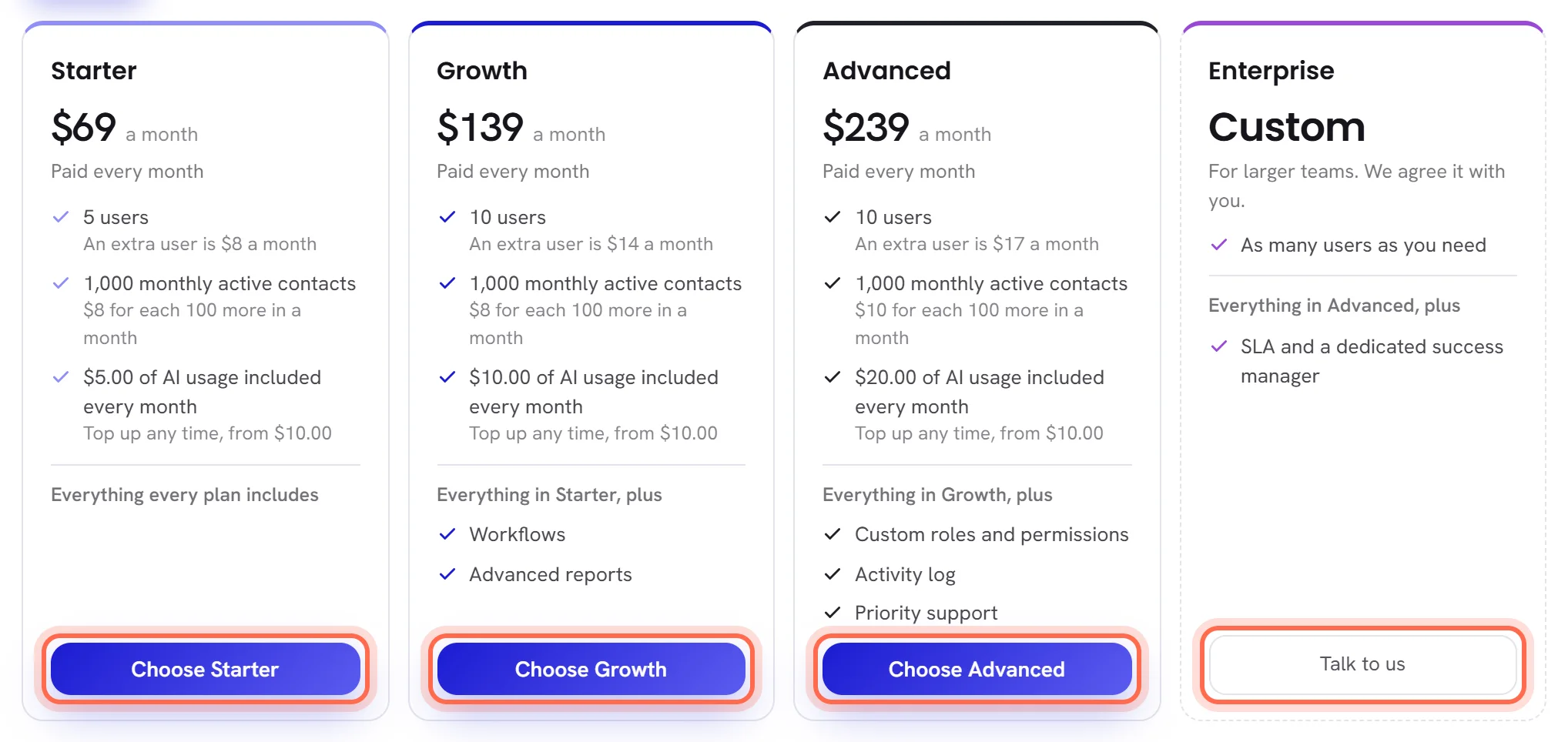
The cards show the price for the one you picked. With Yearly, a card gives the price a month and the amount paid once for the year.

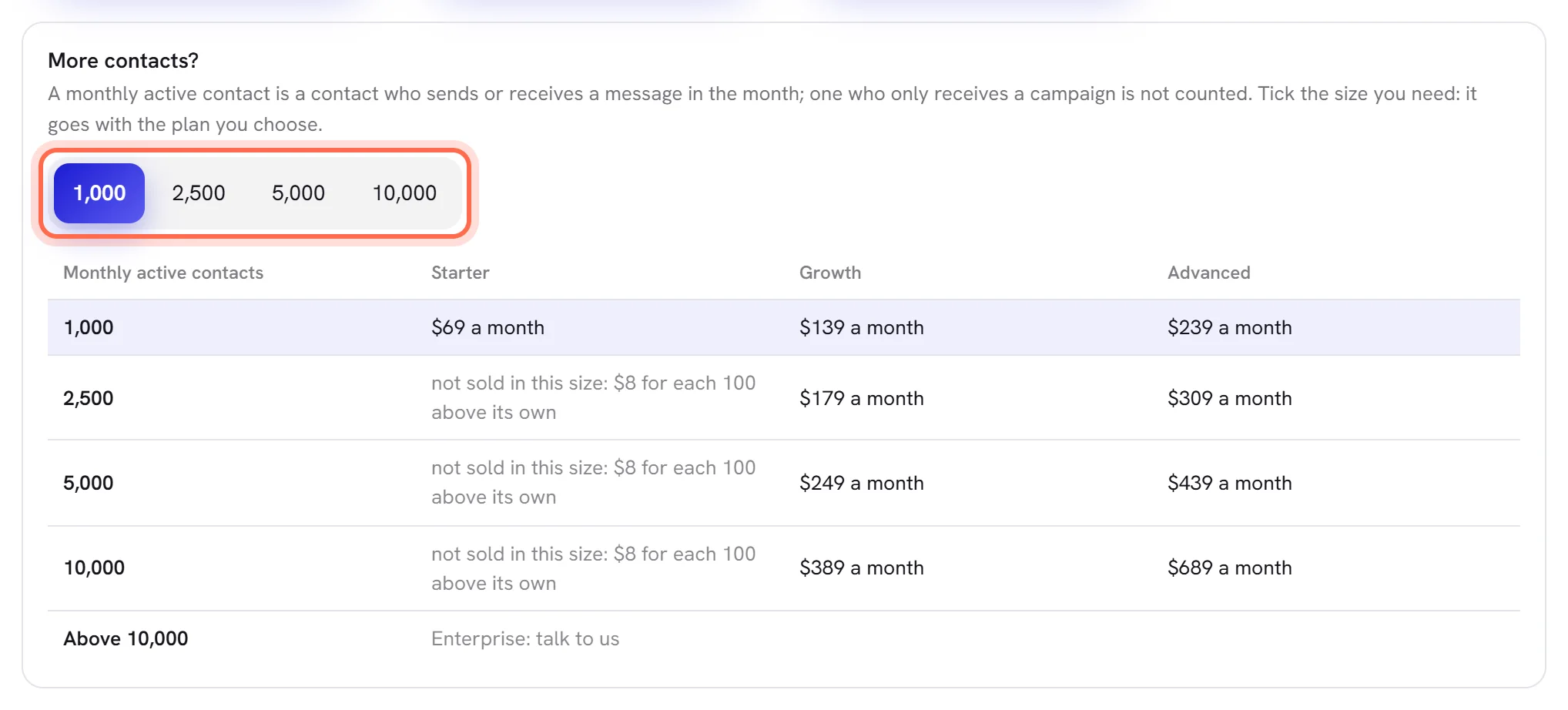
If you need more monthly active contacts than the plan comes with, tick a size under More contacts?.
The table gives each plan’s price at each size. A plan that is not sold in the size you ticked is asked for at its own size.
Press the button at the foot of the plan’s card.
It says Choose and the plan’s name.
Read the card that appears: the amount, the reference and our bank details.
A message, Plan requested, confirms the request. The card under it is headed with the plan you asked for.
Amount is one payment: a month, or the twelve months of a year. Reference is your workspace reference. Under them are our bank details, or a line asking you to write to us for them.
Transfer the amount from your bank, with the reference on the transfer.
We activate your plan when the transfer arrives, usually within one or two working days.
Until then, the button on that plan’s card says Requested, and during a free trial the banner says that your plan is requested.
One request waits at a time. To change your mind, press the button of another plan, or change the way of paying or the size and press again: the new request takes the place of the old one. To drop a request altogether, write to support.
When your plan is active
- The first card of Plan & billing shows the plan’s name, its Status and its Price.
- A workspace whose trial had ended opens at once.
- The limits become the plan’s: see Plan limits.
- The AI usage the plan includes for the month is added to your AI wallet, and you can top up from now on.
Change your plan later
Once you are on a plan, Plans is the last card of the tab. Your plan is marked Your plan and has no button. Choosing another takes the same steps: press its button, then transfer the amount shown, with your reference. Our team activates it.
The amount on the card is one payment of the plan you asked for. If you are part-way through a month or a year you have already paid, write to support before you transfer, so we agree what is due.
What happens to what the new plan does not include
Nothing you have is deleted or switched off when your plan changes.
| What you have | On a plan that does not include it |
|---|---|
| More people than the plan has users | Everybody stays. Nobody more can be added until there is room. |
| More WhatsApp numbers than the plan allows, when it sets a limit | They stay connected. No other can be connected until there is room. |
| Workflows | They stay as they are and keep running, and you can switch them off or delete them. Making one, changing one and switching one on need a plan with workflows. |
| Desk and campaign reports | The overview, delivery, replies and consent reports stay. The desk and campaign reports, and the download, need a plan with advanced reports. |
| A person’s own access | Everybody keeps the access they have. Changing it box by box needs a plan with it. |
| The activity log | Everything is still written down. Reading it and downloading it need a plan with it. |
| A language your agent speaks | This one applies at once: your agent no longer answers in a language the plan does not include. |
Add users to your plan
When users can be added to a plan, its card says what one more costs a month. To add one, write to support: we add it to your plan. Seats on Plan & billing then says how many were added to your plan’s own.
A plan that is agreed with us
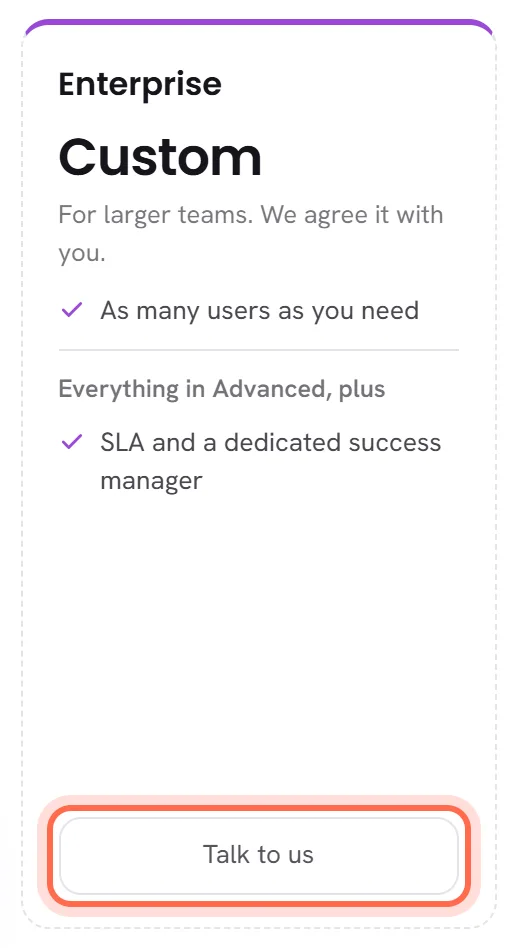
The last card has no price: it says Custom. Press Talk to us. There is nothing to transfer yet. Our team writes to you to agree what you need and what it costs, then activates the plan.
Questions
Can I pay by card?
Plans are paid by bank transfer for now.
Which reference do I put on the transfer?
Your workspace reference, on the card that appears after you ask. It is the same one as on the AI usage screen.
I asked for the wrong plan.
Press the button of the right one. The new request takes the place of the first.
Is asking for a plan written down anywhere?
Yes, in the activity log.