How limits work
A limit never takes away what you have. Only the next one is refused: the next person, the next number. The screen then says why in a banner, with the way to the plans for the people who can choose one.
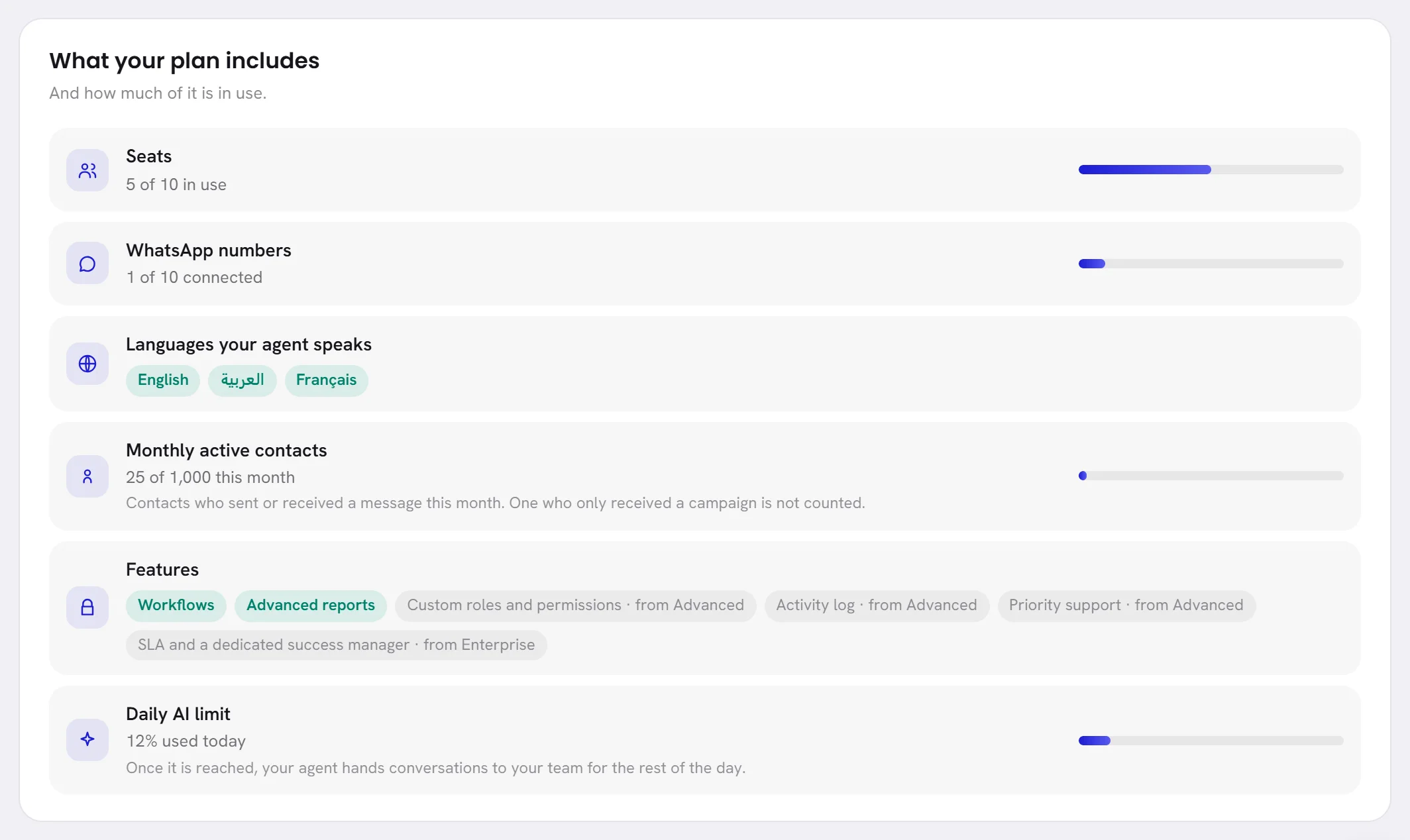
The numbers themselves depend on your plan. Plan & billing in Settings shows yours, and how much is in use, on the card What your plan includes.
Users
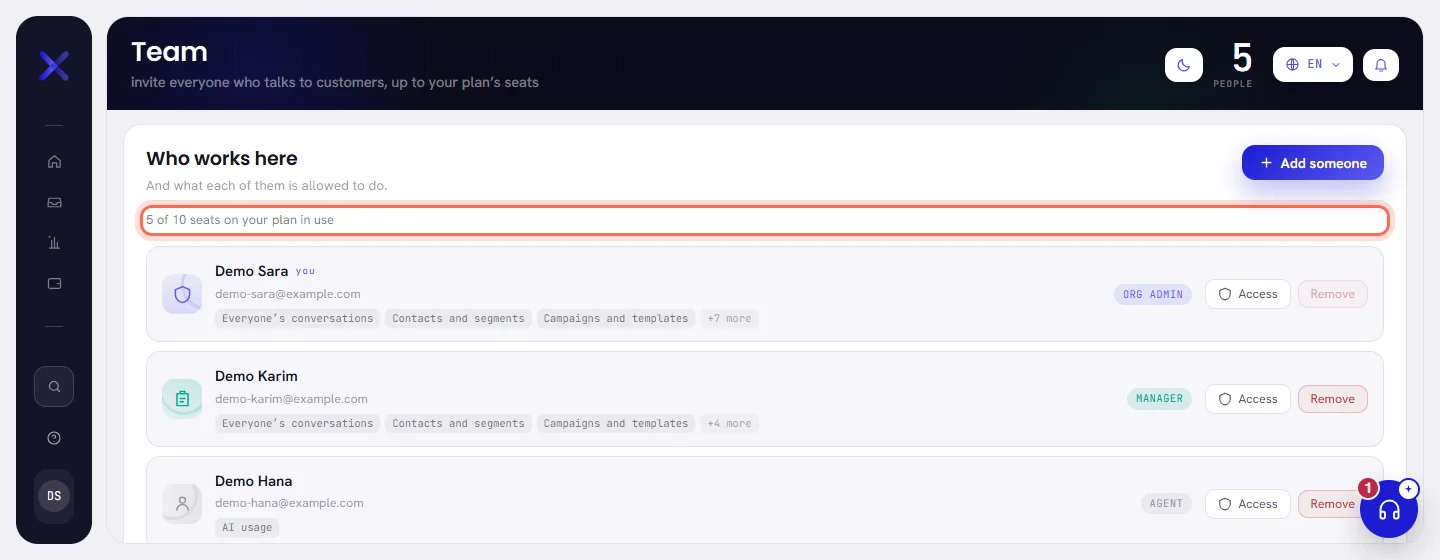
At the top of the Team screen, a line says how many of your plan’s seats are in use. Everybody in the workspace holds a seat.
When every seat is taken, a banner takes the place of the line and Add someone is switched off. Everybody stays. To add somebody, do one of these:
- Remove a person who has left: see Add a team member.
- Move to a plan with more users: see Choose or change a plan.
- Add a user to your plan. When your plan allows it, the banner gives the price a month, and you write to us.
On a free trial, the line and the banner speak of the users your trial includes.
WhatsApp numbers
A plan may set no limit on WhatsApp numbers. Plan & billing then says how many are connected and that your plan has no limit, and nothing is refused: connect every number your business has.
When your plan does set a limit, a line at the top of the Channels screen says how many of your plan’s WhatsApp numbers are connected. A number that is still being set up counts. A disconnected one does not.
When all of them are connected, a banner says so and connecting another is refused. The numbers you have stay connected. Disconnect one, or move to a plan with more numbers: see Manage your numbers.
Monthly active contacts
Nothing is refused here. Above the number your plan includes, every conversation is still answered and every message still goes. Plan & billing says how many contacts you are above it this month and, when your plan prices them, about what they come to.
If it happens most months, ask for a larger size: see Choose or change a plan. What counts as an active contact is in Plans and what you pay for.
Your agent’s languages
Your agent answers in the languages your plan includes. On Plan & billing, a language that is not included says so. In your agent’s profile, that language cannot be ticked, and a line under the languages says which ones your plan includes. See Agent profile and instructions.
AI usage and the daily AI limit
The AI usage your plan includes each month is added to your AI wallet, and what your agent uses beyond it comes from what you top up: see The AI usage your plan includes.
A plan can also put a daily limit on AI. Daily AI limit, on Plan & billing, shows how much of today’s is used, as a percentage. Once it is reached, your agent hands conversations to your team for the rest of the day. A plan without one says No daily limit.
Features that depend on your plan
A feature your plan does not open keeps its place in the app, and its screen still opens. A banner on it names the plan the feature comes with, and See the plans takes the people who can choose one to the plans. What you already made stays.

| Feature | Where the banner is | Without it |
|---|---|---|
| Workflows | On the Workflows screen, and inside a workflow. | Your workflows stay and keep running, and can be switched off or deleted. You cannot make one, change one or switch one on. |
| Advanced reports | In Reports, on Desks and Campaigns. | Overview, delivery, replies and consent stay. The desk and campaign reports, and the download, are closed. |
| Custom roles and permissions | In the access window, on the Team screen. | A person may do what their role says. Everybody keeps the access they have, but the boxes cannot be ticked one by one. |
| Activity log | On Activity log, in Settings. | Everything is still written down. You cannot read it or download it. |
Two more come with some plans and lock nothing: Priority support, which puts your requests first with our team, and SLA and a dedicated success manager.
On a free trial
A trial has limits of its own: its users, a free AI credit that cannot be topped up, and campaigns that can wait for a plan. See What a trial includes.
Good to know
- The way to the plans is on a banner for people whose access includes The workspace and billing. The others see the banner without it, and ask one of them.
- A limit is checked when you add something. Lowering a limit, or moving to a smaller plan, removes nothing.