The parts of every screen
Every screen of xconversions is built the same way. The menu is the dark column at the side. A band across the top names the screen you are on and holds the tools that are always there. A round button in the bottom corner opens help. Everything between them belongs to the screen itself.
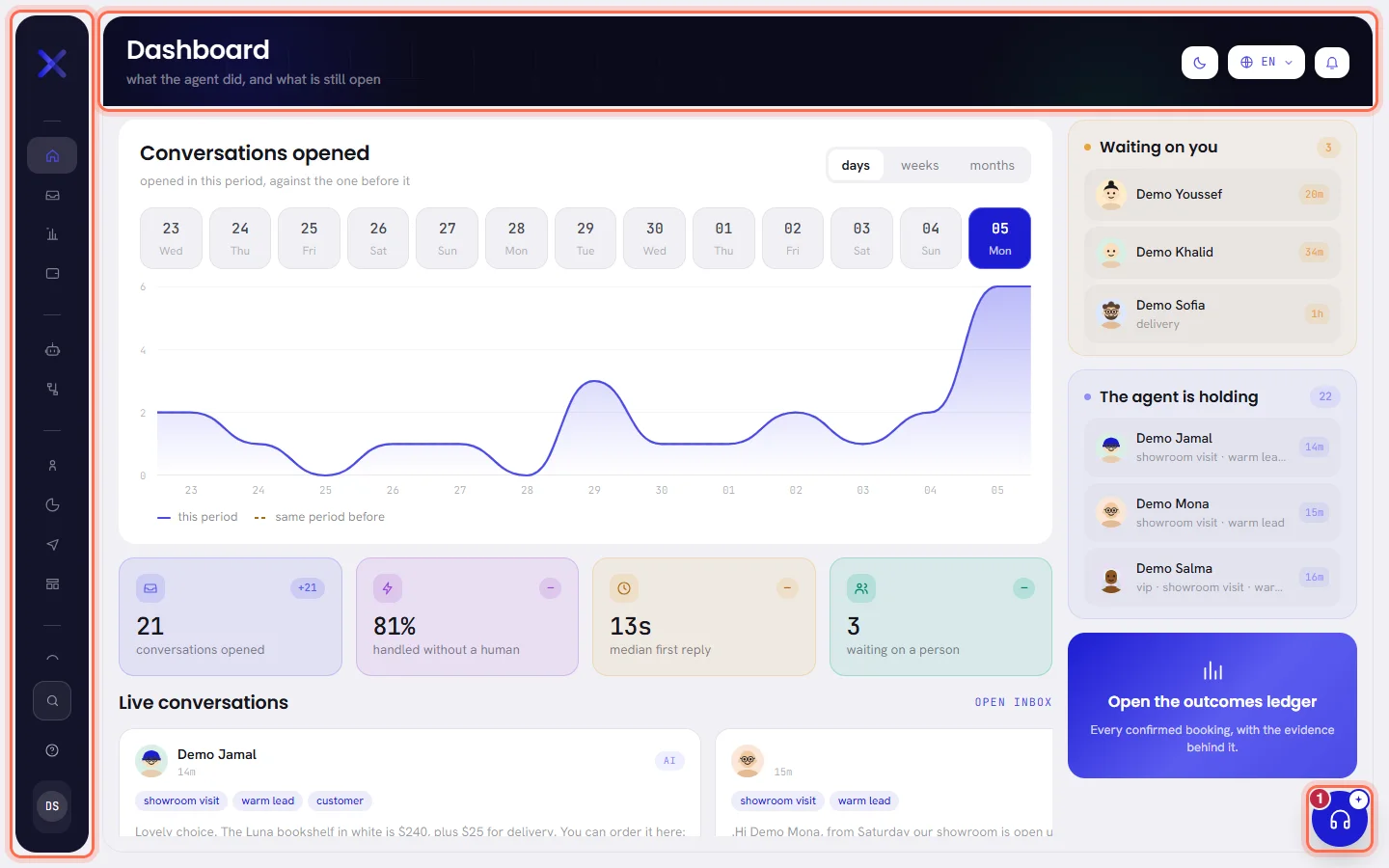
The menu
On a computer the menu is folded to a column of icons. It opens over the page when you point at it or reach it with the keyboard, and the screen you are on is highlighted in it.
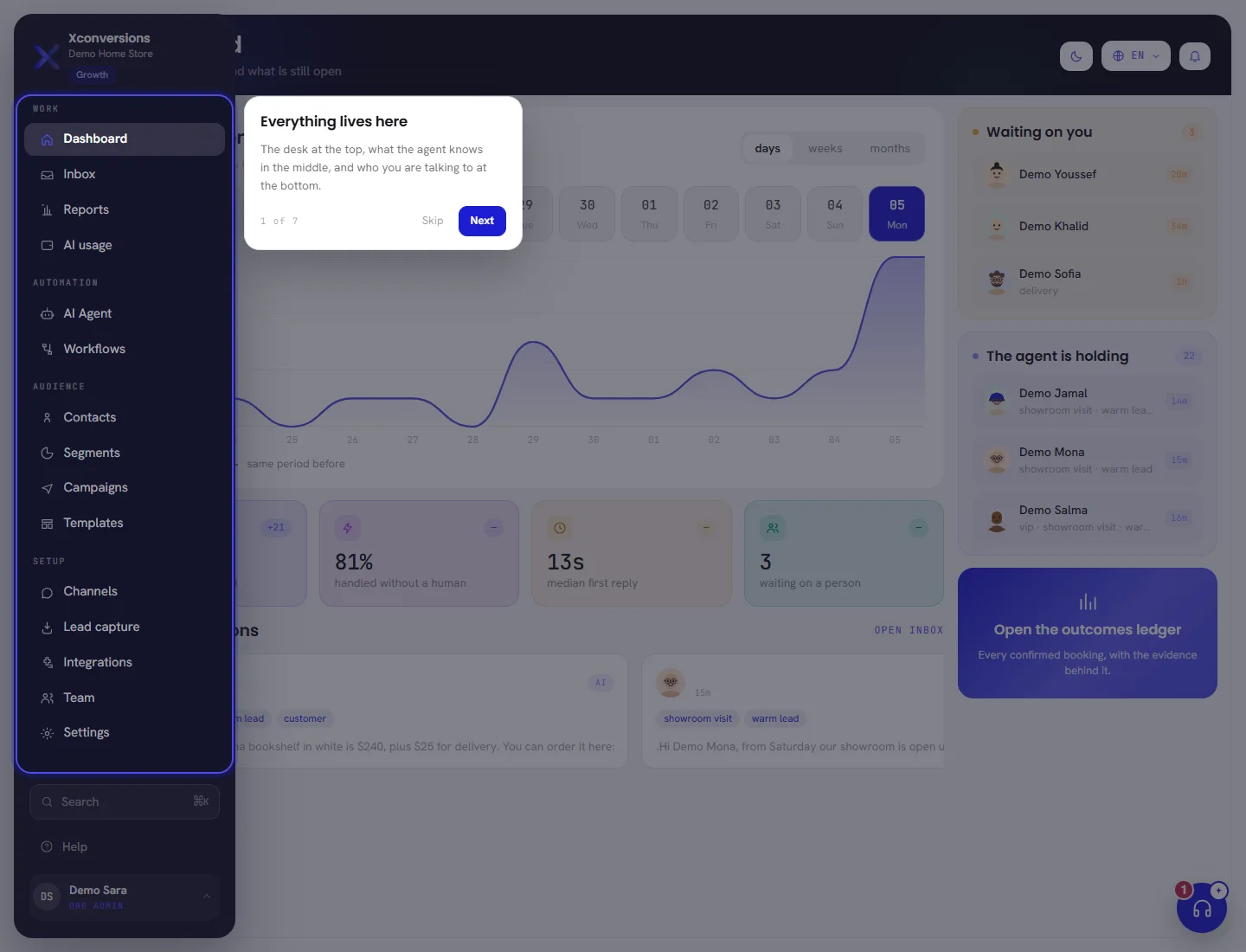
At its top are the product’s name, your workspace’s name and a badge saying where your workspace stands on its plan. The badge opens Plan & billing. Under them, the entries are in four groups:
| Group | Entries | What they are for |
|---|---|---|
| Work | Dashboard, Inbox, Reports, AI usage, Ledger | The day’s work: how your number is doing, your conversations, what was sent and answered, what the agent used, and what you were charged and what you paid. |
| Automation | AI Agent, Workflows | The agent that answers your customers, and the follow-ups that send themselves. |
| Audience | Contacts, Segments, Campaigns, Templates | Who you talk to, the groups you send to, what you send to many, and the messages WhatsApp approves in advance. |
| Setup | Channels, Team, Settings | Your WhatsApp numbers, the people in your workspace, and your profile, the workspace and your plan. |
You see only the entries you may open, so a colleague’s menu can be shorter than yours: Roles and access says why. A new workspace has one more entry at the very top, Onboarding checklist, until its four steps are done.
At the foot of the menu are Search, Help and the button with your name, which opens your account menu.
The band at the top

The band shows the screen’s name with one line saying what it is for. On some screens it also shows one figure with its name under it, for example how many conversations are waiting on the Inbox. The article about each screen says what its figure counts.
| On the screen | What it does |
|---|---|
| Toggle theme | The moon or the sun: switches the app between light and dark. |
| Language: English | The globe with two letters: opens the list of languages. |
| Notifications | The bell: opens the list of what needs you. A number on it counts what is new since you last opened it. |
Search
Press Ctrl+K on Windows, or ⌘K on a Mac. Or press Search at the foot of the menu.
A box opens over the screen, with A screen, a contact, a template… in it.
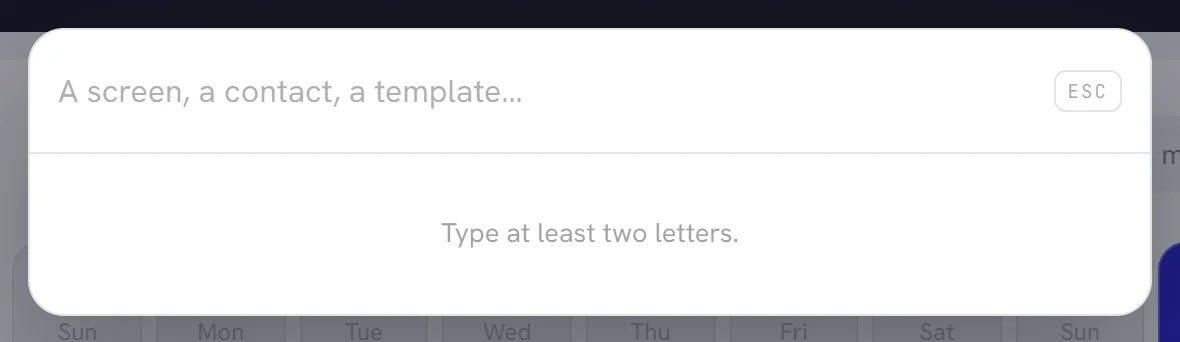
Type at least two letters.
Results appear as you type, in groups: Screens first, then Contacts, and then templates, campaigns, segments, workflows, what your agents know, and your agents, each under its own name.
Move with the up and down arrows, and press Enter to open the highlighted line.
A click works too. Esc closes the box.
- A screen is found by its name in the menu, in the language you read the app in.
- A contact is found by name or by phone number. For a number, type the digits: spaces and dashes do not matter.
- Everything else is found by its name.
- Each group shows five results at most, and only from screens you may open. For a full list, open the screen and use its own filters.
- Search does not read messages. To find a conversation, see Find a conversation.
| On the screen | What it does |
|---|---|
| Type at least two letters. | Shown until you have typed two letters. |
| Nothing matched that. | No screen, contact or name contains what you typed. |
| That search did not come back. Try again. | The search could not reach our server. Check your connection and type again. |
The bell
The bell opens Notifications over the screen you are on: conversations waiting for a person, customers waiting for your reply, new conversations, what Meta decided about your templates, and news about your AI wallet, your trial, your numbers and your requests to our team. Each line opens what it is about.
Opening the list counts as reading it: the number on the bell clears. Notifications describes every kind of line, and Notification settings says how to get alerts in your browser and by email.
Language, and light or dark
Press the globe button in the band.
The list is headed Language. Each language is written in its own words, with its name in your language and its direction under it. The one you are using is ticked.
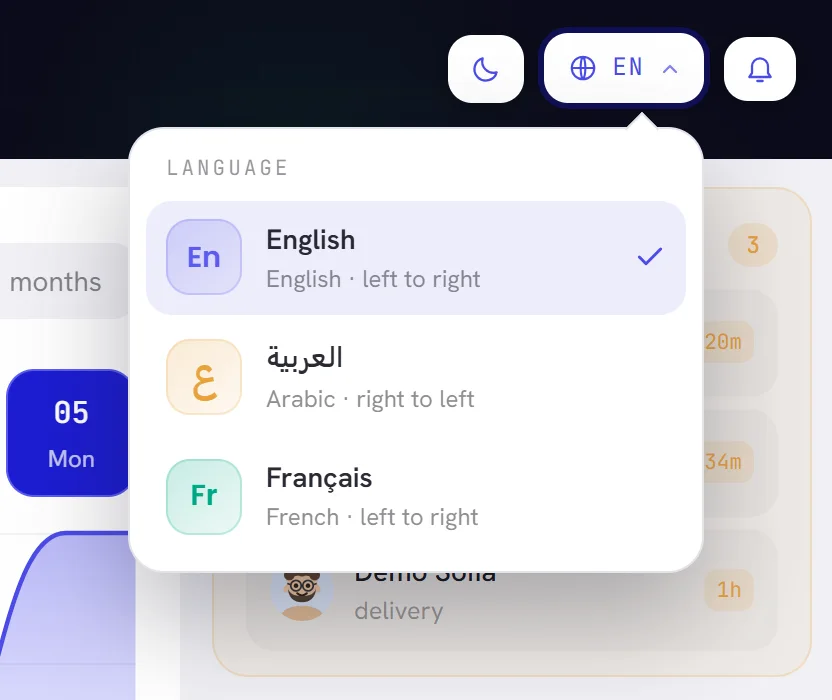
Choose English, العربية or Français.
The screen you are on reloads in that language. Arabic is laid out right to left.
The choice is yours alone: it changes nothing for your colleagues, and nothing in what your customers receive. It holds on that browser for as long as you stay signed in. The same three languages are in your account menu, and Your profile has the choice as Interface language, which also sets the language of the emails we send you.
Toggle theme switches between light and dark in the same way: for you, on that browser.
Your account menu
The button at the foot of the menu shows your picture or initials, your name and your role. Press it to open your account menu.
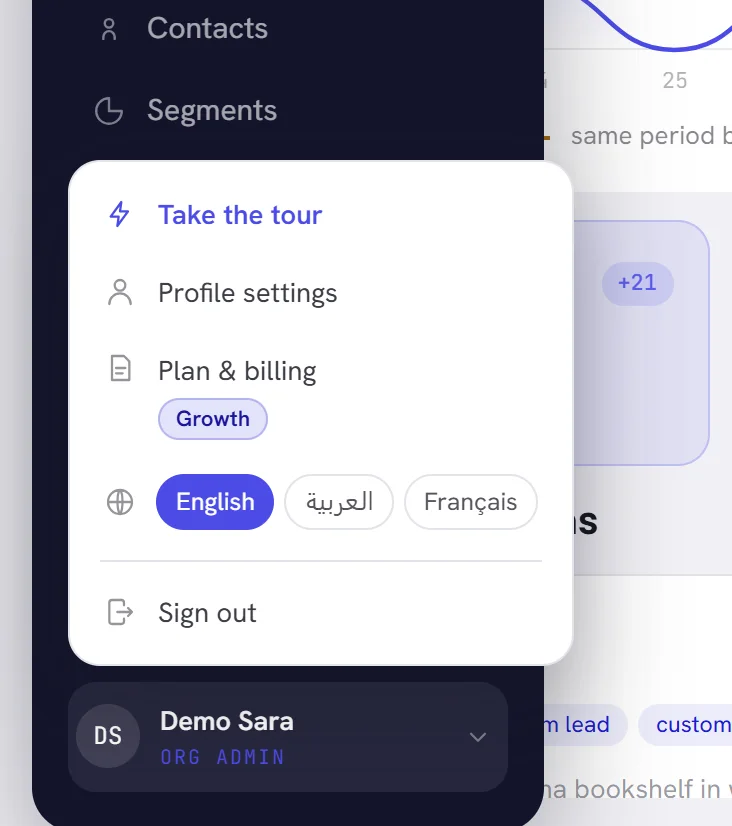
| On the screen | What it does |
|---|---|
| Take the tour | Starts the short tour of the screen again. See Create your account. |
| Profile settings | Opens your own profile in Settings: your name, your picture, your contact details. See Your profile. |
| Plan & billing | Opens your workspace’s plan in Settings. The badge under it says where the workspace stands: its plan, or how much of the trial is left. See Plans overview. |
| Language | The row with a globe: the three languages, with the one in use filled in. |
| Sign out | Ends your session on this browser. See Sign in, sign out and your password. |
Help
There are two ways to help on every screen.
- The round button in the bottom corner, Get help, opens the help panel: Xconversions AI answers first, then our team. A number on the button counts your requests with an answer you have not read yet.
- Help, at the foot of the menu, opens a short list. Help centre opens this help center. Get support opens the same help panel, and Report a bug opens it on a new report. Video guides is greyed out until there is something to open.
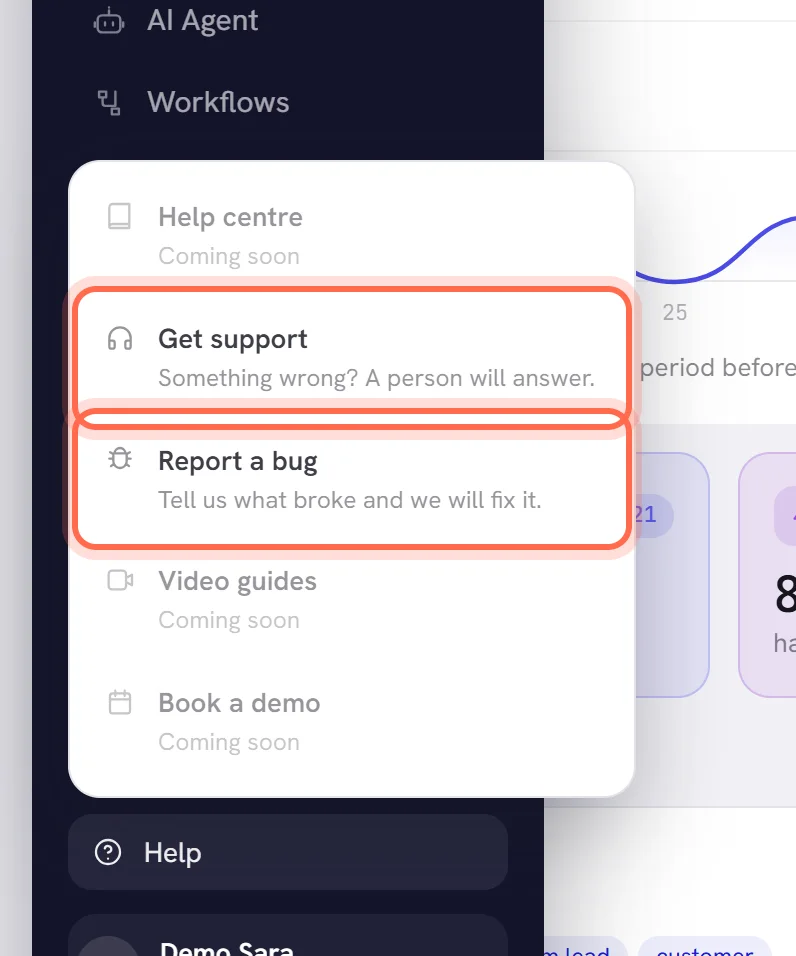
Get help from our team explains the panel, and Follow a request what happens after you send one.
On a phone
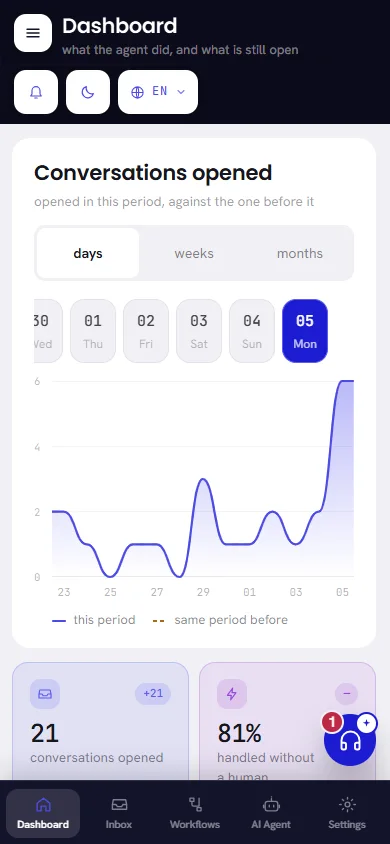
- A bar at the bottom holds the screens you open most: Dashboard, Inbox, Workflows, AI Agent and Settings, as far as you may open them.
- The button at the top corner, Menu, opens the whole menu as a panel over the screen, with Close to shut it.
- The bell, the theme button and the language button sit under the screen’s name.
- Pop-ups, the list of notifications and the help panel open over the whole screen, and search fills it.
- The help button stays in the bottom corner, above the bar.
Banners at the top
When something is true of the whole workspace and needs somebody to act, a banner says so under the band, on every screen, until it is dealt with. A banner cannot be closed.
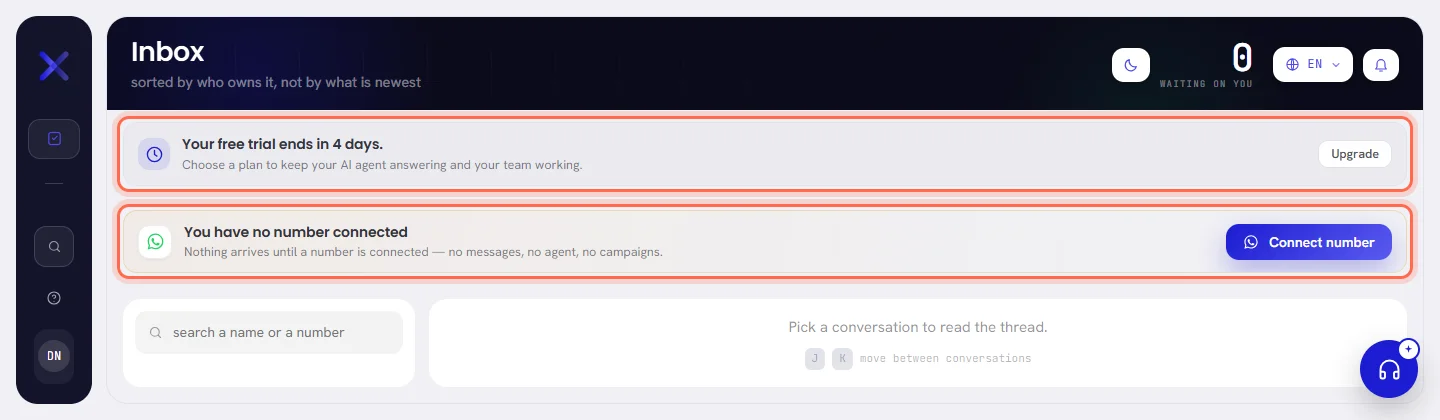
| Banner | What it means | What to do |
|---|---|---|
| You have no number connected | No WhatsApp number is live, so no message can arrive or be sent. | Press Connect number. See Connect a WhatsApp number. |
| Your number is with Meta | The number has been handed to Meta and is not live yet. | Nothing: it turns on by itself. Track status opens Channels. See Manage your numbers. |
| Your number needs attention | WhatsApp refused the number. | Open Channels to see why. See Number problems. |
| Open the WhatsApp Business app on the phone | A number you also use in the WhatsApp Business app has sent nothing from the app for days. Meta disconnects a number whose app stays unopened. | Open the app on the phone. Review the number opens Channels. |
| +000 555 0300 cannot send yet — its WhatsApp account needs a payment method | Meta charges you directly for your messages, and that number’s WhatsApp account has no working payment method. | Press Sort it out. See Add a payment method at Meta. |
| +000 555 0300 stops sending in 5 days unless it is reconnected | The number’s access to WhatsApp is about to end, or has ended, and could not be renewed by itself. | Press Reconnect. See Reconnect a number. |
| Your AI balance is low | Your AI wallet is nearly empty. When it is used up, the banner says so, and then that AI replies are paused. | Press Top up. See Top up your AI wallet. |
| Your free trial ends in 4 days. | Your workspace is on a free trial with an end date. The banner turns amber in its last days. | Press Upgrade. See The free trial. |
| Your trial has ended, the AI is paused | The trial is over and no plan is active. Customers’ messages still arrive and are kept. | Press Choose a plan. See Choose or change a plan. |
- The banners about connecting a number are shown to the people who manage numbers.
- The banners about a payment method, reconnecting and the trial are shown to everybody. Their button is for the people who can act on it; everybody else is told who to ask.
- The banner about a low or used-up AI balance is shown to the people who handle the workspace’s billing. Once AI replies are paused, everybody sees it.
- Once a trial has ended, its banner is the only one shown until a plan is chosen.