What the calculator is
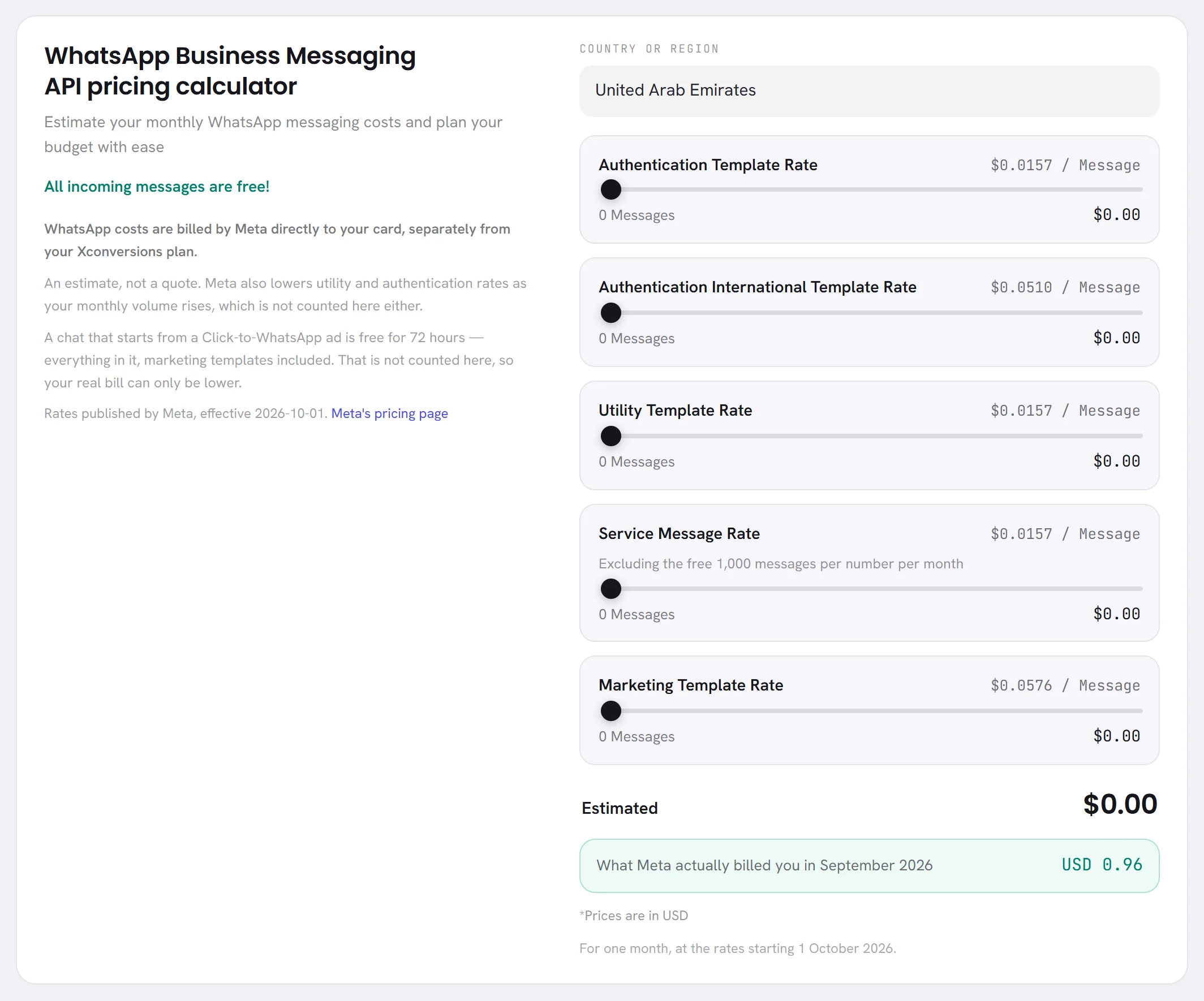
Meta charges a business for the messages it sends on WhatsApp. That bill is Meta’s: it goes straight to the payment method on your WhatsApp Business account, and it is separate from your xconversions plan and from your AI wallet. The WhatsApp costs tab of Settings is a calculator for it.
It gives an estimate, not a bill and not a quote. You tell it where your customers are and roughly how many messages of each kind you send in a month, and it multiplies by the rates Meta publishes.
Estimate a month
Open Settings, then WhatsApp costs.
Choose where your customers are, under Country or region.
Meta’s rate depends on the country of the person who receives the message, not on yours. The list has the countries Meta prices one by one, then regions such as Rest of Middle East and Rest of Africa for the others, and Other for anywhere else. It opens on United Arab Emirates.
Move the slider of each kind of message to the number you expect to send in a month.
The figures follow the slider. It goes by thousands up to 10,000, by ten thousands up to one million, then by five millions up to 40 million. Leave at zero the kinds you do not send.
Read Estimated at the foot: the total for one month.
For customers in several countries, run it once for each country and add the totals.
The kinds of message
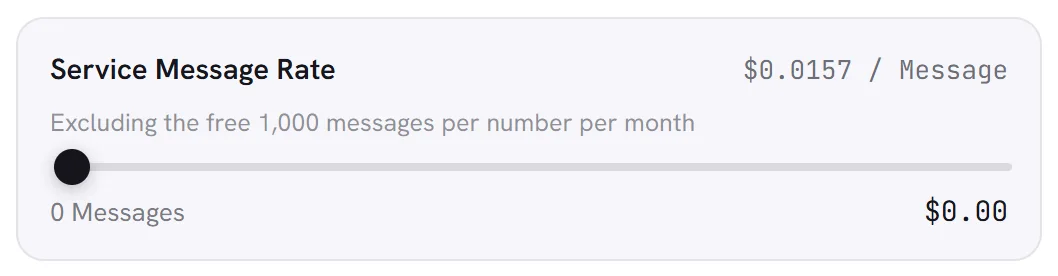
Each row is one of the categories Meta charges for. It shows the rate for one message in the country chosen, the slider, the number of messages, and what that number comes to.
| On the screen | What it does |
|---|---|
| Authentication Template Rate | Templates that carry a one-time code, to confirm who somebody is. |
| Authentication International Template Rate | Meta’s separate rate for authentication templates sent across borders. Meta has it in some countries only: elsewhere the row is not shown. |
| Utility Template Rate | Templates about something the customer already asked for or did: an order, a delivery, an appointment. |
| Service Message Rate | Ordinary replies inside the 24-hour window, whether a person on your team wrote them or your AI agent did. Meta gives each number a free allowance of these every month: the row says how many, and charges only what is above it. |
| Marketing Template Rate | Templates that promote something: an offer, news, a reminder to come back. This is what a campaign usually sends. |
| Estimated | The amounts of the rows added up: one month, in the currency named under it. |
Which category a template belongs to is explained in Template categories and review.
What the estimate counts
The calculator applies Meta’s rules in their plainest form. Messages you receive are free, and every template you send is charged, a utility template included even inside the 24-hour window; replies inside the window are charged as service messages once your number’s free allowance for the month is used.
What each rule means for your own sending is in What WhatsApp charges, and the window is explained in The 24-hour window.
What it leaves out
The screen says what it does not count. Both make the real bill lower, never higher:
- A conversation that starts from a Click-to-WhatsApp ad is free for 72 hours, everything in it included, marketing templates too. The calculator cannot know how many of your conversations start that way, so it counts none of them as free.
- Meta lowers its utility and authentication rates as your monthly volume grows. The calculator uses the first rate, the highest one, for every message.
The currency, and where the rates come from
The line under the total says which currency the prices are in. The calculator holds Meta’s rates in US dollars and in UAE dirhams, and shows the one your workspace uses, which is set on the Workspace tab. A workspace in any other currency sees dollars. Nothing is converted from one to the other: each is Meta’s own list.
The last line says from which date the rates apply. Beside the calculator, the link Meta's pricing page opens the page where Meta keeps its current rates.
What Meta actually billed you
When Meta has reported charges on your number for the last calendar month, a green line under the total says what Meta actually billed you in that month. It is Meta’s own figure, in the currency Meta bills you in, and it is the way to see whether your estimate is close. When nothing was reported for that month, the line is not shown.
Good to know
- Everybody in the workspace can open the calculator. It changes nothing: nothing is saved, and moving a slider sends no message.
- It estimates Meta’s charges only. What your AI agent costs is on AI usage: see AI usage overview.
- Meta bills you directly, so your WhatsApp Business account needs a payment method: see Add a payment method at Meta.
Is this what I will pay?
No. It is an estimate from Meta’s published rates and the numbers you gave. Your real bill comes from Meta, and depends on what was really sent, to which countries, and on the free messages and discounts the calculator leaves out.
Why is there no row for international authentication?
Meta has that rate in some countries only. Choose another country and the row may appear.
Why are the prices in dollars when my workspace uses another currency?
The calculator holds Meta’s rates in US dollars and UAE dirhams only. A workspace in another currency is shown dollars, and the line under the total says so.