The list of top-ups
Top-ups is the last card of the AI usage screen. It lists every top-up of the wallet, the newest first, twenty to a page, with how many there are beside the heading.
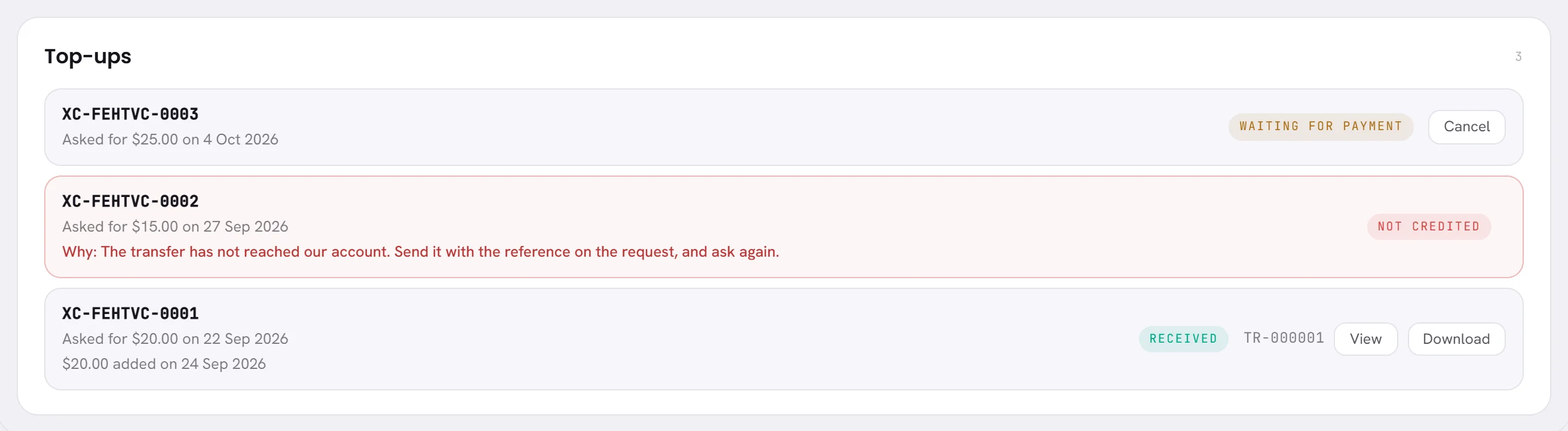
Each line gives:
- The top-up’s reference, in full, as your bank statement shows it.
- What was asked for, and when. A transfer we credited without a request says bank transfer, and the day it arrived.
- How much was added to the wallet, and when.
- For a request that was closed, the reason.
- Its status.
| On the screen | What it does |
|---|---|
| Waiting for payment | You asked for it and we have not confirmed the transfer yet. Cancel withdraws it. |
| Received | The transfer arrived and the wallet was credited. The line carries the receipt. |
| Not credited | Our team closed the request without adding anything, and says why. |
| Cancelled | The request was withdrawn, by you or by us at your asking. No money moved. |
Before the first top-up, the card says No top-ups yet.
Open, print or save a receipt
Every top-up that was received has a receipt, numbered like TR-000042.
In Top-ups, find the line marked Received.

Press View to open the receipt in a new tab, or Download to save it.
The downloaded receipt is a web page file named after the receipt’s number. It opens in any browser.
On the receipt, press Print or save as PDF.
Your browser’s print window opens. Choose a printer, or choose to save as a PDF.
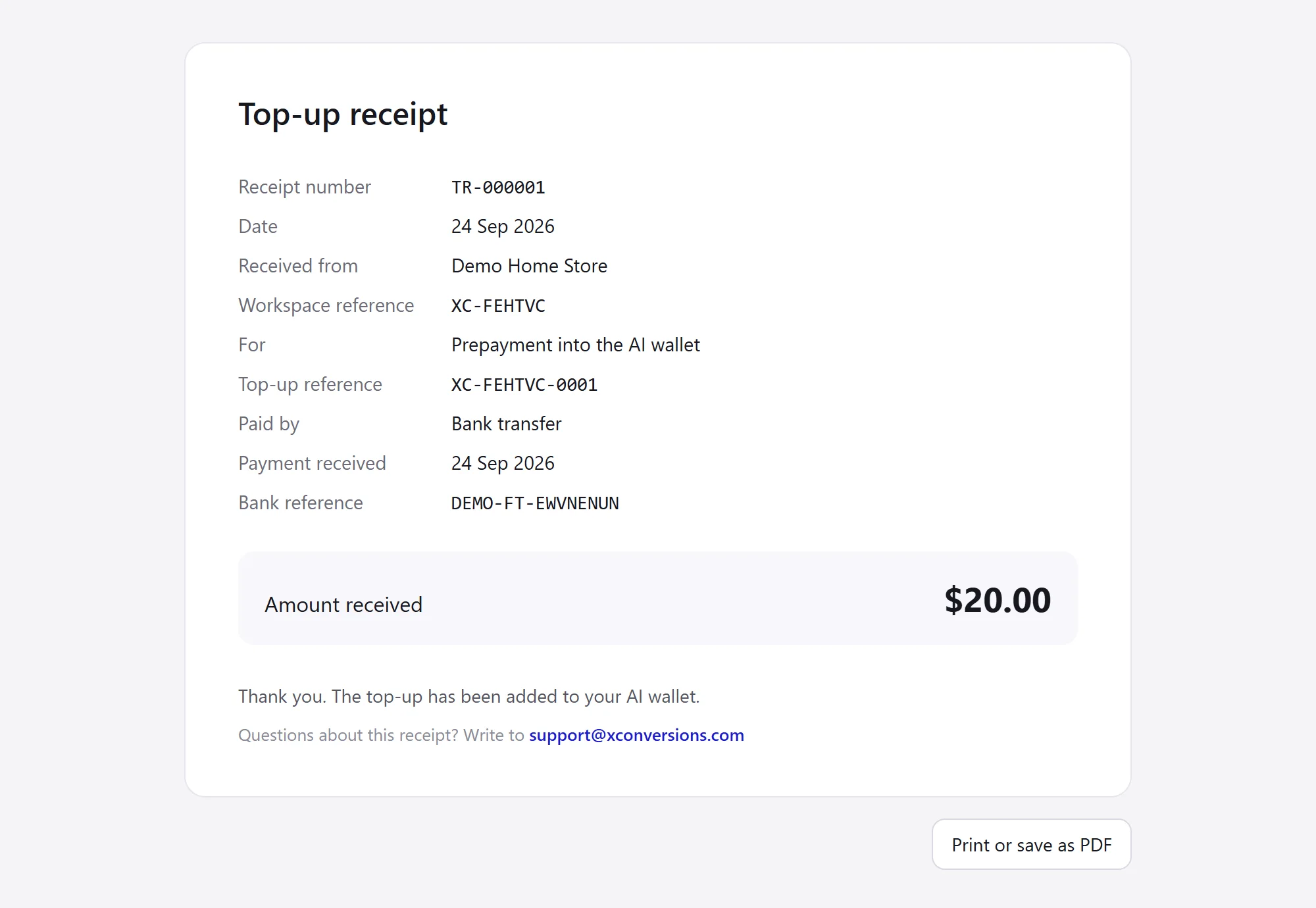
The receipt is also on the top-up’s line in Wallet history, and in the email the owner receives when the top-up is added.
What is on a receipt
| On the screen | What it does |
|---|---|
| Top-up receipt | The title. A receipt says that a prepayment into the AI wallet arrived. It is not a tax invoice. |
| Receipt number | Its own number, never used twice. |
| Date | The day the receipt was issued. |
| Received from | Your workspace’s name on that day. |
| Workspace reference | Your workspace reference. |
| For | Always Prepayment into the AI wallet. |
| Top-up reference | The top-up’s own reference, the one that was on the transfer. |
| Paid by | Bank transfer. |
| Payment received | The day the transfer arrived in our account. |
| Bank reference | The bank’s own reference for the transfer. |
| Amount received | What arrived. When VAT is included in it, a line under the amount gives the VAT and its rate. |
| Total received | When VAT is added on top, the receipt lists the top-up, the VAT and this total, in place of Amount received. |
| Tax registration number | Ours, under our name and address, when VAT applies. |
Our company’s name and address are at the top of the receipt. A receipt never changes once it is issued: it reads the same in a year, whatever has been renamed since.
The wallet’s history
Wallet history is the wallet’s statement for the period chosen at the top of the AI usage screen. It is shown to the people who see money.
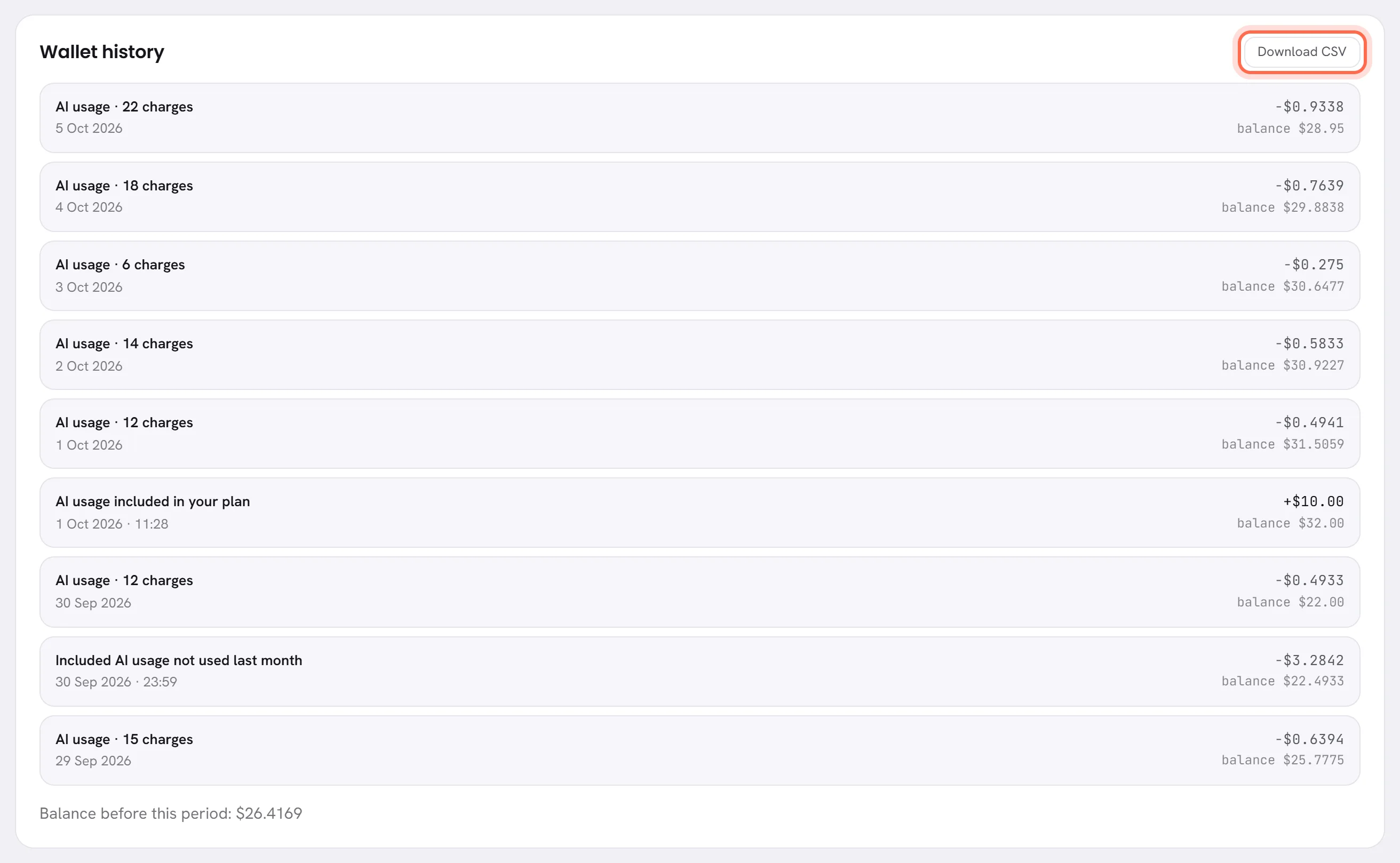
Lines are the newest first, fifty to a page. Each one gives what moved, when, the amount with a plus or a minus, and the balance after it. A top-up’s line also carries its reference and its receipt.
Under the lines, Balance before this period gives what the wallet held when the period began.
| On the screen | What it does |
|---|---|
| Top-up | A top-up that was received. |
| Free credit | The credit a wallet opens with, once. |
| AI usage included in your plan | The month’s included usage, added as the month begins. |
| Included AI usage not used last month | What was left of it when the month ended, taken back. |
| Refund | Money we gave back to the wallet, with our note. After a dispute, the note is our answer: see Dispute a charge. |
| Adjustment | A correction made by our team, with our note. |
Your agent’s charges are added up into one line a day, such as AI usage · 22 charges, placed after the day’s other lines.
When nothing moved, the card says Nothing moved in this period.
Download the history as a CSV file
Choose the period at the top of AI usage.
See Choose the period.
In Wallet history, press Download CSV.
The file’s name is
ai-wallet-followed by the first and the last day of the period. It opens in any spreadsheet.
The file holds the same lines as the screen, the oldest first. Its first line is the balance before the period.
| On the screen | What it does |
|---|---|
| When | The date and time of the line, or the day for a day’s AI usage. |
| What | What moved, with our note for a refund or an adjustment. |
| Reference | The top-up’s reference, on a top-up’s line. |
| Amount | The amount as a plain number: positive when money came in, negative when it went out. |
| Currency | The wallet’s currency. |
| Balance after | The balance once the line is counted. |
| Receipt | The receipt’s number, on a top-up’s line. |
Good to know
- Who sees all this: people whose access includes The workspace and billing.
- Amounts in the history are written to a fraction of a cent. A receipt is in whole cents.
- Dates and times are on your workspace’s time zone.