What Settings is for
Settings holds two kinds of things. Some are yours alone: your name and photo, your password, the alerts you receive. The others belong to the whole workspace: its name, its currency, its clock, its quiet hours and its plan.
Open Settings from the menu, under Setup. To go straight to your own details, open the account menu at the foot of the menu (your initials or your photo) and choose Profile settings.
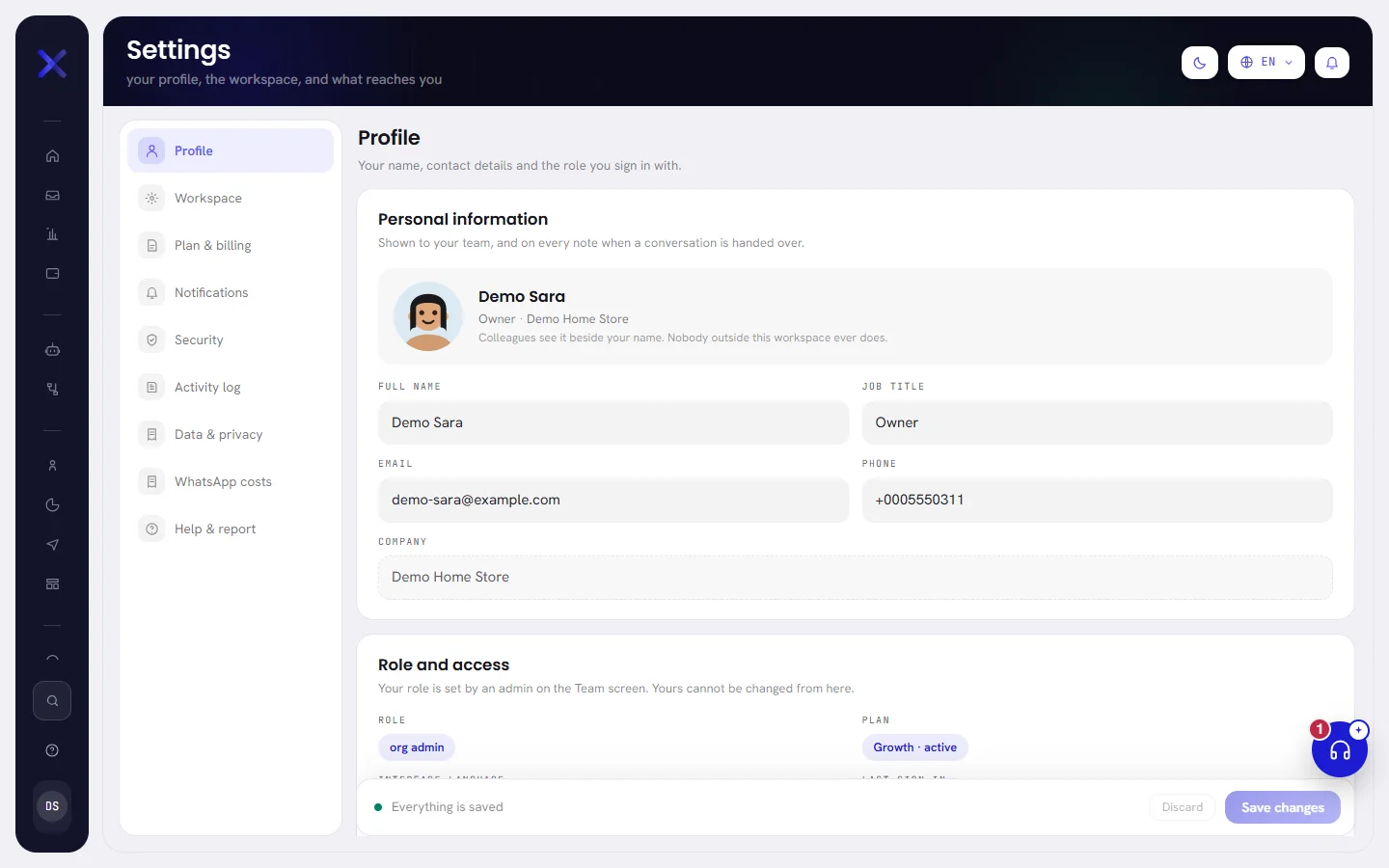
The tabs are listed down the side. The one you choose opens beside the list as a column of cards, each card holding the fields that go together. Every tab has its own address, so you can bookmark one or send a colleague a link to it.
The tabs, one by one
| Tab | What it holds | Who it is for | Read more |
|---|---|---|---|
| Profile | Your name, photo, contact details, language and theme. | Everybody, each for their own account. | Your profile |
| Workspace | The business’s name, its currency, its time zone and how dates are written. | Everybody can read it. Changing it is for whoever manages the workspace. | Workspace settings |
| Plan & billing | Your plan, what it includes and how much of it is in use. | Everybody can read it. | Plans overview |
| Notifications | Browser alerts, the email digest, and the workspace’s quiet hours. | Everybody, for their own alerts and digest. Quiet hours are for whoever manages the workspace. | Notification settings |
| Security | Your password, two-factor sign-in, and the browsers you are signed in on. | Everybody, each for their own account. | Security settings |
| Activity log | Who did what in the workspace, when and from where. | Only whoever manages the workspace: nobody else has this tab. Reading it depends on your plan. | Activity log |
| Data & privacy | Files you can download, what the product keeps, and the workspace’s ID. | Everybody. A download is offered only to somebody who can open the screen it comes from. | Data and privacy |
| WhatsApp costs | A calculator for what Meta will charge for your messages. | Everybody. | WhatsApp cost calculator |
| Help & report | A form to report a problem, the keyboard shortcuts, and a map of the other set-up screens. | Everybody. | Further down this page |
Saving, and what happens if you leave
Profile, Workspace and Notifications are forms: you change what you want on the tab, then save once. A bar at the foot of the tab tells you where you stand.

| On the screen | What it does |
|---|---|
| Everything is saved | Nothing on the tab differs from what is stored. Both buttons are greyed out. |
| 1 unsaved change | The bar counts the settings you changed since the tab opened, and turns amber. One setting counts once, however many times you changed it, and putting it back as it was takes it off the count. |
| Discard | Puts every field of the tab back as it was when the tab opened. Nothing is sent. |
| Save changes | Saves the whole tab at once. The bar then says Saved. |
Some things do not wait for the bar, because doing them is the decision: choosing or removing your photo, switching the theme, changing your password, turning two-factor on or off, signing your other browsers out, and sending a report. Each takes effect the moment you do it.
Security, Data & privacy, WhatsApp costs, Activity log and Help & report have no bar at all: nothing on them is saved as a form.
Who can change what
- Your own account is yours alone: Profile, your alerts and digest on Notifications, and Security. Each person sees and changes only their own.
- The workspace’s settings apply to everybody: everything on Workspace, and the quiet hours on Notifications. They can be changed by an org admin, or by anybody whose access includes The workspace and billing. This help center calls those people “whoever manages the workspace”.
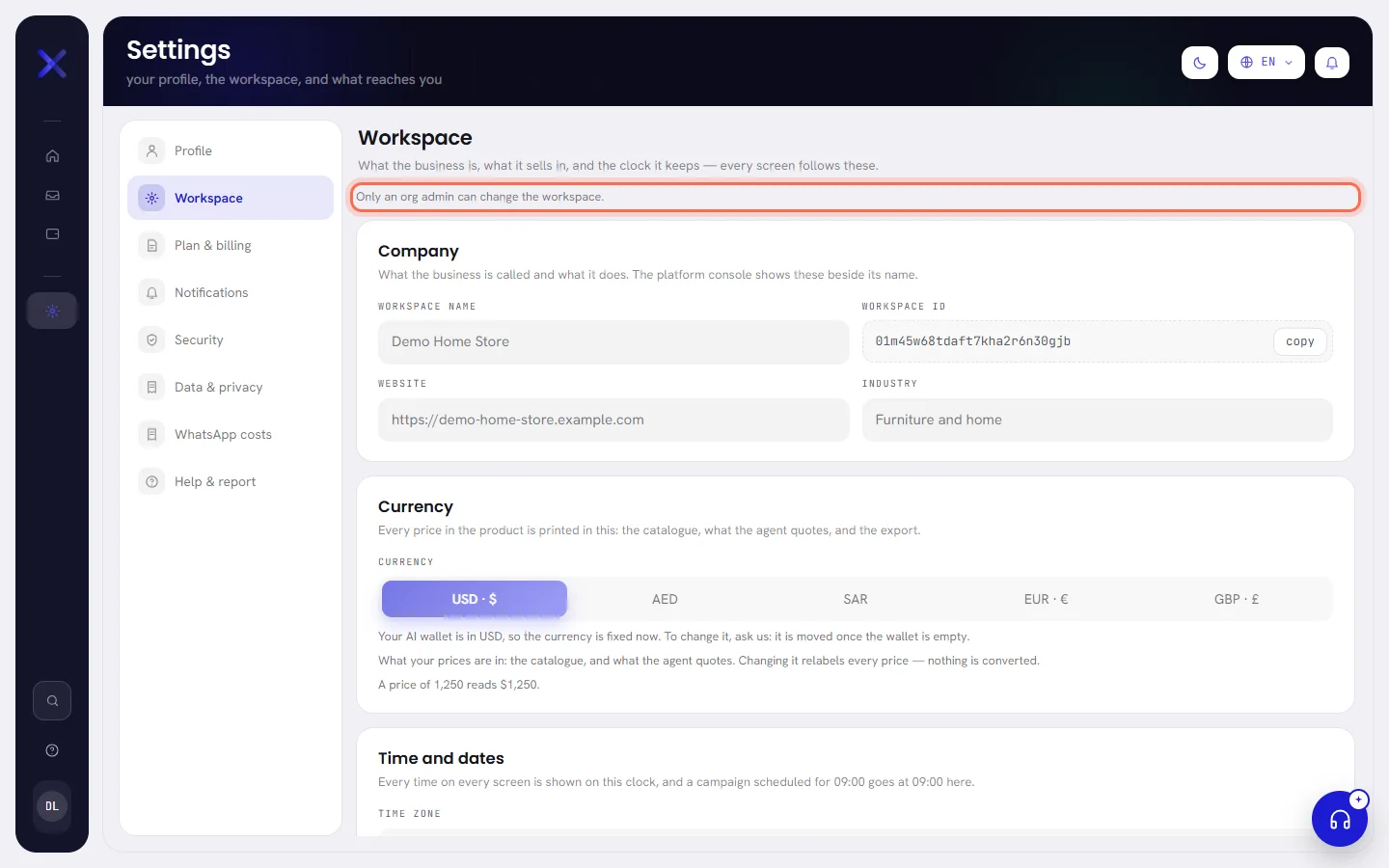
- Everybody else can read the workspace’s settings, greyed out, and cannot change them.
- The Activity log tab is in the list only for whoever manages the workspace.
Roles and access are set on the Team screen: see Roles and access.
The Help & report tab
The last tab is where you tell us that something is wrong, and where the product lists the keys it answers to.
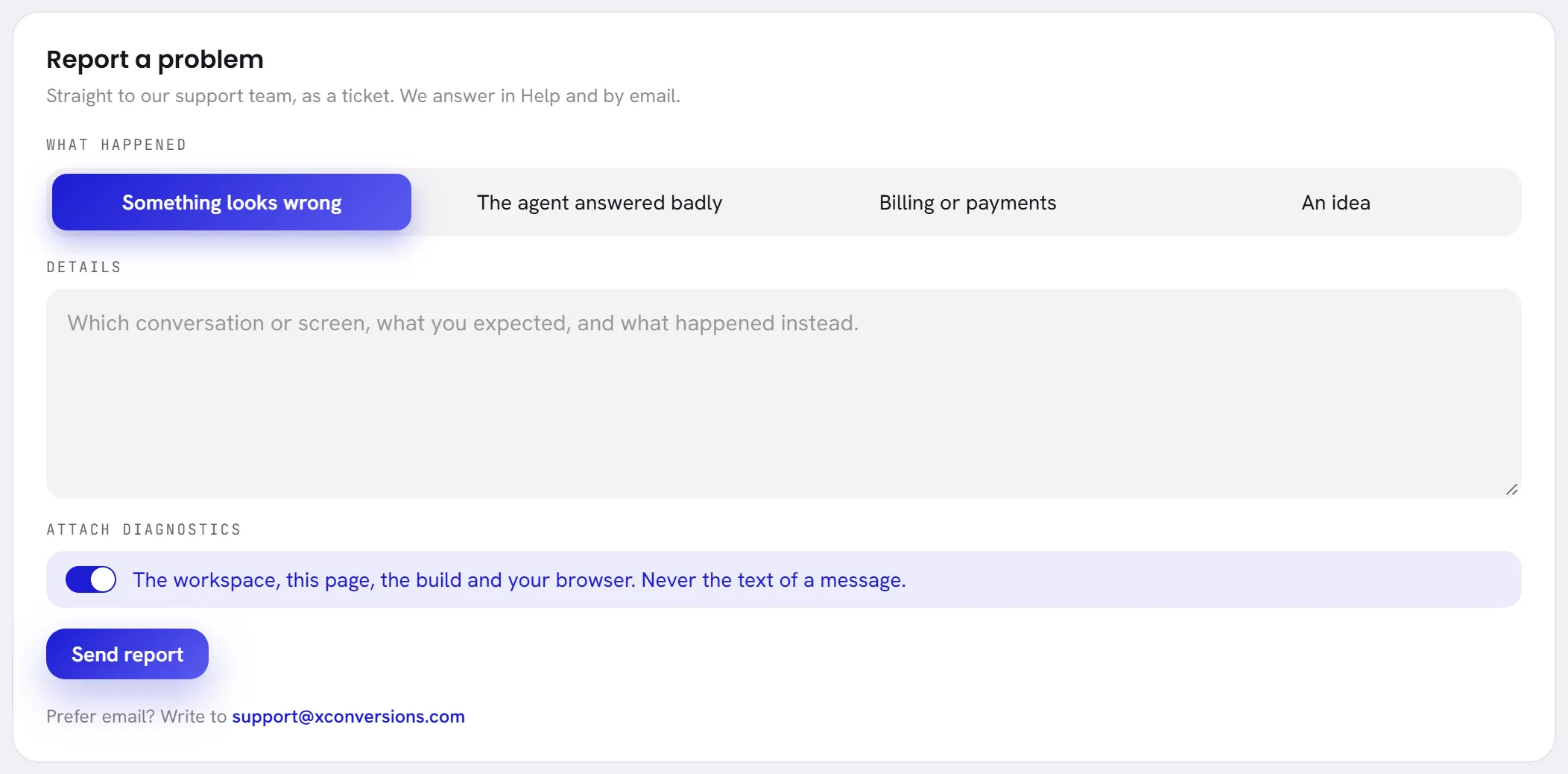
Report a problem sends your message to our support team as a request you can follow. Choose what happened, describe it under Details, and choose Send report. The tab answers with the reference of your request and a link, Open the ticket. Get help explains the form field by field, and Follow a request explains where the answer arrives. Under the form is the address to write to if you prefer email.
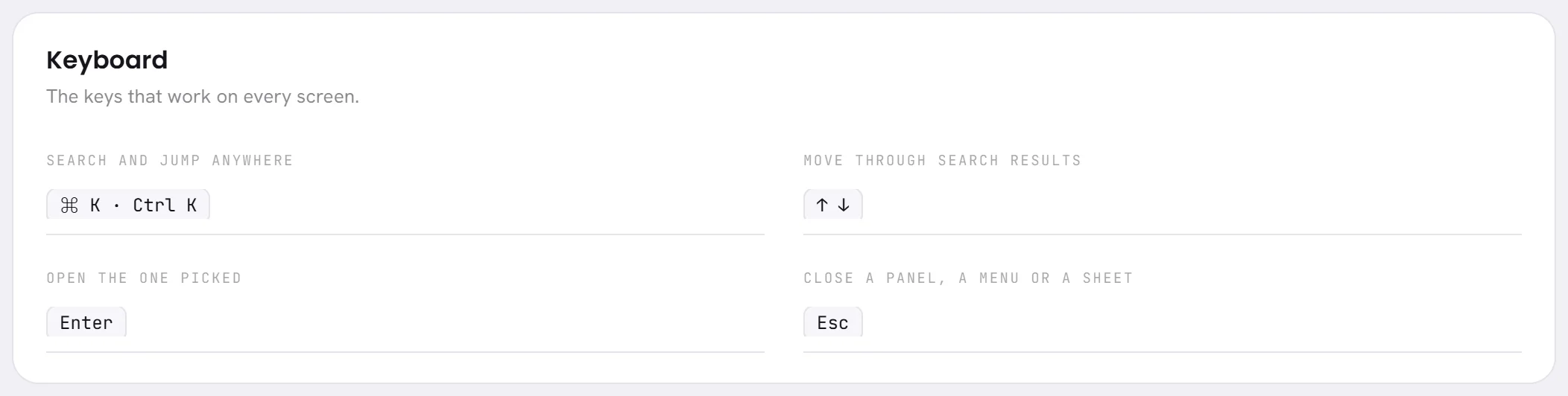
The Keyboard card lists the keys that work on every screen:
| On the screen | What it does |
|---|---|
| Search and jump anywhere | Ctrl and K together, or ⌘ and K on a Mac. Opens the search from any screen. See Find your way around. |
| Move through search results | The ↑ and ↓ arrow keys. |
| Open the one picked | Enter. |
| Close a panel, a menu or a sheet | Esc. |
When there are guides to read, a Guides card lists them, each with an Open button that opens it in a new browser tab.
Where things are is a map of the other screens that hold settings of their own, such as Channels for your WhatsApp numbers, Team for the people and their access, Knowledge for what your AI agent may say, and Templates. A card opens its screen, and carries a Done mark once that part is set up: a number is connected and working, a second person has joined, the agent has something to read, a template exists.
Questions
I do not see the Activity log tab.
The tab is listed only for an org admin, or for somebody whose access includes The workspace and billing. Ask whoever manages your workspace.
I changed something and it did not stay.
It was not saved. On Profile, Workspace and Notifications a change is kept only when you choose Save changes, and leaving the tab before that loses it without a warning.
The fields on the Workspace tab are greyed out.
You can read the workspace’s settings but not change them, and the line at the top of the tab says so. An org admin can change them, or give you the access to.