What the Profile tab is
Profile is the first tab of Settings, and the one Profile settings opens from the account menu. It holds what the product knows about you as a person. It is yours alone: nobody else in the workspace can change it, and nothing on it changes how the workspace works for your colleagues.
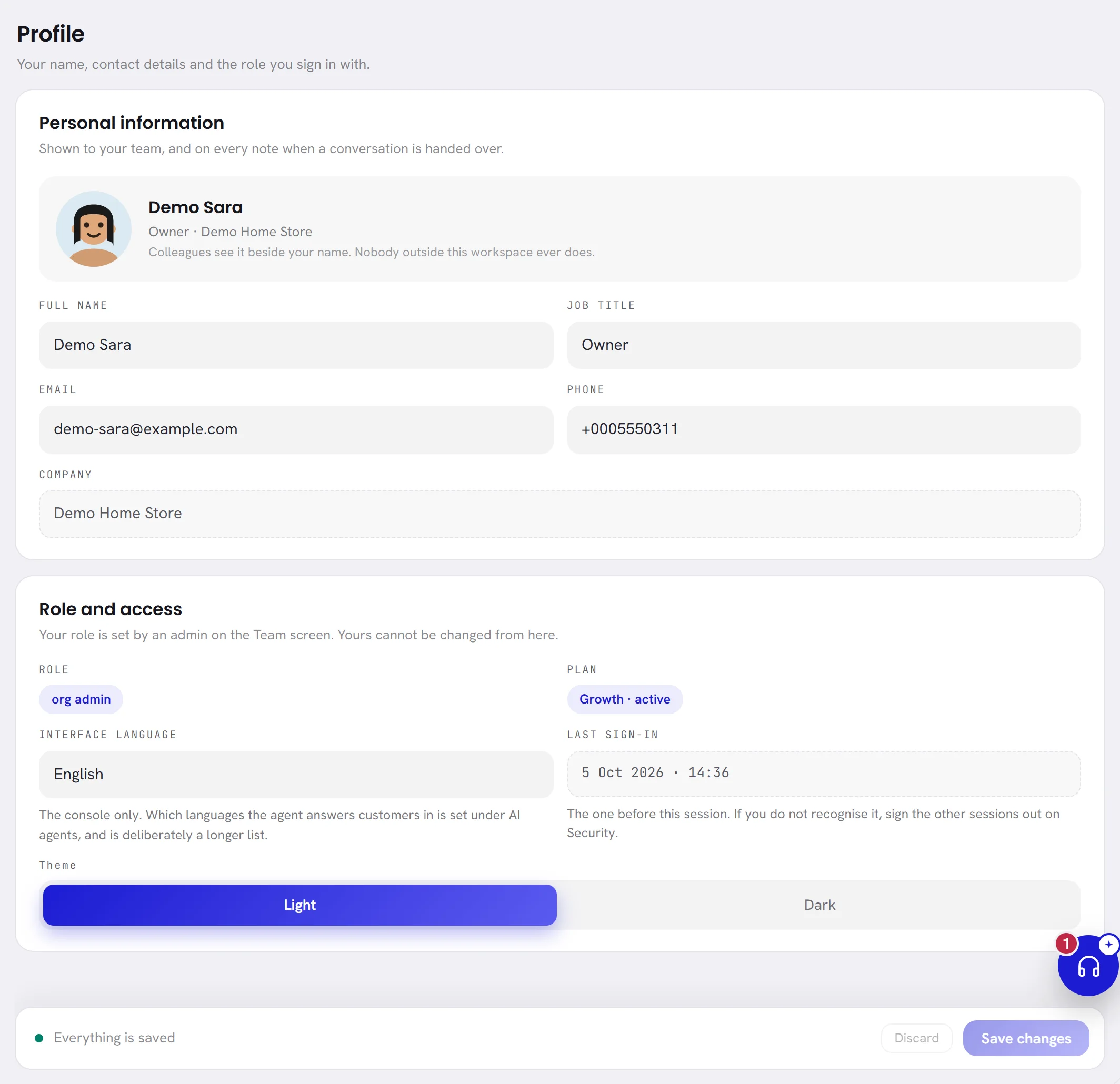
Change your name and contact details
Open Settings, then Profile.
Change what you need under Personal information.
Your full name and your email are required. The job title and the phone number are optional.
Choose Save changes in the bar at the foot of the tab.
The bar says Saved. If something is refused, the reason is written under its field and nothing is saved: correct it and save again.
Add, change or remove your photo
Click the round picture at the top of Personal information.
Until you add a photo, it is a drawn face. Resting the pointer on it shows a camera and the words Choose a picture.

Choose a JPG, PNG or WebP file of 5 MB or less.
The photo is saved the moment you choose it: there is nothing to confirm, and the save bar is not involved. It is cropped to a square around its middle, so choose a picture with your face in the centre.
To go back to the drawn face, choose Remove the picture.
The button is there only while you have a photo.
A file that is too large, or that is not a picture the product can read, is refused with a sentence beside the picture, and your current photo stays.
Choose your language and theme
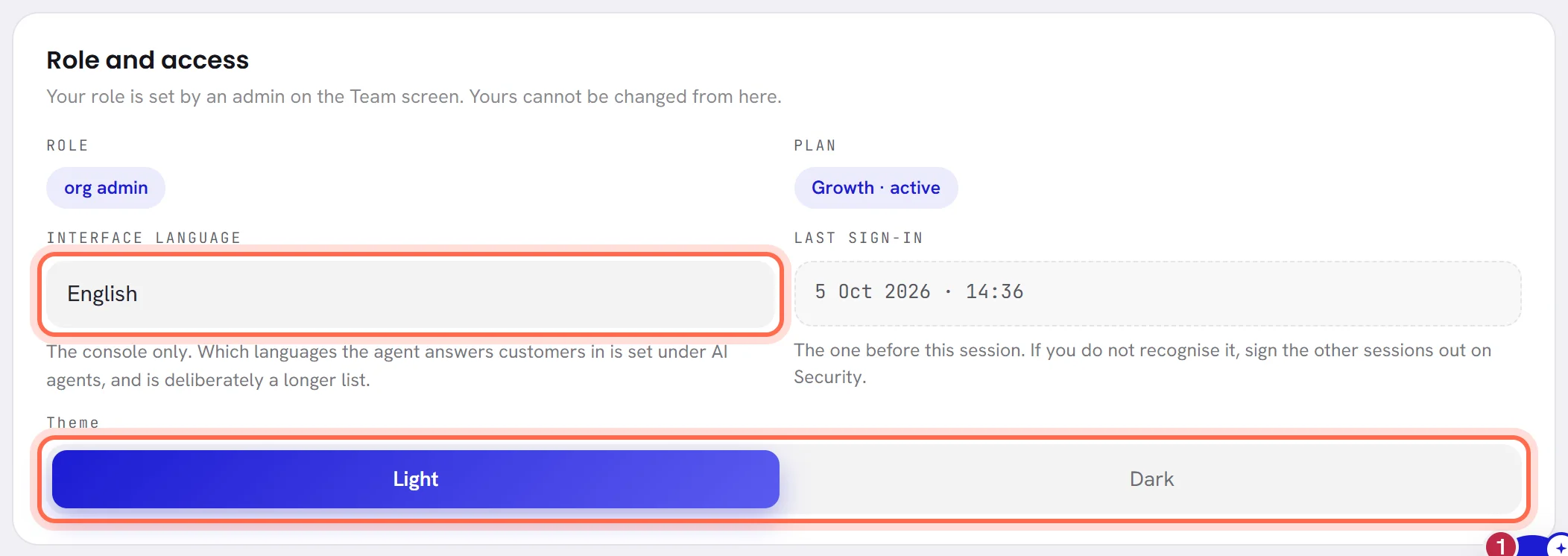
Interface language is the language you read the app in: English, Arabic or French. Choose it and save the tab. The app changes at once, and from then on the emails the product sends you, such as the daily digest, are written in that language.
The language button at the top of every screen changes the language too, for the session you are in, without changing what is saved here. A new sign-in opens in English until you choose your language again with that button.
Your language is about what you read. It does not change the language your AI agent answers customers in: the agent replies in the language each customer writes in.
Theme switches the app between Light and Dark. It applies the moment you click, for the session you are in, and it is the same switch as the moon and sun button at the top of every screen. A new sign-in starts in the light theme. Nothing a customer sees changes.
Everything on the tab
| On the screen | What it does |
|---|---|
| Choose a picture | The round picture. Click it to upload a photo: JPG, PNG or WebP, 5 MB at most. Saved at once. |
| Remove the picture | Takes your photo away and brings back the drawn face. Shown only when you have a photo. |
| Full name | Required, up to 80 characters. The name your colleagues see. |
| Job title | Optional, up to 80 characters. Shown under your name at the top of this tab, before the workspace’s name. |
| Required. The address you sign in with, and where the product writes to you. It must not belong to another account. | |
| Phone | Optional. A number you can be reached on: digits, with or without a + in front, spaces, dots, dashes or brackets. |
| Company | The workspace’s name. It cannot be changed here: whoever manages the workspace changes it on the Workspace tab. |
| Role | Your role in the workspace: org admin, manager or agent. It is set on the Team screen and cannot be changed here. See Roles and access. |
| Plan | The workspace’s plan and its state, on trial or active for example. The Plan & billing tab has the details. |
| Interface language | The language you read the app in. Saved with the tab. |
| Last sign-in | The date and time of your sign-in before this one, on the workspace’s clock. In your very first session it says this is your first. If you do not recognise it, open Security, sign your other sessions out and change your password. |
| Theme | Light or Dark, applied at once. |
| Discard | Puts the fields back as they were when you opened the tab. |
| Save changes | Saves your name, job title, email, phone and language together. |
What your colleagues and your customers see
- Your colleagues see your name on the Team screen, on the conversations assigned to you in the inbox, and beside what you did in the activity log. They see your photo beside your name on the Team screen.
- Your job title and your phone number are shown on this tab only.
- Your customers see none of it. A reply you write in the inbox is sent from the business’s WhatsApp number exactly as you typed it: your name and your photo are not added. What a customer sees is your business’s WhatsApp profile.
The name your AI agent goes by is its own, and is set with the agent: see Agent profile and instructions.
Good to know
- Everybody in the workspace has this tab, whatever their role.
- One email address is one account: an address that another account already uses is refused.
- A change to your profile or your photo is written to your workspace’s activity log.
Can I change my own role?
No. Roles and access are changed on the Team screen, by somebody who can manage the team. See Roles and access.
Why is my photo cut?
A photo is cropped to a square around its middle, then shown as a circle. Choose a picture where your face is in the centre.
The app is in English again after I signed in.
A new sign-in opens in English. Choose your language with the language button at the top of the screen. The language saved on this tab still decides the language of your emails.