Who holds a conversation
Every conversation is held by one of five: your AI agent, nobody yet, a team’s queue, you, or a colleague. The coloured chip at the top of the conversation says which, and the list of conversations is grouped the same way.
| The chip says | Who holds it | Who writes in it |
|---|---|---|
| The agent’s name, or AI agent | Your AI agent. | The agent. A person takes it over first. |
| Waiting | Nobody. It was handed to a person and is on no team. | Whoever picks it up. |
| On a team | Nobody yet. It is on a team’s queue. | Whoever on that team picks it up. |
| You | You. | You. |
| A colleague’s name | That colleague. | Only them. |
While a person holds a conversation, the agent stays out of it, whatever the customer writes, until somebody hands it back.
When the agent hands a conversation over
The agent stops and passes a conversation to a person when a rule tells it to, when it decides to, or when it cannot answer. Each time it leaves a line in the conversation saying what happened and why, so whoever picks it up knows where things stand. These lines are always in English.
| The line in the conversation | Why |
|---|---|
Escalated to a human · discount | The customer asked for a discount. The other built-in rules write legal, complaint and human requested. |
Escalated to a human · cannot read | The message had no words the agent could read, such as a location or a contact card. A voice note or a picture it could not make out writes media unreadable. |
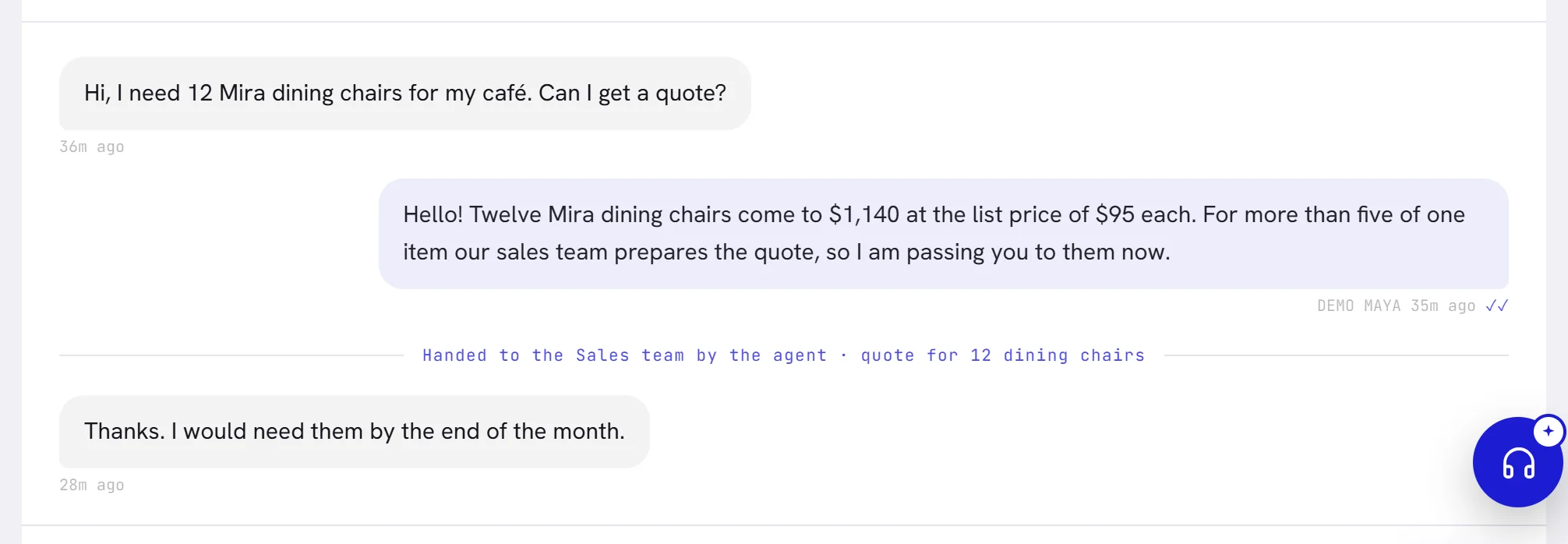
Handed to the Sales team by the agent · quote for 12 dining chairs | The agent chose to hand over. The line names where it went, a team, a colleague or simply a person, and gives the agent’s reason. |
Handed to a person · the assistant had no answer | The agent wrote nothing it could send: it had no answer, it could not answer, or its answer held a figure it could not find in what you taught it. The line says which. |
Handed to a person · daily spend cap reached | Your plan’s Daily AI limit was reached. The agent hands conversations over for the rest of the day. |
AI paused: wallet empty | The AI wallet has run out: see Top up your AI wallet. The line reads AI paused: free trial ended after a trial, and AI paused: turned off by our team when our team has paused it. |
Where a handed-over conversation lands is chosen on the agent, in its Actions: the menu When nobody is named, it goes to offers Unassigned, a team or a person. Unassigned puts the conversation under Waiting. The four built-in rules are the switches under Always escalates, and Escalate to human agents is the action that lets the agent decide by itself. See Agent profile and instructions.
Take a conversation over from the agent
Open the conversation in Inbox.
Select Take over at the bottom.
The conversation is assigned to you and moves to You. The agent stops answering in it, and the reply box appears.
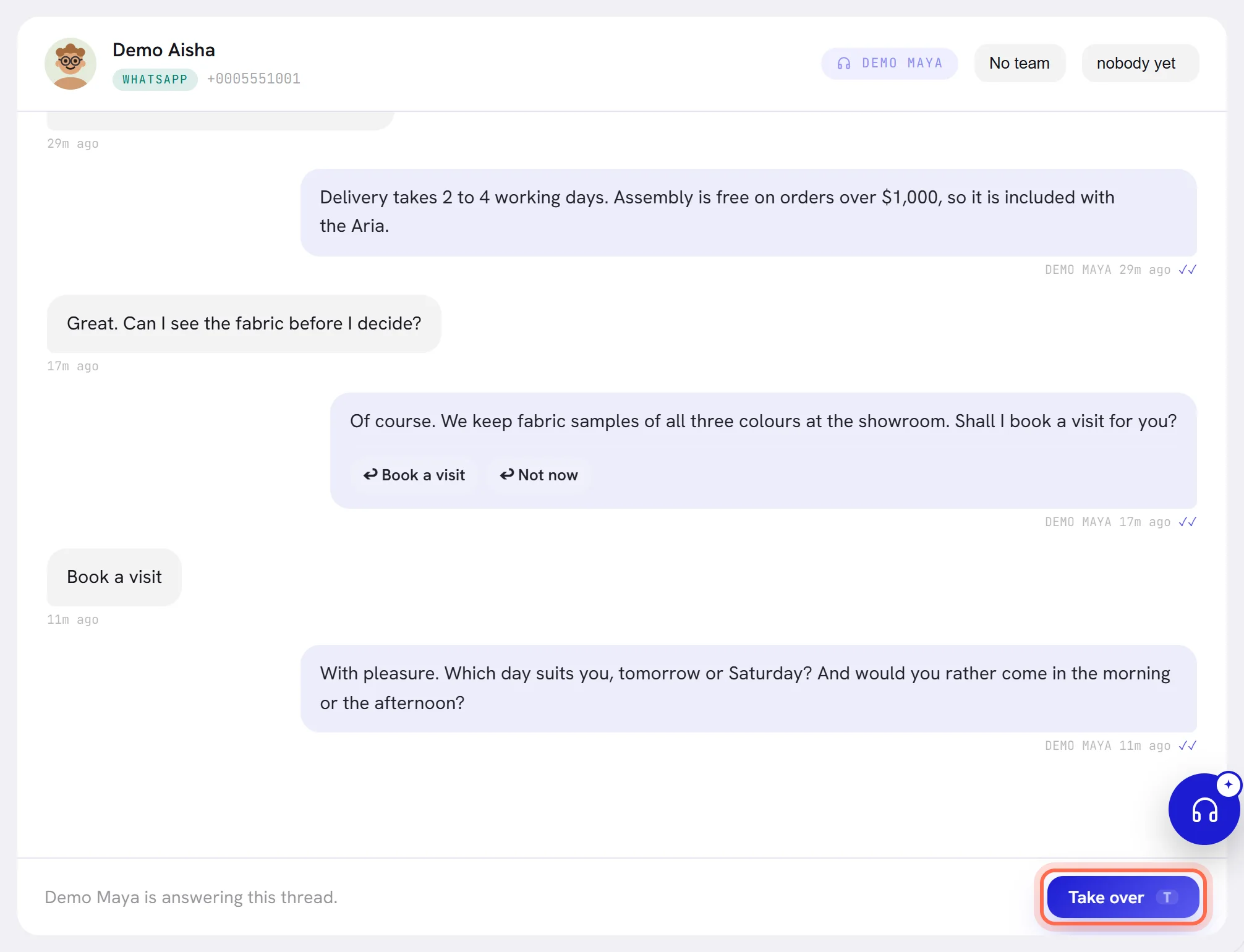
This is also how you pause the agent on one conversation: it stays quiet there until you hand the conversation back.
Pick up a waiting conversation
Open a conversation under Waiting or On a team.
In the menu at the top that shows nobody yet, choose me.
The conversation moves to You. Your colleagues see it with your name on it.

You can answer a waiting conversation without choosing me. It then stays under Waiting and on everybody’s bell, so put your name on it: that is what tells the team it is taken.
Assign a conversation to a colleague
Open the conversation.
In the same menu, choose the colleague’s name.
Everybody in the workspace is listed, in alphabetical order.
The conversation moves to that colleague. If the agent was answering, it stops: a conversation with a person’s name on it is that person’s.
From then on only they can write in it. If your access does not include Everyone’s conversations, it also leaves your inbox.
Nothing is sent to the colleague when you assign. They find the conversation in their own list under You, and on their bell when the customer wrote last.
To take a name off a conversation, choose nobody yet. It goes back to Waiting, or to On a team if it belongs to a team. It does not go back to the agent.
Put a conversation on a team
Open the conversation.
In the team menu at the top, choose the team.
The menu is there once your workspace has a team: see Teams.
Choosing a team does not change who holds the conversation. A colleague can be handling it while it belongs to Sales.
With nobody’s name on it, the conversation shows under On a team, and people without Everyone’s conversations see it only if they are on that team.
No team takes it off the team.

The team’s name is shown on the conversation’s row in the list, and the menu above the list shows one team’s conversations at a time: see Find a conversation.
Give a conversation back to the agent
Open a conversation a person holds, or one that is waiting.
Select Hand back under the reply box.
Nobody’s name is on the conversation any more, and the agent holds it again. A team it belongs to stays.
The agent answers the customer’s next message. It does not go back over what was said while a person held the conversation.

Closed conversations
There is nothing to press to close a conversation. When you are done, leave it under your name, or hand it back so the agent answers the customer’s next message at once.
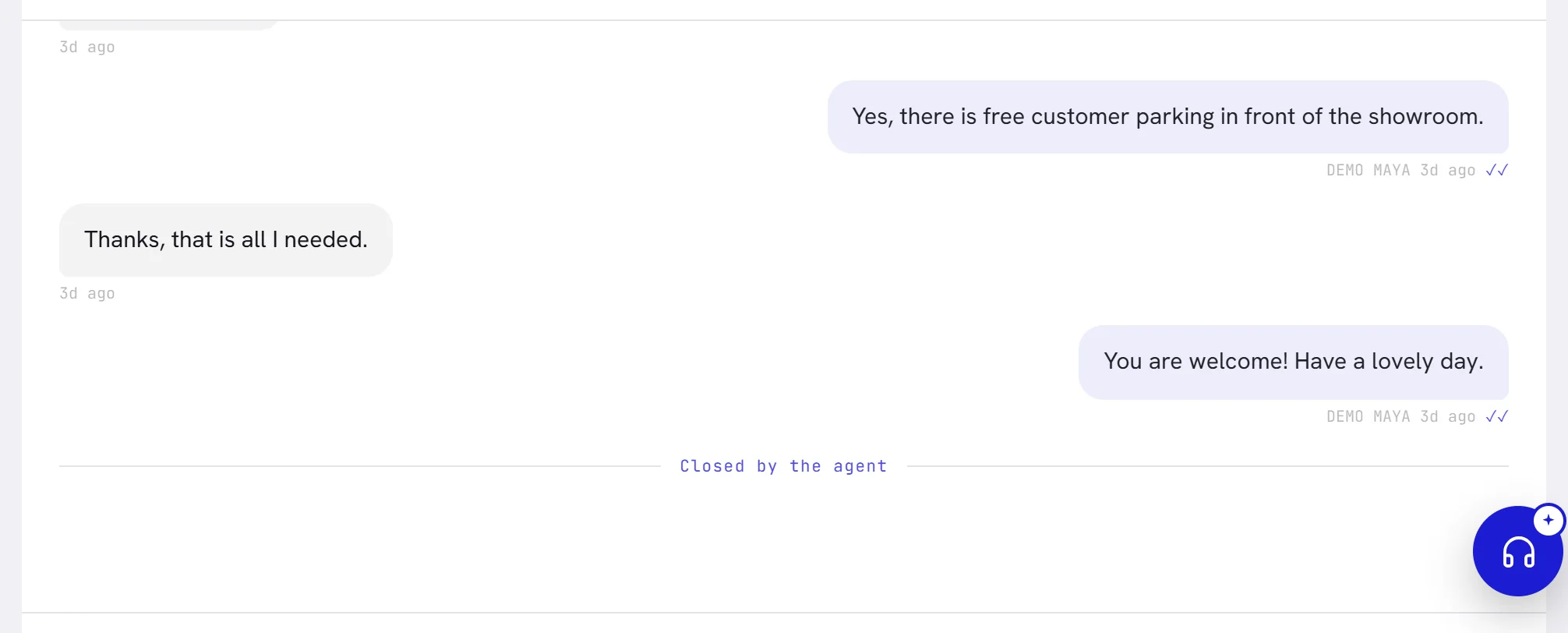
The agent can close a conversation itself when its Close conversations action is on. It writes Closed by the agent in the conversation, or Closed by the agent: no answer to its follow-ups when the customer went quiet.
A conversation is also closed when the customer asks to stop. The line reads Customer opted out — suppressed for this workspace, and nothing can be sent to them again. See Opt-in and opt-out.
A closed conversation stays in the list, under Waiting or On a team, with that line as its last message. It is not counted in Waiting on you or on the bell. When the customer writes again it opens for the agent, unless they asked to stop.
What each person is told
| When | Who is told, and how |
|---|---|
| The agent hands a conversation over, and nobody has it yet | Everybody in the workspace: the contact’s name on the bell with is waiting for a person, until somebody takes it. |
| The customer writes in a conversation you hold | You: the contact’s name on the bell with is waiting for your reply, and the row turns amber in your list. |
| A customer writes for the first time | Everybody who can see the conversation: a line on the bell with started a new conversation and a message in the corner of the screen, even while the agent is answering. |
| A colleague assigns a conversation to you | Nothing is sent. The conversation appears under You in your list. |
Each of the first three can also raise an alert on your desktop. See Notifications.
Good to know
- Everybody who can open a conversation can take it over, assign it, put it on a team and hand it back. There is no separate permission for assigning.
- On a number shared with the WhatsApp Business app, a message typed on the phone takes the conversation from the agent as Take over does. It shows under Waiting until somebody puts their name on it.
- Taking over, assigning, changing the team, handing back and replying are written to the activity log, with who did it and when, when your plan includes the log. See Activity log.