What connecting does
Nothing arrives in xconversions until a WhatsApp number is connected: no messages, no AI agent, no campaigns. Connecting ties your business’s own number, on the official WhatsApp Business Platform, to your workspace. From then on every message sent to that number lands in the Inbox, and everything you send goes out from it.
One number belongs to one workspace, and nobody else can claim it. Before you start, read What you need before you connect a number: it lists what Meta asks for.
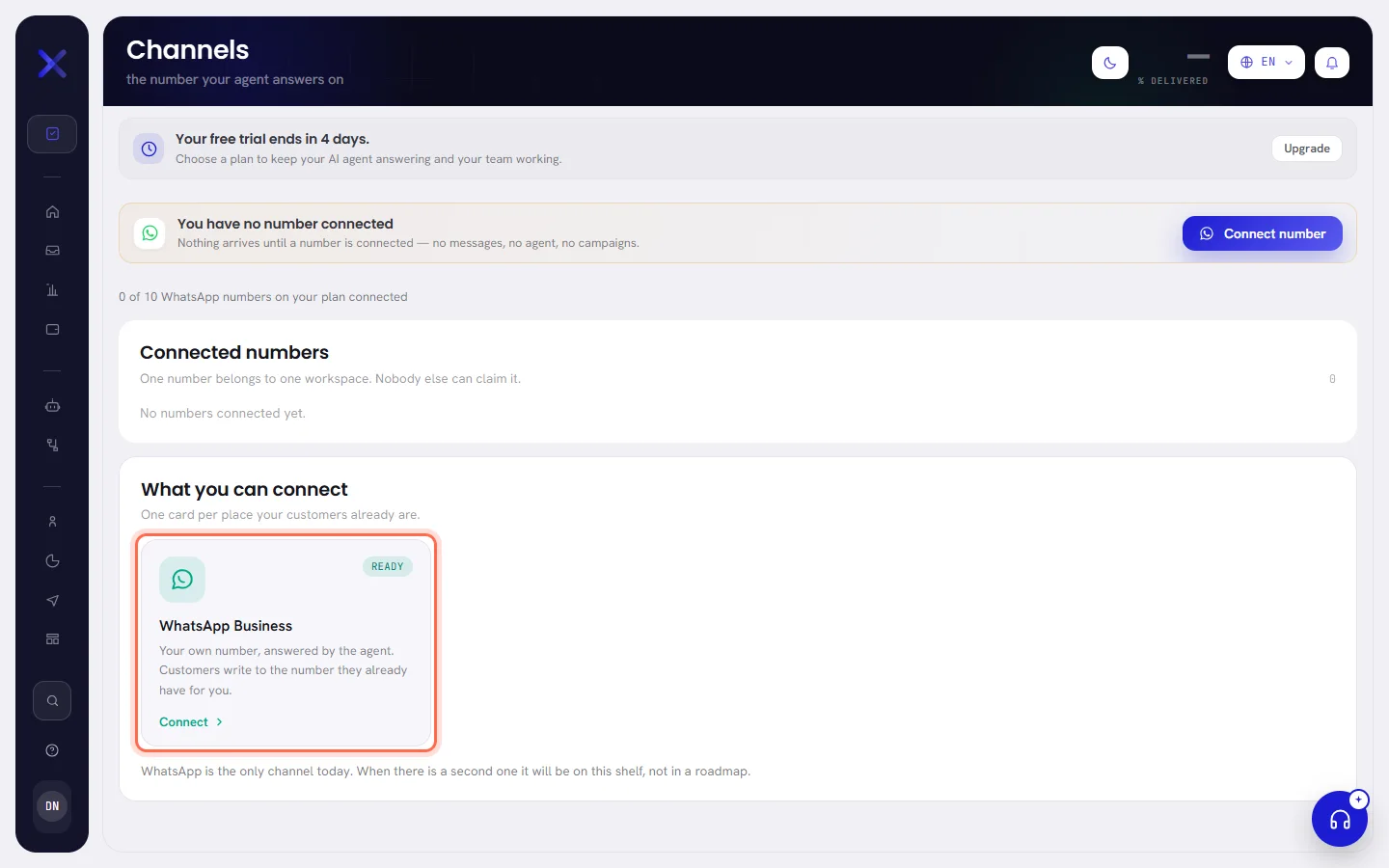
Until a number is live, a banner at the top of every screen says You have no number connected, with Connect number to bring you to this screen. Only people who can connect a number see it.
Open the WhatsApp Business screen
Open Channels, under Setup in the menu.
The top of the screen lists your connected numbers. Under it, the shelf What you can connect holds one card, marked Ready: WhatsApp is the only channel today.
Choose the WhatsApp Business card.
The whole card is the button; Connect is written at its foot.
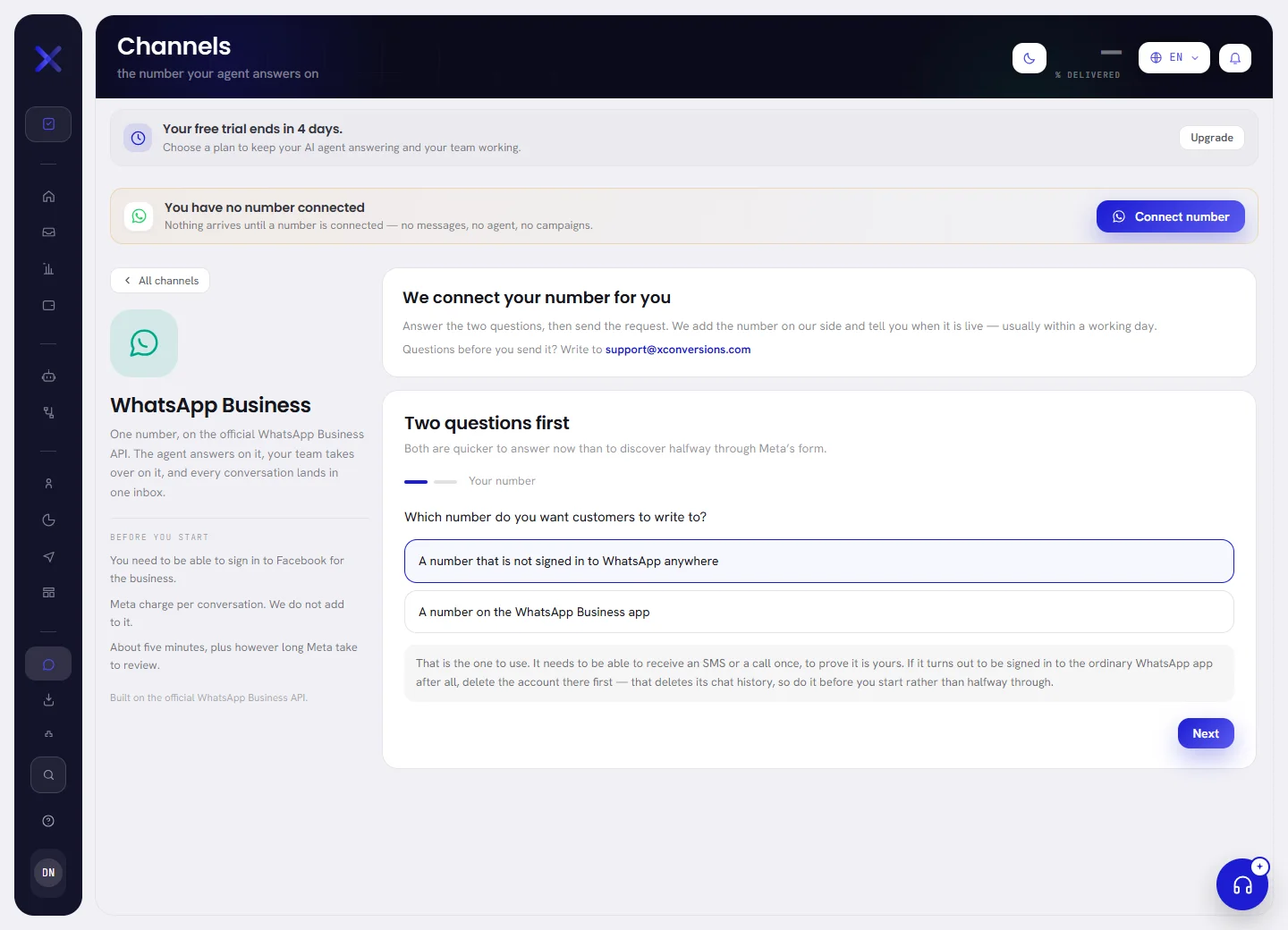
Read Before you start, on the left.
You need to be able to sign in to Facebook for the business. Meta charges you for the messages you send and xconversions adds nothing to that: see What WhatsApp charges. Connecting takes about five minutes, plus however long Meta takes to review. All channels goes back to the list.
Answer the two questions
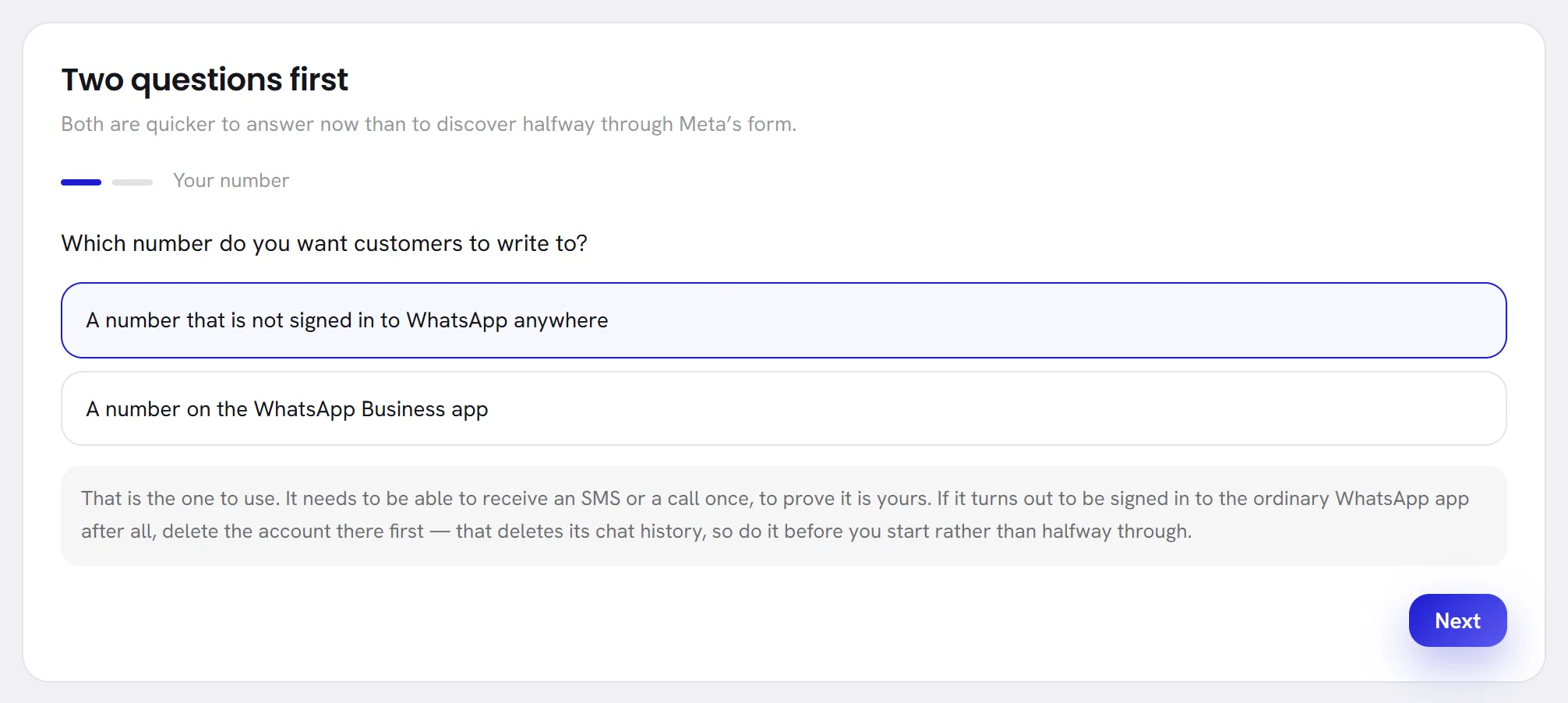
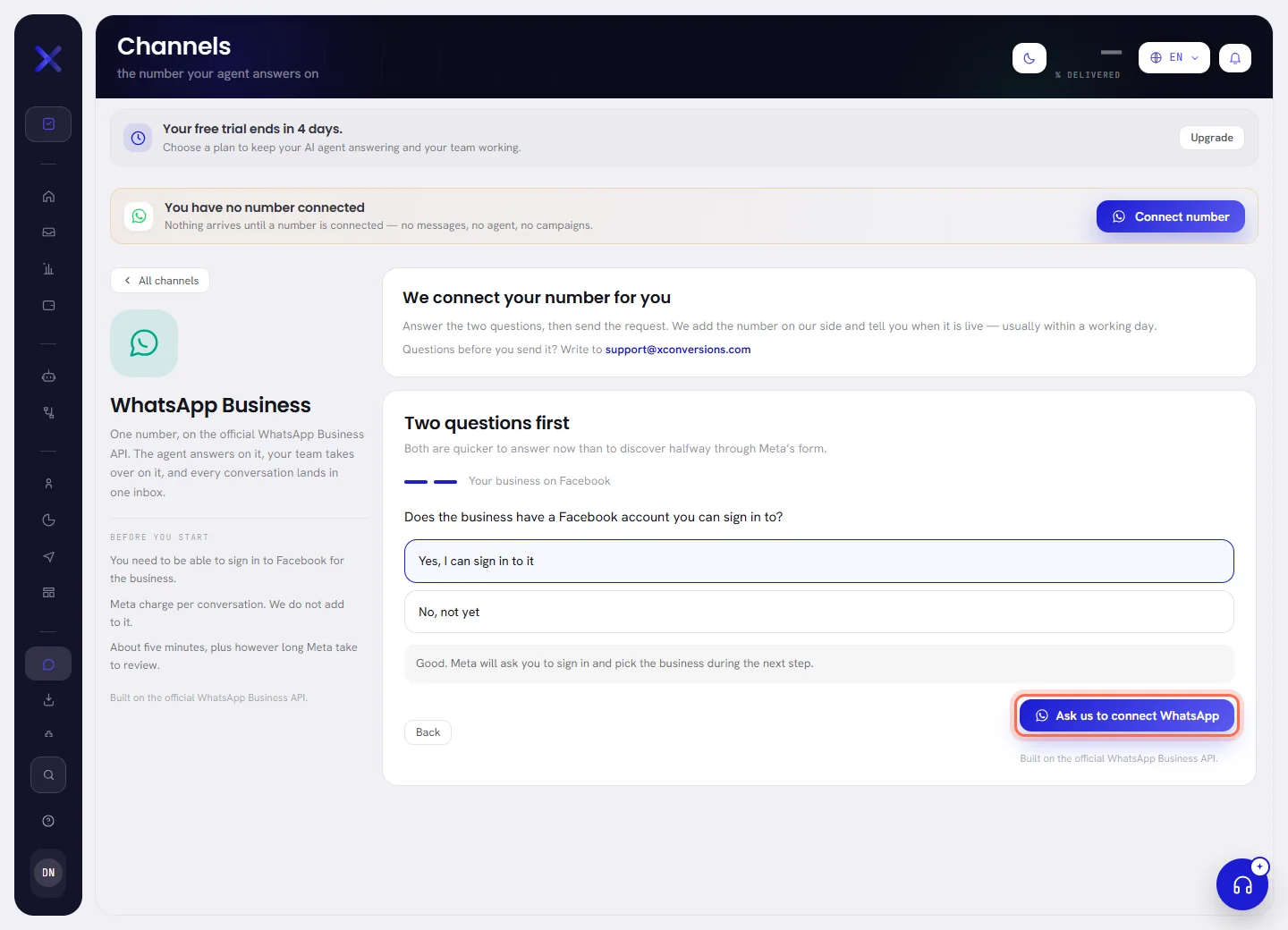
Under Two questions first, the screen asks two things before anything opens, because both are quicker to answer now than to discover halfway through Meta’s form. Nothing you answer is saved and no answer stops you: each one shows advice under it. The first answer does travel. It decides whether the number is connected as a new number, or as one that stays on the WhatsApp Business app.
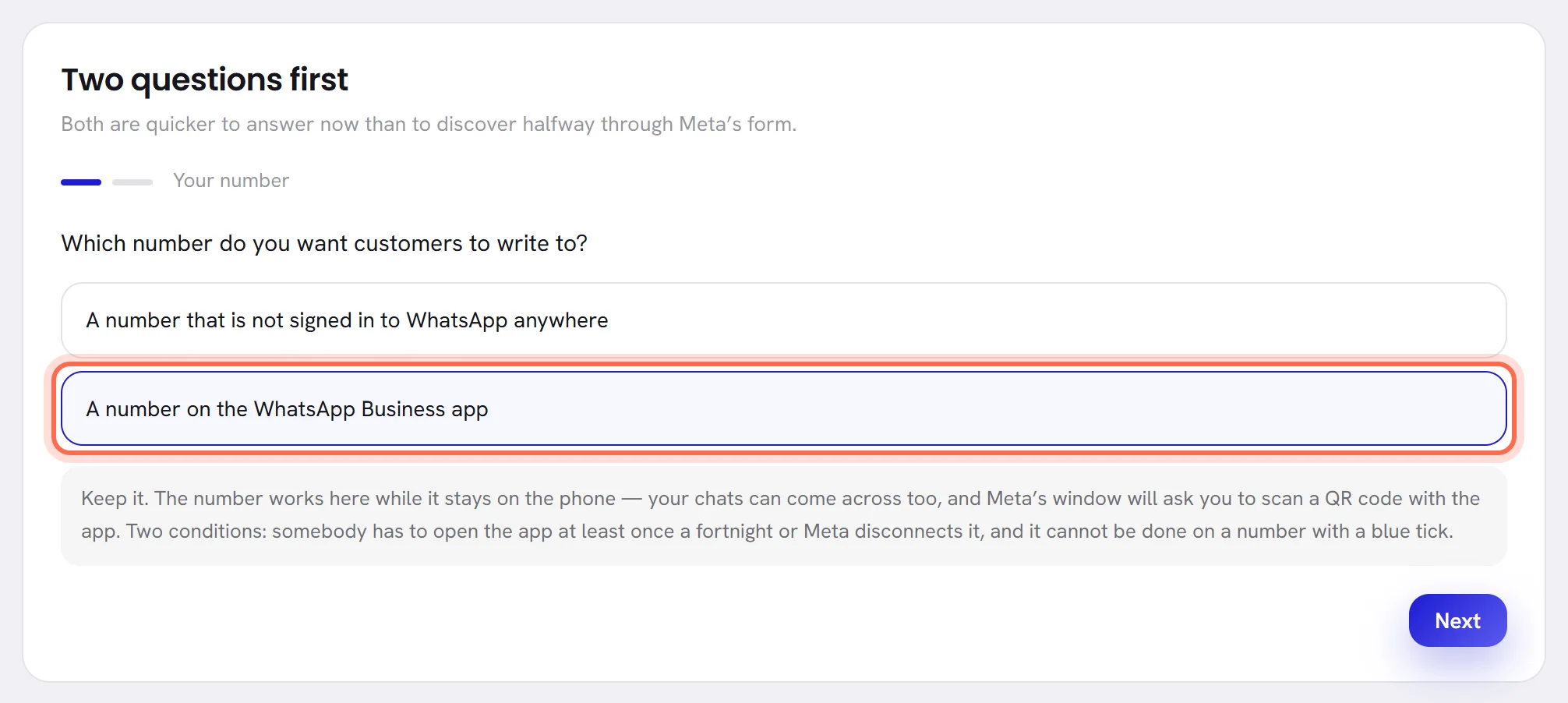
Under Your number, say which number customers will write to.
The advice for the answer you tick appears under the two choices.
Press Next.
Back returns to the first question.
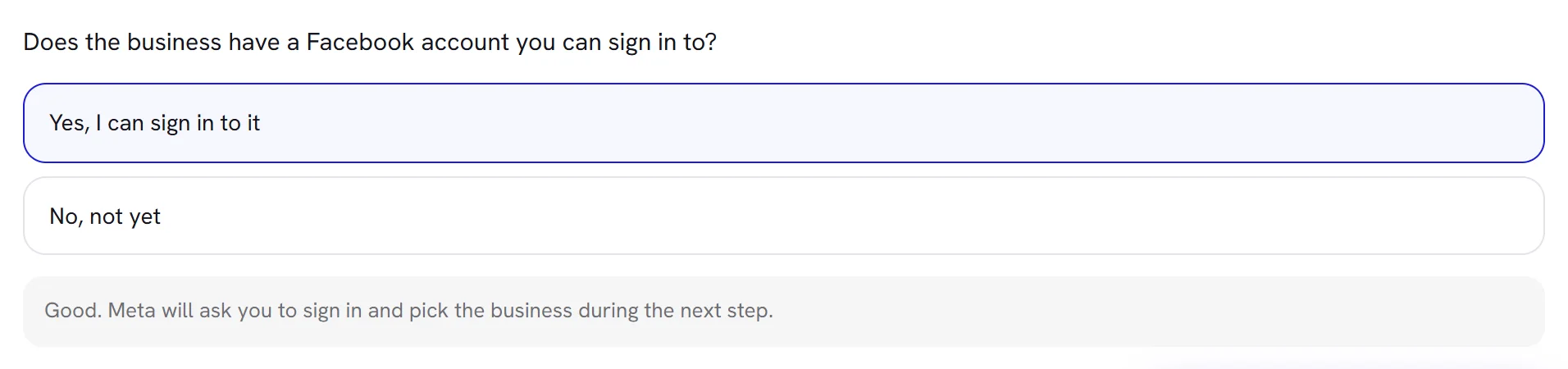
Under Your business on Facebook, say whether you can sign in to a Facebook account for the business.
The button that connects the number appears beside Back.
| Question | Answer | What the screen tells you |
|---|---|---|
| Your number | A number that is not signed in to WhatsApp anywhere | That is the one to use. It has to be able to receive an SMS or a call once, to prove it is yours. If it turns out to be signed in to the ordinary WhatsApp app after all, delete the account there first. That deletes its chat history, so do it before you start, not halfway through. |
| Your number | A number on the WhatsApp Business app | Keep it. The number works here while it stays on the phone, and your chats can come across too. Two conditions: somebody has to open the app regularly or Meta disconnects it, and it cannot be done on a number with a blue tick. See Keep the number on the WhatsApp Business app. |
| Your business on Facebook | Yes, I can sign in to it | Meta asks you to sign in and pick the business during the next step. |
| Your business on Facebook | No, not yet | You can create one as you go. It is free, and you need your business name, address and website to hand. |
Which way your workspace connects
The last step is one of two, and the words on the button under the second question tell you which one your workspace has.
| The button says | What happens | Continue with |
|---|---|---|
| Start with Meta | Meta’s own window opens and you connect the number yourself, in about five minutes. | Connect it yourself in Meta’s window |
| Ask us to connect WhatsApp | Your request goes to our team, who connect the number for you. A panel above the questions says so too: We connect your number for you. | Ask us to connect it |
If you read Connecting a number from here is not set up yet. Ask us and we will connect it for you. where the button should be, write to us with the round help button, Get help, in the corner of every screen, or from our contact page.
The same button is in two other places and works the same way there: the welcome window on your first visit, and the Connect WhatsApp step of the Onboarding checklist. There it asks one question instead of two, Do you already use WhatsApp Business on this number?, and when you connect the number yourself it reads Connect WhatsApp or Connect WhatsApp Business.
Connect it yourself in Meta’s window
The window belongs to Meta. Its screens are written by Meta, in your language, and Meta changes them from time to time. This is what it asks today.
Press Start with Meta.
A line beside the button says what is happening. If it reads Ready. Press the button again to open Meta’s window., press once more: a browser opens a window only on a click.
Sign in to Facebook.
Use the Facebook account that manages your business. Meta then shows what you are allowing xconversions to access.
Choose your business portfolio and your WhatsApp Business Account, or create them.
The business portfolio is your business at Meta. The WhatsApp Business Account holds your numbers and your templates. If you create them here, have your business name, address and website to hand, as they appear on your paperwork.
Add the phone number.
A number that is not on WhatsApp: type it, choose a text message or a call, and enter the code Meta sends to it.
A number on the WhatsApp Business app: type it, then confirm on the phone, in the app itself. Meta’s window says how: by scanning a QR code with the app, or by approving a message the app receives and entering a code. Keep the phone beside you, unlocked. The app also offers to share your chat history: accept if you want your earlier conversations in the inbox.
Check what you are granting, and finish.
Meta’s window closes. The line beside the button reads bringing your number in…, then Channels opens with one sentence at the top saying how it went.
| The line beside the button | What it means |
|---|---|
| getting Meta’s window ready… | The page is preparing. Wait a moment. |
| Ready. Press the button again to open Meta’s window. | Press the button once more. |
| finish in Meta’s window — we are waiting here | Meta’s window is open: finish there. If you cannot see it, it may be behind this window. Pressing the button again opens it again. |
| bringing your number in… | You finished at Meta and xconversions is connecting the number. Leave the page open. |
| Meta’s window was closed before the end. Nothing was connected. | Nothing changed. Press Try again. |
| That did not work, and nothing was connected. Try again. | Meta reported an error, or its answer never came back. When Meta gives a reason, it follows this sentence. Press Try again. |
| Meta’s window could not load. An ad blocker may be stopping it — try again without one. | Switch the ad blocker off for this page, or use another browser, then press Try again. |
Ask us to connect it
Answer the two questions.
Your first answer goes with the request, so we know whether the number stays on the WhatsApp Business app.
Press Ask us to connect WhatsApp.
Channels opens and says Request sent. We will connect your number and email you when it is live.
Wait for our message.
Our team gets in touch, adds the number on our side and tells you when it is live, usually within a working day. For a question before you send the request, write to support.
One request a day is enough. Pressing again shows We already have your request, and somebody will be in touch soon. and sends nothing new.
What Channels says afterwards
When Meta’s window closes, Channels opens with one sentence at the top: green when the number is in, red when it was refused. A refusal changes nothing, so you can always start again.
| Channels says | What it means | What to do |
|---|---|---|
| +0005550300 is connected. It can send and receive now. | Everything worked. | Write to the number from another phone: the message arrives in the Inbox. |
| +0005550300 is connected. WhatsApp is still finishing it off — it can send the moment that is done. | The number is yours here, and WhatsApp has not finished setting it up. | Look at the number’s status. If it reads Needs a card, add a payment method. Otherwise it changes by itself. |
| +0005550300 is connected, but it cannot send yet: WhatsApp needs a payment method on the account before it will deliver anything. Add one in WhatsApp Manager and the number starts working within minutes — or ask us and we will walk you through it. | Your WhatsApp Business Account has no payment method yet. | Add a payment method at Meta. |
| That WhatsApp Business Account belongs to another workspace. One account answers for one business. | A number of that account is already connected to another xconversions workspace. | In Meta’s window, choose or create another WhatsApp Business Account. If the other workspace is yours, disconnect the number there first. |
| +0005550300 already belongs to another workspace. One number answers for one business. | The number itself is connected to another workspace. | Disconnect it there first, or use another number. If that workspace is not yours, write to us. |
| Meta’s form finished without a phone number. Open it again and add the number at the last step. | Meta’s window was finished with an account and no number. | Start again and add the number. |
| That number is not on the WhatsApp account yet. Wait a minute and try again — nothing was changed. | Meta has not finished adding the number to your account. | Wait a minute, then start again. |
| The number could not be connected: something went wrong at WhatsApp (131000) | WhatsApp would not hand the number over. Its reason follows the colon, with WhatsApp’s code in brackets; this one is an example. | Try again in a few minutes. If the sentence stays the same, send it to us with the round help button, Get help. |
| That signup was started from another session, has expired, or was already used. Start again from here. | The signup was finished too late, finished twice, or finished by another person or browser than the one that started it. | Start again from Channels. |
| That WhatsApp Business Account was not part of this signup. Open Meta’s form again from here and choose the account there. | The account reported at the end is not one you granted in Meta’s window. | Start again and choose the account inside Meta’s window. |
| Meta could not confirm what this signup connected, so nothing was changed. Start again from here in a minute. | Meta did not answer when xconversions checked the signup. | Wait a minute, then start again. |
| The numbers you have stay connected. No other can be connected until your plan has room: upgrade it for more numbers. | Your plan sets a limit on WhatsApp numbers, and every one of them is already connected. | Disconnect a number you no longer use, or change plan: see Plan limits. |
While a number is not live yet, the WhatsApp Business screen and the checklist also show where it has got to, under the button. The line changes by itself, so you can close the page.
| The line under the button | What it means |
|---|---|
| waiting for Meta to approve the number | The number is connected and WhatsApp has not reported it working yet. There is nothing to do. |
| waiting for a payment method on the WhatsApp account | The number waits for a card on your WhatsApp Business Account: see Add a payment method at Meta. |
| Your number is live. The agent is answering. | The number sends and receives. |
| your number needs attention | WhatsApp refused the number, and waiting will not change that: see When a number has a problem. |
Keep the number on the WhatsApp Business app
If your team already answers customers in the WhatsApp Business app, the number can stay there and work in xconversions too. Messages are kept in step between the two: a reply typed on the phone appears in the inbox. Choose A number on the WhatsApp Business app at the first question, or Yes, it is on the WhatsApp Business app in the checklist and the welcome window.
What it needs:
- The latest WhatsApp Business app, on the phone that number lives on.
- That phone to hand, with a working camera, in case Meta’s window asks you to scan a QR code.
- The app stays installed. Without it, Meta disconnects the number from xconversions too.
- Somebody opens the app at least once every thirteen days. If nobody does for about two weeks, Meta disconnects the number, your AI agent included.
- The number has no blue tick. A number with an Official Business Account cannot be shared.
What you give up, as the checklist lists it under What you give up:
- No blue tick for the number while it is shared.
- No calling through the WhatsApp Business Platform.
- Your display name is not reviewed automatically: that is a separate application to Meta.
- Messages sent from the phone stay free. Messages sent from xconversions are billed by Meta as usual.
Once connected, the number’s card says Also answered from the phone. A reply typed on the phone takes that conversation away from the AI agent, as Take over does in the inbox, until somebody hands it back. More in Manage your numbers.
Bring your earlier conversations across
Only a number that stays on the WhatsApp Business app has a past to bring. When it is connected, xconversions asks WhatsApp at once for the earlier conversations and for the contacts saved in the app. There is nothing to press.
- WhatsApp gathers them first, so the inbox fills over minutes or hours. The number’s card counts the messages as they arrive.
- WhatsApp decides how far back they go: at the time of writing, the last six months, without group chats.
- Old conversations arrive closed. The AI agent does not answer them, workflows do not start from them, and nothing is charged for them.
- A customer who asked you to stop in an old chat is opted out here as well.
- Contacts from the phone’s address book arrive with their names, marked No consent: a name in a phone is not an agreement to be messaged. See Consent and opt-outs.
| The number’s card says | What it means |
|---|---|
| Bringing across your earlier conversations. WhatsApp gathers them first, so the inbox fills over the next few minutes. | Asked for, and nothing has arrived yet. |
| Bringing across earlier conversations — 1,250 messages so far. | Arriving now. The count grows as they come. |
| 1,250 earlier messages were brought across. | Finished: nothing more has arrived for ten minutes. |
| Your earlier conversations could not be brought across — WhatsApp only offers them in the first day after connecting. The number itself works normally. Ask us if you would like them: it means connecting the number again. | WhatsApp hands over a number’s past only during the first 24 hours, and they passed. The number works; only its past is missing. Write to us if you want it. |
Good to know
- Who can connect a number: people with the Numbers and integrations access. An Org admin has it. A manager or an agent has it only if it was given to them: see Roles and access.
- How many numbers: as many as your business has, unless your plan sets a limit. Plan & billing says how many are connected and whether your plan has one.
- Meta bills you for your messages, directly. xconversions never sees your card.
- Meta’s window needs JavaScript, and a browser that lets this page open a window.
- There is no form to type a number into: a number is connected through Meta’s window or by our team, never by hand.