Before you start
An account in xconversions lives in a workspace: one per business. Whoever opens the workspace is its first admin, with the Org admin role. Everybody else is added from inside it, on the Team screen, and never fills in this form: see Add a team member.
One email address is one account, and an account works in one workspace. Use an address you can open now: the workspace stays closed until you confirm it.
Open your workspace
Type your Business name, Your name and Work email.
Each is described in the table under these steps.
Choose a Password of at least 10 characters, and type it a second time in Password again.
The line under the box turns red while the password is too short and green once it is long enough.
A password that has appeared in a known data breach is refused as well. That is checked when you send the form, and the form says so when it happens.
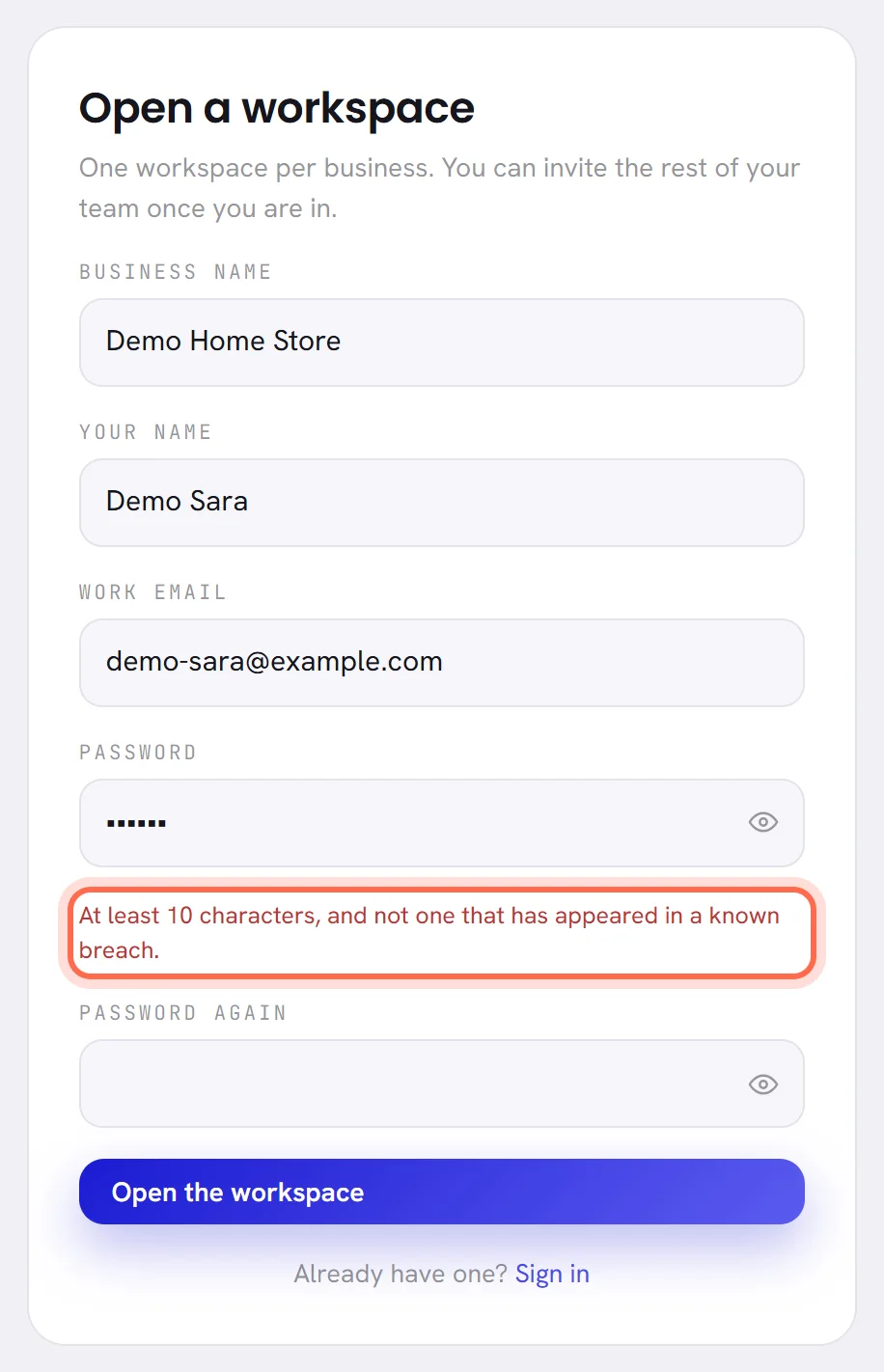
Press Open the workspace.
The workspace is created, you are signed in, and a confirmation link is sent to your address.
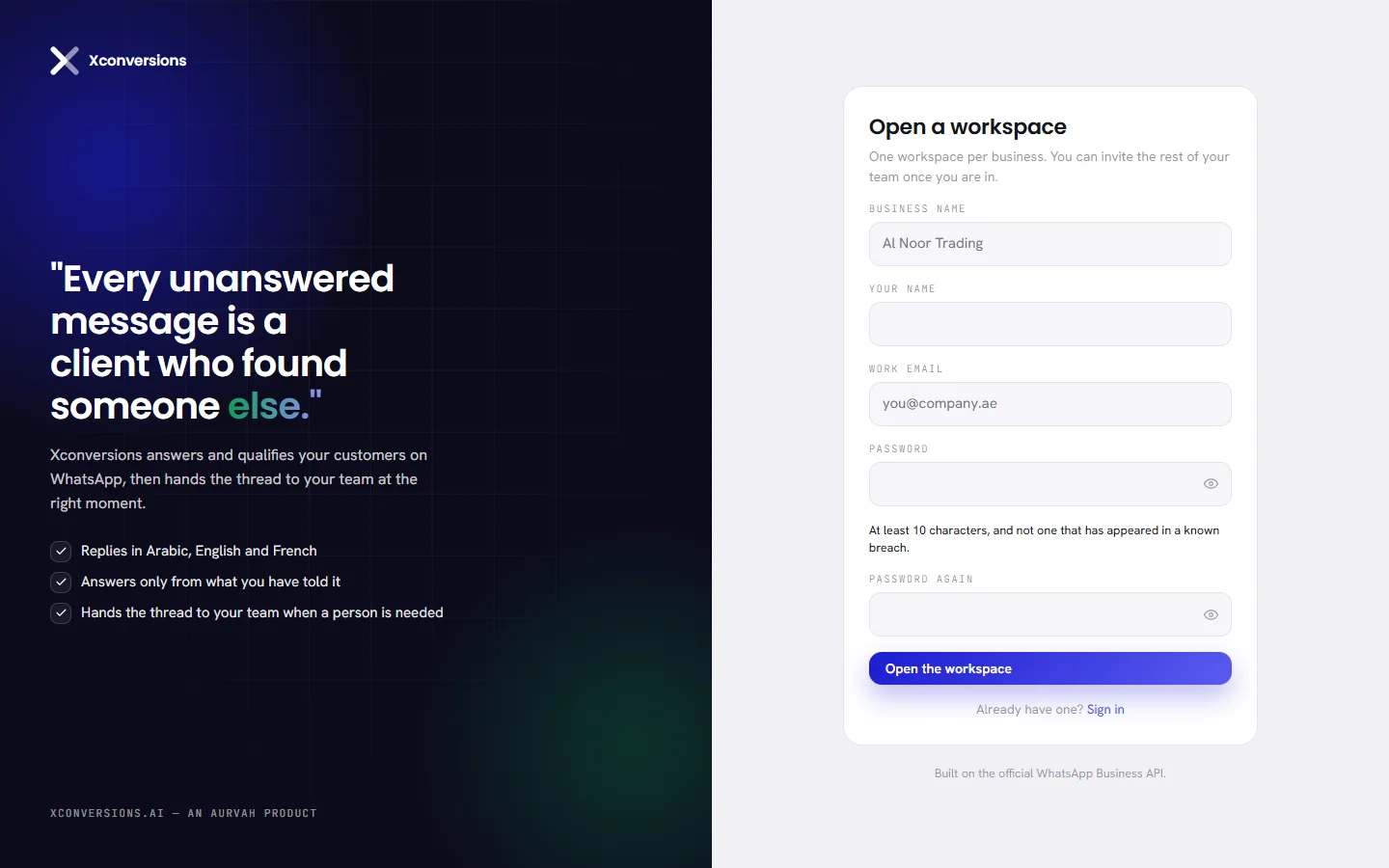
| On the screen | What it does |
|---|---|
| Business name | What your workspace is called. Your team sees it under the logo in the menu. Up to 120 characters. You can change it later in Workspace settings. |
| Your name | Your own name, as your colleagues see it. Up to 120 characters. You can change it later in Your profile. |
| Work email | The address you sign in with. The confirmation link, password resets and the emails about your workspace go to it, so use one you read. |
| Password | At least 10 characters, and not one that has appeared in a known breach. |
| Show password | The eye at the end of a password box shows what you typed. Press it again to hide it. |
| Password again | The same password, typed a second time to catch a slip. |
| Open the workspace | Creates the workspace and signs you in. |
| Sign in | For somebody who already has an account: opens the sign-in page. |
The workspace takes its time zone from the browser you sign up in, so dates start out right for where you are. You can change it in Workspace settings.
If the form comes back with a message, it is one of these:
- The address already has an account. Sign in with it, or use another address.
- The password is shorter than 10 characters, or has appeared in a known breach.
- The two password boxes do not hold the same thing.
Confirm your email address
After you send the form you are on a page headed Confirm your email address. It shows the address the link went to, under Sent to. Nothing else in the workspace opens until that address is confirmed.
Open the email we sent you.
Its subject is Confirm your email address.
Press Confirm this address in the email.
The link works once and lasts an hour.
Open it in the browser you signed up in. In another browser you are asked to sign in first, and the address is confirmed as soon as you have.
Your workspace opens.
You arrive on the onboarding checklist. A welcome email follows; if your workspace starts with free credit for the AI, that email says how much.
If the email does not arrive:
- Look in your spam folder first.
- Press Send it again. After each link the button is greyed for a minute and counts down, for example Resend in 42 s. No more than five links are sent in an hour.
- If the address under Sent to is wrong, press Sign out and sign up again with the right one.
| On the screen | What it does |
|---|---|
| Sent to | The address the confirmation link was sent to: the one you typed when you signed up. |
| Send it again | Sends a new link. Greyed for a minute after each one, and limited to five links an hour. |
| Sign out | Leaves the account without confirming it. You can sign in again later and carry on from this page. |
What you see the first time
The tour. On the first page you open, a short tour starts by itself. It rings one part of the screen at a time and says what it is for: the menu, Channels, Inbox, AI Agent, Workflows, search, and your own account menu. The counter, for example 1 of 7, says how far along you are.
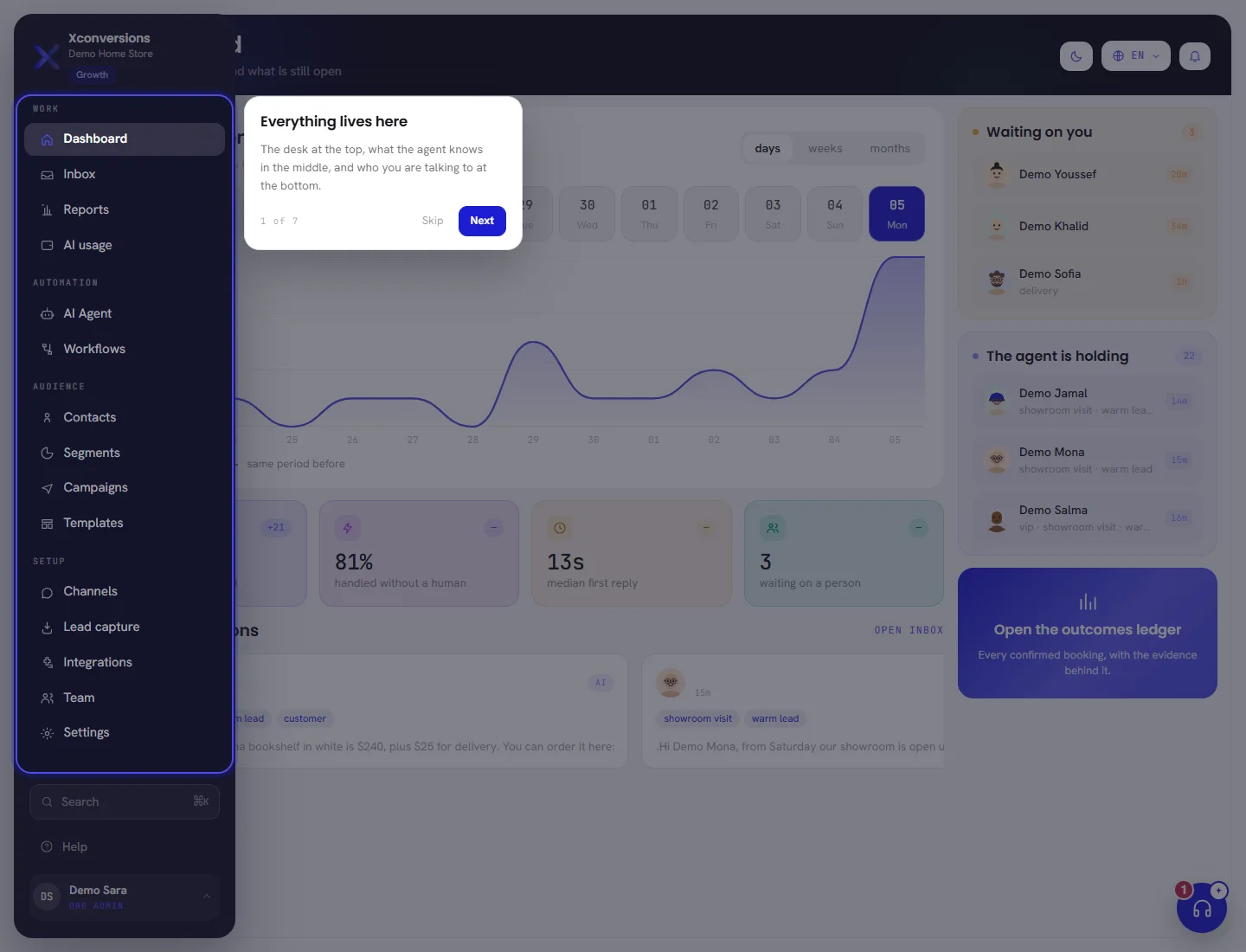
Pressing Esc, or clicking the dimmed part of the screen, also ends the tour. It starts by itself only once. To see it again, open your account menu at the foot of the menu and choose Take the tour.
The welcome. The first time the Dashboard is opened in a new workspace, a pop-up greets you by name, for example Hello Demo, let’s get you live, and asks for one thing: your WhatsApp number, because nothing arrives until a number is connected.
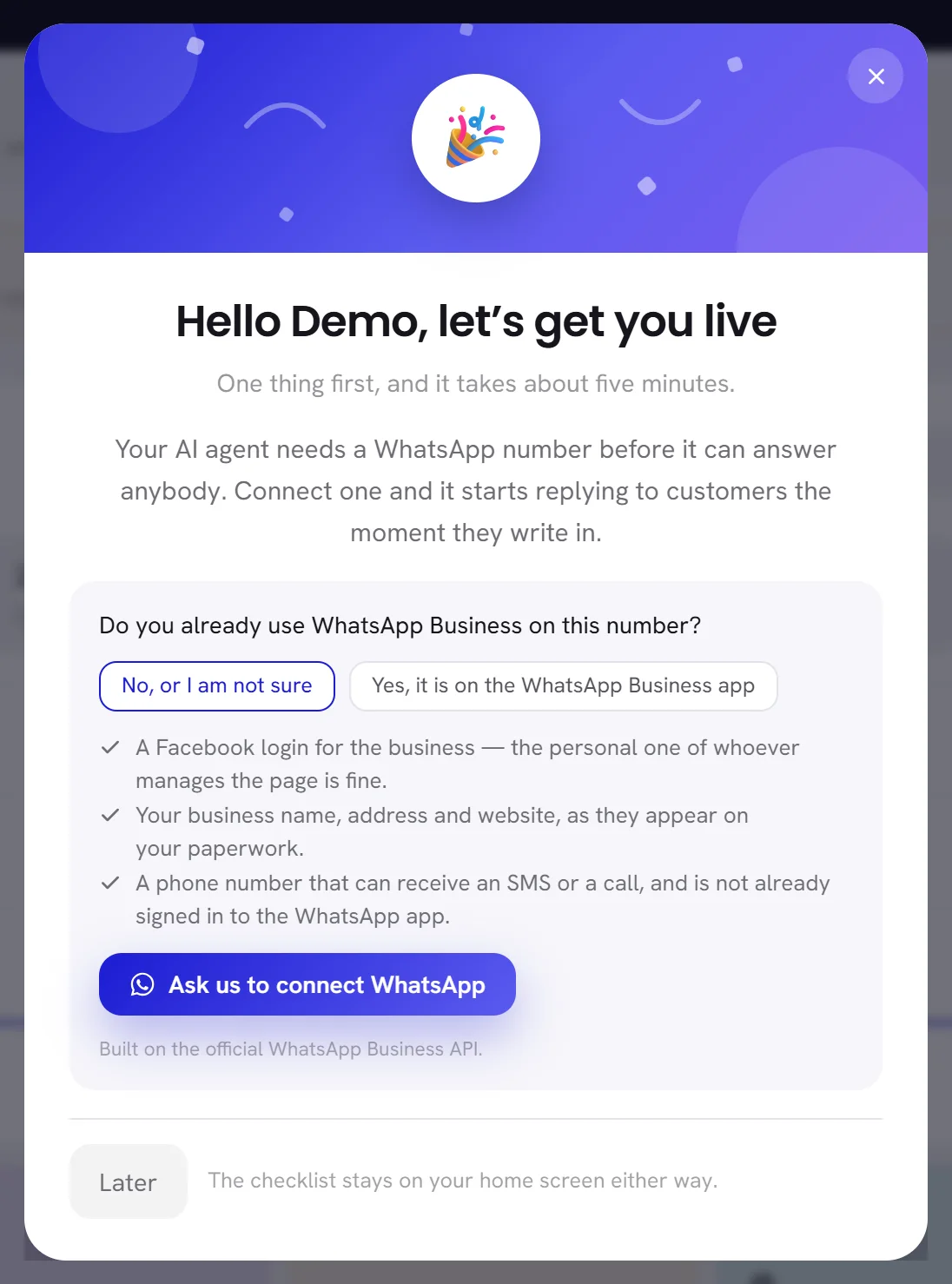
- To connect now, answer Do you already use WhatsApp Business on this number? and press the button under it: Connect WhatsApp, or Ask us to connect WhatsApp where our team connects the number for you. Connect a WhatsApp number explains every step.
- To do it another time, press Later. The pop-up is shown once for the whole workspace and does not come back. The checklist, and the banner at the top of every screen, keep the same button.
A colleague who cannot manage numbers sees the same greeting with Ask your admin to connect WhatsApp. in place of the button.
Your free trial
A new workspace starts on a free trial. Under your workspace’s name at the top of the menu, a badge says where it stands, for example Free trial · 4 days left. When the trial has an end date, a banner at the top of every screen says it too, for example Your free trial ends in 4 days., with Upgrade for the people who can choose a plan.
What a trial includes, how long it lasts and what happens when it ends are in The free trial. Your own dates and plan are on Plan & billing, in Settings.
Questions
Can my colleagues sign up too?
No. A second sign-up opens a second, separate workspace. Add your colleagues from the Team screen instead: each gets an account in your workspace and an email saying how to sign in. See Add a team member.
The link in the email says it has expired. What now?
Sign in. You land on Confirm your email address again: press Send it again for a new link, which lasts an hour.
I signed up with the wrong address.
On Confirm your email address, press Sign out, then sign up again with the right address. The first sign-up was never confirmed and cannot be used.
Which language is the sign-up page in?
The pages before sign-in have no language button. Once you are in, choose your language from the globe button at the top of any screen: see Find your way around.