Before you start
The window that creates a template follows Meta’s own form, step by step: Set up template, Edit template, Submit for review. Nothing is saved until the last step, or until you save a draft.
- You need access to Campaigns and templates.
- To send the template to Meta you need a connected WhatsApp number. Without one you can still write it and keep it as a draft.
- Decide the category first. Meta reviews a template against its category, and may file it under another one: see Template categories and review.
Step 1: Set up template
Open Templates and click Create template.
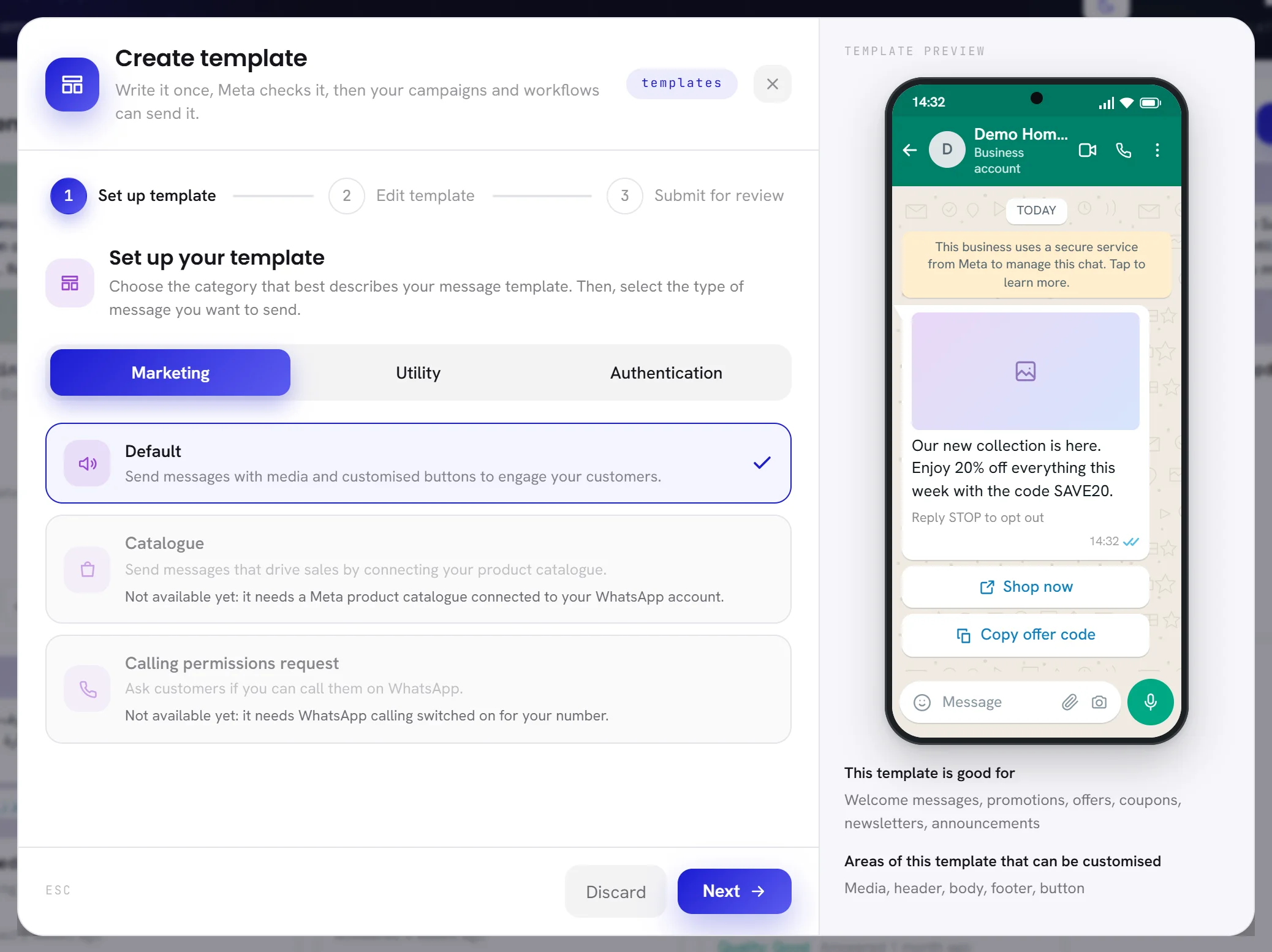
Choose the category: Marketing, Utility or Authentication.
On the right, Template preview shows an example of that category, what it is good for, and which parts of it you can write yourself.
Leave the type as it is, then click Next.
Each category has one type you can use here. Discard closes the window without saving anything.
| Category | It is for | Type you can use | Types shown in grey |
|---|---|---|---|
| Marketing | Welcome messages, promotions, offers, coupons, newsletters, announcements. | Default | Catalogue and Calling permissions request |
| Utility | Order confirmations, account updates, receipts, appointment reminders, billing. | Default | Calling permissions request |
| Authentication | One-time passwords and codes that verify an account. | One-time passcode | None |
The grey types are Meta’s, and cannot be chosen here yet. Catalogue needs a Meta product catalogue connected to your WhatsApp account, and Calling permissions request needs WhatsApp calling switched on for your number. The window says so under each.
Step 2: Edit template
This step is the message itself. As you type, the phone on the right shows it the way a customer receives it. What follows is for the Marketing and Utility categories; an Authentication template has its own, shorter page, described further down.
Under Template name and language, type a name and choose the language.
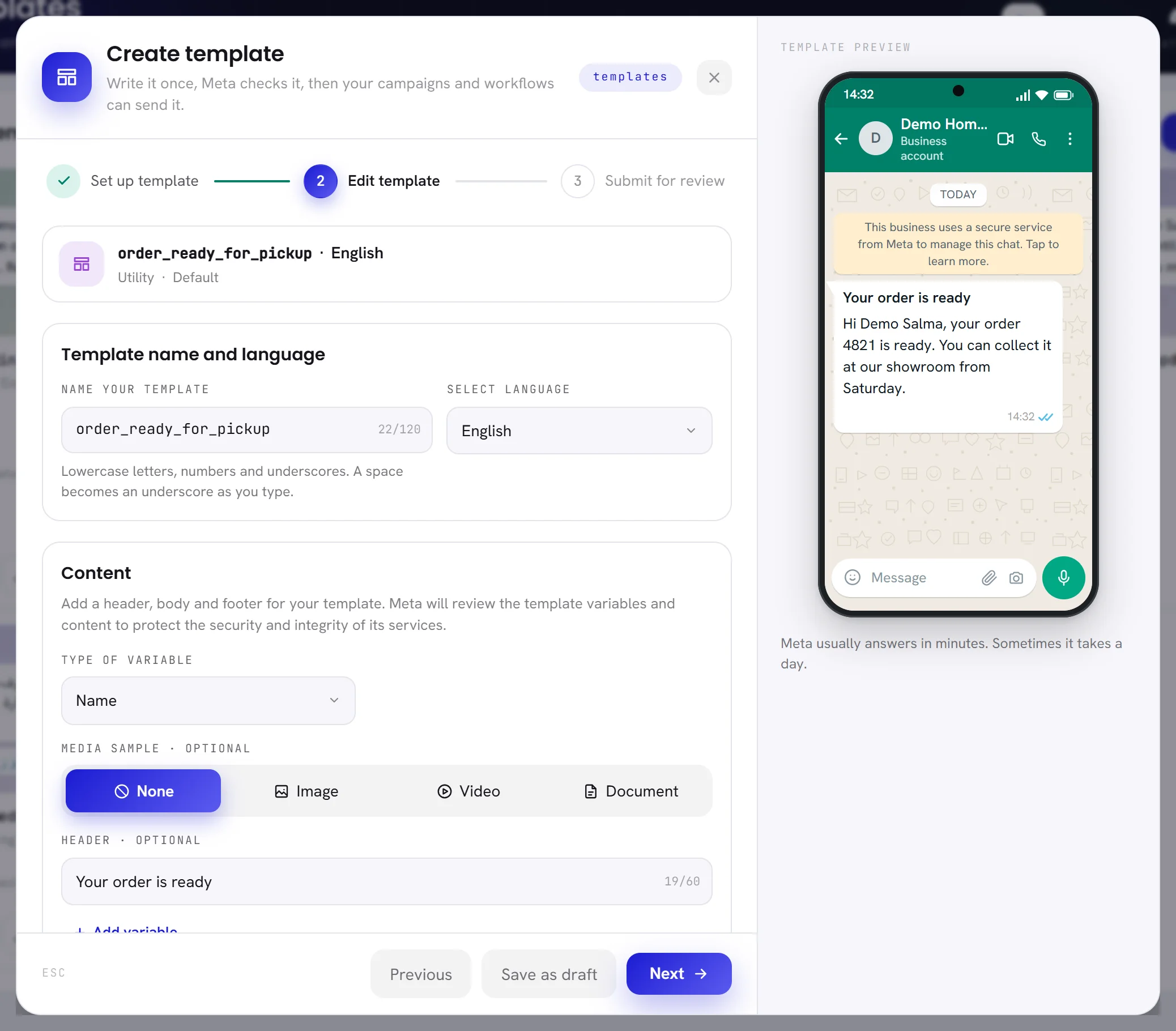
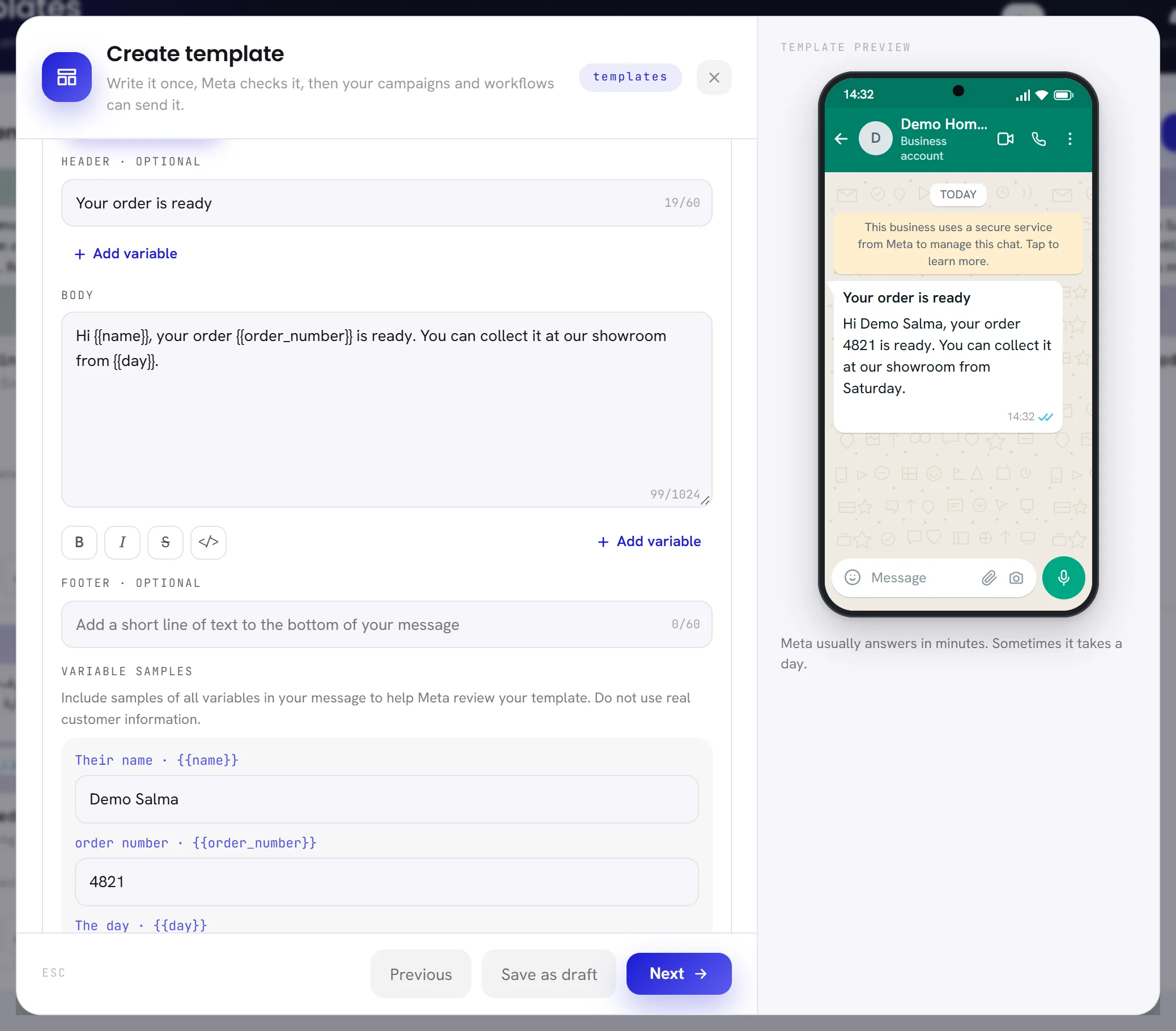
Under Content, write the message: what is at the top, the body, the footer.
Variables and their samples are explained in Template variables and buttons.
Under Buttons, add buttons if the message needs some.
See Buttons.
Click Next.
The window checks that the name and the body are filled in, that every variable has a sample and that every button is complete, and shows you the box that is not. Save as draft keeps the template without those checks. Previous goes back to the category.
| On the screen | What it does |
|---|---|
| Name your template | The template’s name at Meta. Customers never see it. Small letters, numbers and underscores only, up to 120 characters: as you type, a capital becomes a small letter, a space becomes an underscore, and any other sign is dropped. A name can be used once in each language. |
| Select language | The language the message is written in: English, Arabic or French. The same message in a second language is a second template, which may carry the same name. |
| Type of variable | Name or Number: how Add variable writes a variable. See Add a variable. |
| Media sample | Optional. What is at the top of the message: None, Image, Video or Document. With one of the three, a box appears to upload a sample of it. |
| Header | Optional. One line of title at the top, up to 60 characters, with one variable at most. It is switched off while a media sample is chosen: a message has a title or a file at the top, never both. |
| Body | The message. Required, up to 1,024 characters. The four buttons under it, Bold, Italic, Strikethrough and Monospace, put WhatsApp’s marks around the words you selected. |
| Footer | Optional. One small grey line under the message, up to 60 characters, without variables. A Marketing template opens with Reply STOP to opt out in it: see the opt-out footer. |
| Variable samples | One box for each variable of the header and the body. It appears as soon as the message has a variable. |
| Buttons | Optional. Up to 10 buttons under the message. |
The media sample
When the top of the message is a picture, a video or a document, Meta reviews the template with an example of it. Drop the file on the box that reads Drag and drop to upload, or click it to choose one.
| Media sample | File it takes | Largest size |
|---|---|---|
| Image | JPG or PNG | 5 MB |
| Video | MP4 | 16 MB |
| Document | 100 MB |
- The box itself states the kind of file and the size it takes. A file of another kind, or one that is too large, is refused the moment you choose it, with the reason under the box.
- The sample is for Meta’s review only. The picture, video or document your customers receive is chosen later, in the campaign or the workflow that sends the template, and can be different each time.
- Meta approves a template together with what is at its top. Once the template is approved, the kind of media sample and the header cannot be changed.
- A template with a media sample cannot be submitted without its file. It can be saved as a draft without it.
An Authentication template
Meta writes every word of an authentication template, in the template’s language. The preview shows the sentence, 123456 is your verification code., and the page has three short parts instead of the content and the buttons.
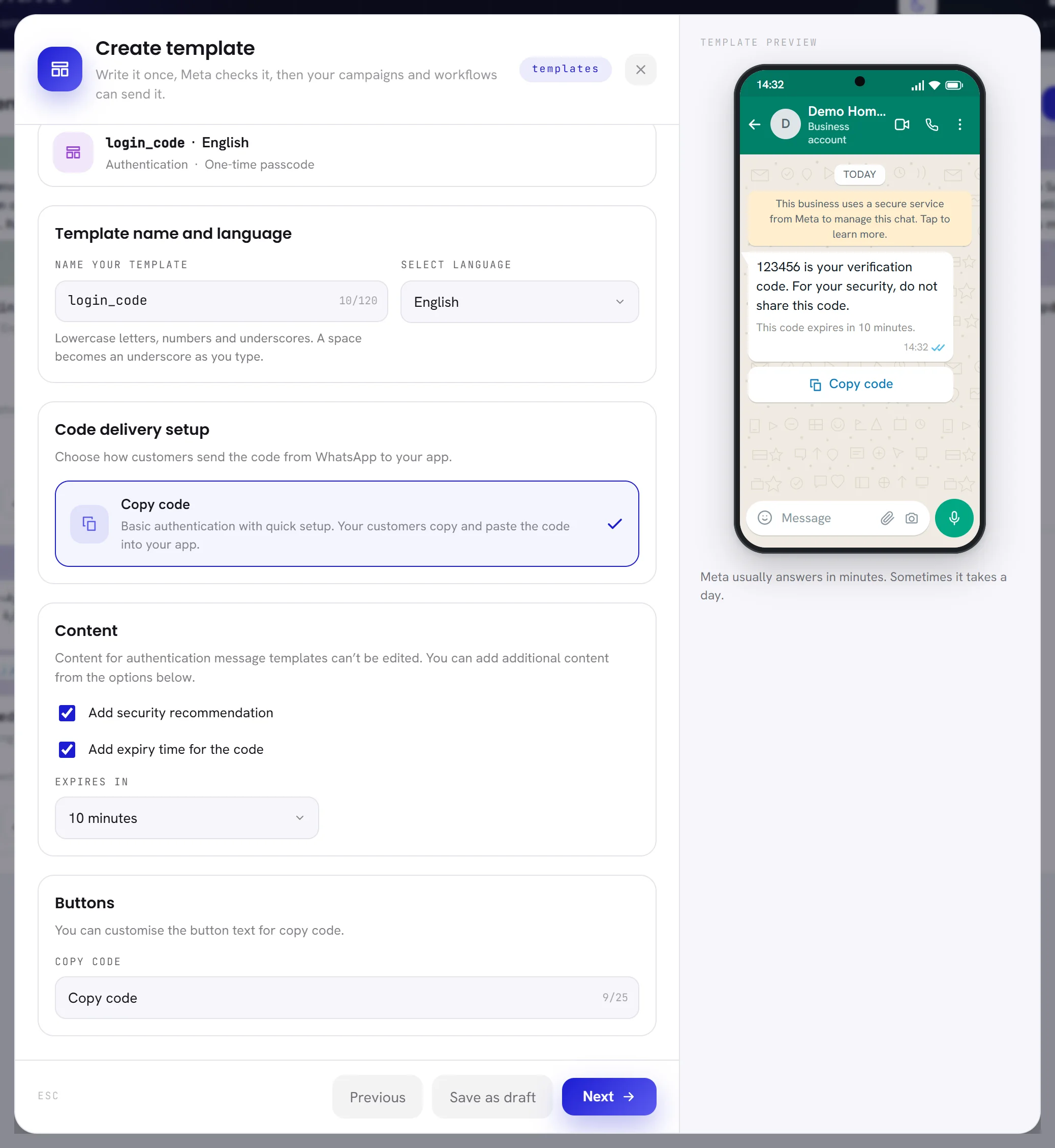
| On the screen | What it does |
|---|---|
| Code delivery setup | How the customer takes the code from WhatsApp to your app. One way is offered: Copy code, a button that copies it. |
| Add security recommendation | Adds Meta’s sentence asking the customer not to share the code. |
| Add expiry time for the code | Adds a line saying when the code expires. Tick it, then choose the time under Expires in: 2, 5, 10, 15, 30, 60 or 90 minutes. |
| Copy code | The words on the button, up to 25 characters. |
Step 3: Submit for review
The last step checks the template once more and asks what to do with it.
Read the list under Before Meta looks at it.
Each line is ticked, or says what is missing with a Fix it button that takes you back to it: the name, the message, a sample for every variable, the media sample, the buttons. The last line says whether a WhatsApp number is connected; if none is, Connect number opens Channels.
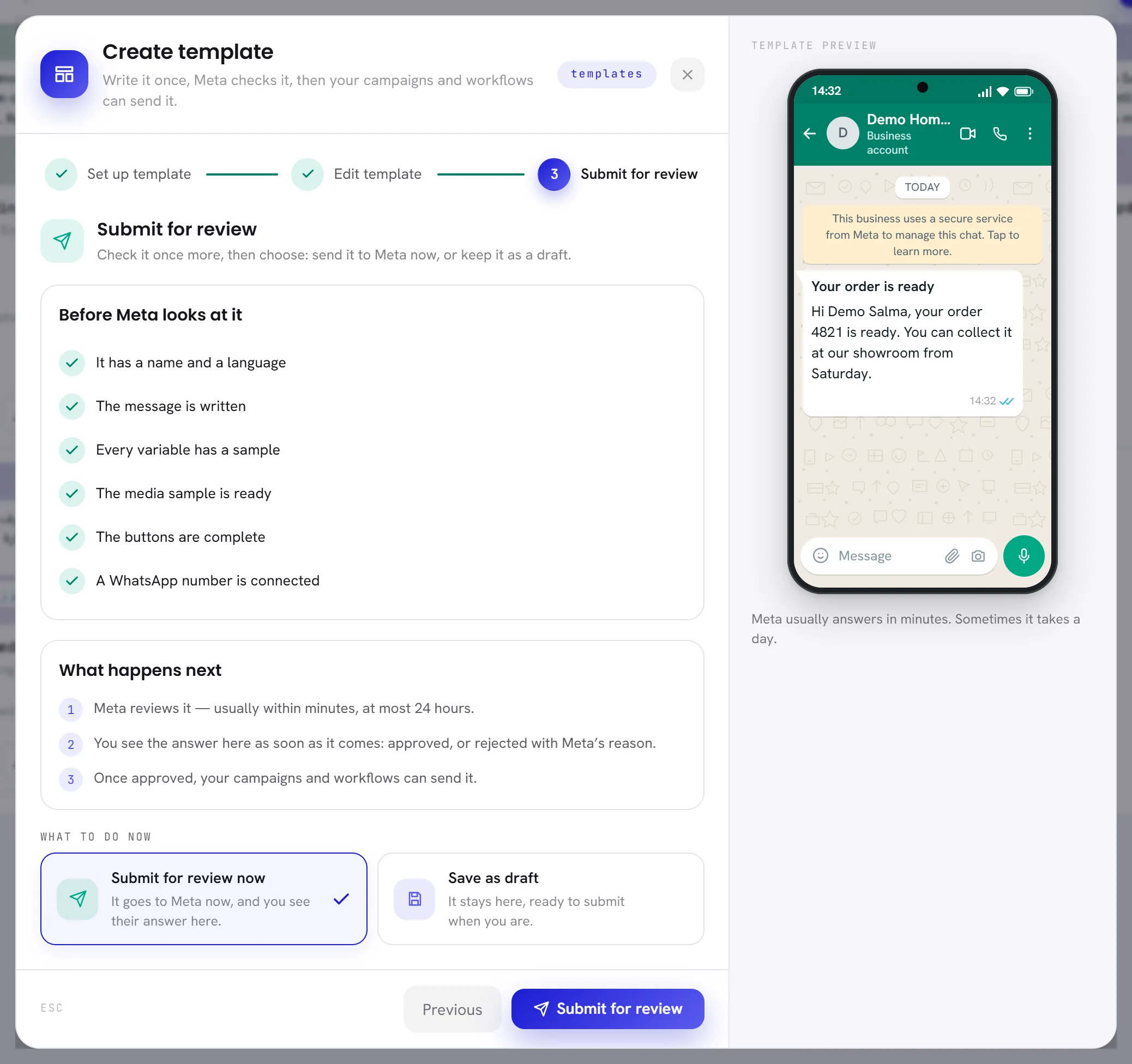
Under What to do now, choose Submit for review now or Save as draft.
Without a connected number the first choice is greyed out and the template can only be kept as a draft.
Click the button at the bottom: Submit for review, or Save as draft.
The window closes and the template opens, with a green line saying what became of it:
Sent to Meta. They usually answer within minutes.orDraft saved.
A submitted template is Pending until Meta answers, usually within minutes, sometimes a day. You see the answer on its card and on the bell: Approved, or Rejected with Meta’s reason. What each status allows is in Template statuses.
If the app refuses to save or to submit
The app checks what Meta would reject, so that you learn it now and not a day later.
| What you see | What it means |
|---|---|
| The window opens again on step 2, with a red line at the top | The template was not saved. The line says why: the name is already used in this language or has a character it may not have, the body breaks one of the rules for variables, or a button is wrong. What you typed is still there, except a file you had chosen, which has to be chosen again. The rules are in Template variables and buttons. |
| The template opens with a red line in place of the green one | It was saved as a draft, and was not sent to Meta. The line says what stopped it. |
Connect a WhatsApp number first. Templates live on its WhatsApp Business Account. | No number is connected. Connect one, then submit the draft from its card. |
Add the media sample Meta reviews the header with. | The template has a picture, video or document at the top and no sample file yet. Edit it and upload one. |
| A sentence asking for an example value | A variable has no sample. Edit the template and fill in Variable samples. |
Meta is still holding that name from a template you deleted. | Meta keeps the name of a deleted template for 30 days. The sentence gives the day it comes free. Use another name until then. |
When Meta itself refuses to take the template, its own reason is shown the same way, and the template stays a draft.
Good to know
- A draft needs at least a name and a body that pass the checks. The samples and the media file can wait.
- Closing the window with the cross, Discard or the Escape key saves nothing.
- An approved template can be changed, at a cost: see Edit a template.
Questions
Can I write the same template in two languages?
Yes. Create it once for each language, with the same name if you like. Each one is reviewed by Meta on its own.
Which category should I choose?
The one that says what the message is. An offer or a newsletter is Marketing; a message about something the customer did, such as an order or a booking, is Utility. Meta decides in the end: see Template categories and review.
Can I add a location at the top of the message?
No. The top of a message here is a title, a picture, a video or a document.
Why is the template not sent yet after I pressed Next on step 2?
Step 2 only writes it. The template goes to Meta when you choose Submit for review now on step 3 and press Submit for review.