What it is
The Onboarding checklist is a page with four steps, in the order they depend on each other. A new workspace opens on it, and you land on it each time you sign in until the four are done.
Nothing on it is ticked by hand. Each step is read from what is in your workspace, every time the page opens: it shows as done because the thing happened, and goes back to not done if it stops being true.
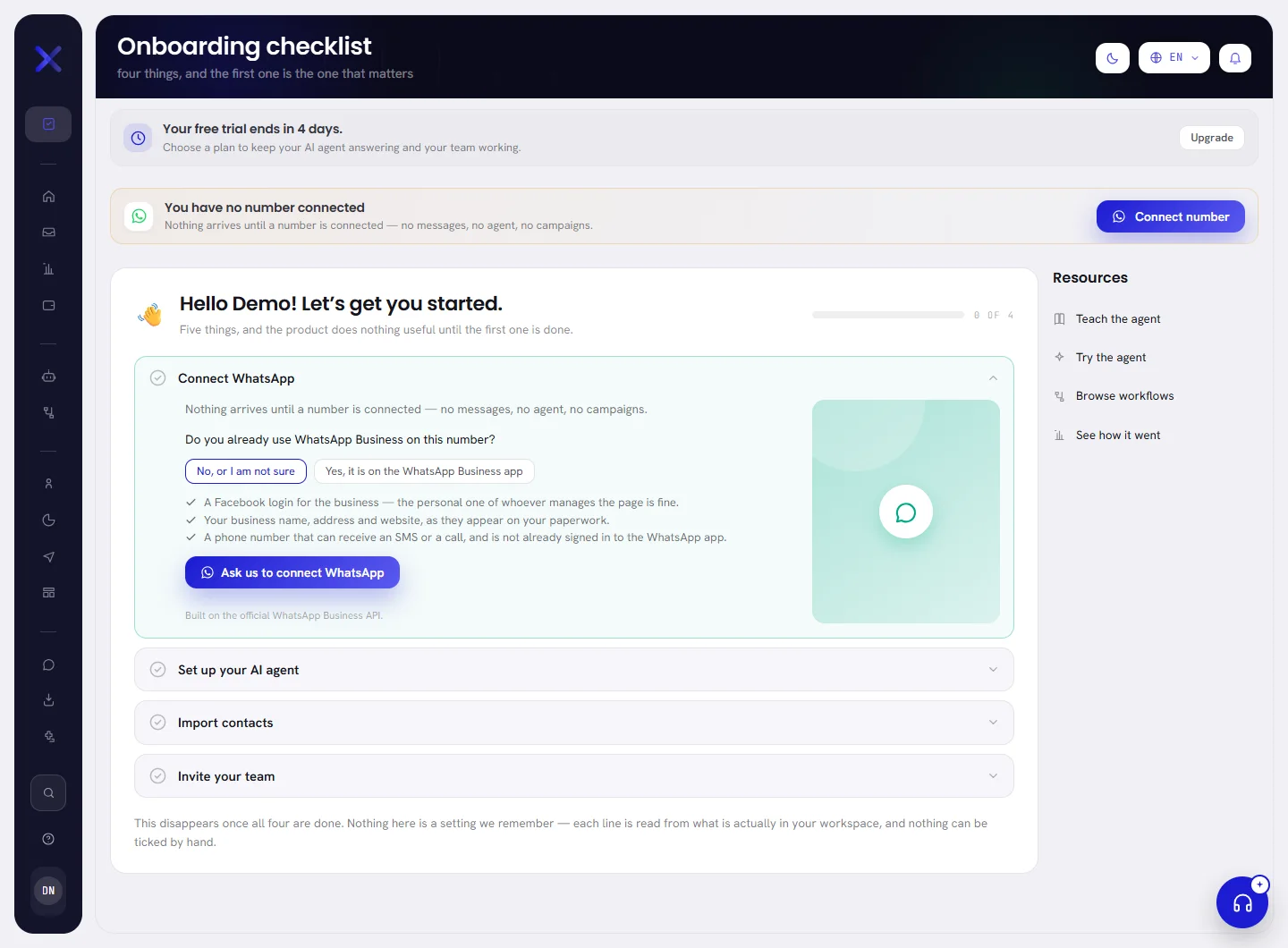
The four steps
| Step | It is done when | What is in it |
|---|---|---|
| Connect WhatsApp | A WhatsApp number of your workspace is connected and live. | The question Do you already use WhatsApp Business on this number?, what you need for your answer, and the button that starts the connection: Connect WhatsApp Business, or Ask us to connect WhatsApp where our team connects the number for you. |
| Set up your AI agent | An agent is live and has something to answer from: a document, a web page, or a question with its answer. | Set up the agent, which opens AI Agent. |
| Import contacts | Your workspace has at least one contact: imported, added by hand, or created because a customer wrote in. | Import contacts, which opens Contacts. |
| Invite your team | There are at least two people in your workspace. | Invite somebody, which opens Team. |
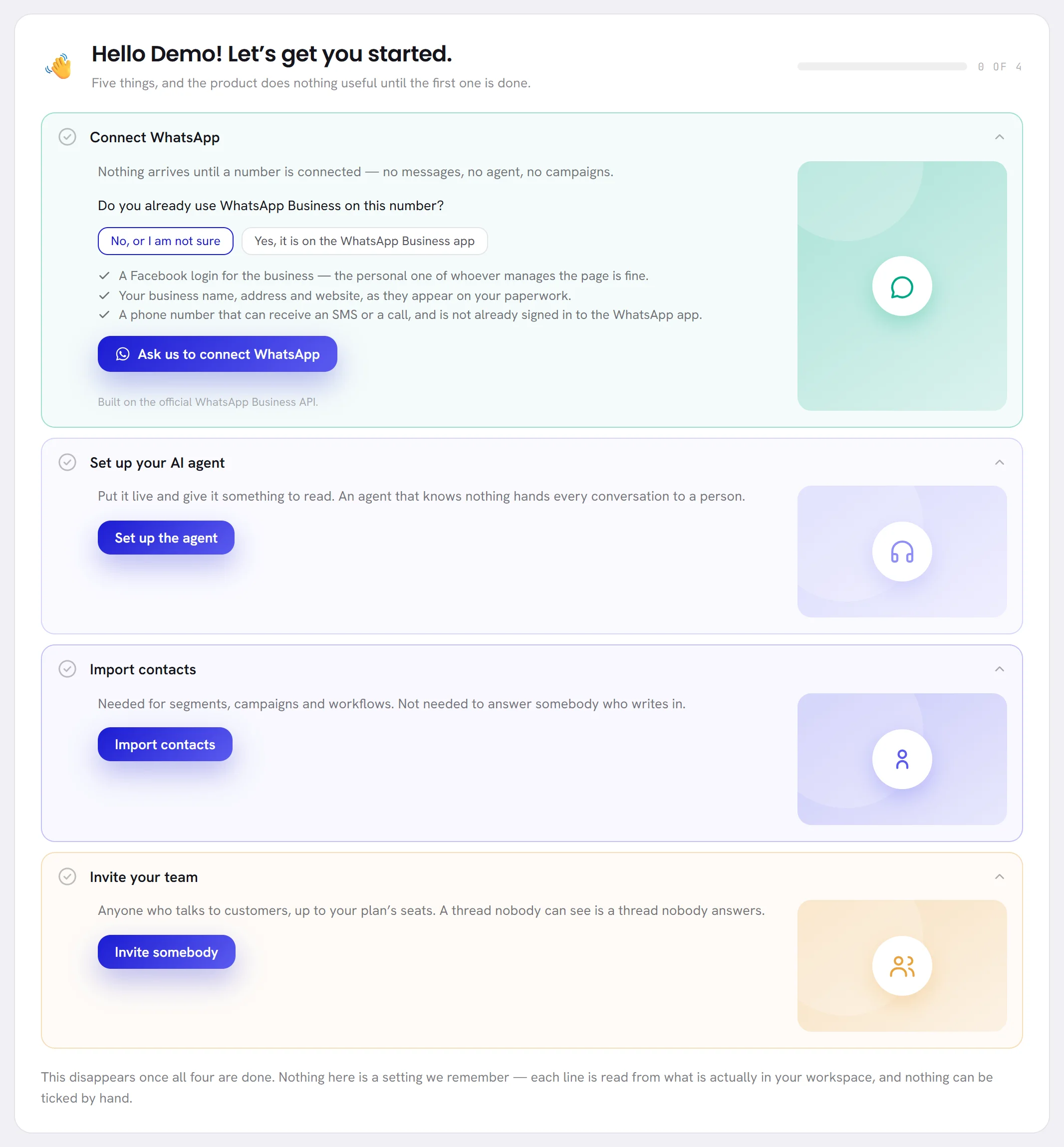
Do them in this order
Connect your WhatsApp number.
Nothing arrives until a number is connected: no messages, no agent, no campaigns. Connect a WhatsApp number explains every step, and What you need before you connect a number says what to have ready.
While the number is on its way, the step says where it has got to under its name: Waiting for Meta to approve the number, Waiting for a payment method on the WhatsApp account, or Your number needs attention. You can close the page while you wait: the number turns on by itself.
Set up your AI agent.
Create the agent, give it something to read, and put it live. An agent that knows nothing hands every conversation to a person. You can do this while Meta is still looking at your number. Start with Create an AI agent, then Knowledge.
Import your contacts.
Contacts are needed for segments, campaigns and workflows. They are not needed to answer somebody who writes to you: that contact is created by itself. See Import contacts.
Invite your team.
Add everybody who talks to customers, as far as your plan allows: a conversation nobody can see is a conversation nobody answers. See Add a team member.
Everything on the page
| On the screen | What it does |
|---|---|
| 0 of 4 | The bar at the top right and the count beside it: how many of the four steps are done. |
| Done. | Shown inside a step that is finished. Its circle is filled, and it has no button any more. |
| Somebody with more access has to do this one. | Shown in place of the button when your access does not include the screen that step leads to. Ask an admin of your workspace. |
| Resources | Shortcuts at the side of the page. You see only the ones you may open. |
| Teach the agent | Opens the knowledge of your AI agent: what it answers from. |
| Try the agent | Opens AI Agent, where you can talk to the agent before your customers do. |
| Browse workflows | Opens Workflows. |
| See how it went | Opens Reports. |
In the menu, and on a phone
While steps are left, Onboarding checklist is the first entry of the menu, above Dashboard, with a count such as 0/4: steps done, out of four.
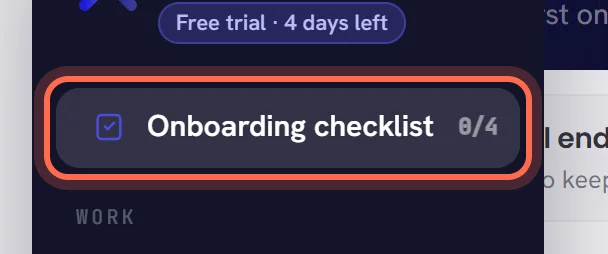
On a phone, the entry opens a short sheet over the screen you are on: the same four steps, the reason for the next one, and Open the full checklist for the page itself.
When the four are done
The entry leaves the menu, and signing in takes you to the Dashboard from then on. The page stays at its own address and says You are set up.
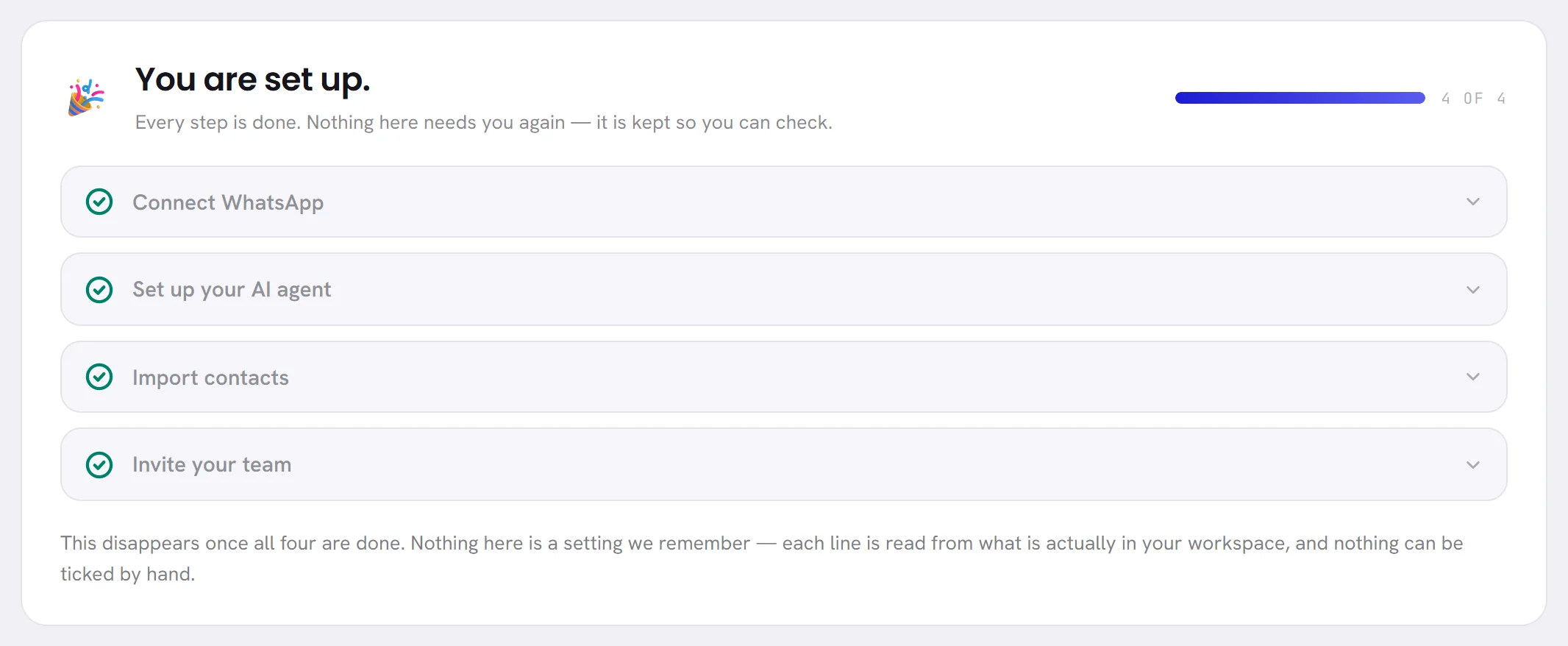
If a step stops being true later, for example your only number is disconnected, the entry comes back with its count.
Good to know
- The checklist is shown to the people who can do at least one of the steps that are left. Each step needs access to the screen it leads to: Channels, AI Agent, Contacts or Team. Somebody with conversations only does not see it, and lands on the Dashboard. Roles and access says who can open what.
- Until a number is live, the people who manage numbers also see a banner at the top of every screen, You have no number connected, with the same way in. See Find your way around.
- The checklist does not stop you from using the rest of the app. Every screen opens before the four are done.