Where help is
Help is one press away on every screen: the round button in the bottom corner, Get help. It opens the Help panel over the screen you are on, so you can ask without leaving your work.
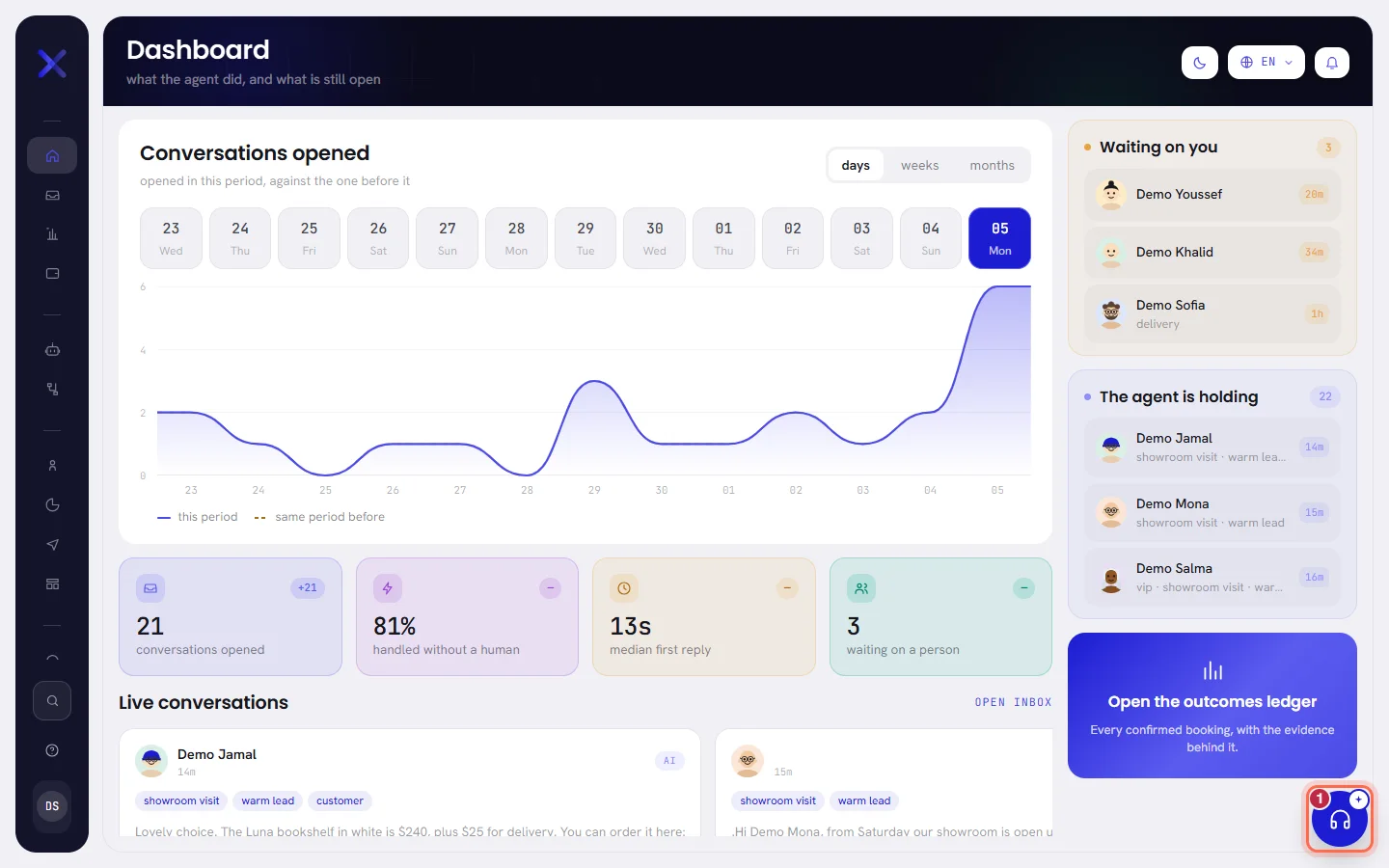
The panel says how it works in one line: Xconversions AI answers first, then our team. Xconversions AI is our assistant. It finds out what you need, answers what our help articles cover, and passes the rest to our support team as a request with a reference. A person on our team answers every request that is sent.
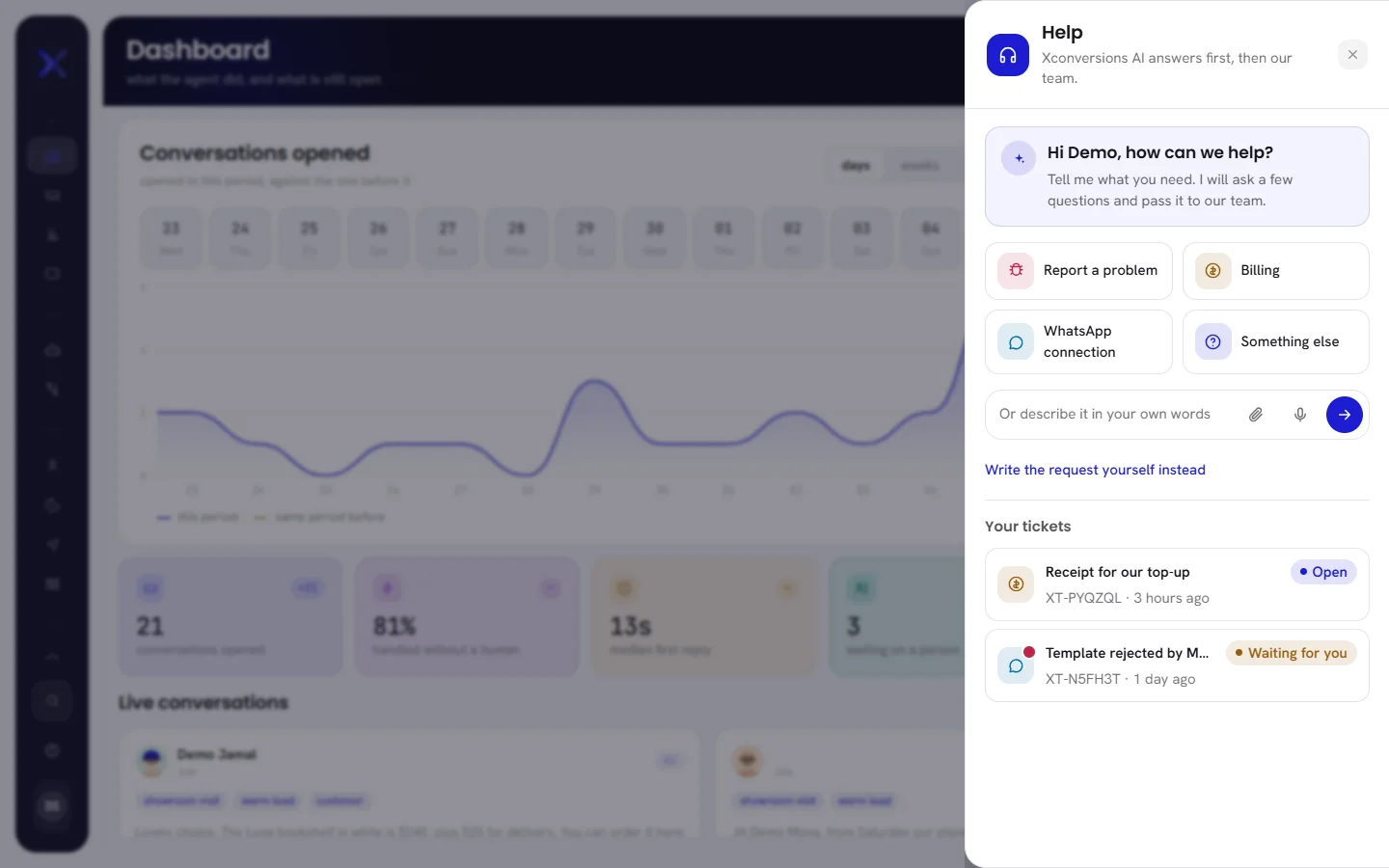
The same panel opens from Help at the foot of the menu: Get support opens it as the button does, and Report a bug opens it on a new report of a problem.
Ask for help
Press Get help, the round button in the bottom corner.
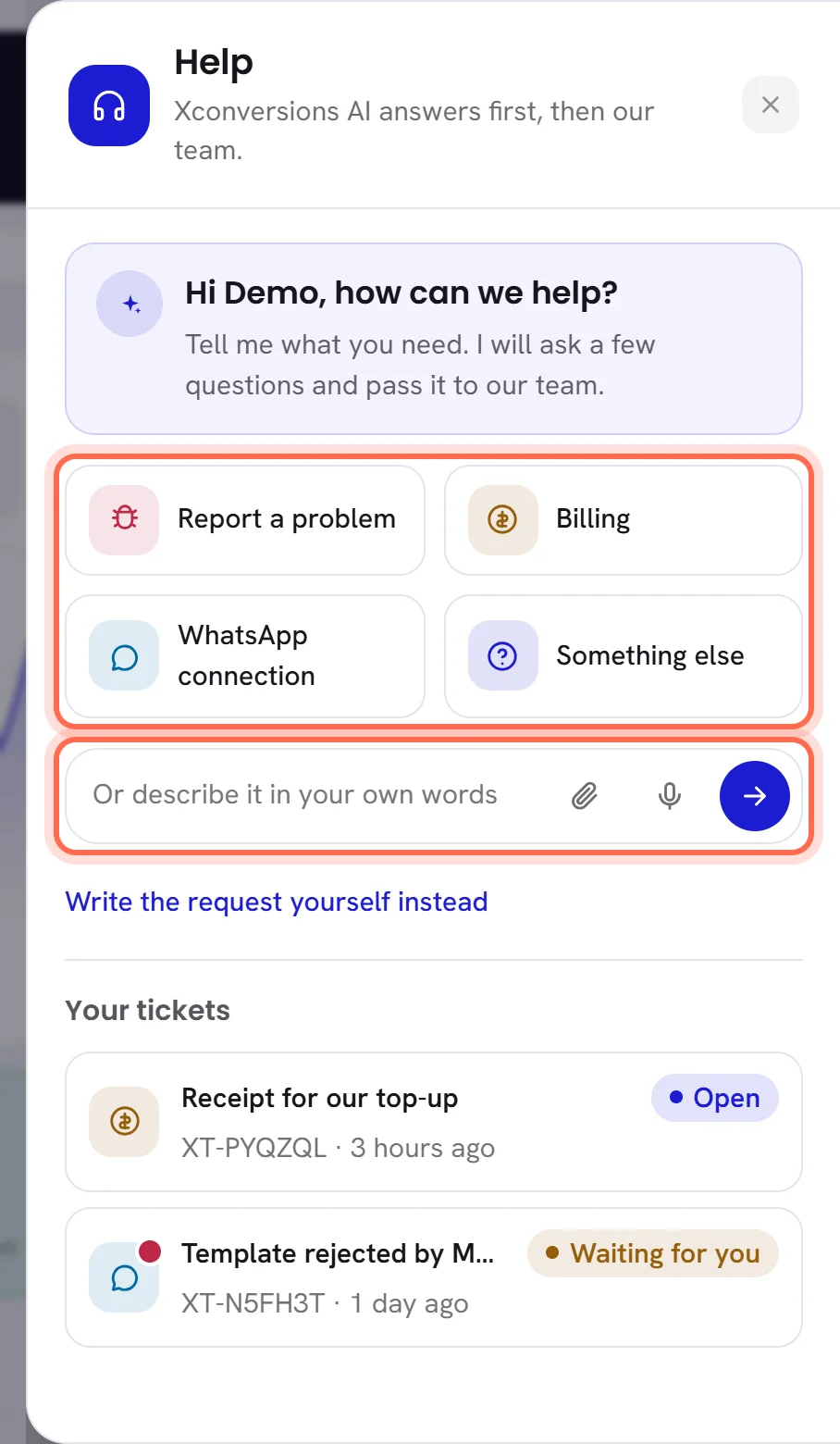
The panel greets you, for example Hi Demo, how can we help?
Say what it is about.
Press one of the four subjects: Report a problem, Billing, WhatsApp connection or Something else.
Or write it in the box, Or describe it in your own words, and press Enter. Shift+Enter starts a new line. A message can be up to 2,000 characters.
Answer the questions.
Xconversions AI asks for what our team will need, one question at a time. Under a question it may offer answers to press; you can always type your own in Type your answer.
Check the summary.
When it has what our team needs, the panel shows Check the summary: This is what our team will read. Change anything that is not right. The text is yours to edit. It needs at least 10 characters and can hold 4,000.
Under it, It will go to names the part of our team the request is for. To add something first, write it in Add a detail.
Press Create ticket.
The request is sent and gets its reference. The panel says so, for example Ticket XT-7KQ4MX created. Our team will answer here., and an email with the same reference is sent to you.
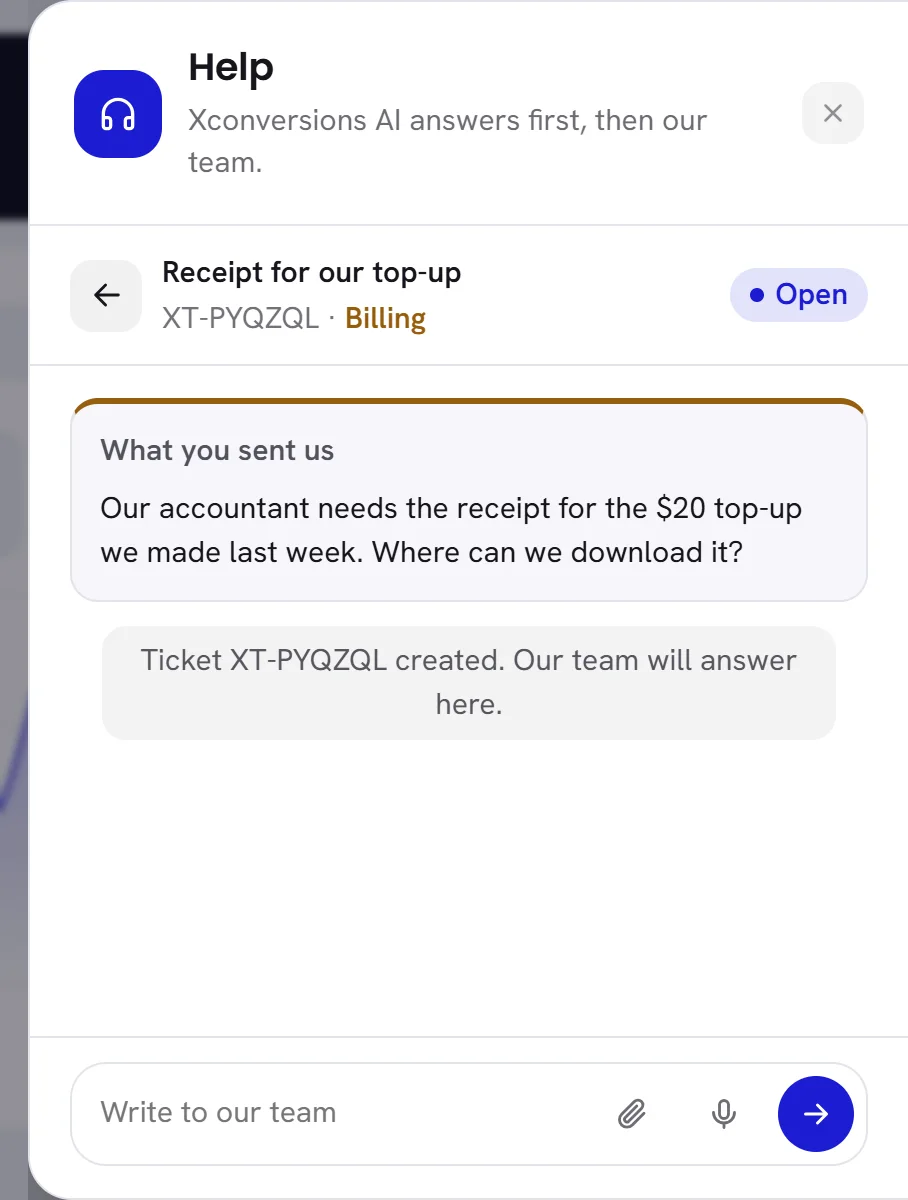
A reference is XT- followed by six letters and digits. It names this request and no other: give it whenever you write to us about the same matter.
What happens next is in Follow a request.
When Xconversions AI answers by itself
The greeting says what to expect. Tell me what you need. I answer what our help articles cover, and pass the rest to our team. means it can answer some questions on the spot. Tell me what you need. I will ask a few questions and pass it to our team. means it only prepares your request.
When one of our help articles answers your question, Xconversions AI gives you that answer in a few sentences. Under it, From our help article names the article it came from, and the panel asks Did that solve it?
| On the screen | What it does |
|---|---|
| Yes, that solved it | Ends the conversation there. Nothing is sent to our team. It stays in your list, marked Answered, with the line Solved with a help article. No ticket was needed. |
| I still need help | Xconversions AI stops answering from articles in this conversation and collects what our team needs instead. |
| Ask something else… | The box under the answer: write another question, or more about the same one. |
Outside what an article says, Xconversions AI does not explain or advise: it asks, and hands over. If its answer is not what you needed, say so and a person takes it from there.
What you are asked, and where a request goes
Each request goes to one part of our team. Xconversions AI chooses it from what you describe, and asks only for what that part needs.
| It goes to | When it is about | What you are asked |
|---|---|---|
| Your number or Meta: connecting or reconnecting, a number shown as disconnected, messages or campaigns not sent or not received, a template that was not approved, the payment method at Meta. | Which number. What is going wrong. Since when. The exact error message, if there is one. | |
| Billing | Your plan or trial, a payment or a bank transfer, a top-up of your AI wallet, a charge, a receipt. | What it is about. What happened, or what you want changed. The reference of the payment or top-up, if you have one. |
| Bug | The app itself: an error page, a page that does not load, a button that does nothing, a figure that is wrong. | Which screen. What you did and what went wrong. Whether it happens every time. What you expected. The error message or its reference, if there is one. |
| Technical | Setting something up: your agent’s answers or knowledge, importing contacts, a campaign, a workflow or a template that does not do what you set. | Which part. What you set up and what happens instead. What you are trying to achieve. |
| General support | Anything else: how to do something, your account or sign-in, your team and their access, a suggestion. | What you need. |
| To be sorted by our team | It could not tell where the request belongs. | Nothing more: a person on our team reads it and sorts it. |
You are not asked for what the app already knows: your workspace, where your plan stands, your WhatsApp numbers and their state, and the page you had open.
Write the request yourself
If you would rather not answer questions, write the request in one go.
On the first view of the panel, press Write the request yourself instead.
Choose What is it about?
The choices are WhatsApp, Billing, Bug, Technical, General support and Something else. With Something else, the request is sorted on our side.
Write in What do you need?
Say what happened, where, and what you expected. At least 10 characters, 4,000 at most.
Add files under Add a screenshot, a file or a voice note if they help.
The line beside it gives the limits: Up to 5 files, 10 MB each.
Press Send to our team.
The request is sent and gets its reference.
The panel also switches to this form by itself when Xconversions AI cannot go on, for example after a long exchange. It says The assistant cannot continue right now. Write your request below and our team will get it., and what you already wrote is copied into the form.
Screenshots, files and voice notes
A picture of the screen, or the error’s exact words, often saves a day of questions. Anything you add waits above the box and goes with your next message. It can also go by itself, with no words.
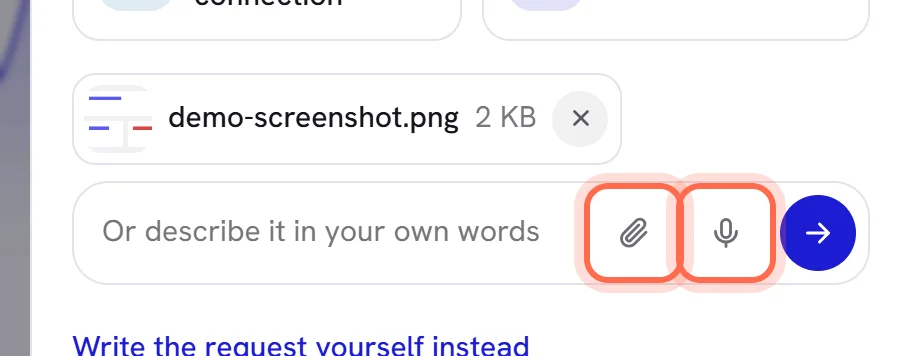
| On the screen | What it does |
|---|---|
| Attach a file | The paperclip: choose files from your device. You can also paste a screenshot into the box, or drop files anywhere on the panel. |
| Record a voice note | The microphone, shown where your browser can record. Your browser asks for permission the first time. |
| Recording | Shown with the time while the microphone is on. A voice note stops by itself after two minutes, and is kept. |
| Use it | Ends the recording and keeps it, ready to send. |
| Cancel | Ends the recording and throws it away. |
| Remove | The cross on a file that is waiting: takes it back before it is sent. |
| Xconversions AI heard | Under a voice note you have sent: what was understood from it, in writing, so you can check it. |
- Up to 5 files go with one message, each of 10 MB at most. A request holds 40 files in all.
- Pictures (JPEG, PNG, WebP, GIF), PDFs, text files (.txt, .log, .csv) and voice recordings can be sent. Other kinds are refused.
- While you are talking with Xconversions AI, it reads the text in a screenshot and what is said in a voice note, and answers what it was sent.
When something cannot be sent, the panel says why under the box:
- At most 5 files at a time.
- A file can be up to 10 MB.
- That kind of file cannot be sent: pictures, PDFs, text files and voice notes can.
- This ticket already holds 40 files.
- That is a lot of files in a few minutes. Try again shortly.
- The microphone could not be used. Allow it in your browser, or attach a recording.
What goes with a request
The panel says it under the conversation: Sent with it automatically: your workspace, your name, the page you were on and your browser. With them go where your plan stands and the state of your WhatsApp numbers, so our team does not have to write back and ask.
What your customers wrote, and your contacts, are never part of a request.
Requests you have not sent
A conversation you started and did not send stays in your list, marked Not sent yet. Only you see it. Open it to carry on where you stopped.
- Discard, at the top of an unsent request, deletes it after asking Discard this request? Nothing of it reaches our team.
- The list keeps your five most recent unsent requests. Starting another one removes the oldest.
- A request that has been sent cannot be discarded.
Good to know
- Everybody in a workspace can ask for help, whatever their role.
- One person can send 10 requests in an hour. After that the panel says You have opened several tickets in the last hour. Add to one of them, or try again later.
- The panel stays as it is while you move between screens, and opens again on the conversation you were in.
- In Settings, the tab Help & report has a form headed Report a problem. What you send from it becomes a request too, with a reference, and is followed in the same panel. See Settings overview.
- If you would rather write an email, write to our support.
Questions
Is Xconversions AI the same as my AI agent?
No. Your AI agent answers your customers on WhatsApp. Xconversions AI is our assistant, for you: it works on our side and uses nothing from your AI wallet.
Can I reach a person without the questions?
Yes. Press Write the request yourself instead and send it: a person on our team reads every request that is sent.
Which language can I write in?
Yours. Xconversions AI answers in the language you read the app in, and follows you if you write in another one.
I closed the panel in the middle. Is it lost?
No. Open the panel again: it returns to the conversation you were in. If you signed out in between, it is in your list as Not sent yet.