What the Notifications tab is
The Notifications tab answers two questions: what reaches you when you are not looking at the app, and when the workspace keeps quiet. The alerts and the digest are yours alone. The quiet hours are the workspace’s, and apply to everybody.
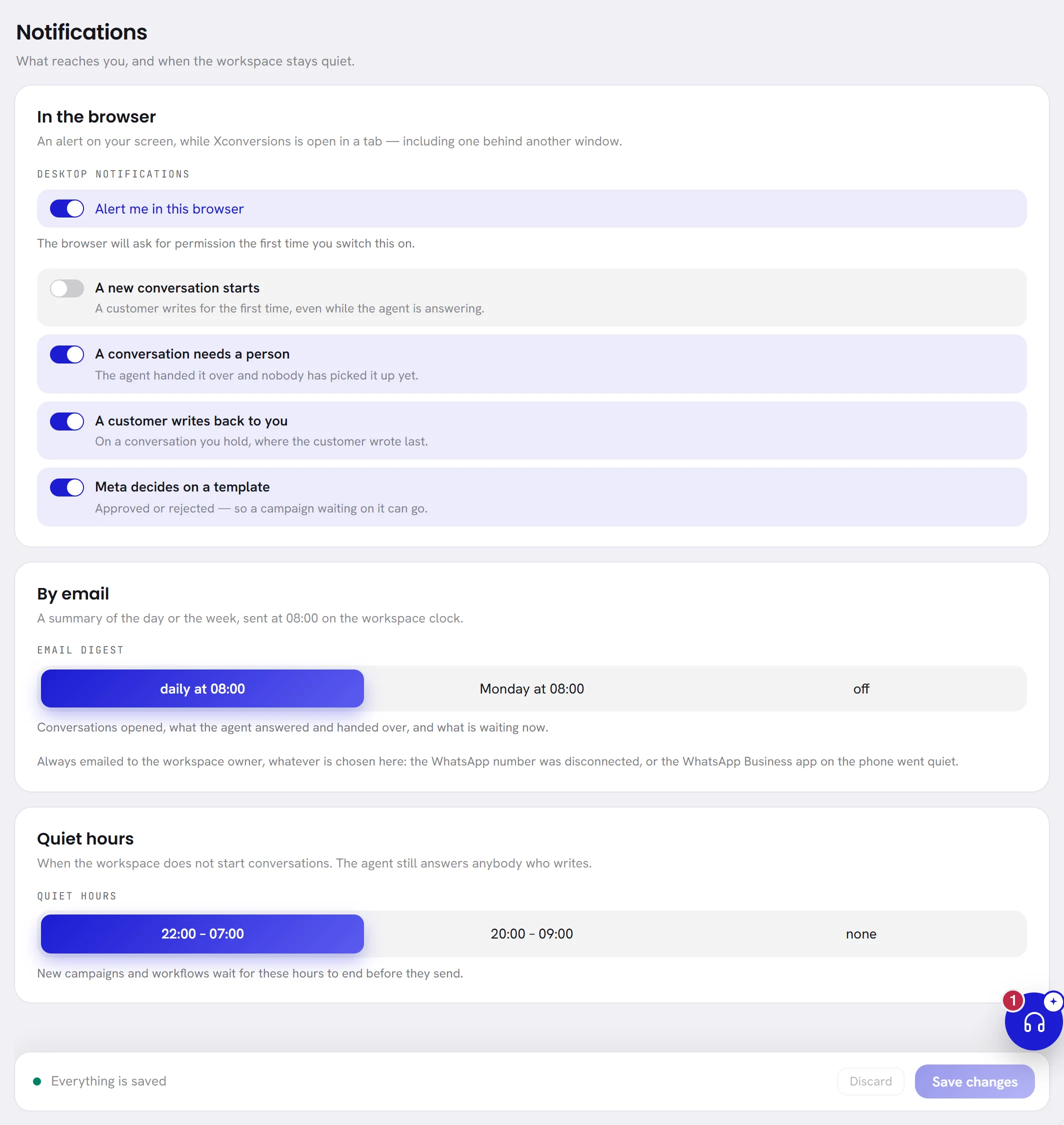
This tab is not the bell. The bell at the top of every screen lists what needs you whether or not anything is switched on here: see Notifications.
Turn on alerts in your browser
A browser alert is the small message your computer shows in a corner of the screen. xconversions raises one while the app is open in a browser tab, including a tab that is behind another window, so news reaches you while you work on something else.
Open Settings, then Notifications.
Under Desktop notifications, switch on Alert me in this browser.
The first time, your browser asks whether this site may show notifications. Choose to allow it. Without that permission the switch does nothing.
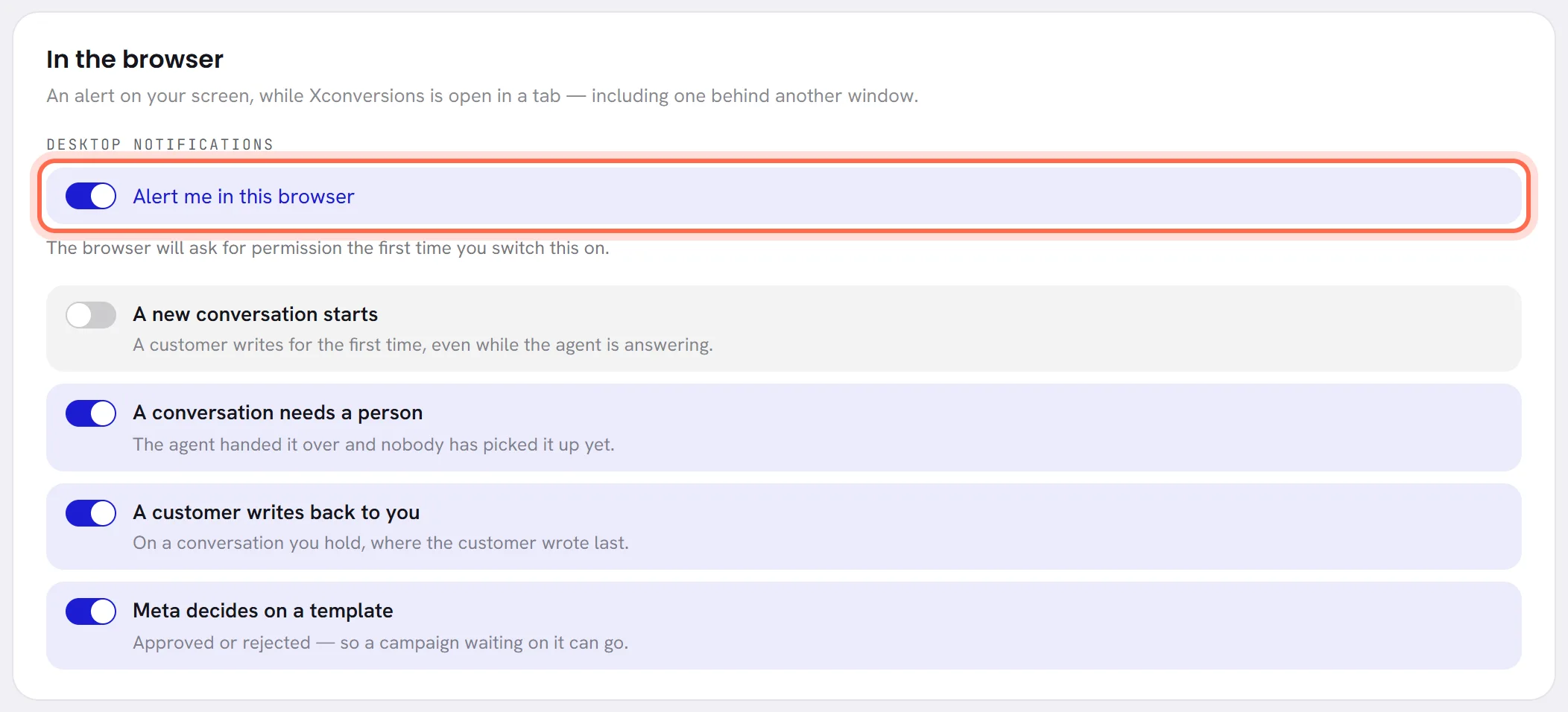
Choose which kinds of news should alert you.
All four are on to begin with. Switch off the ones you do not want.
Choose Save changes.
| On the screen | What it does |
|---|---|
| A new conversation starts | A customer writes to your number for the first time. You are alerted even while your AI agent is answering them. |
| A conversation needs a person | Your AI agent handed a conversation over, and nobody has picked it up yet. |
| A customer writes back to you | The customer wrote last on a conversation that is assigned to you. |
| Meta decides on a template | A template was approved or rejected, so a campaign waiting on it can go. |
An alert carries the same line as the bell, and clicking it opens what it is about. You are alerted only about what your access lets you open.
The line under the switch says what your browser answered:
| What the line says | What it means |
|---|---|
| The browser will ask for permission the first time you switch this on. | Permission has not been asked yet. Switch the alerts on and allow them. |
| This browser is blocking notifications for this site. Allow them in its site settings, then reload. | Notifications were refused, by you or by a rule on your computer. Open the browser’s settings for this site, allow notifications, and reload the page. |
| This browser cannot show notifications. | Use another browser to get alerts. |
| Nothing | Permission is given. Alerts will show. |
Get a digest by email
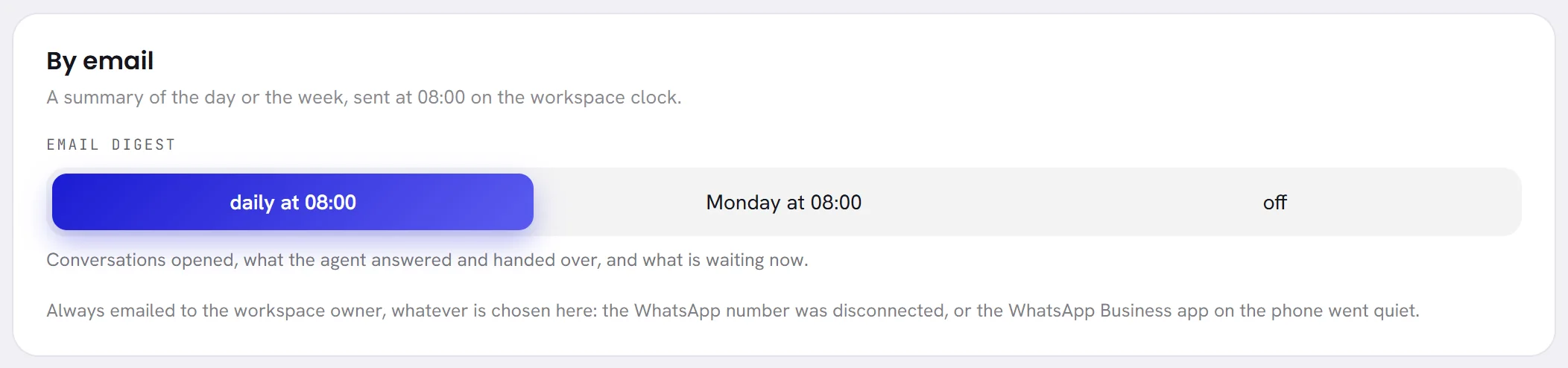
The digest is a short email with four figures: the conversations opened, how many replies your AI agent sent, how many times it handed over to a person, and how many conversations are waiting for somebody now. A button in it opens the inbox.
| On the screen | What it does |
|---|---|
| Email digest | How often you want it. One choice, saved with Save changes. |
| daily at 08:00 | Every morning, about the last 24 hours. |
| Monday at 08:00 | Once a week, about the last seven days. The day on the button is the day your workspace’s week starts on, set on the Workspace tab, so it may read Sunday or Saturday instead. |
| off | No digest. Every account starts this way. |
08:00 is on the workspace’s clock, not on your own computer’s. The email goes to the address on your Profile tab, in the language saved there.
Set the workspace’s quiet hours
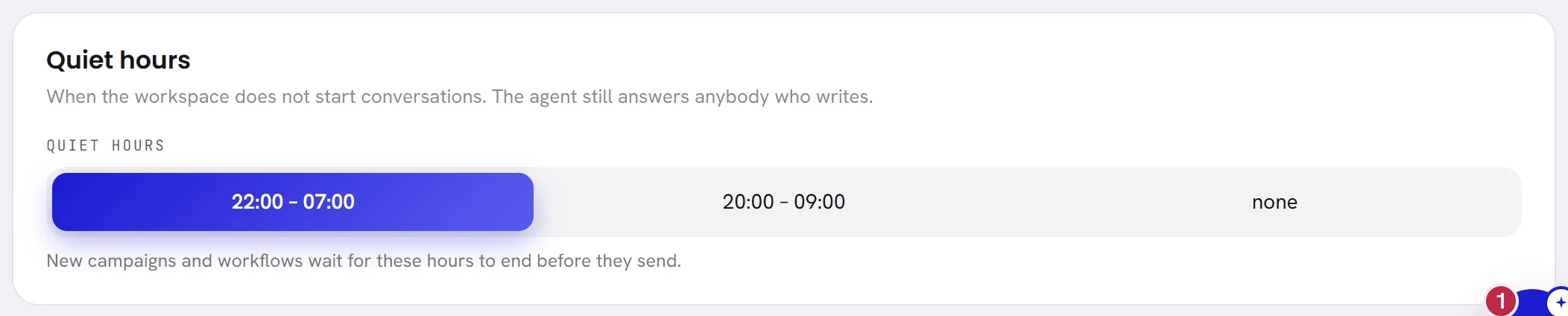
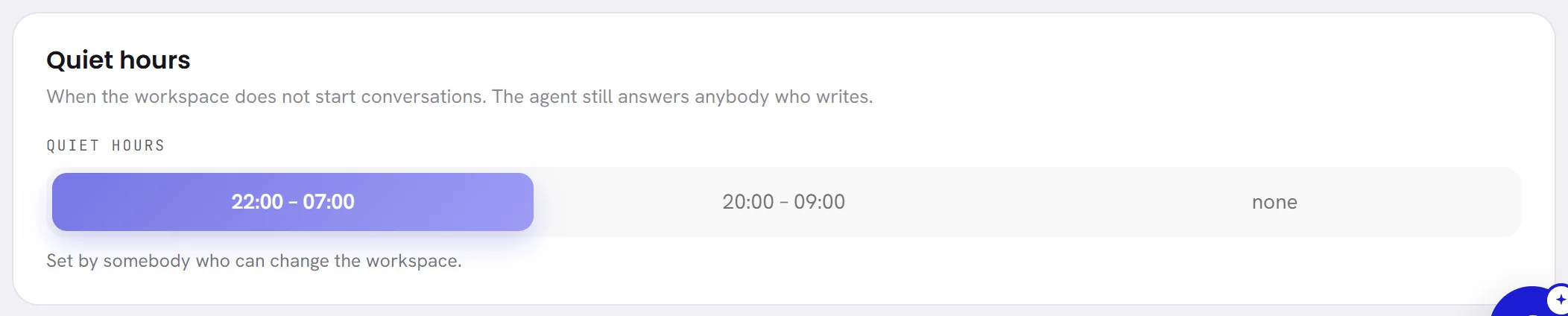
Quiet hours are the part of the day when the workspace does not start conversations with customers. They do not silence your AI agent: it still answers anybody who writes, at any hour, and so can your team.
| Choice | What it does |
|---|---|
22:00 – 07:00 | Nothing is started between ten at night and seven in the morning. Every new workspace starts with this. |
20:00 – 09:00 | A longer night: from eight in the evening to nine in the morning. |
| none | No quiet hours. Messages go at any time. |
The hours are read on the workspace’s clock. They apply to two things:
- A campaign takes the workspace’s quiet hours at the moment it is created, and keeps them. A message that falls inside them waits for them to end. Changing the setting later does not change a campaign that already exists. See Schedule and quiet hours.
- A workflow looks at them each time it is about to send a message. Inside quiet hours, the contact waits at that step until they end. See Run and follow a workflow.
Only whoever manages the workspace can change the quiet hours: an org admin, or anybody whose access includes The workspace and billing. Everybody else sees the three choices greyed out, with Set by somebody who can change the workspace. under them.
Emails that are always sent
Some emails are not a matter of preference, and this tab cannot switch them off. The screen names two, sent to the workspace’s owner whatever is chosen here:
- your WhatsApp number was disconnected;
- the WhatsApp Business app on the phone has gone quiet, for a number that is also used in that app. See Manage your numbers.
The emails about your account itself do not depend on this tab either: the link to reset a password, for example, or our answer to a support request.
Good to know
- Everybody has this tab. The alerts and the digest are each person’s own choice, and change nothing for anybody else.
- Quiet hours belong to the workspace: whoever manages it sets them for everyone.
- The whole tab is saved with one Save changes. Leaving it before that loses what you changed.
I switched alerts on and nothing shows.
Check four things. The line under the switch must not say that the browser is blocking notifications. You must have saved the tab. xconversions must be open in a tab of that browser. And the kind of news you expect must be switched on in the list. A do-not-disturb mode on your computer also hides alerts.
Can I get the digest at another time?
No. It is sent at 08:00 on the workspace’s clock.
Do quiet hours stop my AI agent from answering at night?
No. Quiet hours only hold back what the workspace starts: campaign messages and workflow messages. A customer who writes at night is answered.