Add a contact by hand
Open Contacts and click New contact.
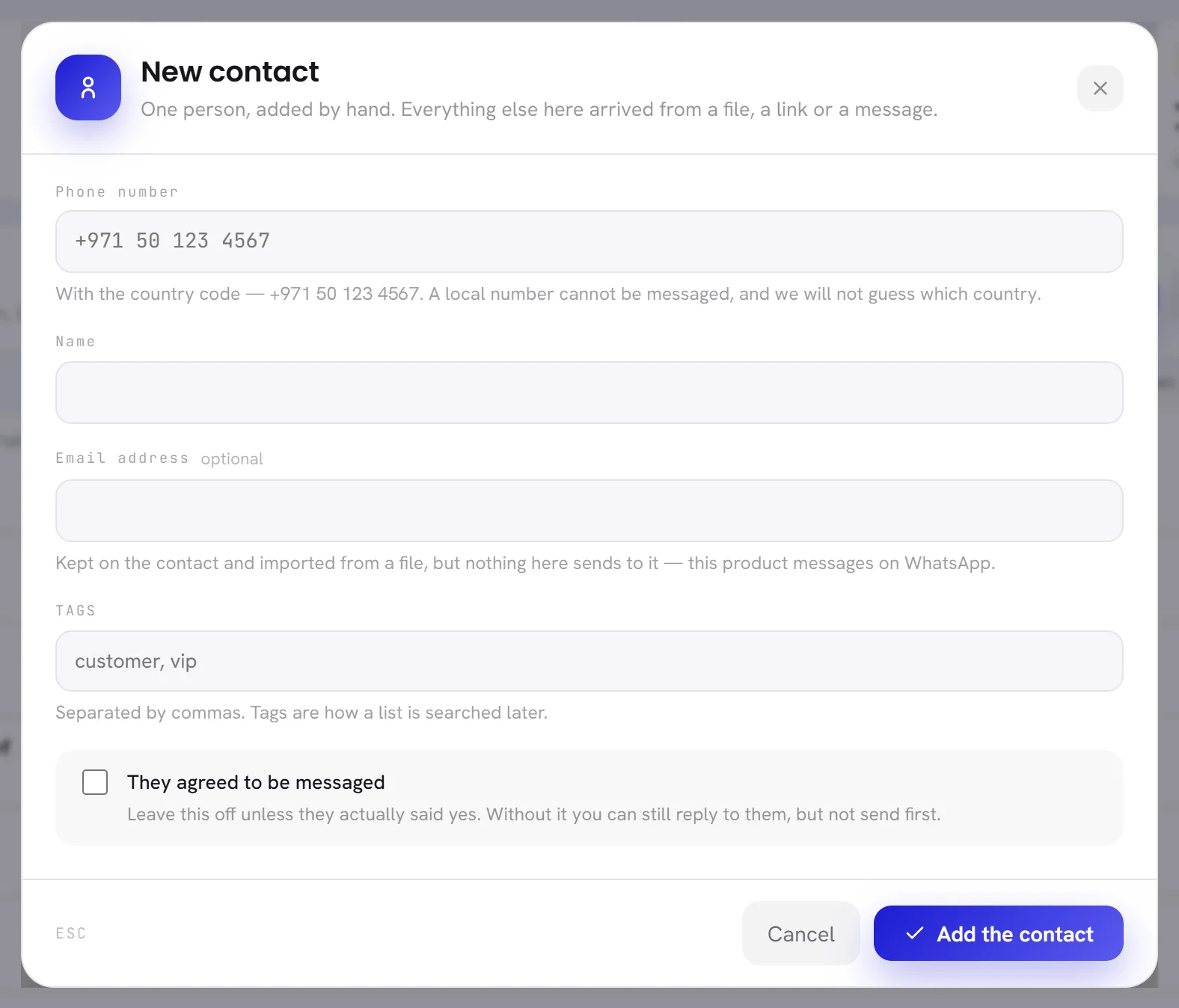
Type the number in Phone number, starting with
+and the country code.For example
+971 50 123 4567. Read the phone number below before you type a local number.Fill in what you know: Name, Email address, Tags.
Only the number is required.
Tick They agreed to be messaged only if this person said yes to receiving your messages.
It is unticked when the window opens. Without it the contact is saved as No consent, and nothing is sent to them. See Consent and opt-outs.
Click Add the contact.
The window closes and a green line above the list says
Addedand the name. The contact is at the top of the list, withadded by handunder the name.
| On the screen | What it does |
|---|---|
| Phone number | The contact’s WhatsApp number. Required. One number can belong to one contact only: a number you already have is refused with You already have this number. |
| Name | Up to 120 characters. Left empty, the list shows no name. |
| Email address | Optional. It is kept on the contact and exported with it. Nothing is sent to it: xconversions writes on WhatsApp only. |
| Tags | Optional. Several tags are separated by commas: customer, vip. Up to 200 characters in all. |
| They agreed to be messaged | The contact’s consent. Tick it only when the person agreed. The line under the box says that you can still reply without it; today the app sends nothing to a contact without it, not even an answer. See the three states. |
| Cancel | Closes the window without adding anybody. |
| Add the contact | Saves the contact. |
The phone number
Write the number in full international form: +, the country code, then the number without the 0 a local number starts with. Spaces, dashes, dots and brackets are ignored, and 00 in front is read as +.
| You type | What the app does |
|---|---|
+971 50 123 4567 or 00971501234567 | Stores +971501234567. |
Letters or other signs, for example 050 123 4567 ext 2 | Refuses it: That number cannot be messaged. Check the country code. |
| Fewer than 8 digits, or more than 15 | Refuses it with the same sentence. |
| Digits that are not 0 to 9, for example Arabic-Indic digits | Refuses it with the same sentence. |
A local number that starts with 0, for example 0612345678 | Accepts it, takes the 0 off and puts +971 in front: +971612345678. |
A number with no + and no 0 in front, for example 612345678 | Accepts it and puts + in front as it is: +612345678. |
Edit a contact
In the list, click the pencil at the end of the contact’s row.
You can also arrive here from a conversation: the contact’s details in the Inbox have an Edit contact button. Search in the menu opens a contact here too.
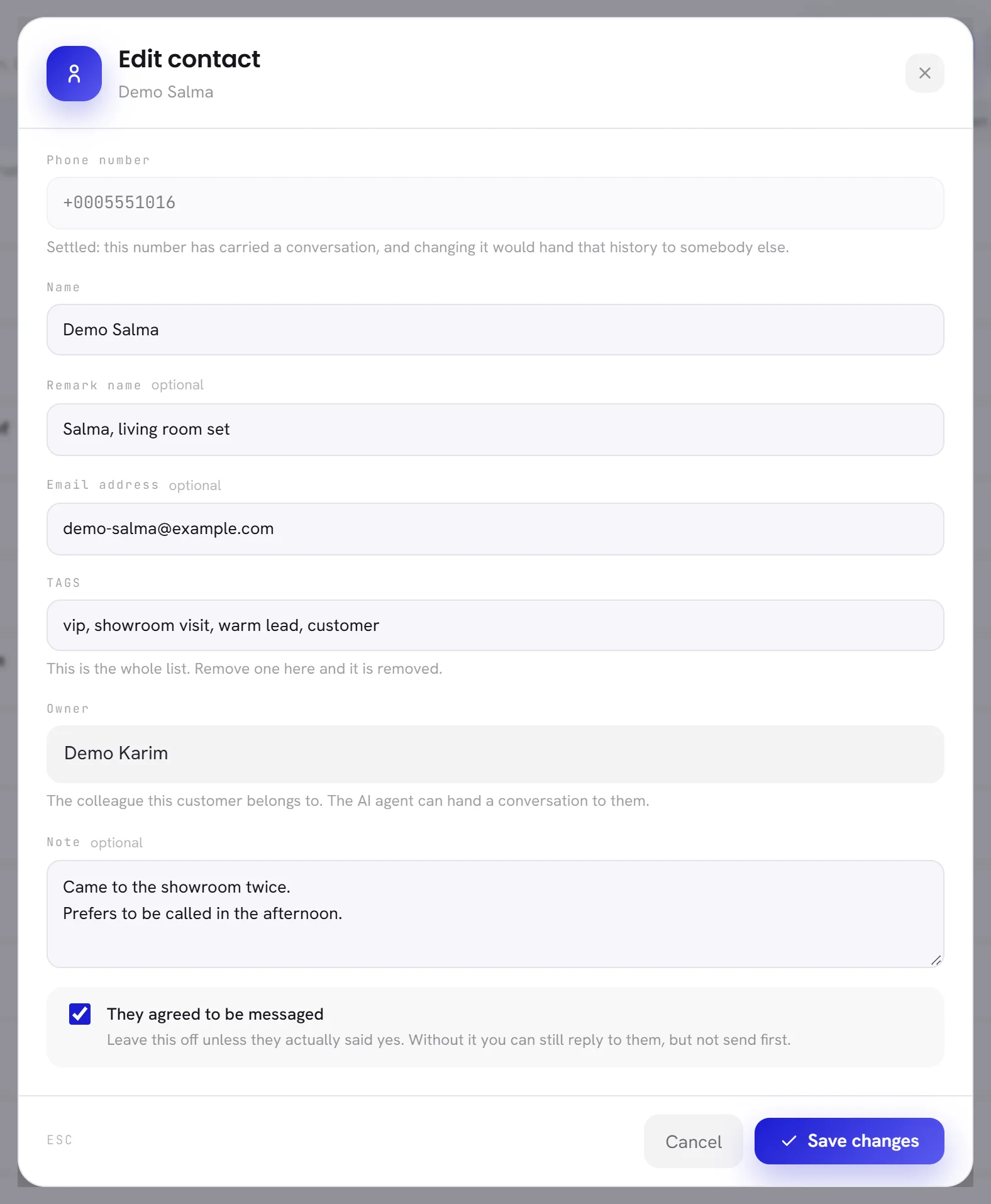
Change what you need.
Click Save changes.
The window closes. The green line above the list reads
Addedand the name after an edit too: nothing was added twice.
| On the screen | What it does |
|---|---|
| Phone number | Can be changed only while the contact has no conversation. After the first message it is locked, and the window says why: the number is what ties the conversation to this person. |
| Name | The name shown in the list and in the inbox. Up to 120 characters. |
| Remark name | Optional. What your business calls this person, beside the name they came with. It shows in the contact’s details in the inbox, and your AI agent can use it. Up to 120 characters. |
| Email address | Optional. |
| Tags | Every tag the contact has, separated by commas. This box is the whole list: a tag you delete here is removed from the contact. |
| Owner | The colleague this customer belongs to, or Nobody. The AI agent can hand a conversation to the contact’s owner. |
| Note | Optional. Your own note about this person, up to 2,000 characters. Customers do not see it. It shows in the contact’s details in the inbox, and your AI agent can use it and add to it. |
| They agreed to be messaged | The contact’s consent: tick it or untick it. For a contact who asked to stop, this box is replaced by a red line with the date they asked. That cannot be changed. |
| Save changes | Saves the contact. |
Custom fields
A contact can also carry facts under names of your own, such as Budget or Interested in. They come from the columns of an imported file that you keep with Keep as a custom field, and from your AI agent when its skill Update contact attributes is set to save them.
Custom fields are not shown in the list or in the Edit contact window, and cannot be typed there. You meet them in three places: segments can pick contacts by an imported column, a campaign or a workflow can put one into a template’s variables, and the export lists them.
To change a custom field for many people, import a file again with their numbers and the column: the file’s value replaces the old one.
Remove a contact, and what goes with it
In the list, click the bin at the end of the contact’s row.
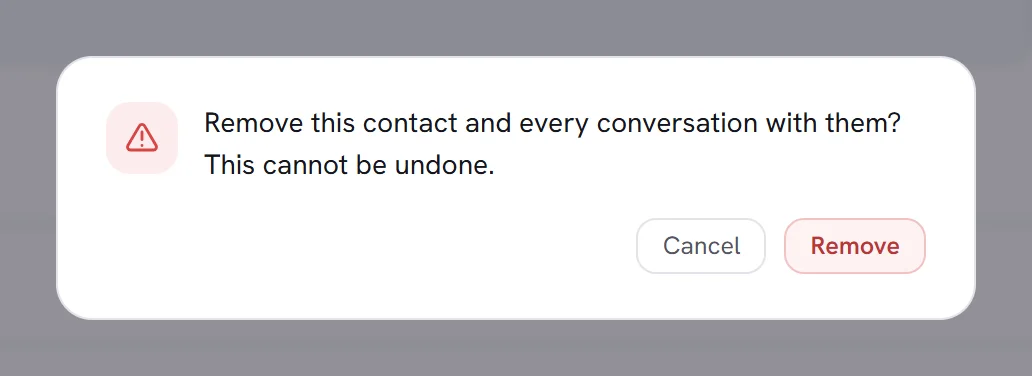
Click Remove to confirm.
To remove several at once, see Select several contacts and remove them.
| What | What happens to it |
|---|---|
| The contact, with its tags, note and custom fields | Removed. |
| The conversation with them, and every message in it | Removed. |
| Their place in segments and in workflows | Removed. |
| Campaigns that already wrote to them | Keep their figures. The line for this person stays in the campaign’s results, with a dash for the name and the number it was sent to. |
| The record that they asked you to stop | Removed with the contact. |
Good to know
- Who can do this: people whose access includes Contacts and segments. See Roles and access.
- The Contacts screen has no button that opens a contact’s conversation. Open the Inbox and search the name or number: see Find a conversation.
- When a customer changes their WhatsApp number and WhatsApp reports it, the contact follows them: the number changes by itself, and the conversation, tags and consent stay.