In short
An agent’s settings are saved as drafts. Each save that changed something is kept as a numbered version. While the agent is live, customers keep getting the version you published, and what you save afterwards waits as a draft until you choose Publish.
So you can rework a live agent, try the result in the preview, and send it to customers when it is right.

What a version holds
| What | In a version? | When customers get a change |
|---|---|---|
| The profile: name, description, brand’s background, tone, languages, fallback language, allowed formats, instructions, the four actions, the rules that always escalate, and the attributes it may save | Yes | When you publish. |
| Skills: their text, and whether each one is used | Yes | When you publish. |
| Knowledge | No | At once. Knowledge is shared by all versions. |
| Where a handover goes when nobody is named | No | At once, for every agent of the workspace. |
| Whether the agent is live or paused | No | At once. |
Save a draft
Change the profile, or write or change a skill.
Choose Save draft.
It is at the top of the page, and again at its foot.
Read what the page says.
On an agent that is not live: Configuration saved. On the live agent: Draft saved. Publish it when you want customers to get it. After saving a skill: Skill saved.
- A save that changed nothing adds no version.
- Switching a skill on or off, and deleting one, are saved at once, as a version too.
- If you leave the profile with changes that are not saved, the app asks before it lets you go.
Publish a draft
On the live agent, as soon as what is saved differs from what customers get, the profile says You have unpublished changes: customers still get the version you published. Publish to send them this one. and Publish appears at the top of the page, on Profile and on Skills.
Choose Publish.
The app asks Publish the draft? Customers get it from the agent’s next reply.
Confirm with Publish.
The page says Published: customers get this version from the next reply.
- Publishing sends what is saved, not what is typed and not yet saved. Save first.
- An agent that is not live has nobody to keep a draft from, so it has no Publish button. Deploy the agent publishes what is saved at that moment as it puts the agent live.
The version history
The clock button at the top of Profile and Skills opens Version history: every version, the newest first, 15 a page. Each row gives the version’s number, what it is, the date and time it was saved and who saved it.
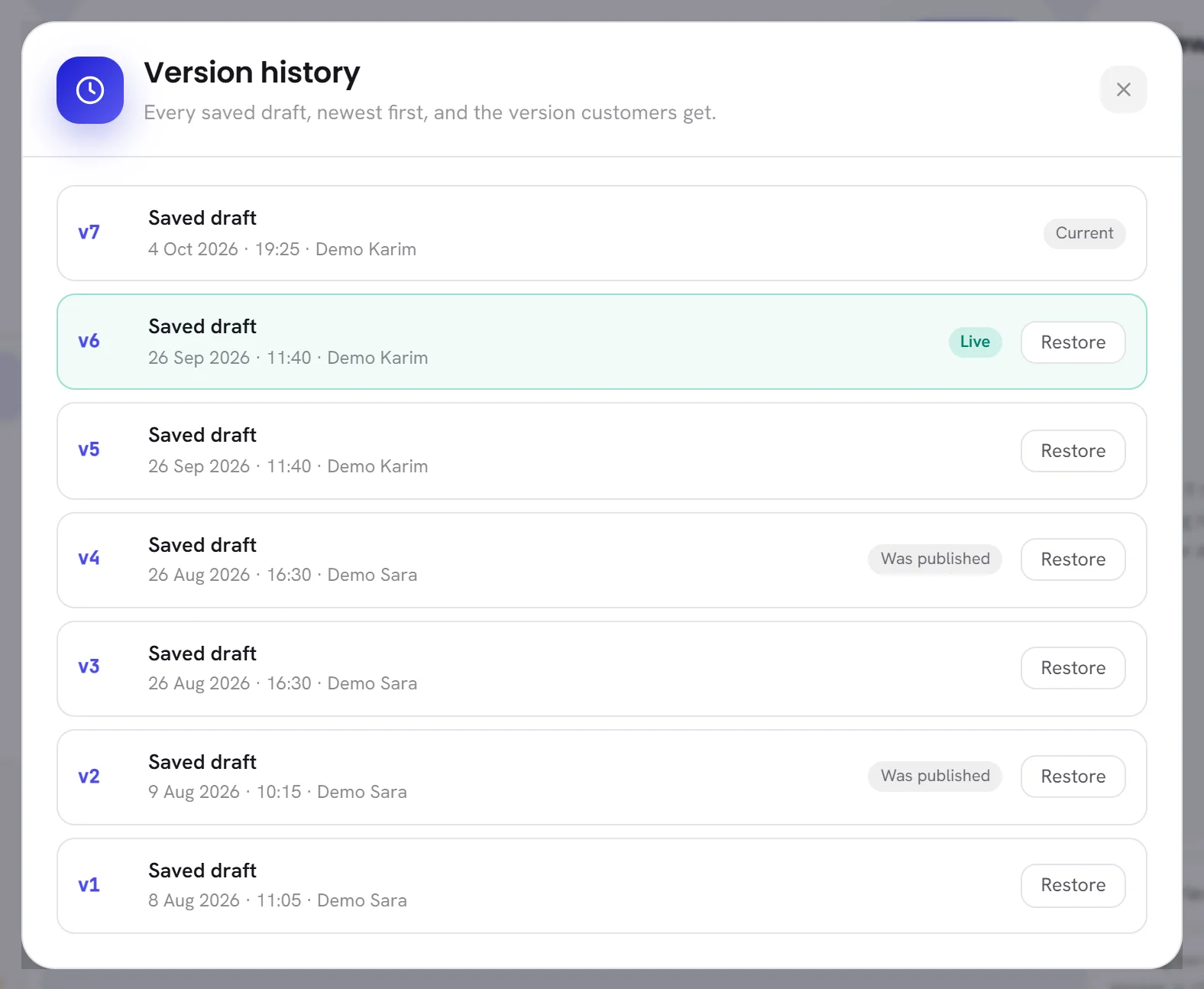
| On the screen | What it does |
|---|---|
| Saved draft | A version made by saving. |
| Restored from v4 | A version made by bringing version 4 back. |
| Published | On an agent that was already live when the version history arrived: the version it was answering with then. |
| Live | The version customers are getting now. |
| Was published | A version customers got at some point. |
| Current | What is saved now: the newest version. It has no Restore button, because there is nothing to bring back. |
| Restore | Brings that version back as the draft. |
Go back to an earlier version
Open Version history and find the version you want.
Choose Restore on its row.
The app asks, for version 4, Bring back version 4 as the draft? What is saved now stays in the history.
Confirm with Restore.
The profile and the skills go back to what that version held, and this is kept as a new version, Restored from v4.
On the live agent, choose Publish to send it to customers.
Until then the page says Version restored as the draft. Publish it when you want customers to get it. and customers keep the published version. On an agent that is not live it says Version restored.
What customers get while you edit
- Typing in the page changes nothing for anybody until you save.
- Saving on the live agent changes nothing for customers until you publish. That includes the agent’s name.
- The preview answers from your saved draft, so you can test before you publish.
- A change to the knowledge reaches customers at once.
- Pausing and deploying take effect at once.
Good to know
- Admins and managers can save, publish and restore. Other members need access to the AI agent: see Roles and access.
- To throw a draft away and return to what customers get, restore the version marked Live. The agent then has no unpublished changes.
- A duplicated agent starts its own history at version 1.
Questions
I published by mistake. How do I undo it?
Open Version history, choose Restore on the version marked Was published that you want back, then choose Publish.
Why is there no Publish button?
It appears only on the live agent, and only when what is saved differs from what customers get. On a draft or a paused agent, Deploy the agent does the publishing.
Does restoring a version change the knowledge?
No. Knowledge is not part of a version: it stays as it is now.