Open the New campaign window
Open Campaigns and press New campaign. You need a connected number, an approved template and a segment first: see what a campaign needs.
The window asks four things in turn: Details, Audience, Message and Schedule. Next checks the step you are on, and says beside the field when something is missing. The names of the steps along the top are a way back to a step you have already answered.
On the right, Campaign summary adds up your answers as you give them, and What they receive draws the message as WhatsApp will show it.
Step 1: Details
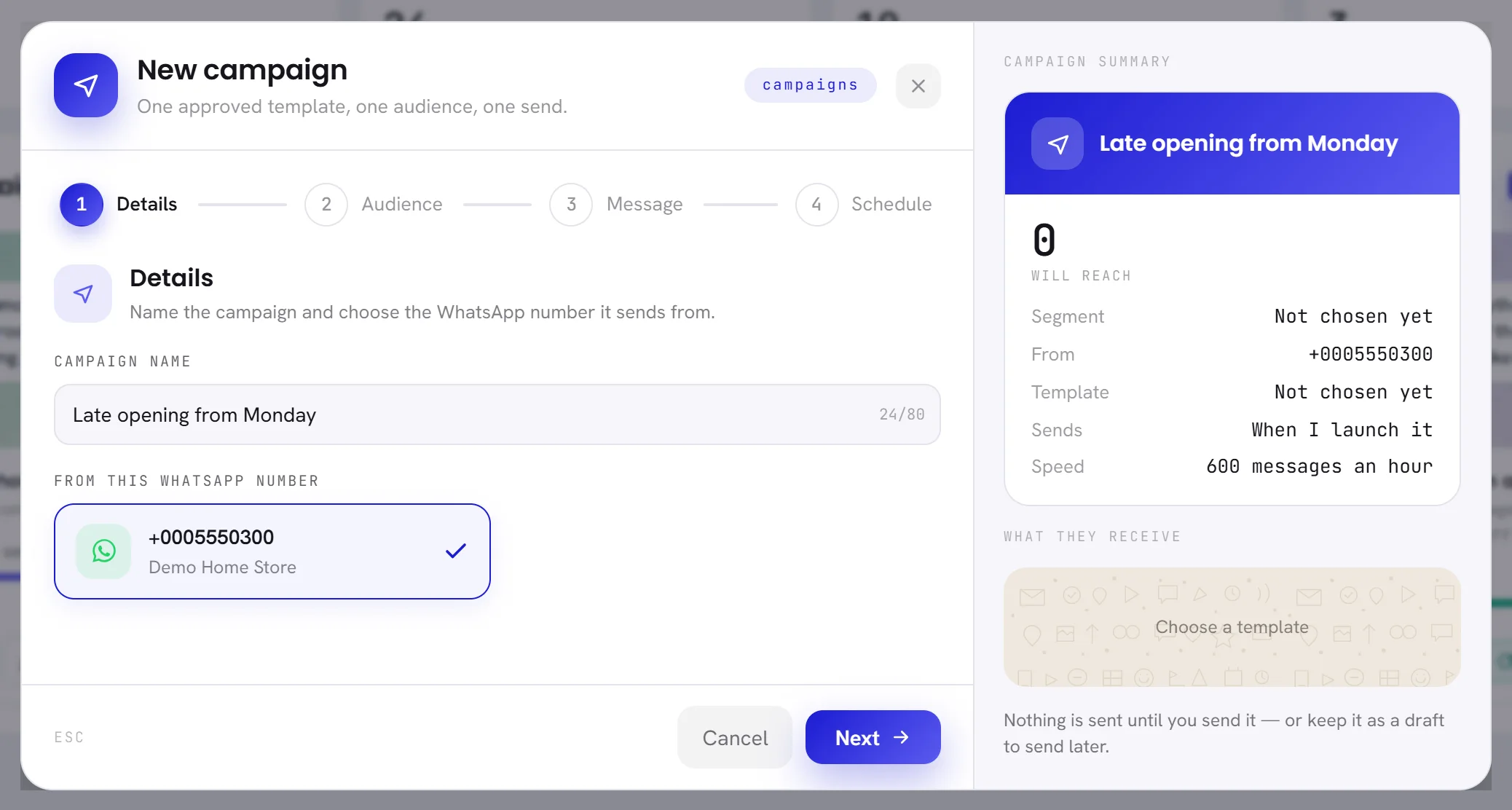
| On the screen | What it does |
|---|---|
| Campaign name | What you call the campaign, up to 80 characters. Your customers never see it. |
| From this WhatsApp number | The number the message comes from. Each of your numbers is a card with the number and its display name. With one number, it is already chosen. |
The list shows every number in your workspace, whatever its state. Choose one that Channels shows as Connected: a campaign sent from a number that cannot send fails for everybody in it.
With no number at all, the step says No WhatsApp number is connected yet. Connect one in Channels first. and offers Open Channels.
Step 2: Audience
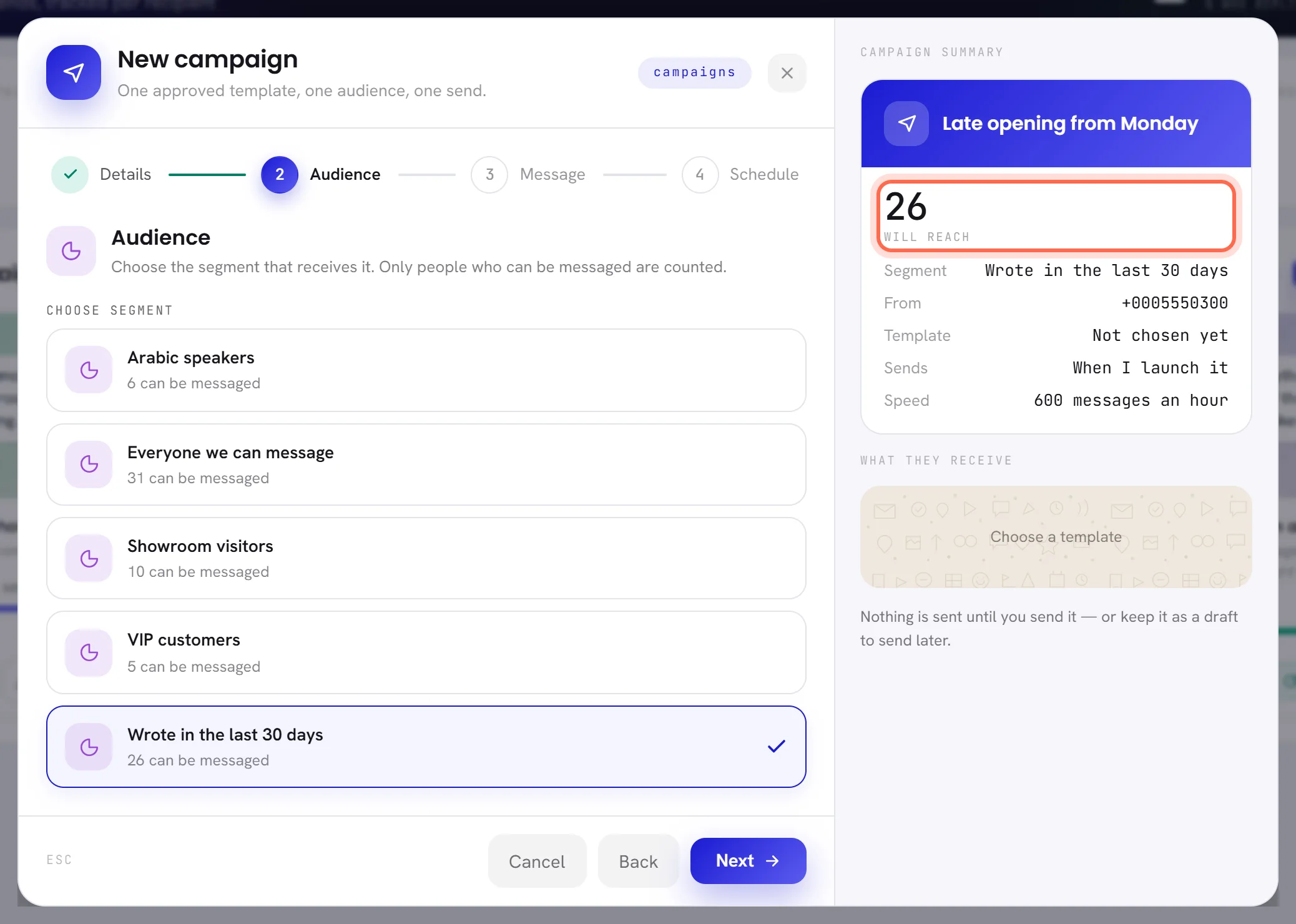
| On the screen | What it does |
|---|---|
| Choose segment | The segment that receives the campaign. Each segment is a card with its name and how many of its people can be messaged today, as 26 can be messaged. |
The audience is always one segment, whether it was built By rules or as A fixed list. To write to people you pick by hand, or to everybody who agreed to hear from you, build that segment first: see Build a segment.
With no segment yet, the step says No audience yet. Build a segment first. and offers New segment.
Who is counted, and who is left out
Only people who can be messaged are counted: the contacts in the segment who agreed to hear from you and have not opted out. Everybody else in the segment is not part of the campaign at all. See Opt-in and opt-out.
The count is today’s. The audience is fixed at the moment you send or schedule the campaign, one line per person, and each of those people is then accounted for. Some of them still do not get the message:
| Who | When it is found | What the campaign records |
|---|---|---|
| A contact with no WhatsApp number to write to | At launch | Skipped |
| Somebody who turned off marketing messages from your business in WhatsApp, when the template is a marketing one | At launch, and again when their turn comes | Skipped |
| A contact with nothing in a field that one of the blanks uses | When their turn comes | Skipped |
| Somebody who opted out after launch | When their turn comes | Failed |
| Somebody WhatsApp will not deliver to | When their turn comes, or afterwards | Failed, or not delivered |
Skipped means no message was tried. Failed means one was tried and refused. The reason for each person is on the results page.
Step 3: Message
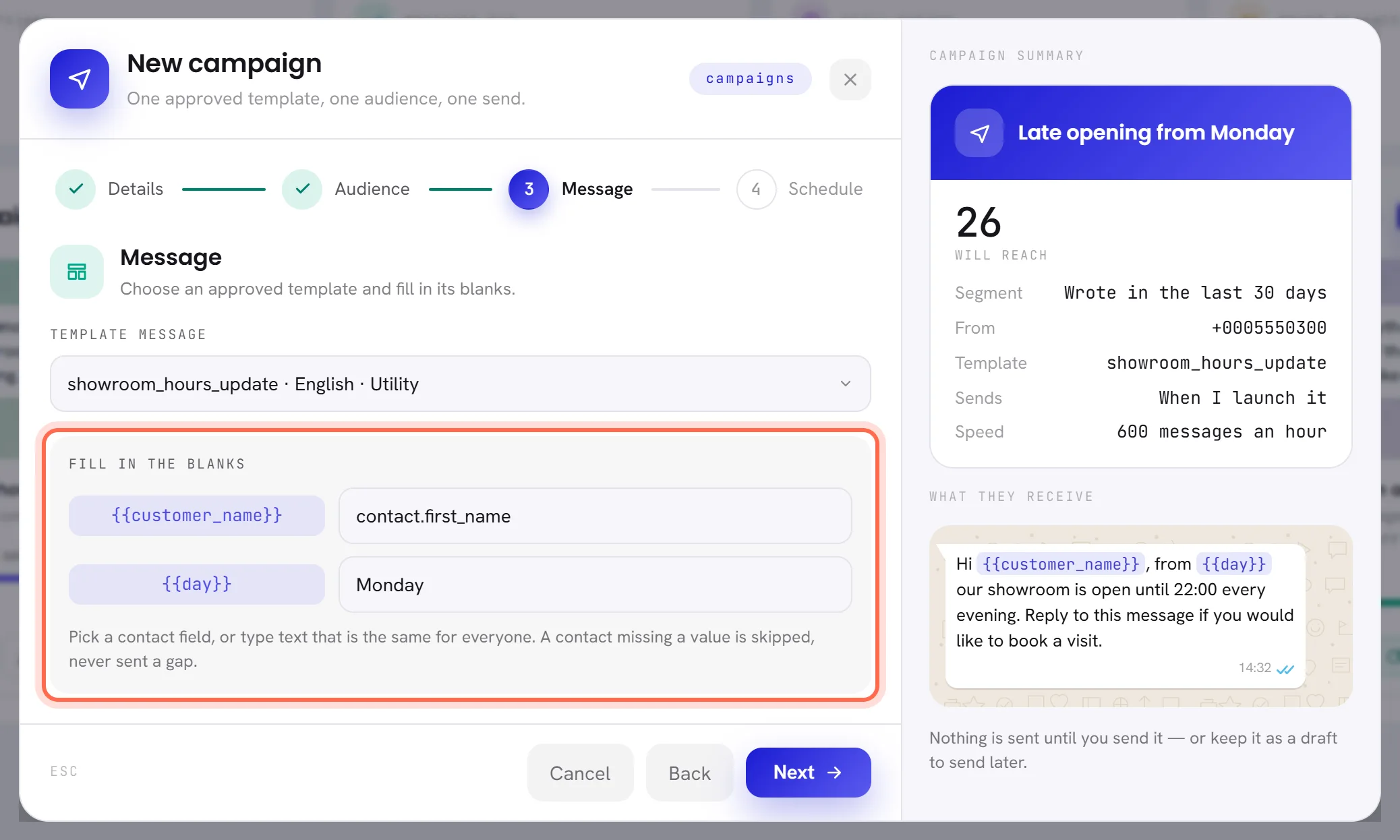
| On the screen | What it does |
|---|---|
| Template message | The approved template to send. Each line of the list reads name, language, category, for example showroom_hours_update · English · Utility. Until you choose, it reads Choose a template. |
| Fill in the blanks | One box for each variable of the template, beside its name in braces, such as {{customer_name}}. Every box has to be filled. |
| Image or file | Only for a template approved with an image, a video or a document at the top: the file this campaign sends with it. |
| Upload file | Opens your files to choose that header file. You can also drag a file onto the box. |
With no approved template, the step says No approved template yet. Meta must approve one before a campaign can send. and offers New template. A template that is still in review, rejected or paused is not in the list: see Template statuses.
Fill in the blanks
A blank takes one of two things.
A contact field. Click the box and choose from the suggestions. The box then holds a code: leave it exactly as it is. When the campaign sends, each person gets their own value in its place.
| Code in the box | What each person receives |
|---|---|
contact.name | Their name, as Contacts has it |
contact.first_name | The first word of their name |
contact.phone | Their number |
contact.email | Their email address |
contact.locale | Their language |
field:Budget | Their value for one of your custom fields, here one called Budget. The suggestions list the custom fields your contacts have. |
Fixed text. Type the words yourself, up to 120 characters. Everybody receives them as typed.
A contact who has no value for a field you chose is skipped, never sent a sentence with a gap. The results page then gives the reason as no value for followed by the name of the blank.
When the template has an image, video or document header, Image or file appears under the blanks and says which kind the template was approved with. The file can be a JPG, PNG, WEBP, PDF or MP4 of up to 5 MB, and a new campaign cannot leave this step without it. The file belongs to the campaign, not to the template: two campaigns can send the same template with different pictures.
Step 4: Schedule
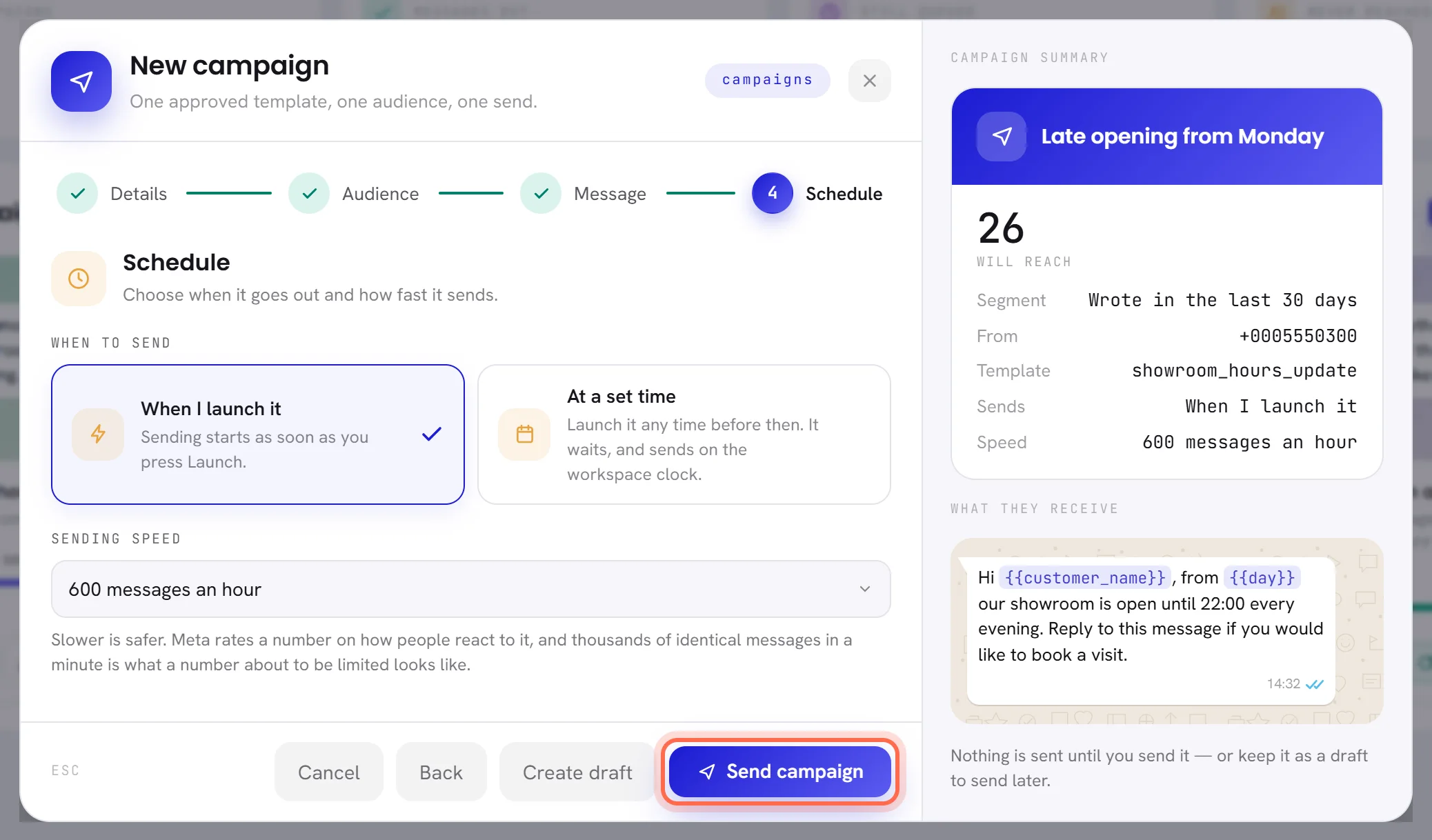
| On the screen | What it does |
|---|---|
| When to send | Two choices: When I launch it or At a set time. |
| When I launch it | Sending starts as soon as you send the campaign. |
| At a set time | Sending starts at the date and time you give, on your workspace’s clock. |
| Date and time | Appears when you choose At a set time. It has to be in the future. |
| Sending speed | How many messages go out in an hour: 120, 300, 600, 1,200, 3,000 or 6,000. It starts on 600. |
There is no quiet-hours choice in this window: a campaign takes your workspace’s. Set times, quiet hours and what the speed does are explained in Scheduling, quiet hours and sending speed.
The summary beside the steps
| On the screen | What it does |
|---|---|
| Campaign summary | Your answers so far, under the campaign’s name. Until you type a name it reads Untitled campaign, and a line you have not answered reads Not chosen yet. |
| Will reach | How many people in the chosen segment can be messaged today. |
| Segment | The segment you chose. |
| From | The number it sends from. |
| Template | The template you chose. |
| Sends | When I launch it or At a set time. |
| Speed | The sending speed. |
| What they receive | The template as WhatsApp draws it: its header, its words with each blank marked, its footer and its buttons. The blanks are shown as marks, not filled in. |
The window does not estimate what the campaign will cost. Meta charges your WhatsApp account for each template it delivers, at a rate that depends on the template’s category and on the country of each recipient: see What WhatsApp charges. For a rough figure before you send, take the number under Will reach to the WhatsApp cost calculator. After sending, the results page shows what Meta charged.
Send it, schedule it or keep it as a draft
The foot of the window has every way out. The last three appear on the last step.
| On the screen | What it does |
|---|---|
| Cancel | Closes the window. A new campaign that was not saved is not kept. |
| Back | Goes to the step before. |
| Create draft | Saves the campaign without sending anything, and opens its window. |
| Send campaign | With When I launch it: saves the campaign and starts sending. |
| Schedule campaign | With At a set time: saves the campaign and fixes its audience now. Sending starts at the set time. |
After Send campaign or Schedule campaign you are back on the cards, and a message on the screen says that the campaign is sending, or when it sends.
If the campaign cannot be sent, it is kept as a draft and its window opens with This campaign is not ready to send. and the reasons under Not ready yet. See why a draft cannot be sent yet.
Change a draft, or send it later
Press the pencil, Edit this draft, on the draft’s card.
The same four steps open with the draft’s answers in them, and every step can be opened straight away.
Change what you need and press Save draft.
Save draft is on every step, so changing one answer does not mean walking through the other three. The header file stays as it was unless you upload another.
To send it, press Launch on its card, or open its window and press the button that says how many people it goes to.
The pop-up asks Send to 5 people? Messages already on their way cannot be recalled. Confirm with send it. A draft whose set time is still ahead becomes Scheduled; any other starts Sending.
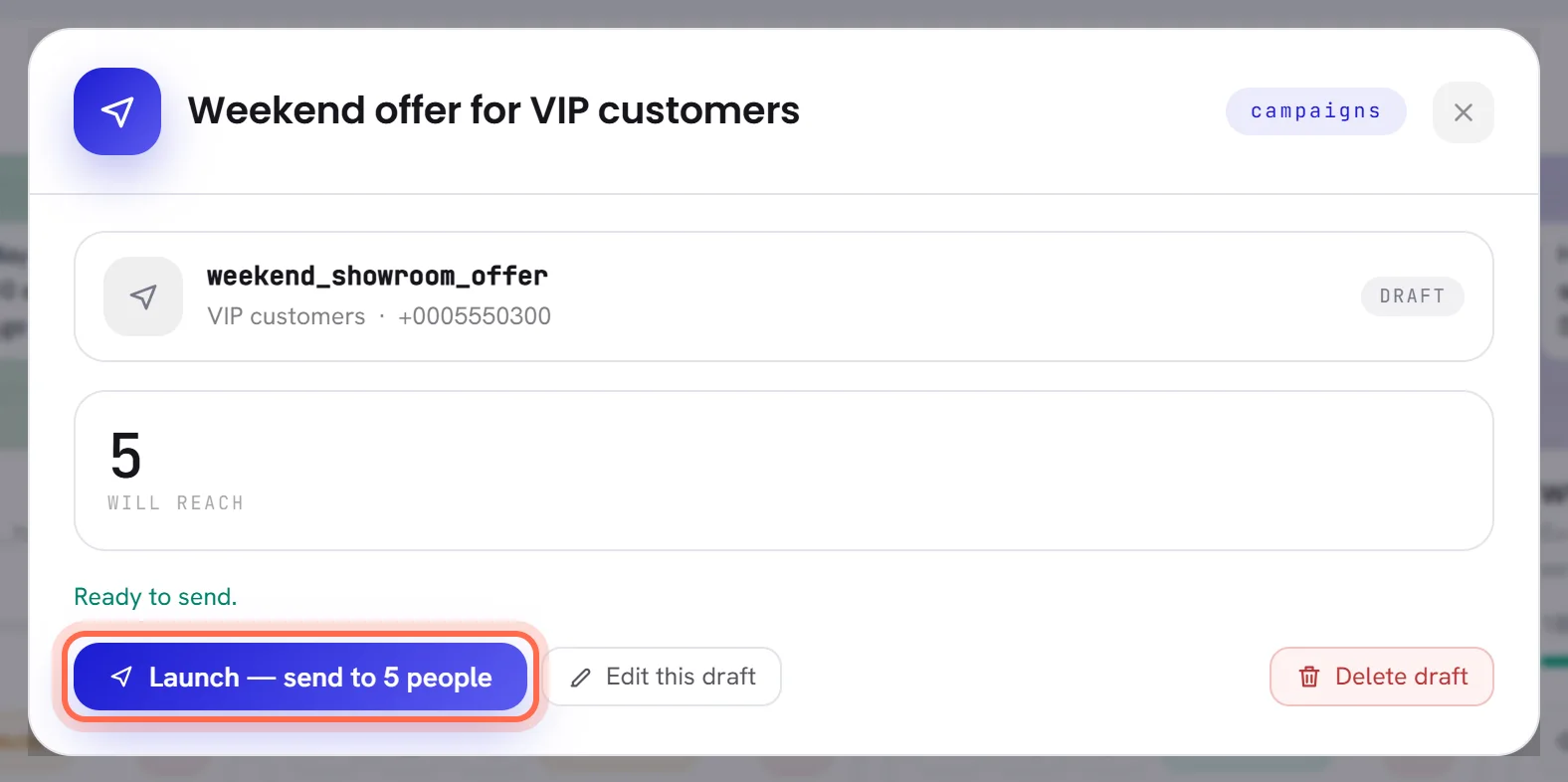
You can also send from the edit window: its last step has Send campaign or Schedule campaign, as a new campaign’s does.
Good to know
- Anybody whose access includes Campaigns and templates can write and send a campaign. See Roles and access.
- A draft stays a draft for as long as you like. Its segment is counted again each time you look at it, and for the last time when you send or schedule it.
- If the app refuses what you sent, for example a time that has passed or a file that is too big, the window reopens on the step concerned with the reason under the field.
- On a free trial that does not send campaigns, Send campaign keeps the campaign as a draft and its window says why. See The free trial.
Questions
Why is my template not in the list?
Only templates Meta has approved are offered. One that is a draft, in review, rejected or paused is not. Open Templates to see where it stands: Template statuses.
Can one campaign go to two segments?
No, one campaign has one segment. Build a segment that covers both groups, or send a copy of the campaign to the second one. Somebody who is in both segments then receives it twice.
Can I see the message with a real name in it before I send?
Not in this window: What they receive shows each blank as a mark. To see a filled message, send the campaign first to a small segment that holds only your own number.
Can I send a campaign with words of my own instead of a template?
No. A campaign writes to people first, and WhatsApp only lets a business do that with an approved template. See The 24-hour window.