Open a contact’s details
Everything xconversions knows about the person you are talking to is one click from the conversation. Use it before you answer: it says whether the contact may be written to, what they were tagged, who looks after them, and what your team noted about them.
Open the conversation in Inbox.
Select the contact’s name at the top of the conversation.
A window opens over the conversation, with the contact’s name as its title, or their number when they have no name.

Close it with the cross, or press Esc, to go back to the conversation.
Consent: may this contact be written to
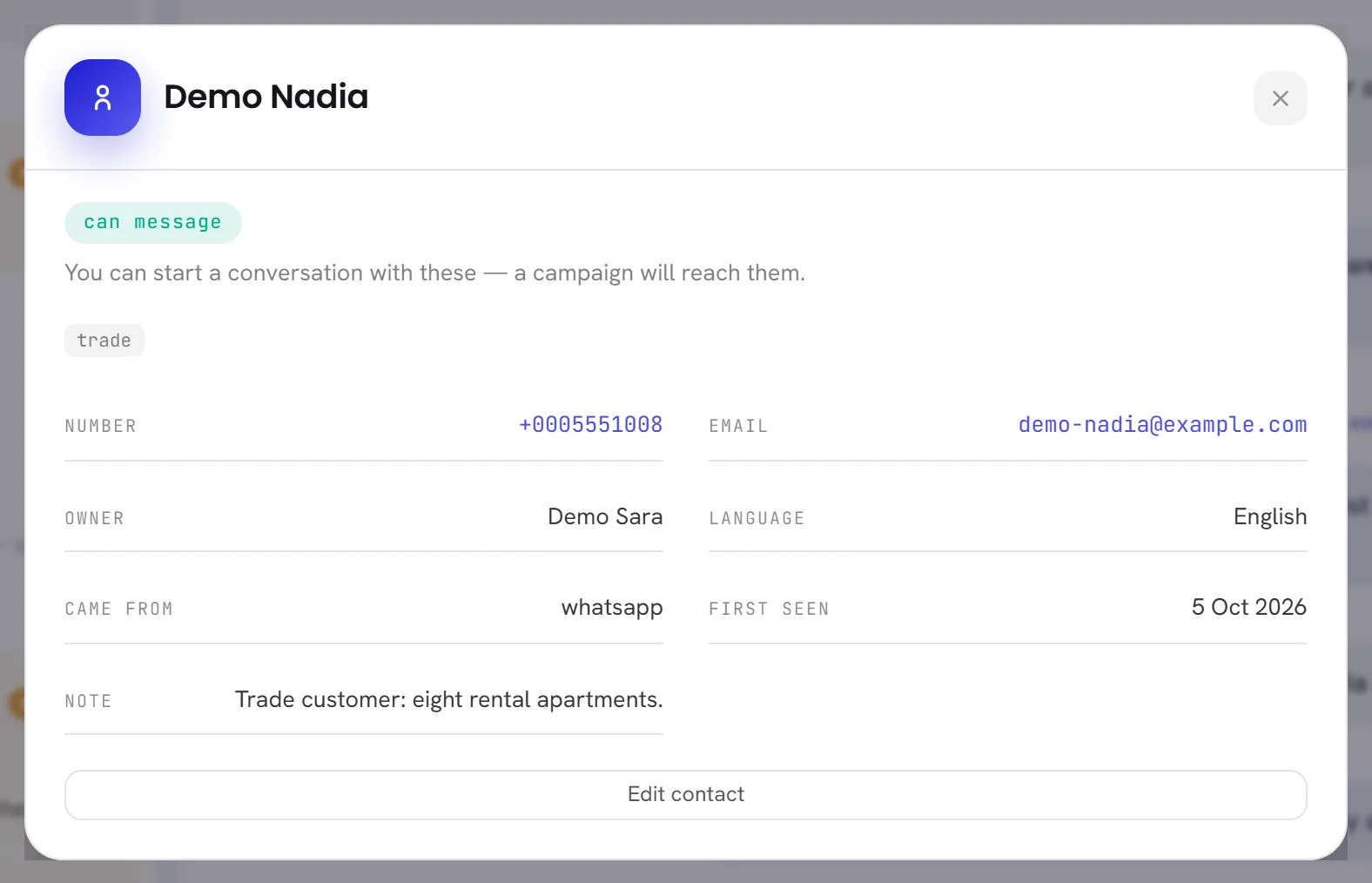
The coloured chip at the top of the window is the contact’s consent, with a sentence under it saying what it means. Opt-in and opt-out explains what WhatsApp asks of a business.
| On the screen | What it does |
|---|---|
| can message | Green. The contact agreed to be messaged: campaigns and workflows can reach them, and replies go through. |
| reply only | Amber. The contact has never agreed to be messaged. No campaign or workflow sends to them, your AI agent does not answer them, and a reply from the inbox comes back Not delivered with the reason the contact has opted out. Record their agreement on the contact first: Edit contact, then They agreed to be messaged. |
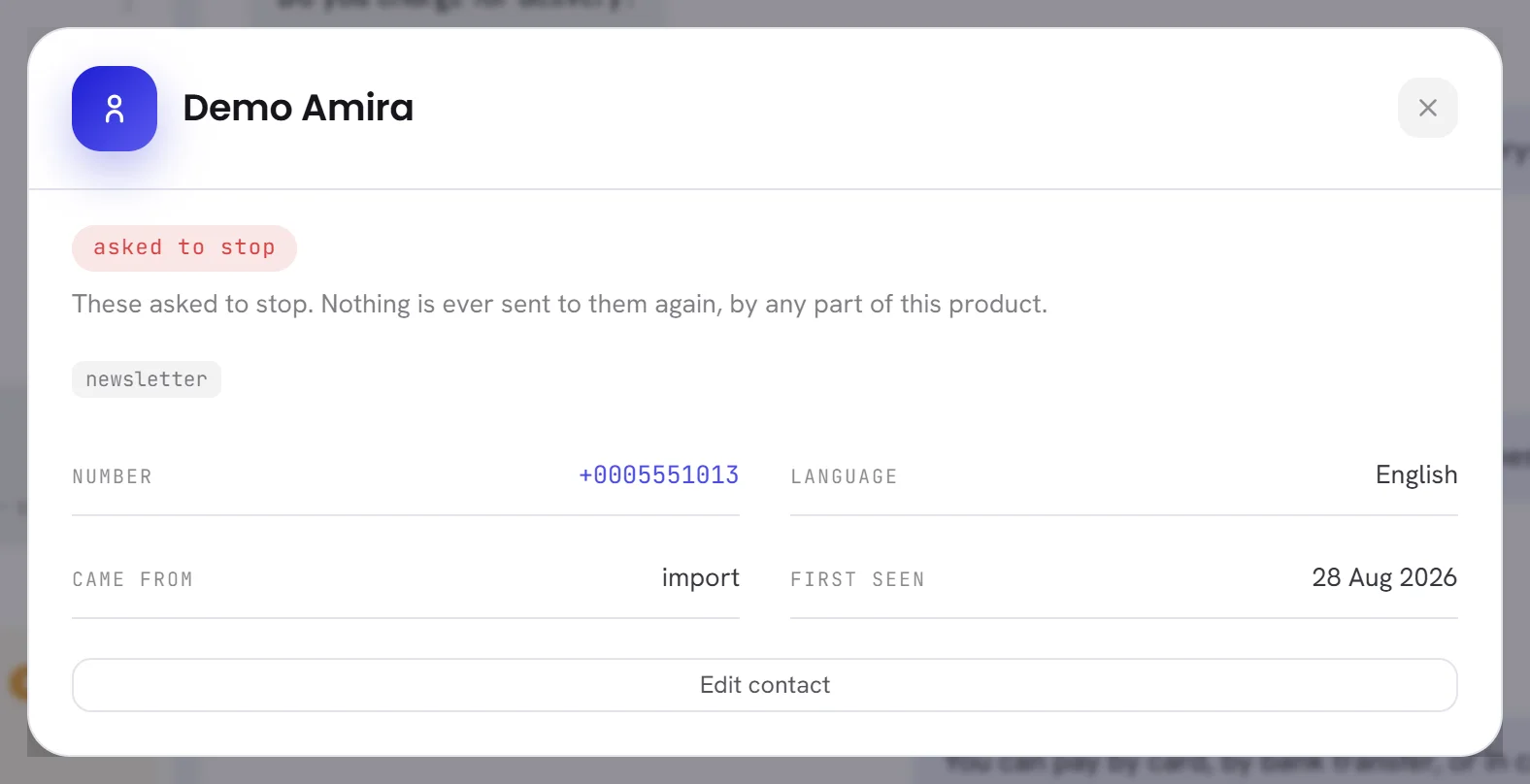
| asked to stop | Red. The contact asked to stop. Nothing is sent to them again, by any part of xconversions, and this cannot be undone from the app. |
A customer who writes to your number for the first time starts as can message. A contact you add by hand or import starts as reply only unless their agreement is recorded. See Consent and opt-outs.
Everything in the window
Under the consent chip come the contact’s tags, then their details. A detail that is empty is not shown.
| On the screen | What it does |
|---|---|
| Number | The contact’s WhatsApp number, with its country code. |
| Their email address, when one was saved. Nothing in xconversions sends to it. | |
| Remark name | A second name your team gave the contact, to tell them apart or to remember who they are. |
| Owner | The colleague this customer belongs to. Your AI agent can hand a conversation to the owner. |
| Language | The language kept for the contact. With an Arabic contact, the words of the conversation read right to left. |
| Came from | How the contact first reached your workspace: whatsapp for somebody who wrote to your number, added by hand for one a colleague typed in, or the source written in an imported file. |
| First seen | The day the contact was added to your workspace. |
| Note | What your team wrote about the contact. See below. |
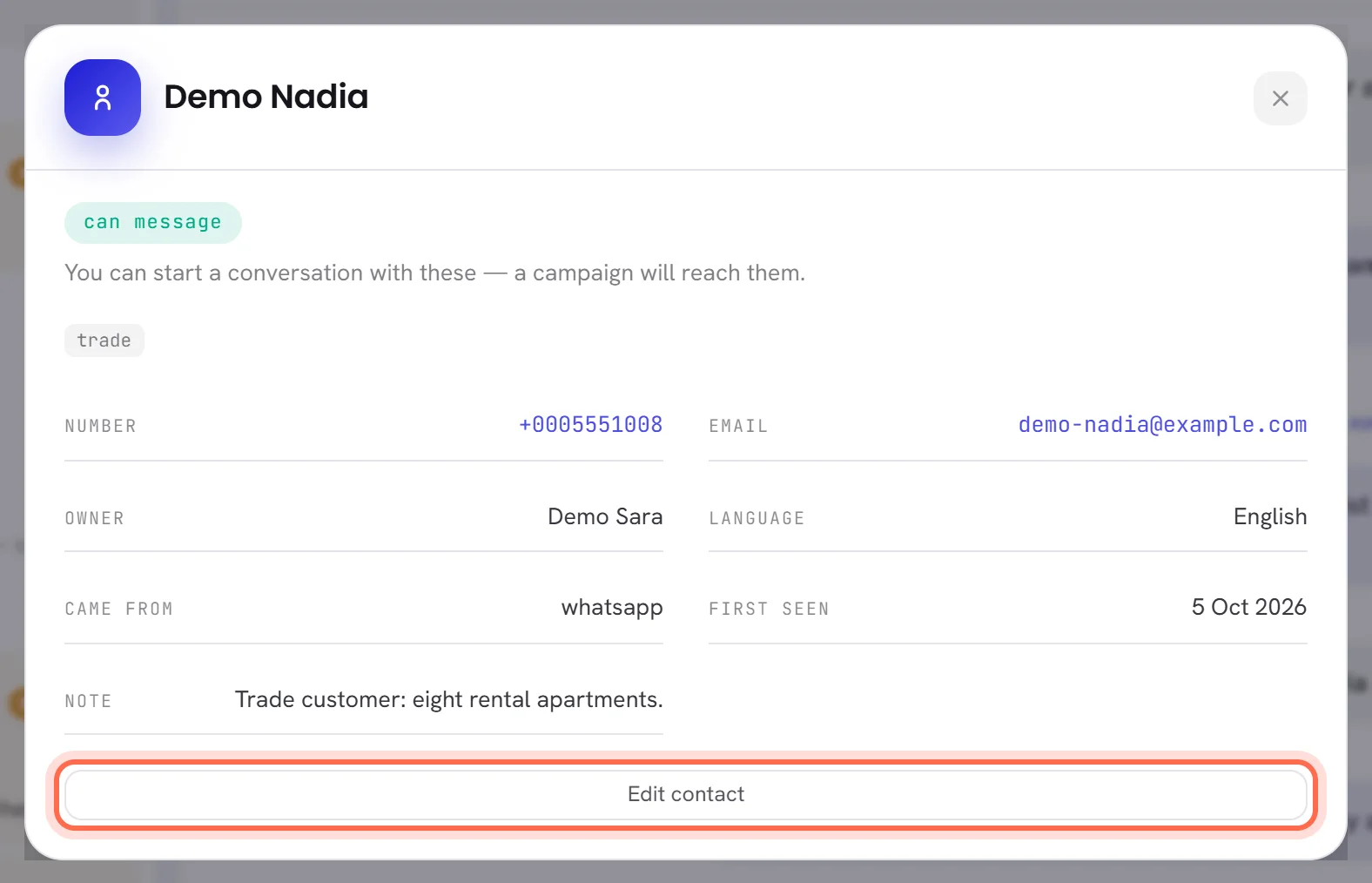
| Edit contact | Opens the contact on Contacts, ready to change. Shown to people whose access includes contacts. |
The contact’s other fields, the ones your workspace added itself, are not in this window: they are on Contacts.
Change a contact from the inbox
Open the contact’s details from the conversation.
Select Edit contact.
You leave the inbox for Contacts, where the contact opens ready to edit: name, tags, owner, remark name, note and consent.
Change what you need and save.
Add and edit contacts describes every field. Go back to Inbox to carry on with the conversation.
Notes
A contact has one Note: a few lines your team keeps about the person, up to 2,000 characters. It is on the contact, not on one message, so it is there every time anybody opens their details.
- Write or change it from Edit contact.
- Everybody who can open the conversation sees it. The customer never does.
- Your AI agent can add to it when its Update contact attributes action is on and the note is one of the attributes it may save. It adds a line: it does not write over what is there.
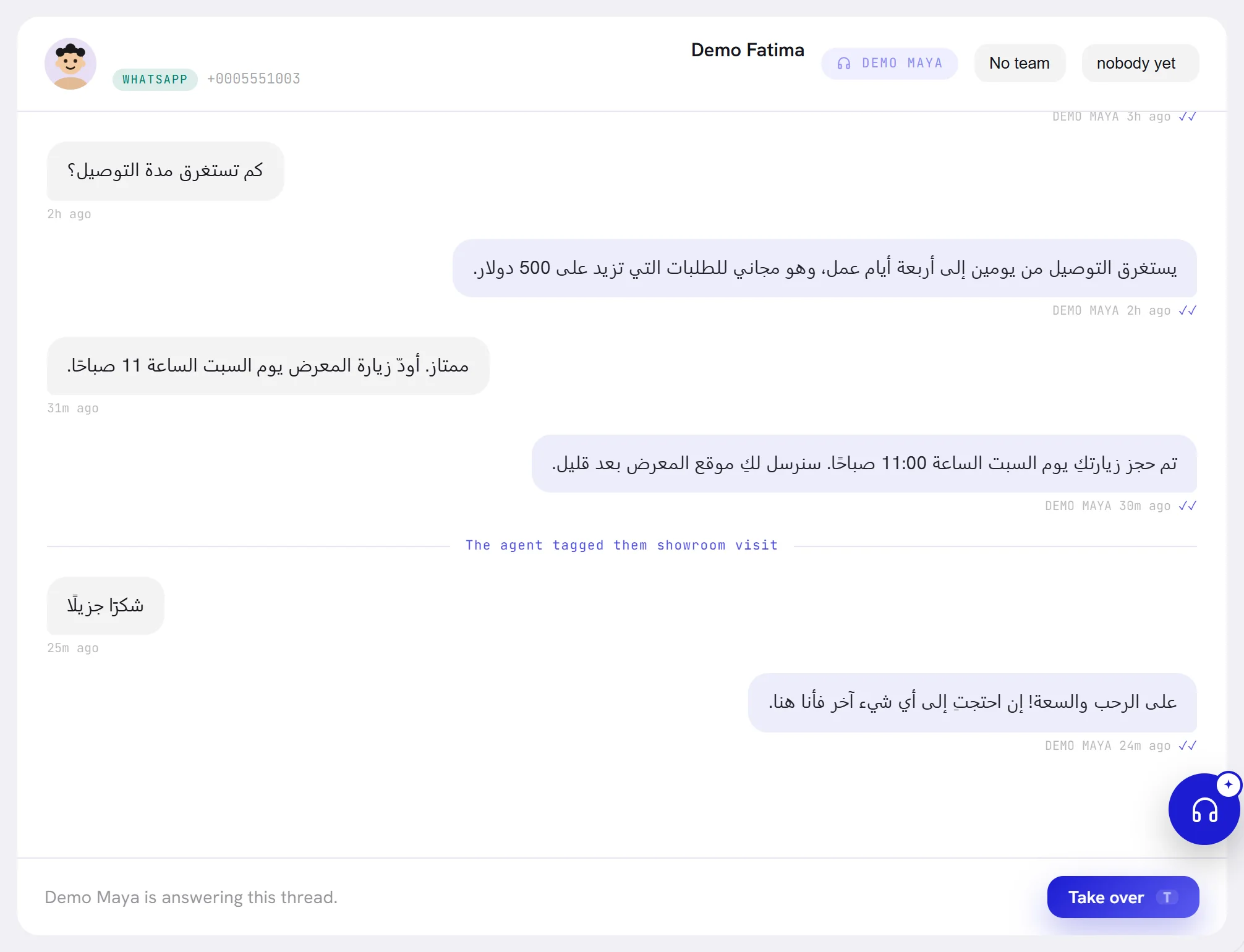
The conversation keeps its own record as well. When the agent saves a detail or tags the contact, a line across the conversation says so, such as The agent tagged them showroom visit. Only your team sees those lines.
Good to know
- Everybody who can open a conversation can open its contact’s details. Changing them needs access to Contacts: see Roles and access.
- A contact has one conversation. Everything said to them before is above, in the same conversation.
- Removing a contact on Contacts removes their conversation with them, and cannot be undone.