What the activity log is
The activity log is the record of what is done in your workspace: every change made through the app, every sign-in, every download of your data, and every visit from our support team. For each one it keeps who did it, in which role, what they did and to what, when, and from which internet address and device.
It answers questions such as: who removed this contact, who changed our time zone, was that sign-in one of us.
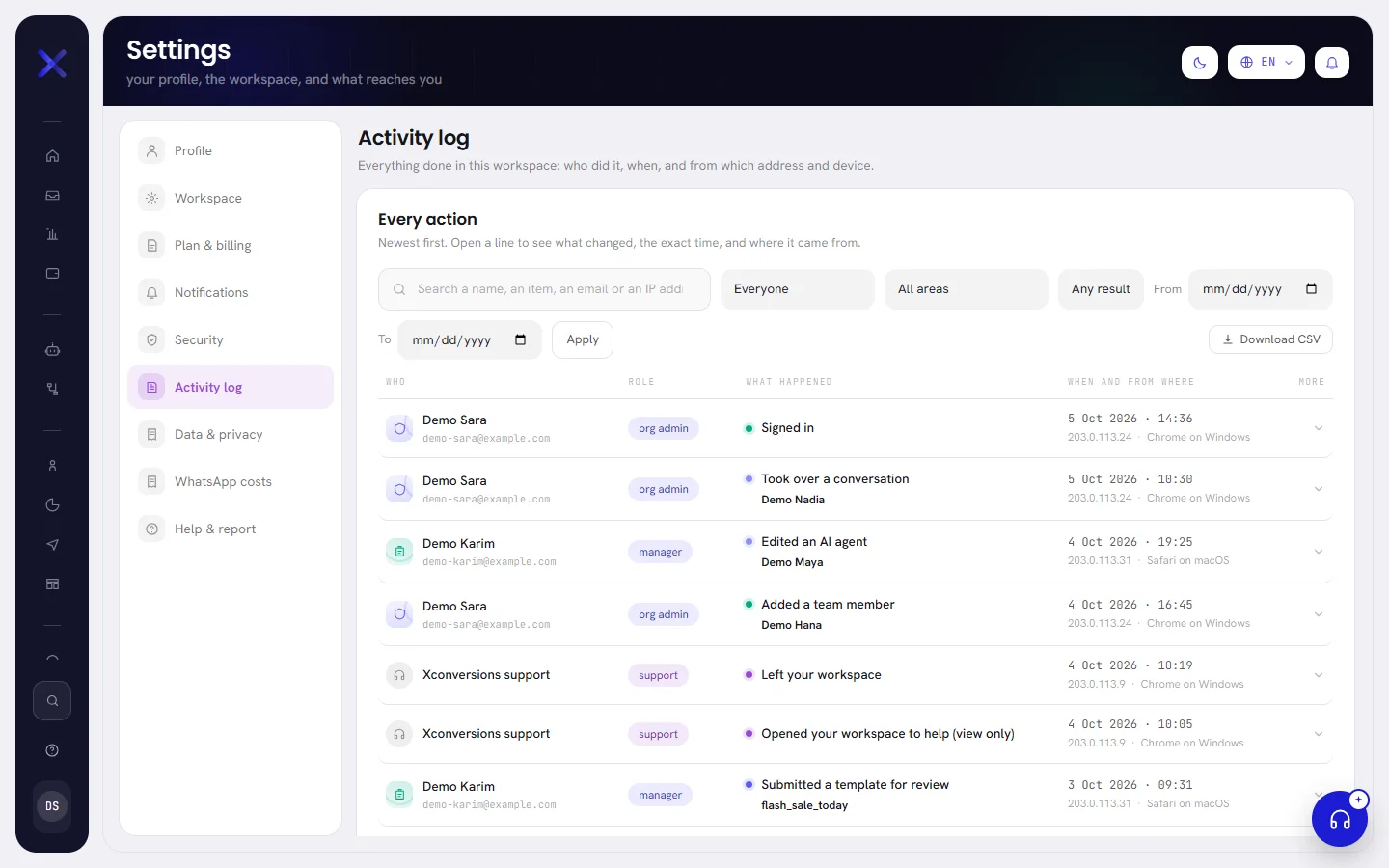
The Activity log tab of Settings is there only for whoever manages the workspace, and reading it depends on your plan: see Who can read it.
Read the log
The card is called Every action. The newest line is at the top, and the table has five columns:
| On the screen | What it does |
|---|---|
| Who | The person’s name and email, as they were at that moment: the log reads the same after somebody is renamed or has left. A visit from our support team is shown under our name, not a person’s. |
| Role | The role they had then: org admin, manager or agent. Our own lines say support. |
| What happened | What they did, in words, after a coloured dot: green for something added, red for something removed or that failed, amber for something paused or refused. Then what it was done to (the name of the campaign, the template, the team member), how many when there were several, and what it belongs to. A line that did not go through also carries Refused or Failed. |
| When and from where | The date and time on the workspace’s clock, then the internet address and the device: the browser and the system. |
| More | The arrow that opens the line. |
The log shows 50 lines a page. Under the table, Back and Next move through the pages, beside a line saying which lines you are looking at and how many there are.
A workspace where nothing has been recorded yet shows a sentence in place of the table, saying that changes, sign-ins and downloads appear there as they happen.
Open a line to see what changed
Click a line to open it, and click it again to close it.

| On the screen | What it does |
|---|---|
| Result | Done; Refused, when a rule, a missing permission or a form not filled in turned it down; or Failed, when something went wrong on our side and nothing was changed. |
| Why | For a line that was refused or that failed: the reason, as the person was told it. |
| Area | The part of the product it belongs to. |
| Exactly | The date and time again, with the time zone. |
| IP address | The internet address the request came from. |
| Device | The browser and the system. |
Between these, the line lists what changed. For a short setting that means something on its own, such as a name, a role, a time zone, the currency or a switch, it shows the old value struck through and the new one beside it. For the rest it names the field and says changed, without the text.
Some lines carry a fact or two more: the email and the role somebody was added with, the number that was connected, the category and the language of a template, the time a campaign is set to send.
Find a line
Set one filter or several, in the row above the table.
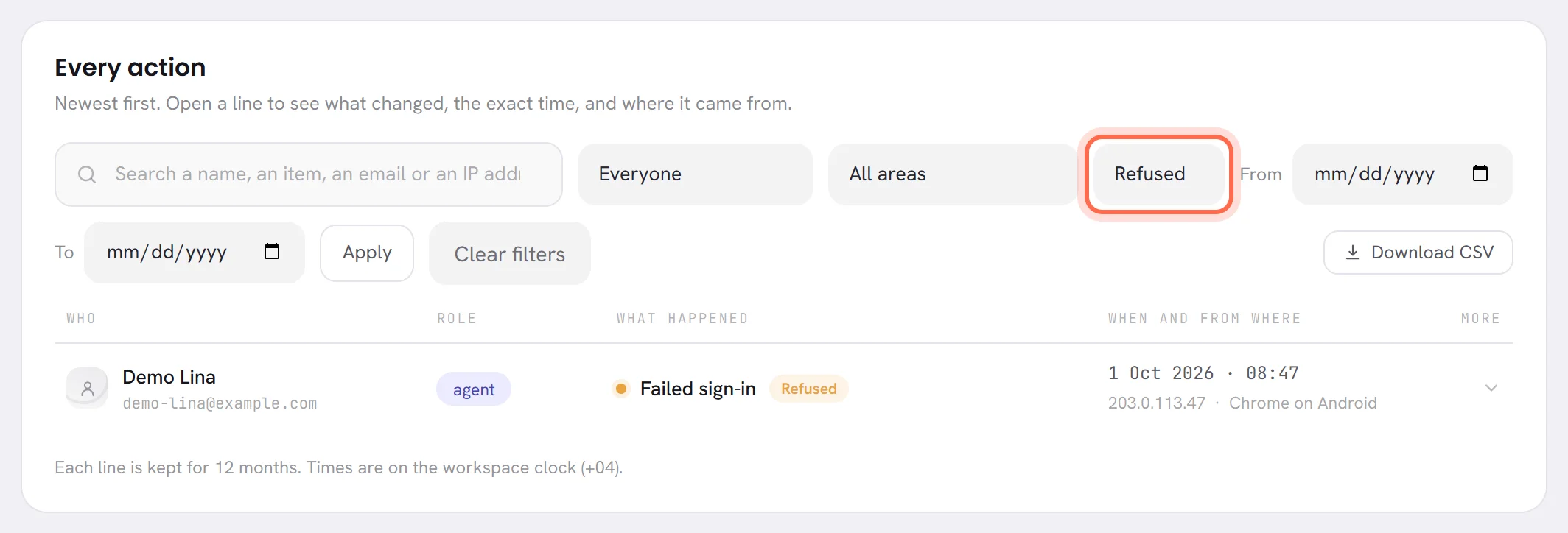
Choose Apply.
The table shows the lines that match all of them. The filters are kept in the address of the page, so a filtered log can be bookmarked, or sent to a colleague who has the tab.
Choose Clear filters to see everything again.
The link is there only while a filter is set.
| On the screen | What it does |
|---|---|
| Search a name, an item, an email or an IP address | The search box. It looks in the name of what was acted on, in the name and the email of who did it, and in the internet address. Part of a word is enough. |
| Everyone | The list of people. Choose one to see only their lines. It holds everybody who appears in the log, including people who have since left, and our support team once it has visited. |
| All areas | The list of areas. Choose one part of the product: they are in the table below. |
| Any result | The list of results: Done, Refused or Failed. |
| From | The first day to show. |
| To | The last day to show, included. Days are counted on the workspace’s clock. |
| Apply | Applies the filters. |
| Clear filters | Removes them all. |
| Download CSV | Downloads the lines the filters leave: see Download the log. |
When nothing matches, the table is replaced by No line matches these filters.
What is recorded
The log is grouped into areas, the same ones the filter offers:
| Area | What it records |
|---|---|
| Account & sign-in | Sign-ins, including failed ones and those of a browser that was kept signed in; sign-outs; a confirmed email; a password reset or changed; a change to somebody’s own profile or photo; two-factor turned on or off, a wrong code, a recovery code used, new recovery codes; other browsers signed out; and the opening of the workspace. |
| Team | A member added or removed, a member’s access changed, a team created, edited or deleted, and who is in it. |
| Workspace settings | A change on the Workspace tab, a change to notifications or quiet hours, and a problem report sent. |
| Plan & billing | A plan asked for, more trial days asked for, a setup package asked for, a top-up of the AI wallet asked for or cancelled, and a charge disputed on the ledger. |
| Inbox | A conversation taken over, assigned, moved to a team or handed back to the AI agent, and a reply sent by a person. The line names the contact, never the text. |
| Contacts | A contact added, edited or erased, an import, and a segment created, edited, duplicated or deleted. |
| Campaigns | A campaign created, edited, launched, paused, resumed, cancelled, duplicated or removed, and its failed messages retried. |
| Templates | A template created, edited, submitted for review or deleted. |
| Workflows | A workflow created, edited, turned on or off, or deleted. |
| AI agents | An agent created, edited, duplicated, put live, paused or deleted, its changes published, a version restored, and every change to its skills and to its knowledge. |
| Numbers & integrations | A WhatsApp number connected, disconnected or asked for, and help asked for with the payment at Meta. |
| Downloads | Every file taken out of the workspace: the contacts, a report, the workflows, the history of the AI wallet, a receipt, the lines of the ledger, and this log. |
| Support tickets | A request opened with our support team, and your answer to whether it was solved. Never what was written. |
| Support access | Each time our support team opened your workspace to help, and when they left. The line reads Opened your workspace to help (view only). |
What is not in the log: looking at a screen, what your AI agent sends by itself, what a campaign or a workflow sends, and anything a customer does.
What the log leaves out on purpose
- It never keeps the text of a message, the instructions or the knowledge of your AI agent, a password, a recovery code or a key.
- It never keeps a customer’s phone number. A contact is named by their name, or by the last four digits of their number when they have none.
- For a change to a contact, it keeps which field changed, never what it says.
- When a contact is erased, their name is taken out of every line about them. The lines stay, and read an erased contact.
Download the log
Filter the log to what you want to keep, or leave it unfiltered for everything.
Choose Download CSV.
The file holds every line the filters leave, not only the page on the screen. Its name is
activity-log-followed by the date.
Its columns are: when (on the workspace’s clock), who, their email, their role, the area, what happened, the item, what it belongs to, the result, why, the changes, the details, the IP address and the device. It opens in Excel and similar programs, in the language you use the app in.
Downloading the log is itself written to the log.
Who can read it, and what it needs
- The tab is listed only for an org admin, or for somebody whose access includes The workspace and billing. Nobody else sees it, because it holds everybody’s sign-ins and addresses.
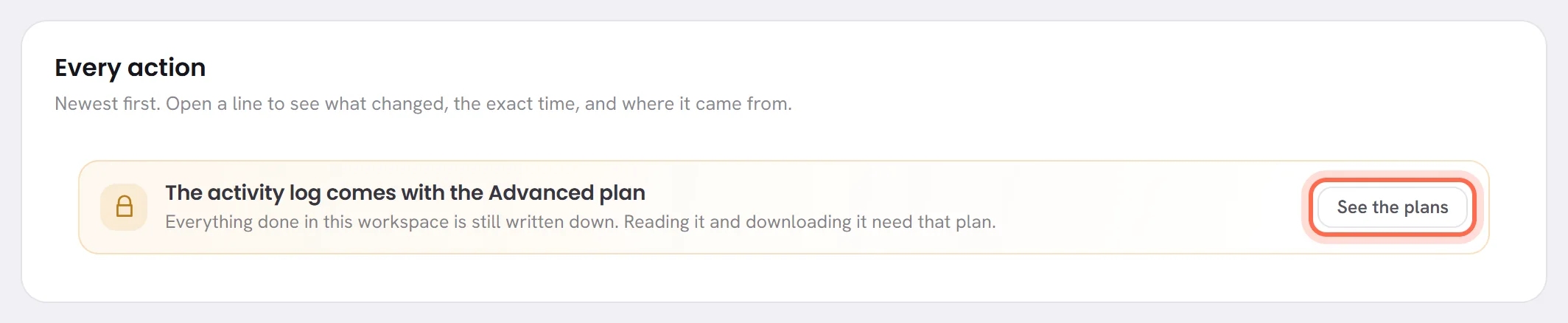
- Reading and downloading the log depend on your plan. On a plan without it, the tab is still there, and in place of the table a notice says that the activity log comes with another plan, with See the plans beside it for whoever can choose a plan. Plan & billing shows what your plan includes.
- The log is written whatever your plan is. On the day your plan includes it, the lines from before are there to read.
- A line is kept for 12 months, then deleted.
- Times are on the workspace’s clock, and the note under the table names it.
Can I delete a line?
No. Nobody in the workspace can change or delete a line. A line goes by itself after 12 months.
Somebody left the company. Can I still see what they did?
Yes. Their lines stay, under the name they had, and they stay in the list of people of the filter.
A sign-in shows an address I do not know.
The address is the internet connection the person used: a home, a phone network or a café gives a different one from the office. If the device is not one of theirs either, ask them. If it was not them, have them change their password and sign their other browsers out on the Security tab.