What knowledge is
Your agent states facts only from its knowledge and from the brand’s background on its profile. A price, an address or a delivery time that is written nowhere is one it will not give: it tells the customer it does not have that information. So what you put here decides what it can answer.
Each agent has its own knowledge. Open AI Agent, choose Edit on the agent’s card, then Knowledge in the side column.
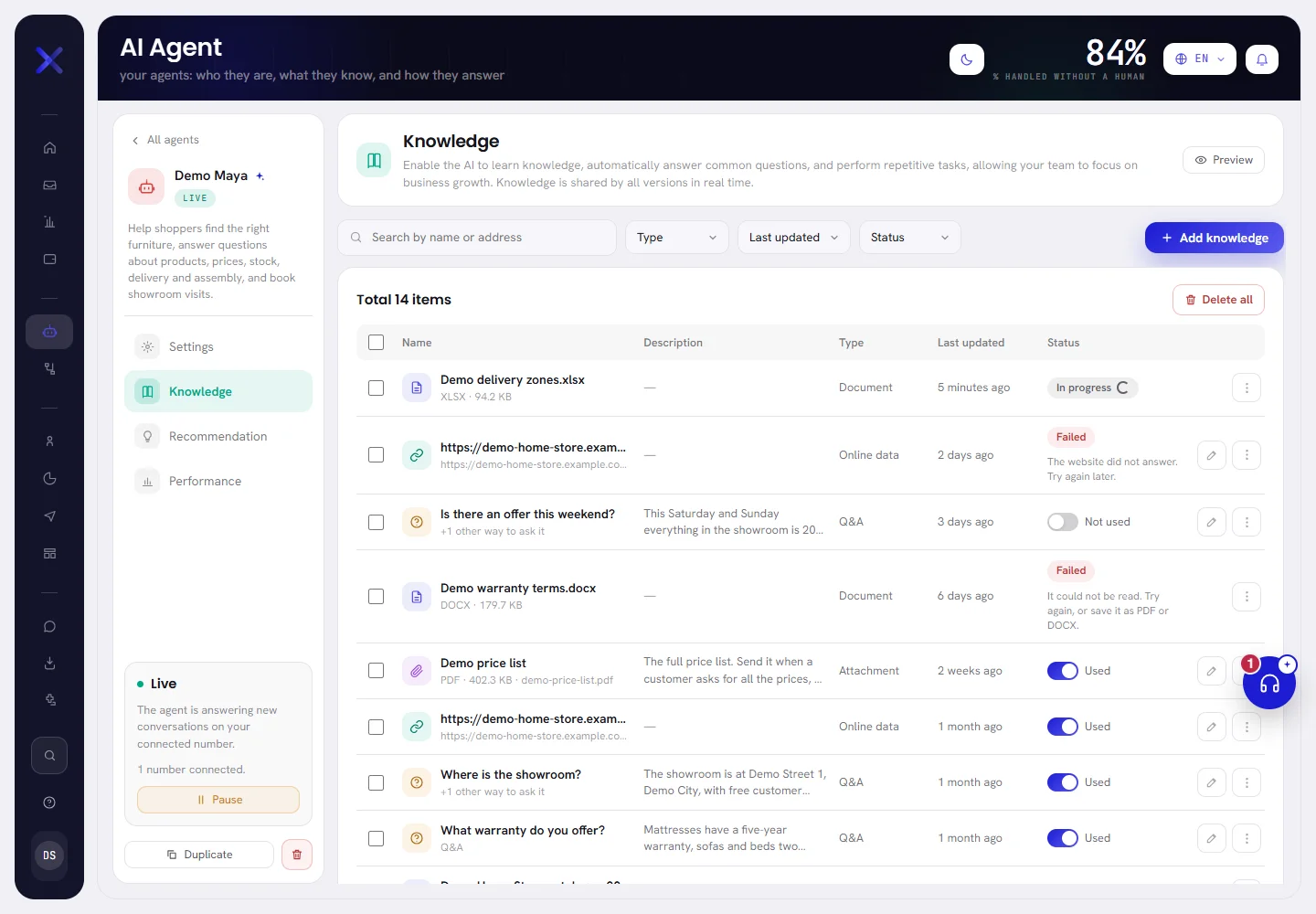
The four kinds of knowledge
Choose Add knowledge. The window asks What should the agent learn from? and offers four kinds. Pick one and choose Next.
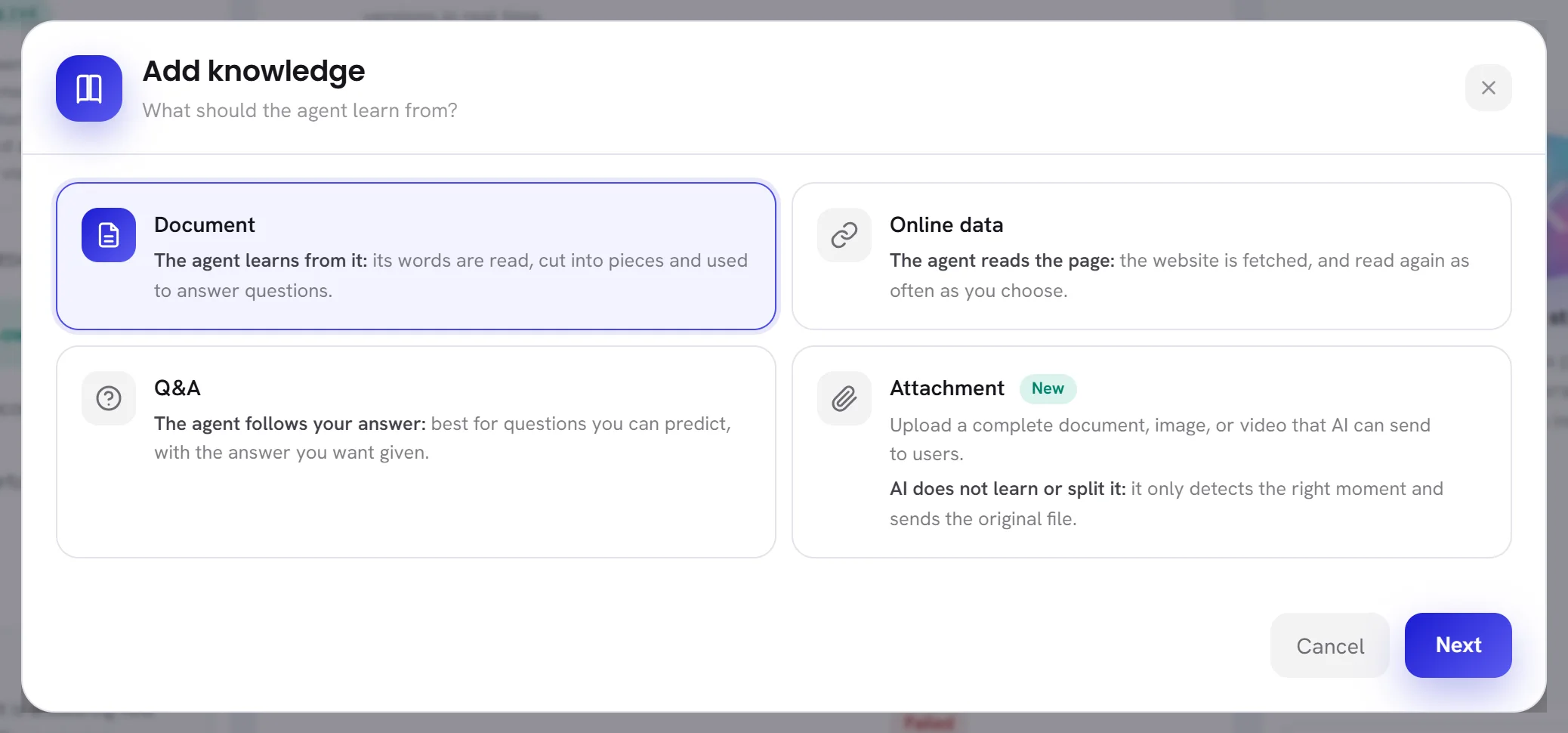
| On the screen | What it does |
|---|---|
| Document | A file whose words the agent learns: they are read, cut into pieces and used to answer questions. |
| Online data | A web page, or a page and the pages under it. The website is fetched, and read again as often as you choose. |
| Q&A | A question and the answer you want given. Best for questions you can predict. |
| Attachment | A complete document, picture or video that the agent can send to a customer. The agent does not read it: it sends the original file at the right moment. |
Add documents
Choose Add knowledge, then Document, then Next.
The window Add documents opens.
Drag your files onto the box, or click it and choose them.
The box says Click or drag files to this area. You can add up to 10 files at a time, each under 15 MB. Every file you chose is listed under the box, with a button to take it out again.
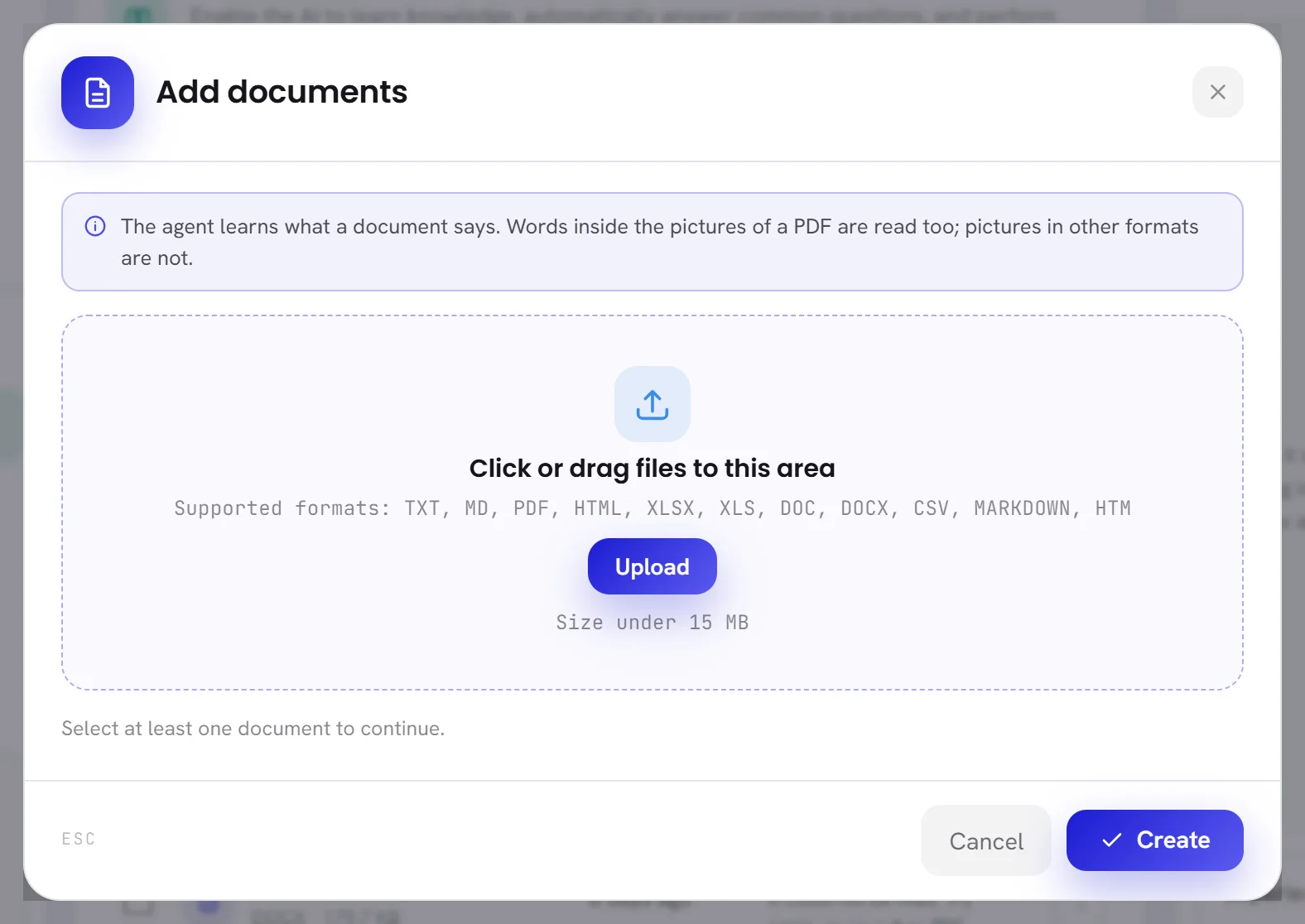
Choose Create.
The files are uploaded and appear on the list as In progress while they are read, in the background. Once read, each one says Used, or Failed with the reason.
| Format | What the agent reads |
|---|---|
| TXT, MD, MARKDOWN | The text as it is. |
| The text of every page. A PDF that is mostly scans or pictures is read by eye as well, so the words in its pictures count too. | |
| DOC, DOCX | The paragraphs and the rows of tables. Pictures are not read. |
| XLSX, XLS, CSV | Every row, each value under the name of its column. The first row has to hold the column names. |
| HTML, HTM | The words of the page, without its scripts and styles. |
The agent reads about the first 120,000 characters of a document, roughly forty pages of text. Split a longer document into several files, by subject.
Add pages of your website
Choose Add knowledge, then Online data, then Next.
The window Add website content from a URL opens.
Choose the Crawl depth.
Only this URL reads the one page. Include subpages also reads the pages under it on the same website, up to 30 pages: for an address ending in
/help/start, that is everything under/help/.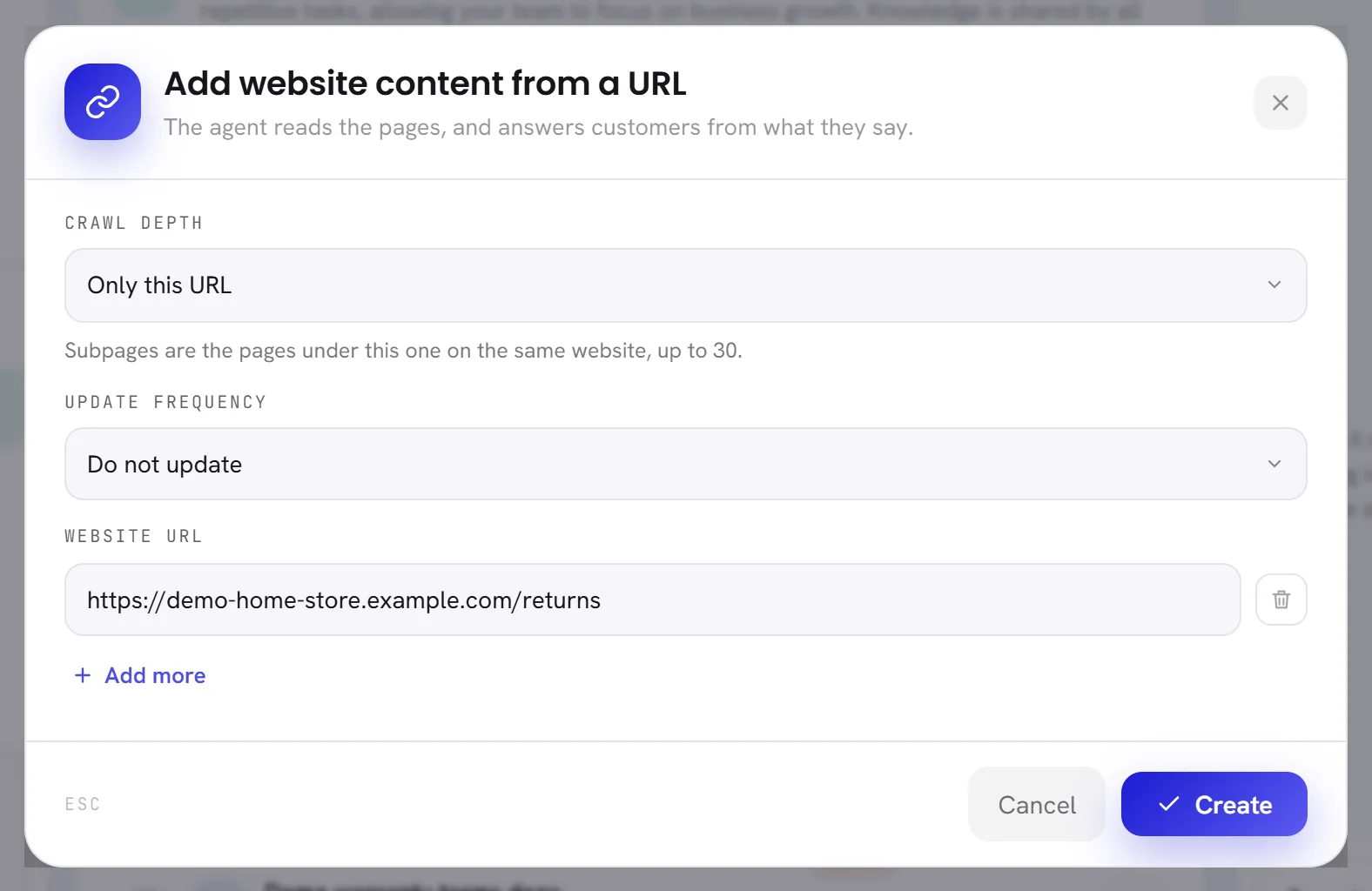
Choose the Update frequency.
Do not update reads the pages once. Update every 3 days, Update every 7 days and Update every 30 days read them again by themselves, so a price changed on your site reaches the agent without you.
Type the address under Website URL.
Use the full address, starting with
https://. Add more adds a line, up to 10 addresses at a time. An address that is not a web address is marked Invalid URL before anything is sent.Choose Create.
Each address becomes an item, In progress while it is read. Once read, it takes the title of its first page as its name.
- Only public web pages can be read. A page behind a sign-in, or an address that is not on the public internet, is refused.
- Files a page links to, such as a PDF or a spreadsheet, are not followed. Upload those as documents.
- The agent reads the words of each page without the menus every page repeats: up to 30,000 characters a page and 120,000 for one item.
- If a later reading fails, for example because your site is down, the agent keeps answering from the last reading that worked.
Add questions and answers
Choose Add knowledge, then Q&A, then Next.
The window Create Q&A opens.
Type the Question.
Write it the way a customer asks it. Customers ask the same thing in different words, so Add another way to ask it adds a line for each other wording, up to 10 in all. Every way written here finds the same answer.
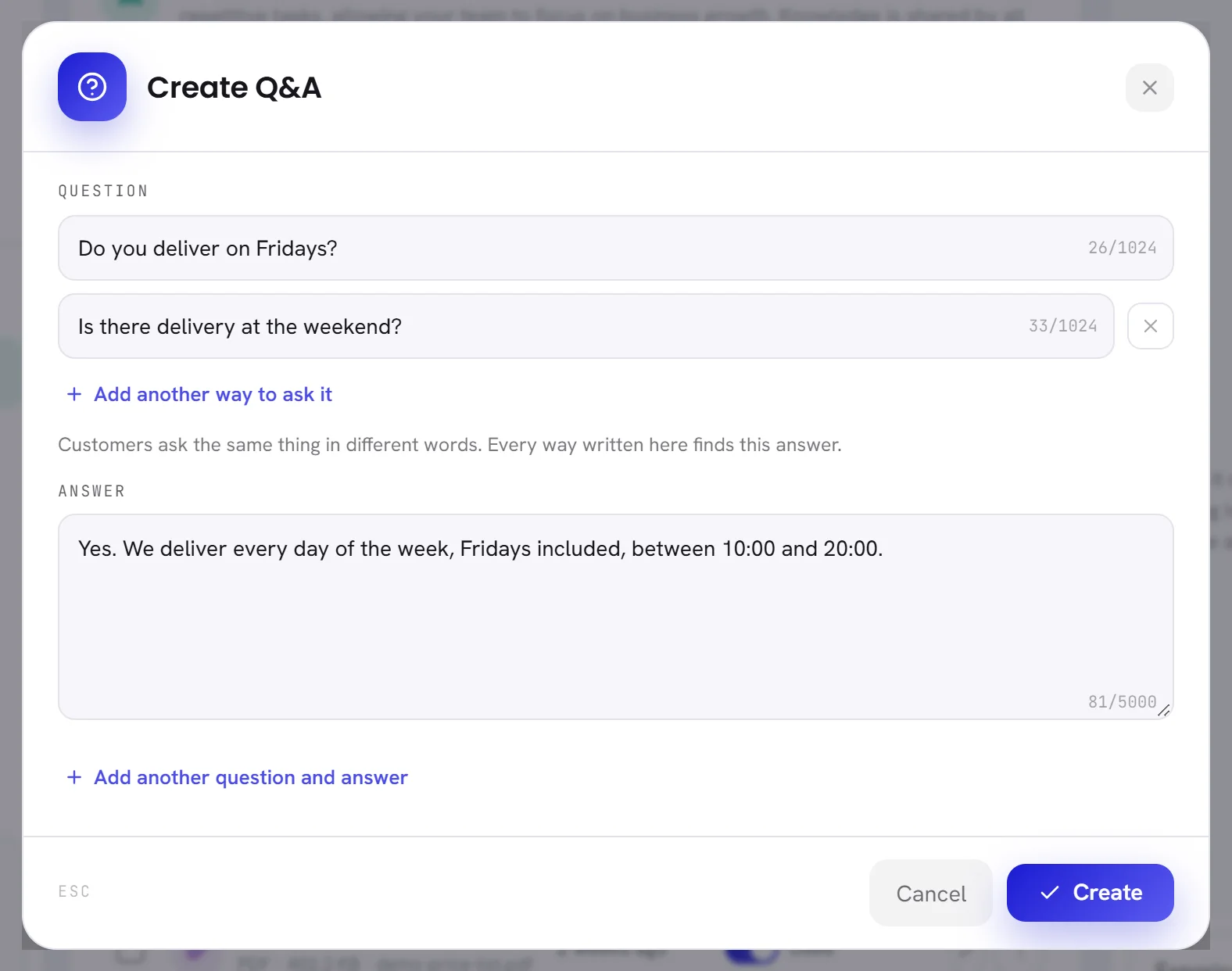
Type the Answer.
This is what the agent says, in its own tone and in the customer’s language. A question takes up to 1,024 characters and an answer up to 5,000.
To write several at once, choose Add another question and answer.
Each question with its answer becomes its own item on the list. You can write up to 20 in one go.
Choose Create.
A question and its answer needs no reading: it is ready at once.
Add a file the agent can send
An attachment is a file the agent sends as it is: a catalogue, a price list, a photo, a short video. The agent never reads what is inside it. All it knows is the name and the description you give it, which is how it decides when to send it.
Choose Add knowledge, then Attachment, then Next.
The window Add attachment opens, with the allowed types and sizes beside the form.
Choose the file under File.
One file at a time. Upload file opens your files, and you can also drag the file onto the box.
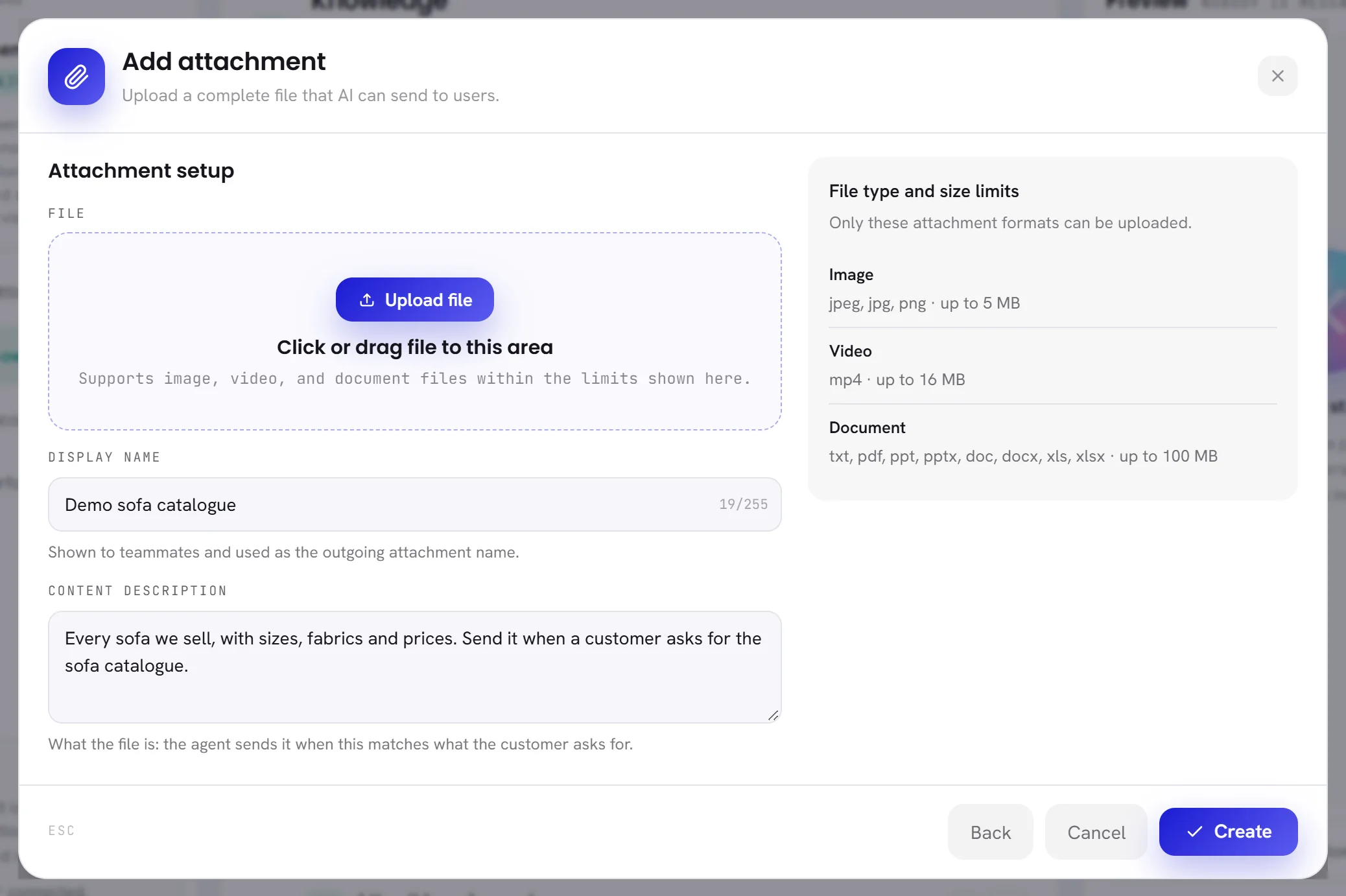
Give it a Display name, if you want another one.
It is shown to your teammates and used as the name of the file the customer receives. Left empty, it is the file’s own name.
Write the Content description.
Say what the file is, in up to 1,000 characters. The agent sends the file when this matches what the customer asks for, so be exact: “Summer 2026 catalogue with every sofa, sizes and prices” is better than “catalogue”.
Choose Create.
The list says Attachment added. The agent can send it now. Back returns to the four kinds instead.
| Kind | Formats | Largest size |
|---|---|---|
| Image | JPEG, JPG, PNG | 5 MB |
| Video | MP4 | 16 MB |
| Document | TXT, PDF, PPT, PPTX, DOC, DOCX, XLS, XLSX | 100 MB |
- The agent sends a kind of file only when that kind is ticked under Allowed interactive formats on its Profile.
- It sends at most three files after one reply, and avoids sending a file it already sent in the conversation unless the customer asks for it again.
- It chooses among 30 attachments at most: when you have more in use, the first 30 by name.
What the status of an item means
| On the screen | What it does |
|---|---|
| In progress | A document or a website is being read, in the background. The agent cannot answer from it yet. The list does not refresh by itself: reload the page to see whether it has finished. |
| Used | The switch is on: the agent answers from the item, or may send it. |
| Not used | The switch is off: the item stays on the list and out of every reply. Click the switch to change it. |
| Failed | It could not be read, and the reason is written under the badge. The agent does not answer from it. |
A small exclamation mark beside the switch of a website means its latest reading failed. The agent is still answering from the reading before: point at the mark to see why.
| What the list says | What to do |
|---|---|
| This is not a web address. | Check the address and add it again, starting with https://. |
| This address cannot be read from here: it is not a public website. | Use the public address of the page. Private and local addresses are refused. |
| The website did not answer. Try again later. | Open the page in your browser to check it, then choose Read again. |
| This address is not a web page. | The address leads to a file. Download it and add it as a document. |
| No words could be read from it. | The page or the file holds no text the agent can read. For a file made of pictures, save it as PDF. |
| The file is missing. Upload it again. | Delete the item and upload the file again. |
| It could not be read. Try again, or save it as PDF or DOCX. | Choose Read again. If it fails again, save the file in another format and upload that. |
Change, read again or switch off an item
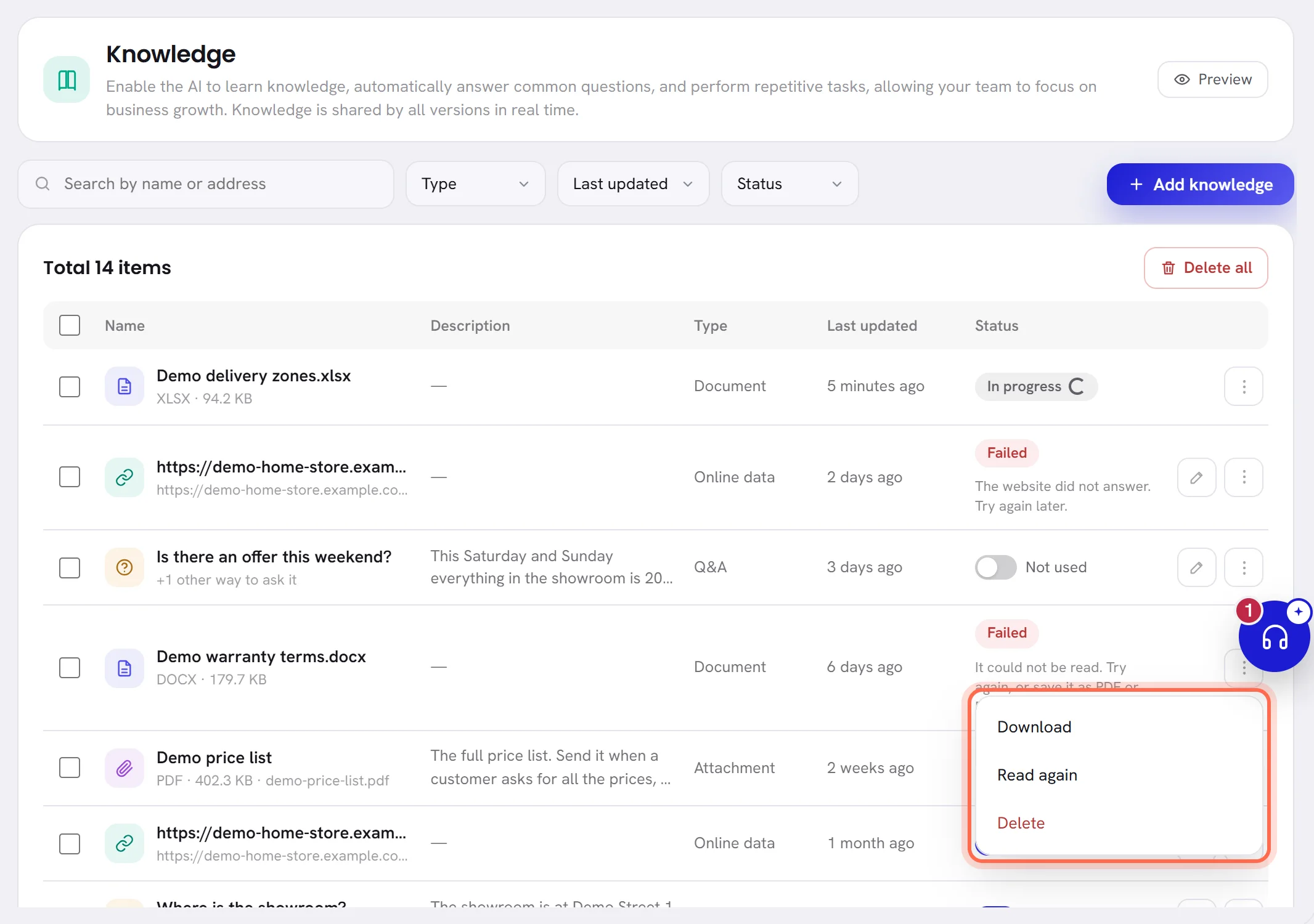
Each row ends with a pencil, for the items that can be edited, and a menu with three dots.
| On the screen | What it does |
|---|---|
| Edit | The pencil. On a question: the window Edit Q&A, to change the question, its other wordings and the answer. On a website: How this website is read, to change the crawl depth and the update frequency, with the date of the last reading and the number of pages read. On an attachment: Edit attachment, to change its name and description. A document has no pencil: delete it and upload the new file. |
| Download | In the menu of a document or an attachment: downloads the file as you uploaded it. |
| Open the page | In the menu of a website: opens its address in a new tab. |
| Read again | In the menu of a document or a website: reads it again now, without waiting for its day. Use it after a failure, or when you changed a page. |
| Delete | In the menu: deletes the item, after you confirm. |
The switch in the Status column turns an item on and off without deleting it. Switch off a price list that is out of date, and switch it on again when it applies. After any action the list comes back as it was, with the same search, filters and page, and a line at the top says what happened.
Delete knowledge
To delete one item, open its three-dot menu and choose Delete.
The app asks you to confirm, naming the item.
To delete several, tick their rows.
A bar appears with the number selected, Cancel and Delete. The box at the top of the column ticks every row on the page.
To empty the list, choose Delete all.
It is at the top of the list, beside the total. The app says how many items will go and asks you to confirm.
Find an item
| On the screen | What it does |
|---|---|
| Search by name or address | Type part of an item’s name or of a website’s address and press Enter. |
| Type | Shows one kind: Document, Online data, Q&A or Attachment. |
| Last updated | Shows what changed Today, in the Last 7 days or in the Last 30 days. |
| Status | Shows what is Used, Not used, In progress or Failed. |
| Clear the filters | Shown when nothing matches: brings the whole list back. |
| Name | The item’s name, with a line under it: a document’s format and size, a website’s address and crawl depth, how many other ways a question is asked, or an attachment’s format, size and file name. A picture shows itself. |
| Description | For a question, the start of its answer. For an attachment, its description. |
| Go to | Type a page number and press Enter. Shown when the list has more than one page. |
The list is sorted with the latest change first, and shows 20 items a page. The menu at the foot changes that to 50 or 100.
How the agent uses it
- Only items that are Used count. An item that is In progress, Failed or Not used is left out of every reply.
- When the agent has little knowledge, it reads all of it for every reply. When it has a lot, it reads the pieces closest to what the customer is asking, by meaning as well as by the words used, so a question in Arabic can find an answer you wrote in French.
- If a customer types a reference made of letters, a dash and digits, such as
MG2-1104, the pieces that carry that reference are read first. - The brand’s background on the Profile is read for every reply, whatever the question.
- Every number of four digits or more in a reply has to be in what the agent was given. A price belongs here, in the knowledge, written the way you want it quoted.
The preview shows, under each answer, how much of the knowledge it was made from. See Test your agent.
Good practice
- Start with questions and answers for the ten things customers ask most. They are the most exact knowledge the agent can have.
- Give spreadsheets a first row of clear column names, such as Product, Price and Delivery time: the agent reads each value under the name of its column.
- Keep one subject in one document. Several short files are found more reliably than one long file, and are easier to replace.
- Write prices with their currency and their unit, the way the agent should quote them.
- For a website that changes, choose an update frequency. For one that never changes, Do not update is enough.
- When a price list goes out of date, switch it off or delete it the same day. The agent quotes what is there.
- After adding knowledge, ask the preview the questions it should now answer.
Good to know
- Admins and managers can change an agent’s knowledge. Other members need access to the AI agent: see Roles and access.
- Adding knowledge, and having it read, is not charged to your AI wallet. The agent’s replies are: see AI usage overview.
- A new agent starts with no knowledge, and the page says No knowledge yet. A duplicated agent gets its own copy of the original’s knowledge.
- Deleting an agent deletes its knowledge and its files.
Questions
My document says In progress and does not change. What now?
Reading runs in the background, and the list does not refresh by itself: reload the page. A long file or a scanned PDF takes longer than a page of text. If the item turns to Failed, the reason is written under it: choose Read again from its menu, or upload the file in another format.
Can the agent read a photo of my price list?
Not as a picture file. Put the photo in a PDF and add it as a document: a PDF made of pictures is read by eye. An image added as an attachment is only sent, never read. Typing the prices as questions and answers is surer still.
Why does the agent say it does not have the information when it is in my document?
Check that the item is Used and not Failed, and that the passage is within the first forty pages or so of the file. Then ask the preview: under the answer it says how much of the knowledge was read. A question and answer written for that exact question fixes it for good.
Does the agent share knowledge with my other agents?
No. Each agent has its own. Duplicate an agent to start another one with the same knowledge.