What the Data & privacy tab is
The Data & privacy tab has three cards: the files you can take away, what the product keeps, and the facts that identify your workspace. Nothing on it is a setting, so there is nothing to save.
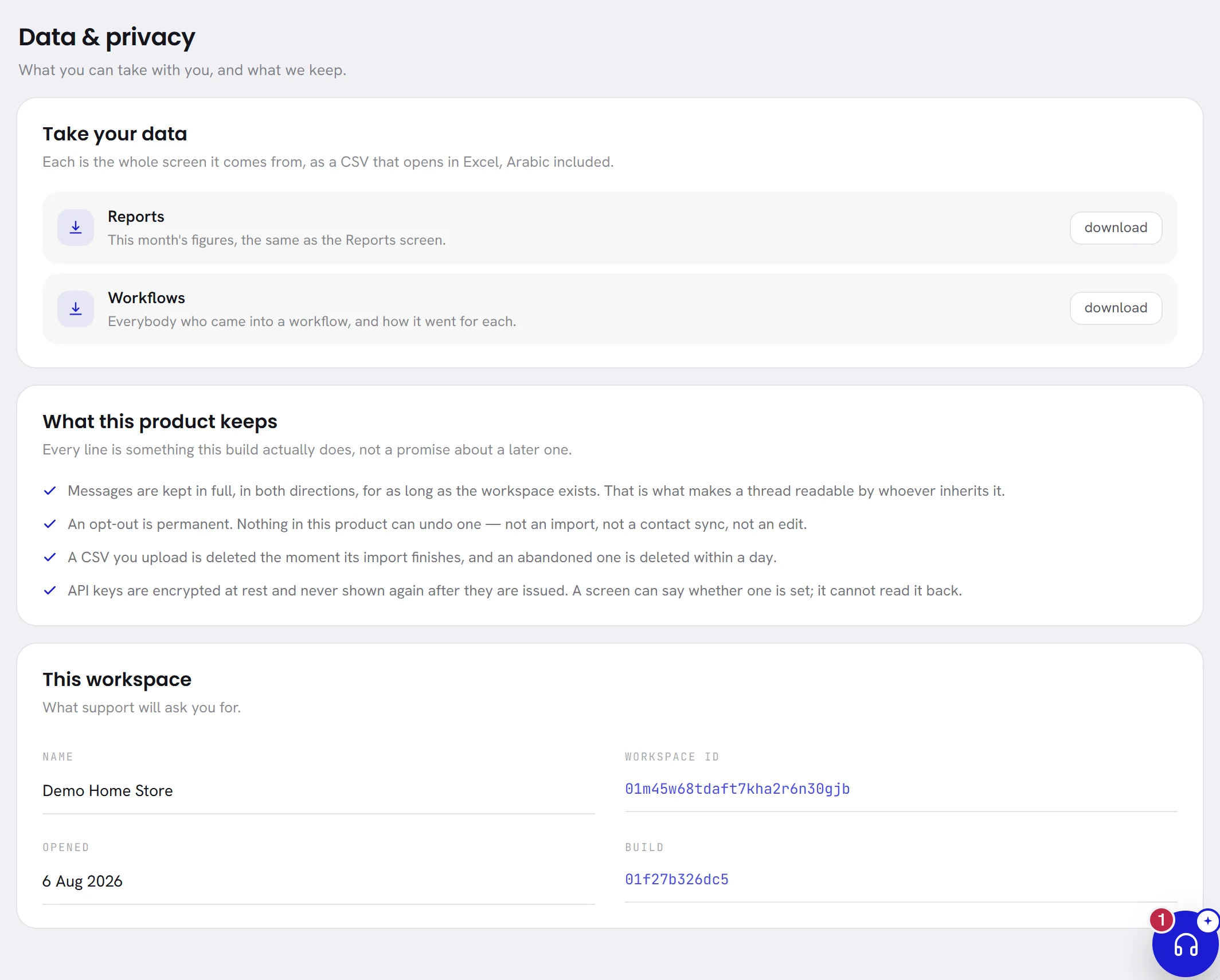
Download your data
Open Settings, then Data & privacy.
Under Take your data, choose download beside the file you want.
The file is made at that moment, from what the workspace holds now, and your browser saves it.
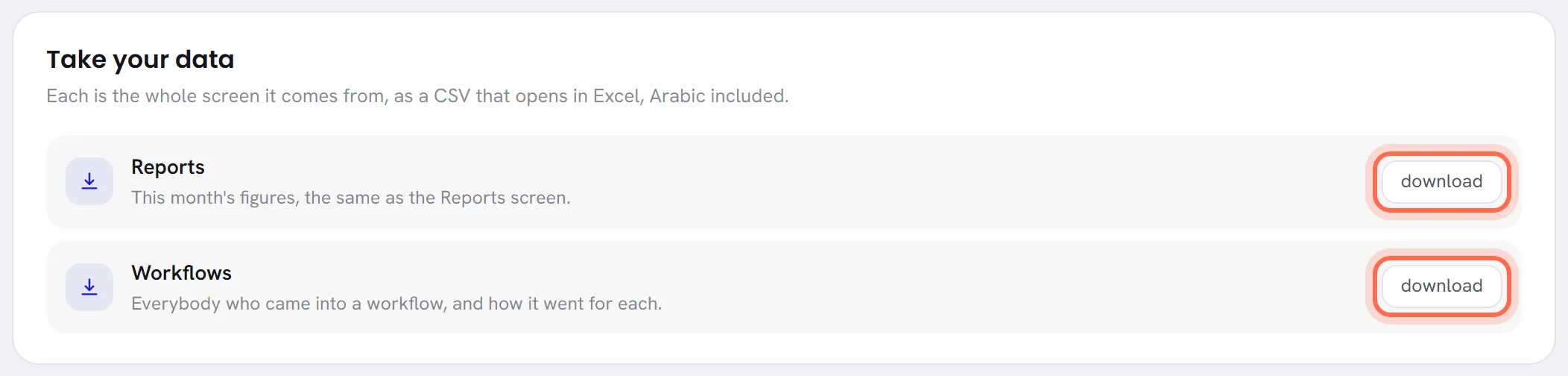
Open it in a spreadsheet.
Each file is a CSV. It opens in Excel and similar programs, with Arabic names shown correctly.
| File | What it holds | Who is offered it |
|---|---|---|
| Reports | The figures of the Reports screen for the last 30 days, section by section: the headline figures with the 30 days before for comparison, delivery, refusals and their reasons, response times in seconds, consent, and, when there are any, each team and each campaign. | Whoever can open the Reports screen, on a plan that includes the reports as a file. |
| Workflows | One line for each contact who entered a workflow: the workflow, the contact’s name and phone number, the state they are in, the reason when they left early, when they entered, when they ended, and when they met the goal. The times are written in UTC. | Whoever can open the Workflows screen. |
When neither is offered to you, the card says Nothing here can be exported with your role.
Each download is written to the workspace’s activity log, with who took it and when.
The other downloads are on the screens they belong to:
- your contacts: Export contacts;
- the history of your AI wallet and its receipts: Receipts and history;
- the activity log itself: Download the log.
What the product keeps
The second card, What this product keeps, states what happens to your data today. Every line is something the product does now, not an intention. It says four things:
- Messages are kept in full, in both directions, for as long as the workspace exists. That is what lets a colleague who takes over a conversation read it from the start. Nothing deletes conversations on a schedule, and there is no setting for it.
- An opt-out is permanent. Nothing in the product can undo one: not an import, not an edit of the contact. See Consent and opt-outs.
- A file of contacts you upload is not kept. It is deleted the moment its import finishes, and one you uploaded and never confirmed is deleted within a day. See Import contacts.
- Keys are stored encrypted and are never shown again after they are issued. A screen can tell you whether one is set, not what it is.
The facts about your workspace
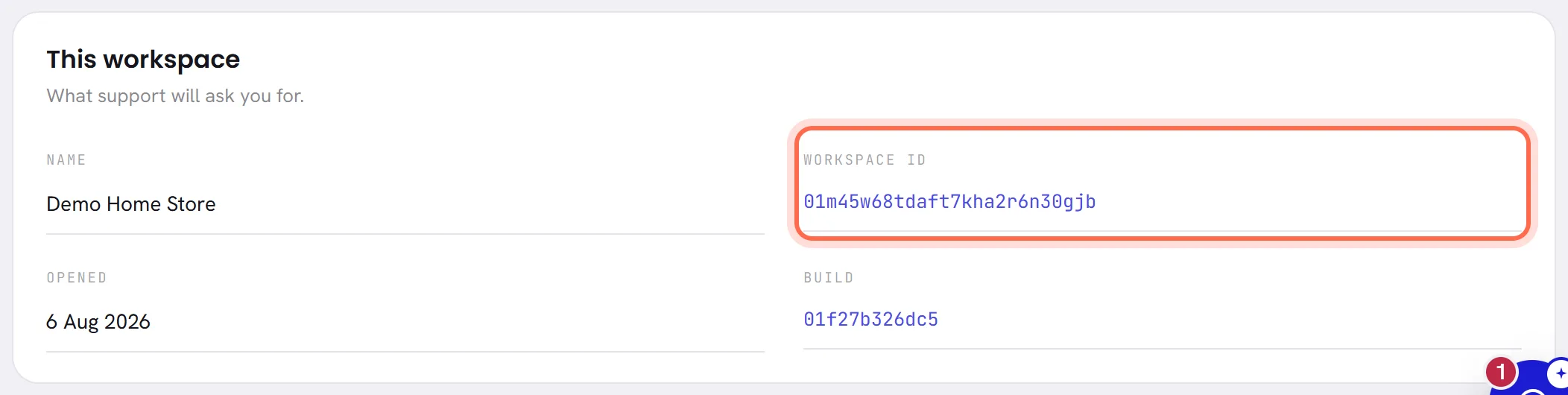
The third card, This workspace, holds what support will ask you for.
| On the screen | What it does |
|---|---|
| Name | The workspace’s name, as set on the Workspace tab. |
| Workspace ID | The reference of your workspace: 26 letters and digits that never change. Quote it when you write to support. It is how our team finds your workspace without guessing from its name. |
| Opened | The day the workspace was created. |
| Build | The version of the app you are using. Support may ask for it when you report something that looks broken. |
The same ID is on the Workspace tab, with a copy button.
Deleting data
This tab deletes nothing, and it has no button to close a workspace. A contact is erased from the Contacts screen: see Contacts overview. To close your workspace, or to have its data removed, write to support.
How we handle personal data is set out in the privacy policy and the other legal pages, which are linked at the foot of every page of this site.
Good to know
- Everybody in the workspace has this tab.
- A download is offered only to somebody who can open the screen it comes from: the file is that whole screen.
- The file of the reports also depends on your plan. Plan & billing shows what your plan includes.
Why is the Reports file not on my list?
It is offered to people who can open the Reports screen, on a plan that includes the reports as a file. Ask whoever manages your workspace for the access, or look at Plan & billing for what your plan includes.
Can I choose the period of the Reports file?
Not from this tab: it is always the last 30 days. The Reports screen has its own download, for the period you are looking at there. See Reports overview.
Where is the export of my conversations?
There is none. Conversations stay in the inbox, where they are kept in full for as long as the workspace exists.