What a campaign is
A campaign sends one approved template to the people in one segment, from one of your WhatsApp numbers, at once or at a time you set. The window you write it in says it in a line: One approved template, one audience, one send.
Each person gets the message in their own conversation with your number, and a reply arrives in the Inbox like any other message.
Because a campaign writes to people first, it can only send a template Meta has approved. See The 24-hour window.
What a campaign needs
- A WhatsApp number that is connected. See Connect a WhatsApp number.
- A template Meta has approved. Only approved templates are offered when you write a campaign. See Create a template and Template statuses.
- A segment with people in it who can be messaged: contacts who agreed to hear from you and have not opted out. See Segments overview and Opt-in and opt-out.
- Access to Campaigns and templates. Org admins and managers have it unless somebody changed it. See Roles and access.
On a free trial you can always write a campaign and keep it as a draft. Whether the trial can send it depends on the trial: when it cannot, the draft says that a free trial writes campaigns and sends them once a plan is active. See The free trial.
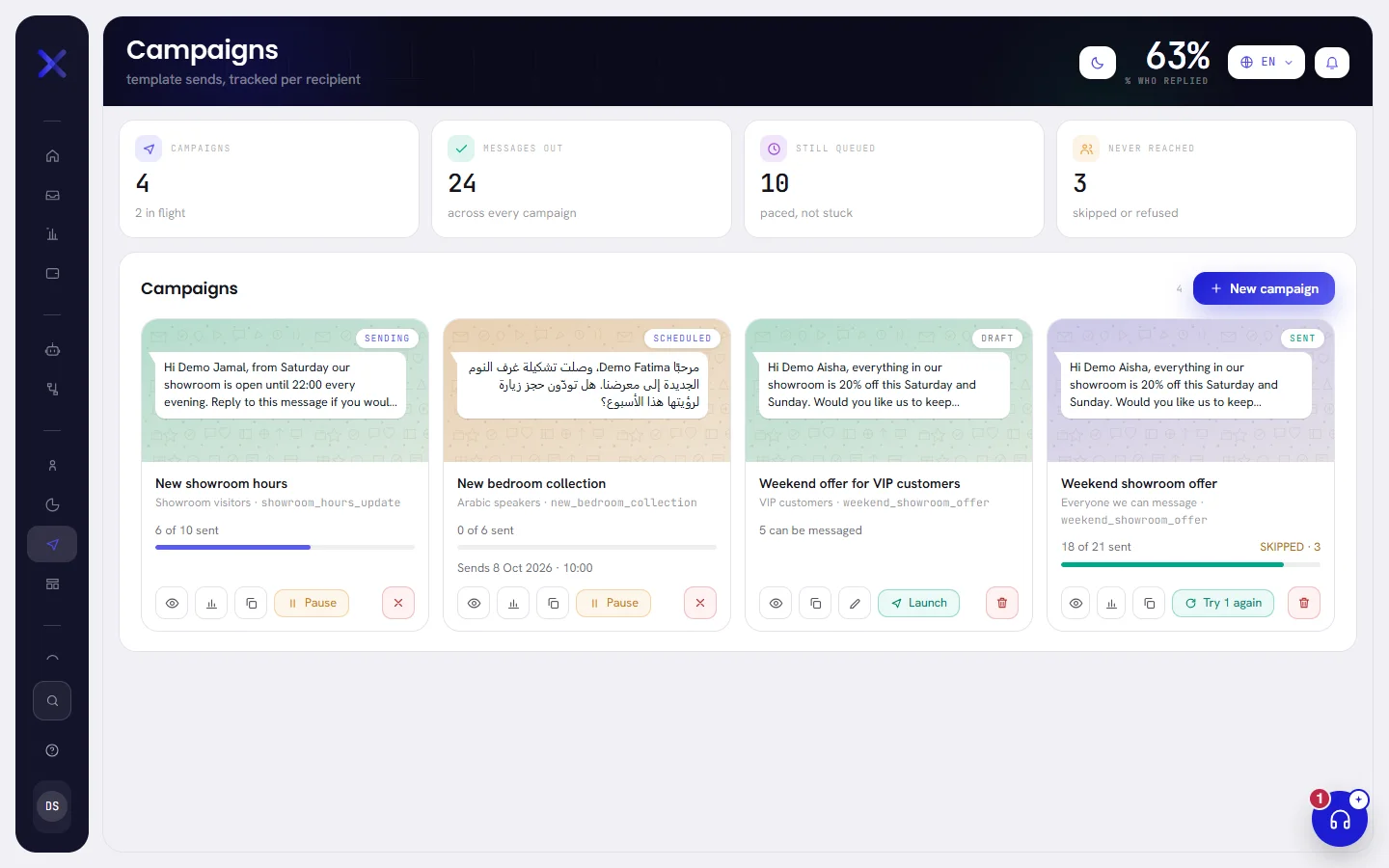
The four figures at the top
Open Campaigns in the menu, under Audience. The four figures at the top add up every campaign on your list, not only the ones on the page you are looking at.
| On the screen | What it does |
|---|---|
| Campaigns | How many campaigns you have, in any status. Under it, how many are scheduled or sending right now, written as 2 in flight. |
| Messages out | Messages WhatsApp has accepted, across every campaign. Accepted is not yet delivered: Campaign results shows what arrived. |
| Still queued | People whose message has not gone yet, across every campaign: they are waiting for their turn, for quiet hours to end, for a set time, or for a paused campaign to be resumed. People a cancelled campaign never wrote to stay in this figure until you remove that campaign. |
| Never reached | People a campaign was for and did not reach: left out before sending, or refused when their message was tried. |
At the top right of the screen, % who replied is the share of everybody your campaigns sent to who wrote back, all campaigns together. It shows a dash until a campaign has sent something.
What a card shows
Campaigns are listed newest first, 25 to a page, each as a card. A card shows:
- The message it sends, drawn small as WhatsApp shows it, with the template’s example values in its blanks.
- Its status, on the picture.
- Its name, then the segment it goes to and the template it sends.
- How far it has got, as 18 of 21 sent with a bar. When some people did not get it, Skipped and a number are beside it: that number counts both the people who were left out and the people whose message failed.
- On a draft: how many people it would reach today, as 5 can be messaged, and under it the first thing that stops it from being sent, if anything does.
- On a scheduled campaign: when it starts, as Sends 8 Oct 2026 · 10:00.
- On a campaign that quiet hours are holding: Quiet hours (22:00–07:00): sends from 07:00. See Scheduling, quiet hours and sending speed.
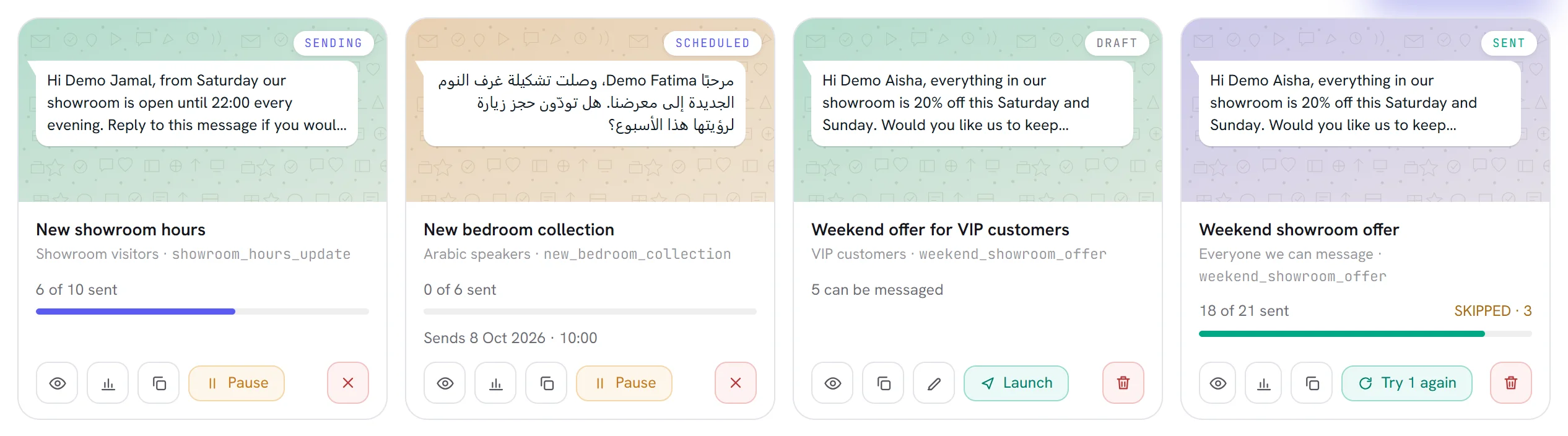
The cards redraw themselves while a campaign is sending. You do not need to reload the page. With no campaign yet, the list says No campaigns yet.
The six statuses
| Status | What it means | What you can do |
|---|---|---|
| Draft | Written, not sent. Its audience is not fixed yet: the count on the card is who it would reach today. | Edit, launch, duplicate, delete. |
| Scheduled | Launched, with its set time still ahead. The audience is fixed and nothing has gone yet. | Pause, cancel, duplicate. |
| Sending | Messages are going out at the campaign’s speed, or are waiting for quiet hours to end. | Pause, cancel, duplicate. |
| Paused | Stopped by you. Everybody not yet written to stays waiting. | Resume, cancel, duplicate. |
| Sent | Everybody in the audience has been dealt with: sent to, skipped or failed. | See the results, try the failed ones again, duplicate, remove. |
| Cancelled | Stopped for good. The people still waiting never receive it. | See the results, duplicate, remove. |
A campaign leaves Draft once. After that it is a record of what was sent and cannot be edited.
A campaign’s window
Press the eye on a card. The campaign opens in a window over the list, and the address of the page then ends in ?campaign= and the campaign’s reference, so a colleague with access who opens the same address sees the same window.
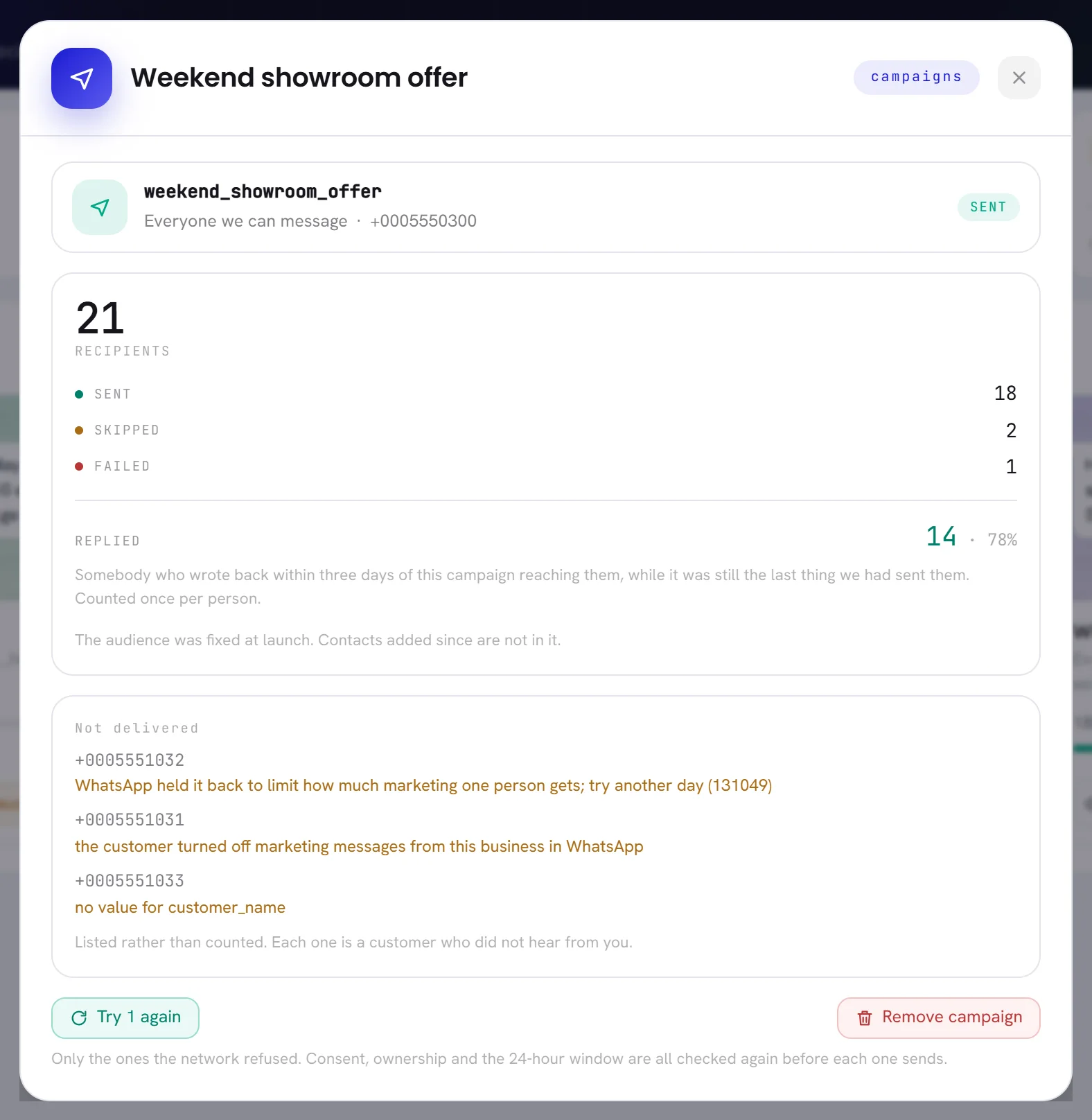
At the top are the template, the segment, the number it sends from and the status. Under them, only the lines that are above zero:
| On the screen | What it does |
|---|---|
| Will reach | On a draft: how many people in the segment can be messaged right now. |
| Recipients | On a launched campaign: how many people it was for. The audience was fixed at launch; contacts who joined the segment since are not in it. |
| Sent | Messages WhatsApp accepted. |
| Waiting | People not written to yet. |
| Skipped | People left out without a message being tried, each with the reason. |
| Failed | People whose message was tried and refused. |
| Replied | How many people wrote back, and their share of those sent to. A reply counts when it comes within three days of the campaign’s message and nothing else was sent to that person in between. Each person counts once. |
| Not ready yet | On a draft: every reason it cannot be sent, one to a line. When there is none, the window says Ready to send. |
| Not delivered | Up to eight of the people who were skipped or whose message failed, each with their number and the reason. The whole list is on the results page. |
The buttons under the figures are the card’s, written out. On a draft the first one says how many people it will write to, for example Launch — send to 5 people.
Why a draft cannot be sent yet
When Launch is greyed out, the card shows the first reason and the draft’s window lists them all under Not ready yet.
| What the draft says | What to do |
|---|---|
| A free trial writes campaigns and sends them once a plan is active. Choose a plan to send this one. | Choose a plan in Settings, on the Plan & billing tab. See Choose or change a plan. |
| No template chosen. | The template the draft used is gone. Edit the draft and choose another. |
| Meta has not approved that template. | The template is not approved any more: Meta paused or disabled it, or it was edited and is in review again. See Template statuses. |
| No audience chosen. | The segment the draft used is gone. Edit the draft and choose another. |
| No channel chosen. | The number the draft used was removed. Edit the draft and choose another. |
| A placeholder in the template has no value. | Edit the draft and fill every blank on the Message step. |
| Nobody in that audience may be messaged. | Nobody in the segment has agreed to be messaged, or everybody opted out. See Consent and opt-outs. |
| This template was approved with an image or file header, and none has been chosen. | Edit the draft and upload the file on the Message step. |
Duplicate a campaign
Press Duplicate on the card of the campaign to copy.
Any campaign can be copied, whatever its status. The results page has the same button.
Change what needs changing in the window that opens.
The copy is a draft with the name of the original and (copy) at the end. It keeps the segment, the template, the number, what fills the blanks, the speed and the header file.
It does not keep a set time: it is on When I launch it until you choose otherwise. Its quiet hours are the original’s, not the ones in Settings today.
Press Save draft to keep it for later, or go to the last step and send it.
A copy goes to everybody in its segment who can be messaged, including the people the original already reached.
Stop a campaign for good
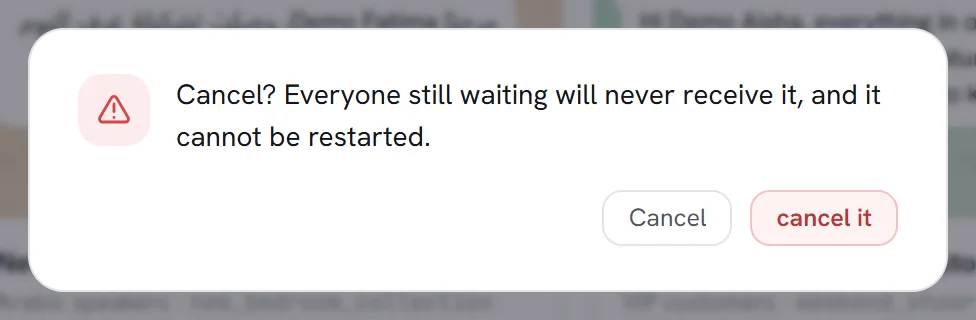
Press the cross, Cancel this campaign, on its card or in its window.
It is there while a campaign is scheduled, sending or paused.
Confirm with cancel it.
The pop-up says Cancel? Everyone still waiting will never receive it, and it cannot be restarted. Messages that already went stay sent.
Delete a draft or remove a campaign
A draft never sent anything, so it is deleted outright: press the bin, Delete draft, then Delete in the pop-up.
A sent or cancelled campaign is taken off your list:
Press the bin, Remove campaign, on its card or in its window.
A campaign that is scheduled, sending or paused has no bin. Cancel it first.
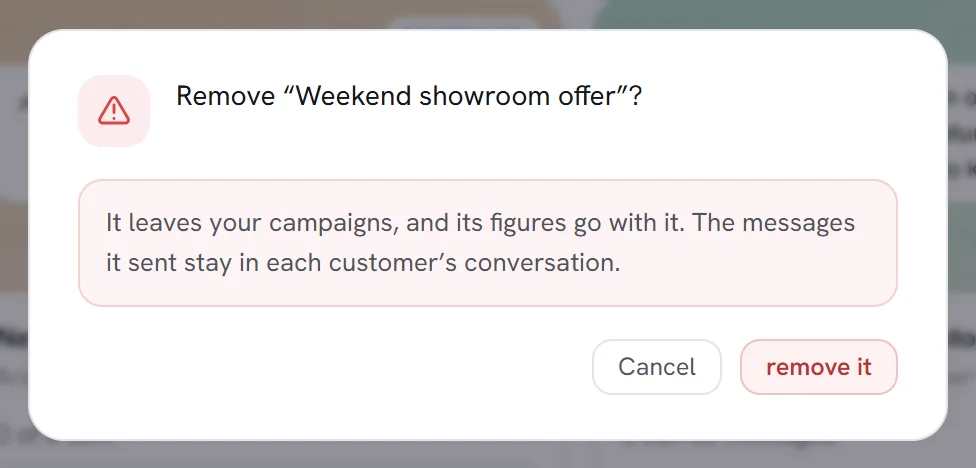
Read what goes and what stays, then press remove it.
The campaign leaves the list, the four figures and the Campaigns tab of Reports, and its results page can no longer be opened. The messages it sent stay in each customer’s conversation.
Good to know
- Anybody whose access includes Campaigns and templates can write, send, pause, cancel and remove campaigns. There is no separate right to send.
- The screen has no search box or filter of its own. To find a campaign by name, press Search in the menu and type at least two letters: matching campaigns are listed with their status, and choosing one opens its window.
- Creating, editing, launching, pausing, resuming, cancelling, retrying, copying and removing a campaign are each written to the activity log.
Questions
Can I change a campaign after I launched it?
No. Pause or cancel it, then press Duplicate: the copy is a draft you can change and send. Remember that the copy goes to the whole segment again.
A contact joined the segment after launch. Do they get the message?
No. The audience is fixed at the moment a campaign is launched, and the campaign’s window says so. Consent is still checked when each message goes, so somebody who opted out after launch is not written to.
The card says sending and nothing arrives. Why?
Look for a line that starts with Quiet hours on the card: the campaign waits for them to end. If there is none, the speed may be spreading it out, or your number may be unable to send. See Scheduling, quiet hours and sending speed.
Why is the number of people on a draft different today?
A draft counts its segment again each time you look. People join and leave a segment built on rules, and anybody who opts out stops being counted.