What AI usage is
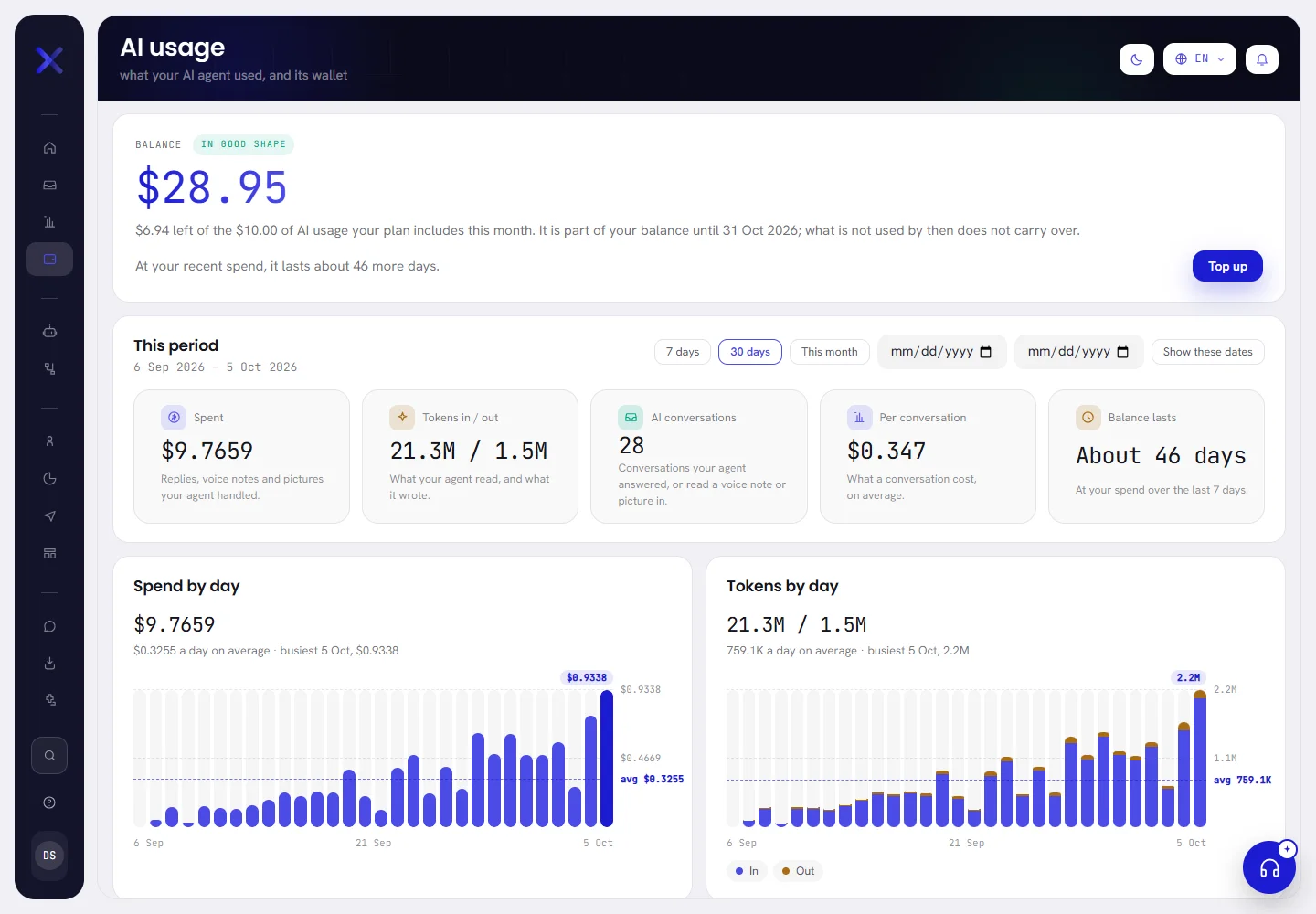
Your AI agent runs on Xconversions AI. Each time it does work for a customer, that work is counted in tokens and paid for from your workspace’s AI wallet. The AI usage screen shows both: what the agent used, and what is in the wallet.
Open it from AI usage in the menu, or go straight to it.
What is charged, and what is not
| What happens | Charged to the wallet | On the screen as |
|---|---|---|
| Your agent sends a reply to a customer. | Yes | Replies |
| A customer sends a voice note or a picture, and your agent listens to it or looks at it. | Yes | Voice notes and pictures |
| You try your agent in its preview: each answer, and each voice note or picture you give it. | Yes | Studio previews |
| Your agent writes a reply, then hands the conversation to a person instead of sending it. | No | — |
| Your agent looks something up in its knowledge, or reads a document or a website you add to it. | No | — |
| Your agent keeps its notes about a conversation. | No | — |
| An answer fails, or is called off. | No | — |
| You ask Xconversions AI a question in the Help panel. | No | — |
| Your team writes a message, or a template goes out from the inbox, a campaign or a workflow. | No AI is used | — |
The size of a reply depends on what the agent reads to write it: the conversation so far, your instructions, and what it found in its knowledge. That is why the screen shows far more tokens read than written.
The balance
The first card is the wallet. It is shown to the people who handle the account. Everybody else sees the screen in tokens: see If you do not see money.

| On the screen | What it does |
|---|---|
| Balance | What is in the wallet now, rounded down to the cent. Point at it to see it to a fraction of a cent. A balance below zero has a minus sign. The badge beside it says where the wallet stands: see When the balance runs low. |
| Top up | Takes you down to Top up by bank transfer on the same screen. See Top up your AI wallet. |
Under the balance, one line says how much is left of the AI usage your plan includes this month, and the next says about how many days the balance lasts at your recent spend. When your agent has not spent enough lately to tell, that line says so.
Choose the period
Everything under the balance is for one period: the last 30 days, until you choose another.
Press 7 days, 30 days or This month.
The figures, the charts and the history change at once. The first and last day of the period are written under This period.
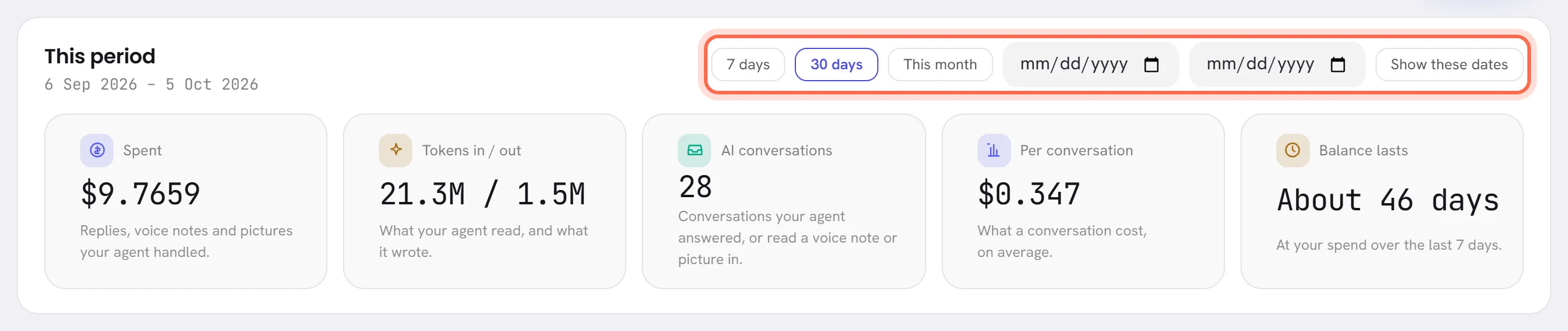
For other dates, fill the two date boxes and press Show these dates.
The first box is the first day, the second is the last. A range ends today at the latest and covers a year at most. If the dates cannot be used, for example the first is after the last, the screen shows the last 30 days.
Days are counted on your workspace’s time zone, set in Workspace settings. The period is part of the page’s address, so a view can be bookmarked or sent to a colleague.
The figures
| On the screen | What it does |
|---|---|
| Spent | What the wallet was charged in the period: the replies, the voice notes and pictures, and the previews. |
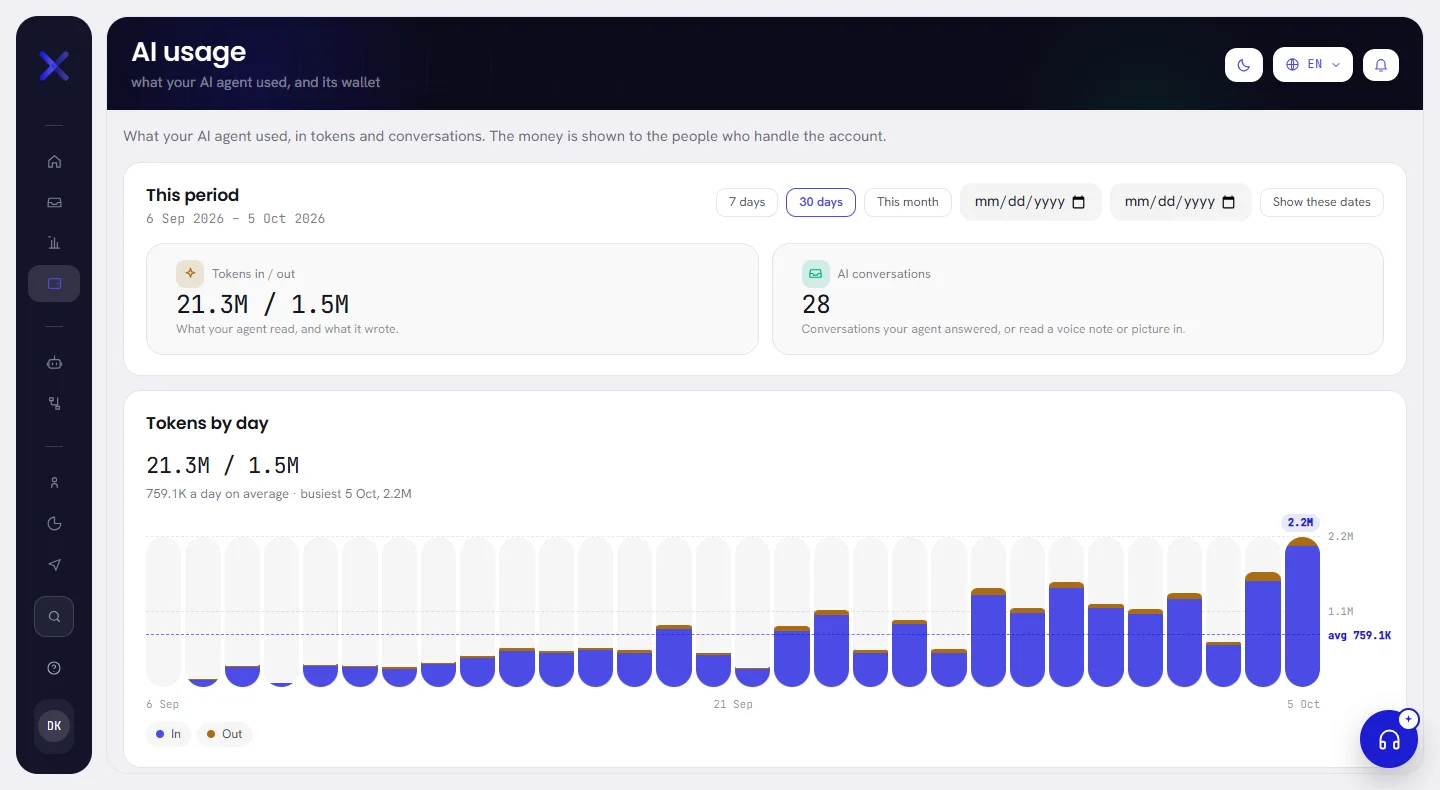
| Tokens in / out | What your agent read, and what it wrote, in tokens. Large numbers are shortened: M is millions, K is thousands. |
| AI conversations | How many conversations your agent answered, or listened to a voice note or looked at a picture in. |
| Per conversation | What a conversation cost on average: the charges of the period, divided by the conversations they were made in. |
| Balance lasts | About how many days the balance lasts at what your agent spent over the last 7 days. This figure does not change with the period. |
A figure with nothing behind it says No data, never zero.
Day by day
| On the screen | What it does |
|---|---|
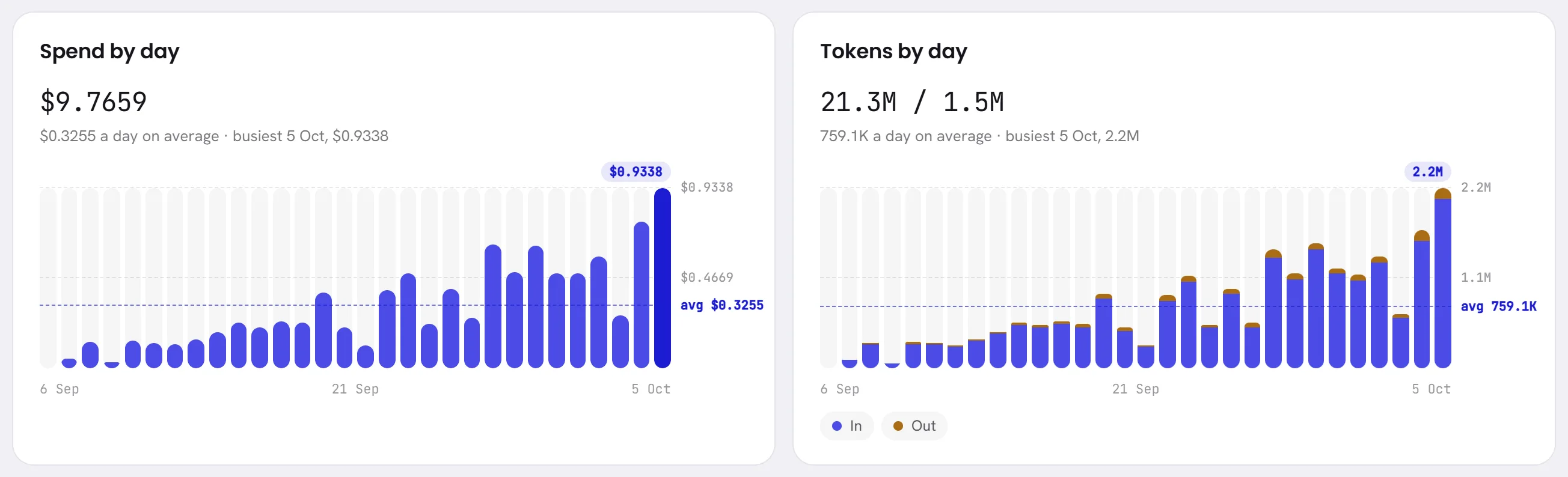
| Spend by day | A bar for each day: what the wallet was charged that day. Over the bars are the period’s total, the average a day and the busiest day. The dotted line is the average. |
| Tokens by day | A bar for each day, in two parts: In is what the agent read, Out is what it wrote. |
Point at a bar, or tap it on a phone, to see its date and its exact figure.
What the money went on
| On the screen | What it does |
|---|---|
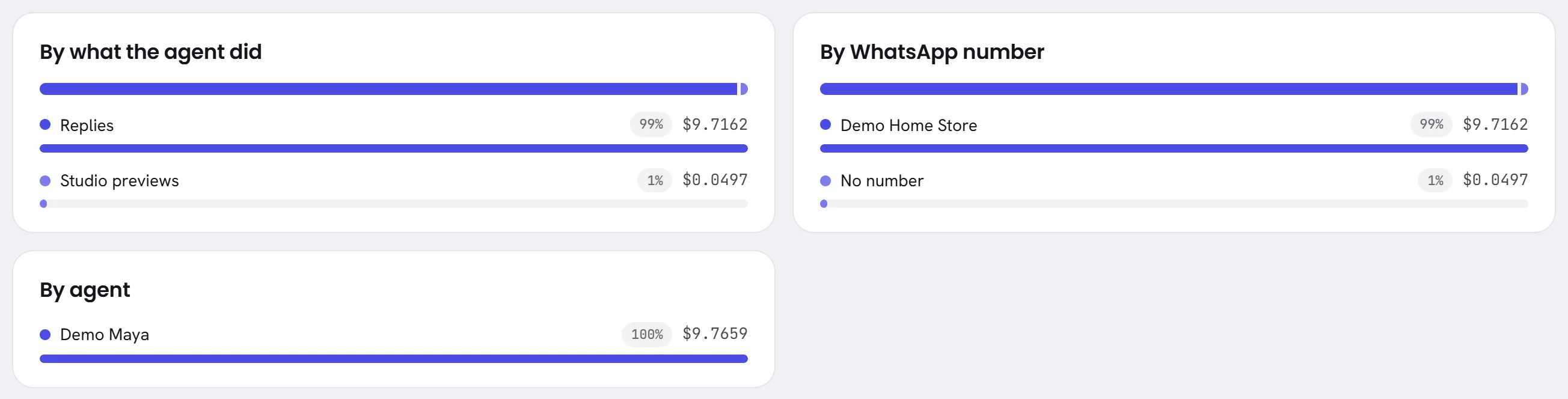
| By what the agent did | The spend split between Replies, Voice notes and pictures and Studio previews. |
| By WhatsApp number | The spend on each of your numbers. No number is spend that belongs to no number, such as the previews. |
| By agent | The spend of each of your AI agents. No agent is the spend of an agent that has since been deleted. |
Each line gives its share of the period’s spend and its amount, the largest first.
The conversations that cost the most
Conversations that cost the most lists the ten conversations with the highest spend in the period: who the conversation is with, the tokens read and written, and what it cost. Press a line to open the conversation in the Inbox.
The list only holds conversations you are allowed to open.
The rest of the screen
- Wallet history, the wallet’s statement for the period: see Receipts and wallet history.
- Top up by bank transfer, the form to ask for a top-up: see Top up your AI wallet.
- Top-ups, every top-up and its receipt: see Receipts and wallet history.
The AI usage your plan includes
A plan includes an amount of AI usage every month. How much depends on your plan: each plan’s card says it, on Plan & billing in Settings.
- As each calendar month begins, on your workspace’s time zone, the amount is added to the wallet. In Wallet history it is the line AI usage included in your plan.
- What your agent uses is taken from the balance, so the month’s included usage is spent first and what you topped up after it.
- The balance card says how much of it is left, and until which day.
- When the month ends, what was not used is taken back: the line Included AI usage not used last month. It does not carry over. Money you topped up is never taken back.
- The month your plan starts in counts whole. If you move to a plan that includes more, the difference is added the same month.
When the balance runs low, and when it runs out
The badge beside Balance says where the wallet stands.
| On the screen | What it does |
|---|---|
| In good shape | Enough for now. |
| Running low | The balance is under your plan’s warning level, or at your recent spend it runs out within a few days. A banner appears on every screen for the people who handle the account, with the balance, your workspace reference and Top up. The workspace’s owner is sent an email. |
| Used up | The balance has reached zero. Your agent keeps answering on a small allowance, and the balance goes below zero, until you top up. |
| AI paused | The allowance is spent too, and your agent has stopped. |
While the AI is paused:
- Your agent answers nobody, listens to no voice note and looks at no picture.
- Customers’ messages still arrive. Each conversation the agent would have answered goes to your team in the Inbox, with the notice
AI paused: wallet empty. - Everybody in the workspace sees a banner saying that AI replies are paused. The people who handle the account also get Top up on it.
- The agent’s preview is paused as well, and says why.
- The workspace’s owner is sent an email.
As soon as a top-up is added, your agent answers new messages again. A conversation that went to your team while the agent was paused stays with your team until somebody hands it back: see Assign and hand over.
If you do not see money
Money is shown only to people whose access includes The workspace and billing. Everybody else who can open AI usage sees the same screen in tokens and conversations.
- No balance, no spend, no form to top up, no wallet history.
- Tokens in / out and AI conversations for the period.
- Tokens by day.
- Conversations that used the most: the ten conversations that used the most tokens, among those you may open.
Access is given on the Team screen: see Roles and access.
Good to know
- Who can open the screen: anybody whose access includes AI usage, which every role has unless it was taken away. Money needs The workspace and billing, which an org admin has.
- The screen keeps itself up to date: the figures move as your agent works, without reloading.
- The wallet is in one currency: the workspace’s currency on the day the wallet opened. It is fixed from then on. Write to us to have it changed.
- A new workspace has no wallet yet. The screen says that the wallet opens, with its free credit, the first time it is used, and shows tokens until then.
- If the screen says AI billing not active yet, nothing is charged for your agent for now. The screen still shows what it used, in tokens.
- A workspace that is not billed for AI is told so on the screen, and has nothing to top up.
- Every charge and every payment of your workspace, the payments for your plan included, is a line on the Ledger: see The ledger.
Questions
What is a token?
The unit AI text is counted in: a short word, or a piece of a longer one. What your agent reads counts as tokens in, and what it writes as tokens out.
Why does my agent read so much more than it writes?
To write one reply it reads the conversation so far, your instructions and what it found in its knowledge. Long instructions and long conversations make every reply read more.
Does my agent stop the moment the balance reaches zero?
No. It keeps answering on a small allowance while the badge says Used up. It stops when that allowance is spent too, and the badge then says AI paused.
Is what Meta charges for WhatsApp messages in these figures?
No. This screen is only your agent’s AI usage. Meta bills its own charges to you directly: see What WhatsApp charges.
Why do amounts have more than two decimals?
One reply costs a fraction of a cent, so what your agent used is written to a fraction of a cent. The balance on its card, top-ups and receipts are in whole cents.