Who enters, and when
Only a workflow that is Active lets anybody in. What happens next depends on its trigger.
| Trigger | Who enters | When |
|---|---|---|
| Contact created | Each contact added after the workflow was switched on. | Within moments of being added. |
| Tag added | Each contact the tag is put on after the workflow was switched on. | Within moments of the tag being added. |
| Date rule | Every contact who meets the rule, including those who already met it when you switched on. | The workflow looks every minute and lets in up to 200 contacts a minute. |
- A contact enters only if they also meet the trigger’s Audience and are not left out by its two filters.
- With Enter once, first time the person matches the rules, a contact who has been through the workflow is never let in again. With Enter every time the person matches the rules, they can enter again once they are out.
- Contacts created or tagged while the workflow was off are not picked up afterwards. Only a date rule looks back.
One contact at a time
Each contact goes through the workflow on their own. They start at the trigger and follow the lines, and they stop at the first block that makes them wait: a Wait, a Message status rule with no answer yet, or a Send templates step held back by quiet hours.
The workflow comes back to a waiting contact when their time is up. It comes back sooner, within a minute, when one of their messages is delivered or read or when they write to you, so a Message status rule does not wait for its time to run out once it has its answer.
- A contact who reaches a block with no line after it has finished.
- A contact can be in several workflows at the same time. In one workflow they are inside once at most.
- Every message a workflow sends is kept in the contact’s conversation in the Inbox, like any other message.
What takes a contact out
A contact leaves a workflow before the end when:
- They meet the trigger’s exit rule. It is checked before every step, and every minute while they wait.
- They opt out. A contact who asks you to stop leaves every workflow they are in. See Opt-in and opt-out.
- You switch the workflow off, or delete it.
- You delete the block they are waiting at, and save.
These do not take a contact out by themselves:
- A reply. A contact who writes back keeps going unless you built it otherwise. Add an exit rule on Last seen, or follow the send with a Message status rule set to Replied and leave its When matched way out empty.
- The goal. Meeting it is only counted.
- A message that could not be sent. The contact moves on to the next step.
The figures
The three figures are on the workflow’s card, on the Workflows screen. The canvas shows none.
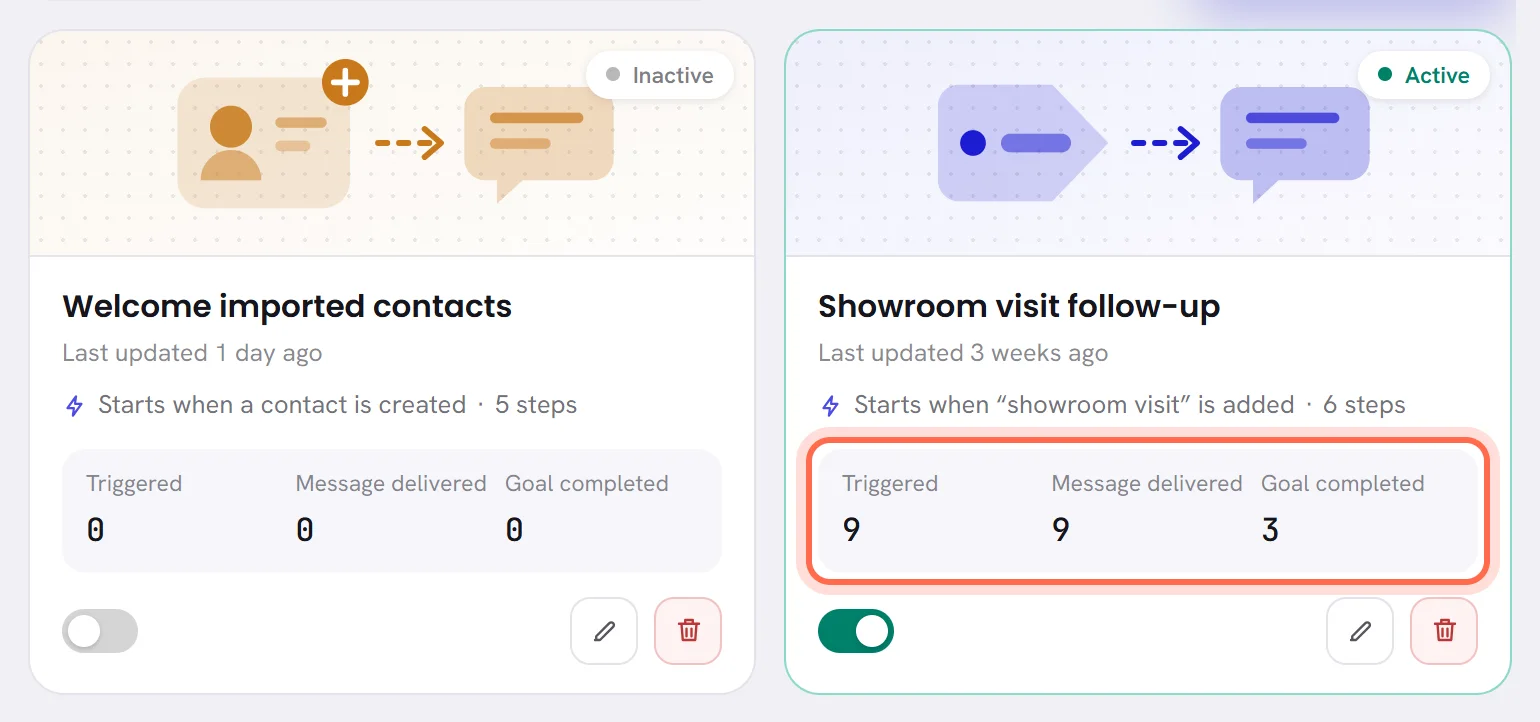
| On the screen | What it does |
|---|---|
| Triggered | How many times a contact entered. A contact who enters twice counts twice, and contacts who finished or left stay in the count. |
| Message delivered | How many of this workflow’s messages arrived on a phone. A message still on its way, or one that was refused, is not counted. |
| Goal completed | How many of those entries met the goal within the days set under Customers have to match within. Each entry counts once. |
| Entered in 24 hours | At the top right of the screen: entries into all your workflows together, over the last 24 hours. |
The figures are counted from the day the workflow was created. Switching it off and on again does not reset them.
See what happened to each contact
Open Settings and choose Data & privacy.
Under Take your data, press download on the Workflows line.
A CSV file is saved, named after the day. It opens in Excel.
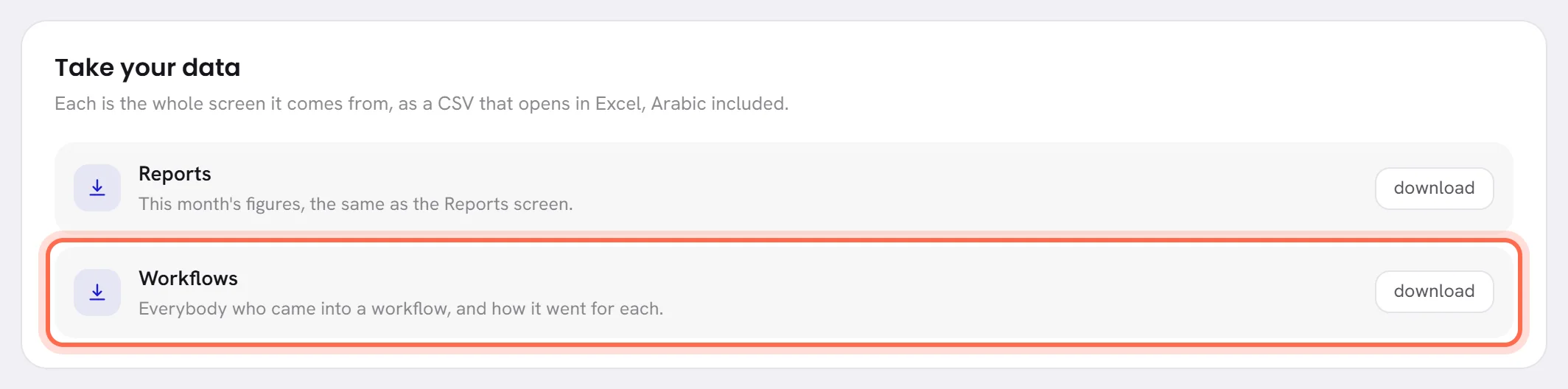
The Workflows line is there for everybody who can open the Workflows screen. The file has one line for each time a contact entered one of your workflows, the most recent first.
| On the screen | What it does |
|---|---|
| workflow | The workflow’s name. |
| contact | The contact’s name. |
| phone | Their number. |
| state | active: still inside. done: reached the end. exited: left before the end. |
| reason | A short code, in English, for why they left or why a message was not sent. Empty when there is nothing to say. |
| entered | The date and time they entered. |
| ended | The date and time they finished or left. Empty while they are inside. |
| goal met | The date and time they met the goal. Empty if they did not. |
| Code in the reason column | What it means |
|---|---|
exit_rule | They met the exit rule. |
opted_out | They asked you to stop. |
A code ending in _off | The workflow was switched off while they were inside. |
step_removed | The block they were waiting at was deleted. |
held | A message is waiting: Meta could not charge your account, or your trial has ended. |
not_sent:marketing_off | A marketing template was not sent: they turned off marketing messages in WhatsApp. |
not_sent:blank_empty | A template was not sent: one of its blanks had no value for this contact. |
not_sent:template_gone | A template was not sent: it is no longer approved. |
not_sent:no_media | A template was not sent: the file for its header is missing. |
not_sent:channel_gone | A template was not sent: the number is no longer connected. |
not_sent:nobody | A template was not sent: the contact has no WhatsApp number to send to. |
A message refused because the contact never agreed to hear from you has no code here. It is kept in the contact’s conversation as a message that failed.
Switch a workflow off, and on again
On the workflow’s card, or at the end of the top bar of its canvas, press the switch.
The app asks Switch off “Showroom visit follow-up”? with the workflow’s own name.
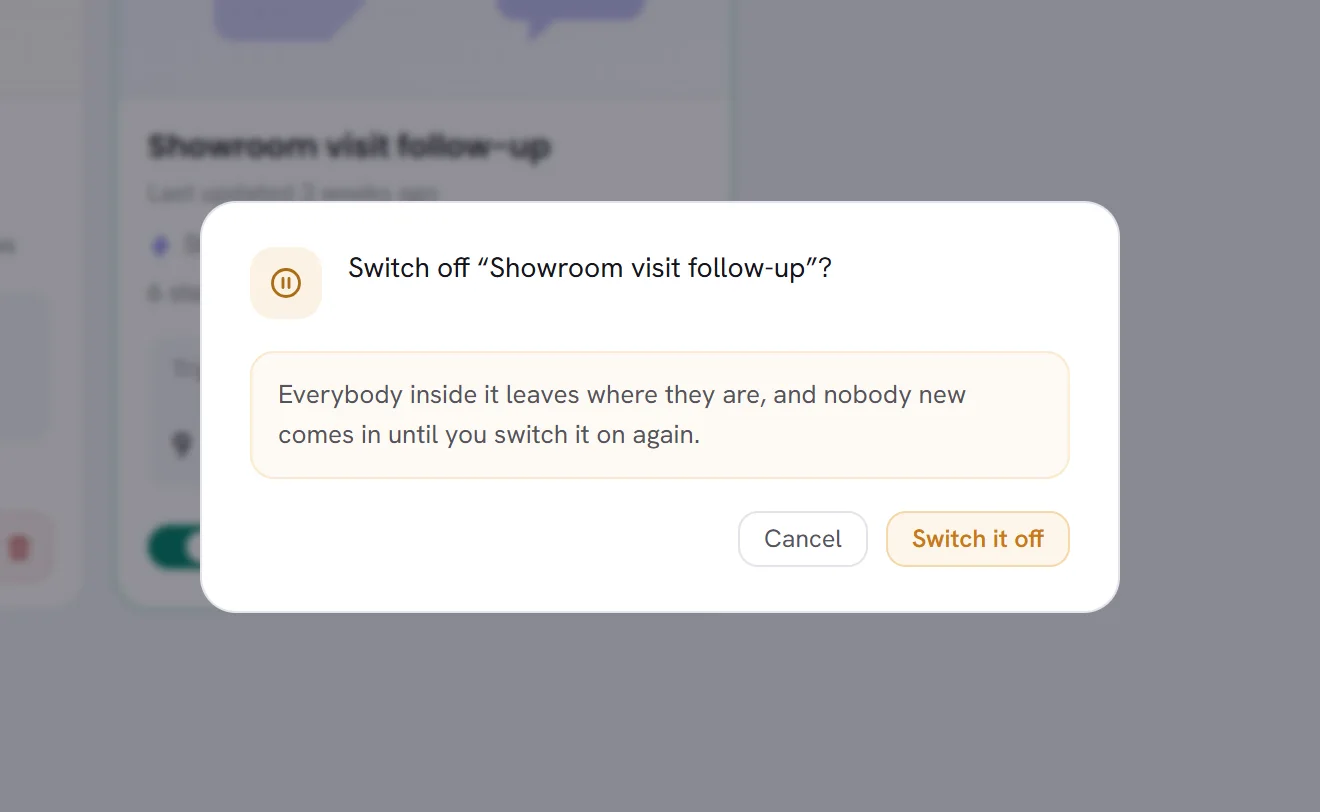
Press Switch it off.
The badge turns to Inactive.
- Everybody inside leaves where they are. Nothing more is sent to them.
- Nobody new enters until you switch it on again.
- The messages already sent stay in the conversations, and the figures stay on the card.
Change a workflow that is on
You can open a workflow and change it while it is on. Save is refused as long as anything is missing, so that nobody is left at a half-built step.
- Contacts already inside carry on from the block they are at, along the new drawing.
- A contact waiting at a block you delete leaves the workflow.
- A changed trigger applies to contacts who enter from then on. A changed exit rule applies to everybody inside within a minute.
- To change a workflow without sending everybody out, change it while it is on and save once it is complete. Switch it off only when you mean to empty it.
Delete a workflow
On the workflow’s card, press the bin.
The app asks Delete “Welcome imported contacts”? with the workflow’s own name.
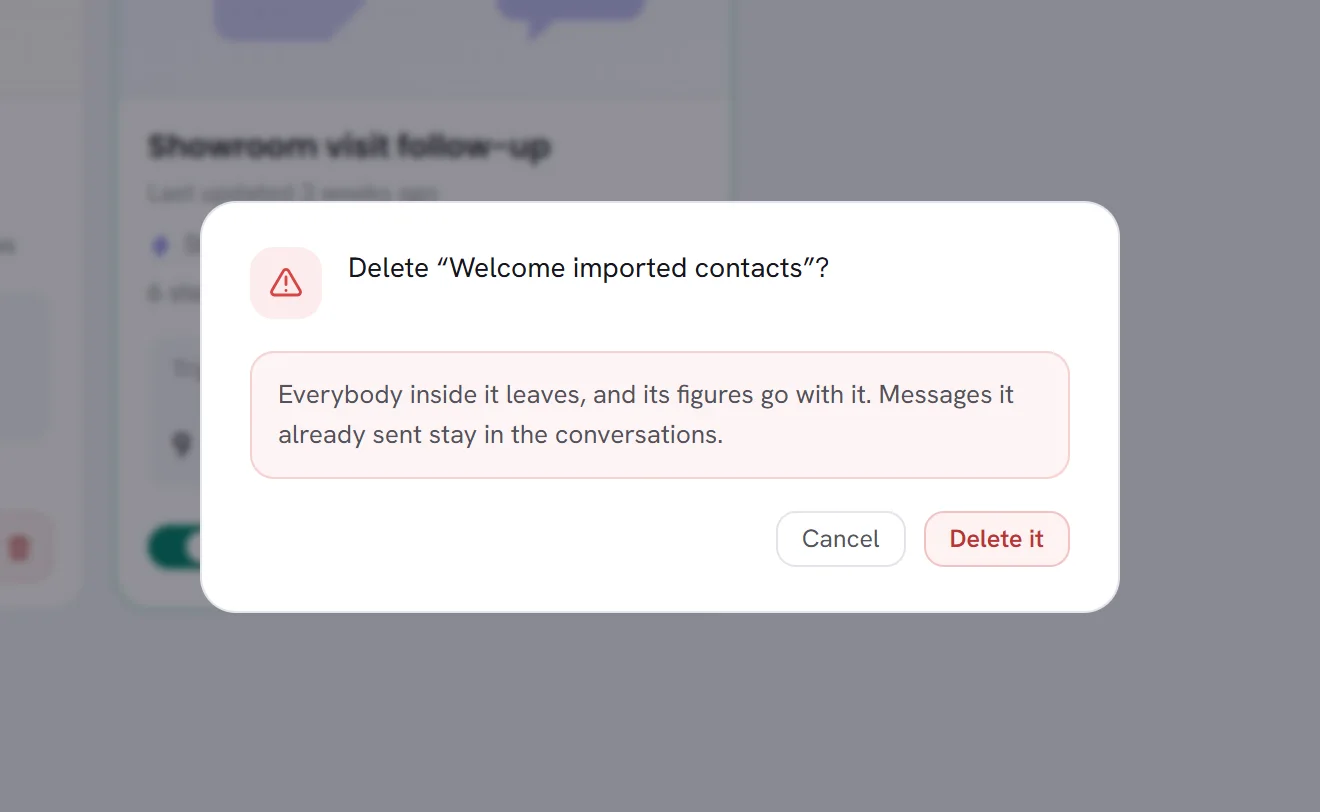
Press Delete it.
What a workflow costs
- A workflow sends templates, and Meta charges for templates by their category and the contact’s country. See What WhatsApp charges.
- A contact a workflow writes to counts as one of that month’s active contacts, unlike a contact who only received a campaign. When your plan counts them, Plan & billing in Settings shows your Monthly active contacts against what the plan includes.
- A workflow’s own steps use no AI, so they take nothing from your AI wallet. The replies your AI agent then writes to those contacts do, as always.
Questions
Why did a contact not get the message?
Most often they have not agreed to hear from you, they turned off marketing messages in WhatsApp, or one of the template’s blanks had no value for them. Download the file under Data & privacy and read its reason column, then open the contact’s conversation. The full list is in Workflow triggers and steps.
A workflow shows contacts under Triggered and nothing under Message delivered. Why?
The contacts entered, and nothing reached them. Contacts you import arrive without consent, and a workflow sends nothing to a contact without consent. See Consent and opt-outs. If the workflow starts with a Wait, the first message may also not be due yet.
Can I put one contact into a workflow by hand?
There is no button for it. Give the workflow a Tag added trigger and put that tag on the contact: they enter within moments.
I changed a Wait. Does it apply to contacts who are already waiting?
A longer wait does: they wait the new time. A shorter one may not: a contact already waiting can still wait the time that was set when they arrived.
A message was due at night and did not go. Is it lost?
No. During your workspace’s Quiet hours a Send templates step waits, and sends when they end.