What a template is
A template is a message you write once and Meta approves before it can be sent. WhatsApp lets a business write freely only for 24 hours after a customer’s last message; outside that time, and to write first, only an approved template can go. See The 24-hour window.
Meta files every template in a category and reviews it. What the categories are and how the review works is in Template categories and review.
Open Templates in the menu to see your templates and where each one stands with Meta, to write a new one, and to change or delete one.
Read a card
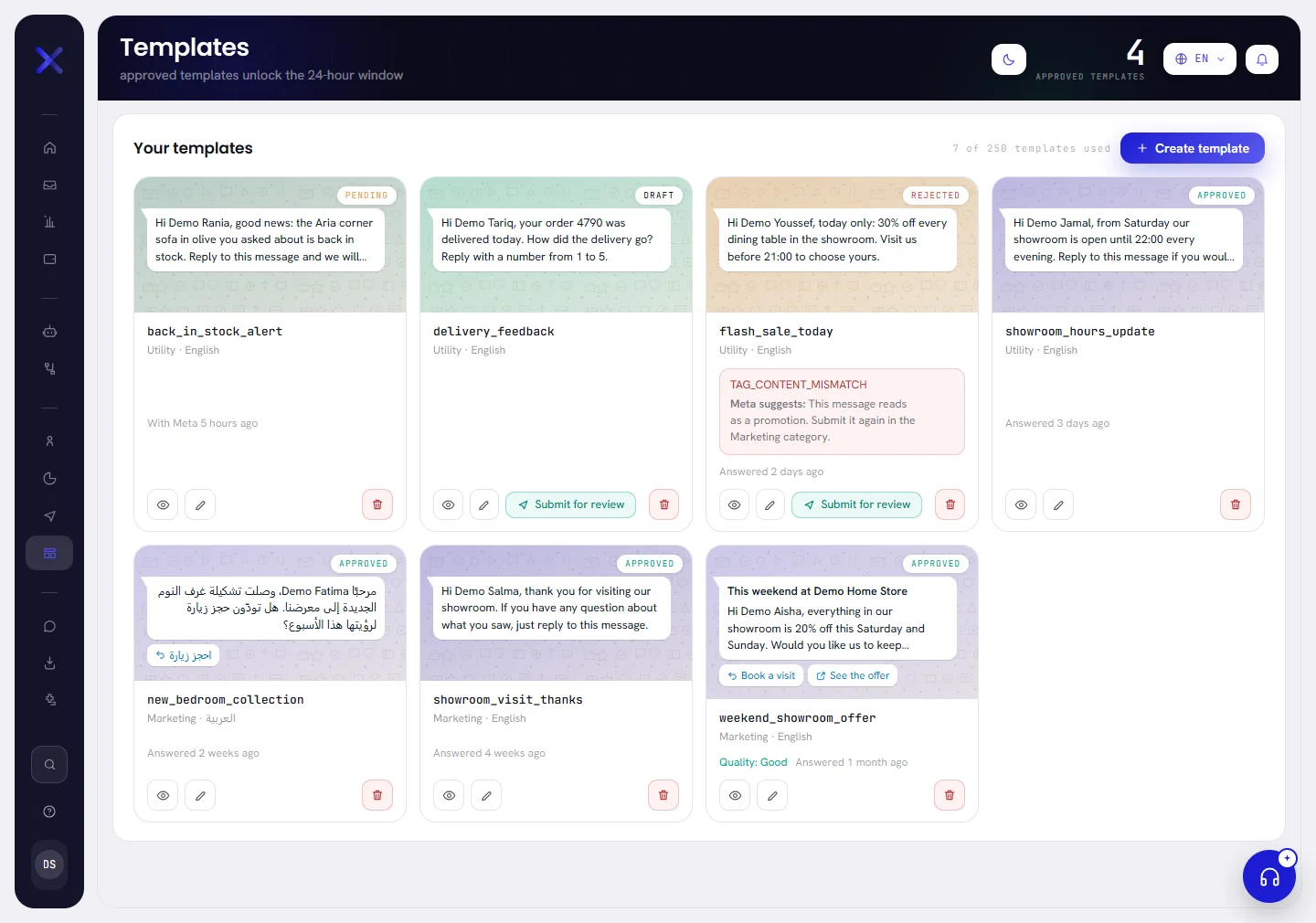
Each template is a card. The top of the card is the message as a phone shows it: its picture, video or file if it has one, or its title, then its words with your samples in place of the variables, then its first two buttons. The newest template is first, 25 to a page.
| On the card | What it tells you |
|---|---|
| The badge in the corner of the picture | The template’s status, such as Approved, Pending, Rejected or Draft. Only an approved template can be chosen for a campaign or a workflow. Every status is explained in Template statuses. |
| The name | The template’s name, as Meta knows it. |
| The line under the name | The category, Marketing, Utility or Authentication, and the language. |
| A red box | Why Meta refused the template, in Meta’s own words. When Meta gave advice, it follows after Meta suggests. |
An amber line such as Meta moved this from Utility to Marketing | Meta filed the template under Marketing although it was written as something else. See when Meta changes the category. |
| Quality | What Meta says about how customers react to this template: Good, Slipping or Poor. It shows only once Meta has said something. |
With Meta 5 hours ago | When the template was sent for review, while Meta has not answered. |
Answered 2 days ago | When Meta last decided about it. |
| On the screen | What it does |
|---|---|
| Look at it | The eye. Opens the template to read it, beside a phone that shows it. Clicking the picture or the name does the same. |
| Edit | The pencil. Opens the template in the window that wrote it. See Edit a template. |
| Submit for review | Sends the template to Meta. The button is on a card only for a draft and for a rejected template. |
| Delete | The red bin. Deletes the template, after saying what goes with it. See Delete a template. |
Look at one template
Click a card’s picture, its name, or the eye.
The template opens in a window. Its name is the title, with its status under it. On the right, Template preview shows the message on a phone as your customer receives it. A video in the preview plays when you press it.
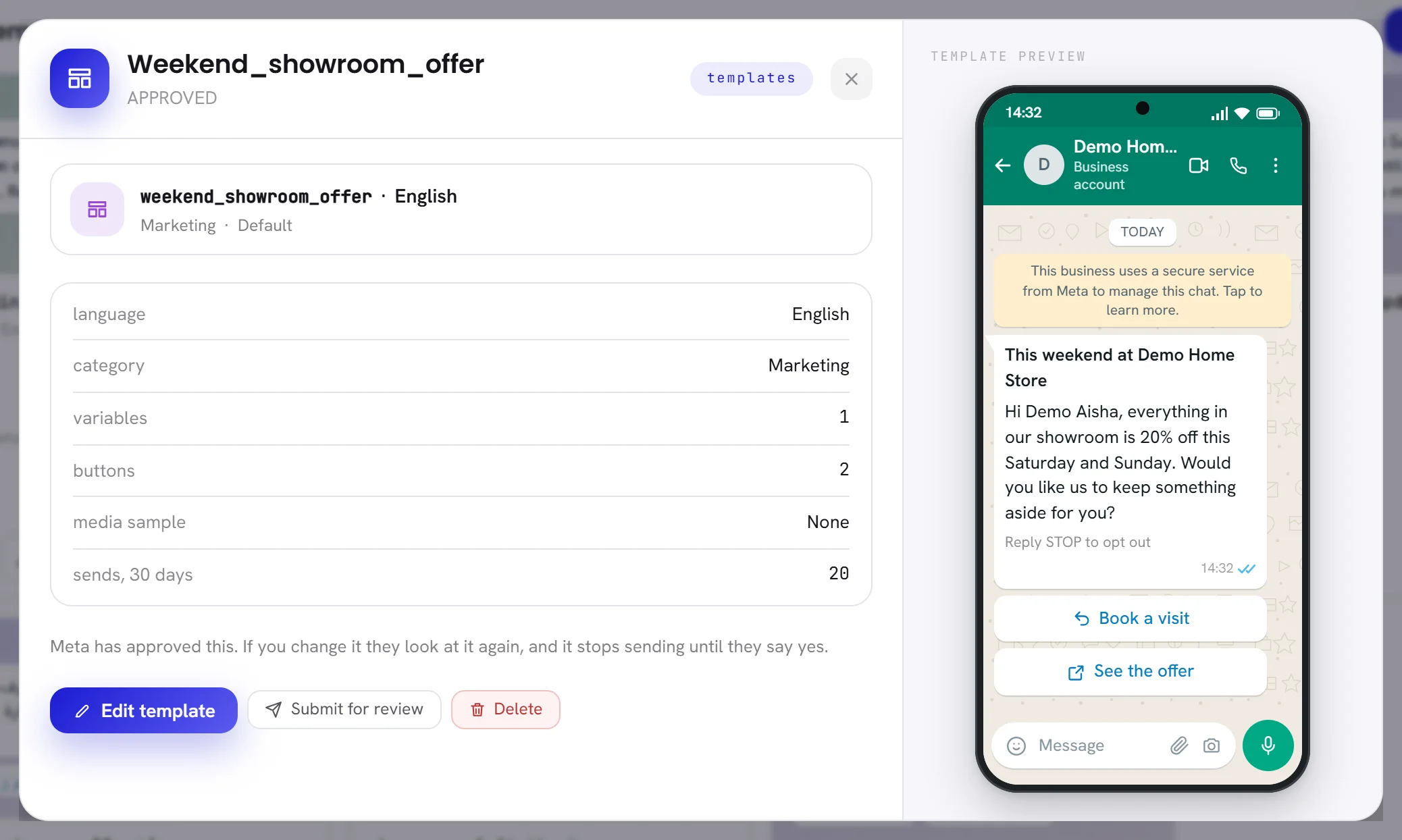
Read what it is and what it has.
Close the window with the cross, or use one of its three buttons.
| On the screen | What it does |
|---|---|
| language | The language the template is written in. |
| category | The category Meta files it under today. |
| variables | How many variables the body has. |
| buttons | How many buttons it has. |
| media sample | The kind of file at the top of the message: Image, Video, Document, or None. |
| sends, 30 days | How many messages were sent with this template in the last 30 days. |
| Edit template | Opens the template to change it. A sentence above the buttons says whether a change sends it back to Meta. |
| Submit for review | Sends the template to Meta as it is. Use it for a draft or a rejected template. On an approved template it counts as an edit: the template goes back to review and is not sent until Meta approves it again. |
| Delete | Deletes the template, after asking you to confirm. |
Where templates are sent from
- A campaign sends one approved template to everybody in a segment, now or at a time you set. See Create a campaign.
- A workflow sends approved templates by itself, with its step Send templates. See Workflow steps.
Both ask you for the value of each variable, and for the real picture, video or file when the template has one at the top: what you gave while writing the template was only a sample for Meta.
Everything else on the screen
| On the screen | What it does |
|---|---|
| Approved templates | The figure at the top right: how many of your templates are approved today. |
| Your templates | The heading of the list. |
| Create template | Opens the window that writes a new template. See Create a template. |
Beside the heading a counter reads, for example, 7 of 250 templates used. It counts every template on this screen, drafts included, against 250, the number Meta allows a WhatsApp Business account whose business is not verified. See Business verification.
This screen has no search box and no filter. To find a template by its name from anywhere, use Search in the menu: it opens the template in its window.
Good to know
- Who can open it: people whose access includes Campaigns and templates. With the roles as they come, an org admin and a manager have it and an agent does not. See Roles and access.
- Templates are part of every plan.
- You can write and save drafts before a number is connected. Sending one to Meta needs a connected WhatsApp number, because templates are kept on its WhatsApp Business account. See Connect a WhatsApp number.
- Only templates written here are listed. One you create in Meta’s WhatsApp Manager does not appear on this screen and cannot be sent from xconversions.
- The bell at the top of the screen tells you when Meta approves or rejects a template. You choose how it reaches you with Meta decides on a template: see Notification settings.