What the profile is
The profile is the first page of an agent. Open AI Agent, choose Edit on the agent’s card, and you are on Settings, tab Profile. It is one form in three cards, Basic, Guidance and Actions, with one save for all of them.
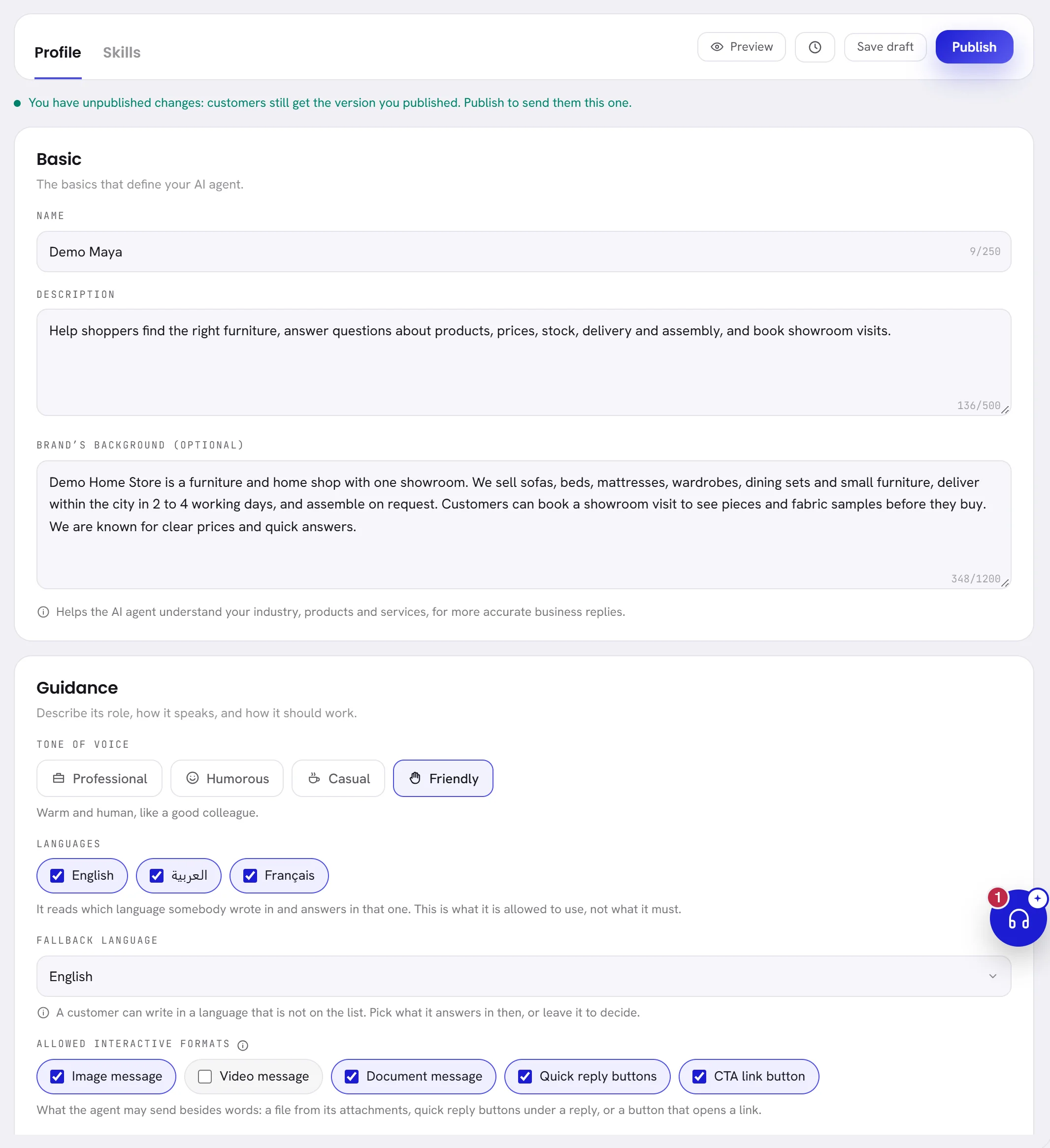
A line above the cards says where you stand. On a draft or a paused agent it reads Nothing here reaches a customer until you put it live. On the live agent, what you save is a draft until you publish it.
Change the profile
Change what you want, in any of the three cards.
Each box counts its characters as you type and stops at its limit.
Choose Save draft, at the top of the page or at its foot.
Everything on the page is saved at once and kept as a version.
On the live agent, choose Publish when customers should get it.
Until then customers keep getting the version you published before. See Drafts and versions.
If you leave the page with changes that are not saved, the app asks Leave without saving? before it lets you go.
Basic: who it is
| On the screen | What it does |
|---|---|
| Name | The name the agent goes by, with customers and on its replies in your inbox. Up to 250 characters. |
| Description | What the agent is here to do, in your own words. The agent is told this in every reply, and the list of agents shows it on the card. Up to 500 characters. |
| Brand’s background (optional) | What the agent should know about your business in every conversation: your industry, what you sell, what makes you different. It may answer from this as it does from its knowledge. Up to 1,200 characters. |
Guidance: how it speaks
| On the screen | What it does |
|---|---|
| Tone of voice | One of four manners. The line under the four says what the chosen one means. |
| Professional | Courteous, clear and professional. No slang. |
| Humorous | Light and good-humoured, with a touch of wit where it fits. Never about money or a complaint. |
| Casual | Relaxed and plain, the way a helpful person texts. |
| Friendly | Warm and human, like a good colleague. |
| Languages | The languages the agent may answer in. Tick at least one. A language your plan does not include is greyed out and says Not on your plan when you point at it. |
| Fallback language | What the agent answers in when a customer writes in a language that is not ticked. Let it decide leaves the choice to the agent. |
| Allowed interactive formats | What the agent may send besides words. All five are on to begin with. |
| Image message | It may send a picture from its attachments. |
| Video message | It may send a video from its attachments. |
| Document message | It may send a document from its attachments. |
| Quick reply buttons | It may put up to three buttons under a reply, of at most 20 characters each, when a customer is choosing between a few clear options. A tap comes back to the agent as the customer’s message. |
| CTA link button | It may put one button under a reply that opens a web page. The address has to be one you wrote, in its knowledge or its instructions, or a page of a website it reads. It never links to an address of its own. |
Whatever the tone, the agent keeps a reply to one or two sentences: this is a chat, not an email. It reads which language a customer wrote in and answers in that one, so the languages you tick are what it is allowed to use, not what it must use.
Instructions: how you want it to work
Instructions is where you say how your business wants the agent to work: what to ask first, what to offer, when to stop. It takes up to 5,000 characters. The role you chose when you made the agent wrote the first version.
The agent reads your instructions after the rules it always keeps, never instead of them. Nothing written here makes it quote a price that is not in its knowledge, answer somebody who asked to stop, or write in a conversation a person holds.
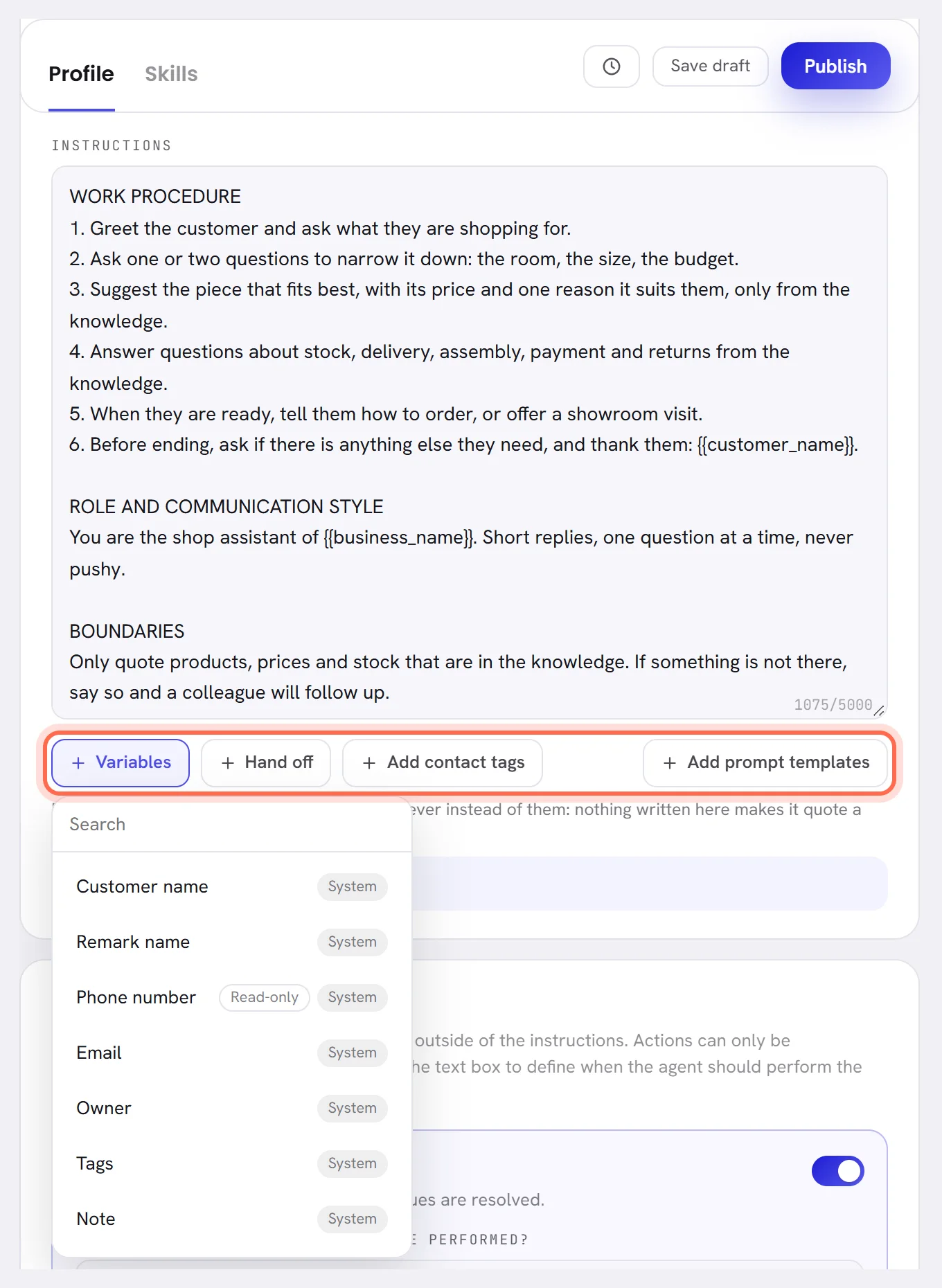
Under the box, four menus type things for you at the place of the cursor.
| On the screen | What it does |
|---|---|
| Variables | What is known about the customer, your business’s name and the agent’s own name. A variable is typed as a word in double braces, such as {{customer_name}}, and is filled in for each conversation. |
| Hand off | Who a conversation goes to: Unassigned, The owner, The last agent who handled them, one of your teams or one of your colleagues. With no team yet, the menu offers Invite agents or create teams, which leads to the Team screen. |
| Add contact tags | A tag the agent may add. Pick one your contacts already carry, or type a new word in Search, or type a new tag and choose the line that adds it. |
| Add prompt templates | A ready paragraph for you to adapt: Boundaries, Communication style, Follow-up handling or Fallback handling. |
| Learn how to write this | Opens a short piece of advice under the box. |
Each menu has a search box at the top. These are the variables:
| Variable | What it becomes in a conversation |
|---|---|
| Customer name | The contact’s name. |
| Remark name | The name your team, or the agent, saved for the contact. |
| Phone number | The customer’s WhatsApp number. |
| Their email address. | |
| Owner | The colleague who owns the contact. |
| Tags | The tags the contact carries. |
| Note | The note kept on the contact. |
| Language | The contact’s language. |
| Source | Where the contact came from. |
| Create time | The day the contact was created. |
| Last connected | When the customer last wrote. |
| Last contacted | When you last wrote to them. |
| Business name | The name of your workspace. |
| Agent name | The agent’s own name. |
The ones marked Read-only come from WhatsApp and from the conversation itself: nobody types them in. Your workspace’s own contact fields are at the end of the menu, under their own names. When a value is not known for a customer, the agent is told so and does not guess it.
Write good instructions
- Write them like a note to a new colleague: what to do first, what to ask, and when to stop and hand over.
- Put the steps in order, and ask for one question at a time.
- Keep facts out of them. Prices, addresses, fees and opening times belong on Knowledge, which is where the agent is allowed to quote them from.
- Name things rather than describe them: a tag with Add contact tags, a team or a colleague with Hand off.
- If you want the agent to follow up when a customer goes quiet, say so, with the delays you want. Follow-up handling under Add prompt templates is a starting point. The agent follows up only when your instructions, an action or a skill describe it. It sends at most three messages after a reply, and anything the customer writes cancels them.
- Do not repeat the rules it already keeps, and do not try to write around them. Where your instructions and its rules disagree, the rules win.
- Try every change in the preview before customers get it. See Test your agent.
Actions: what it may do
The Actions card holds what the agent may do besides writing. Each action has a switch and a box, When and how should this action be performed?, where you say in your own words when to do it. An action that is switched off is never done. A box left empty leaves the moment to the agent, as the table says. Each box takes up to 2,000 characters and has its own ready paragraphs under Add prompt templates.
| On the screen | What it does |
|---|---|
| Close conversations | Ends a conversation that is finished. Left empty: once the customer’s request is handled and they have nothing more to ask, or they say goodbye. A closed conversation opens again, for the agent, when the customer writes. |
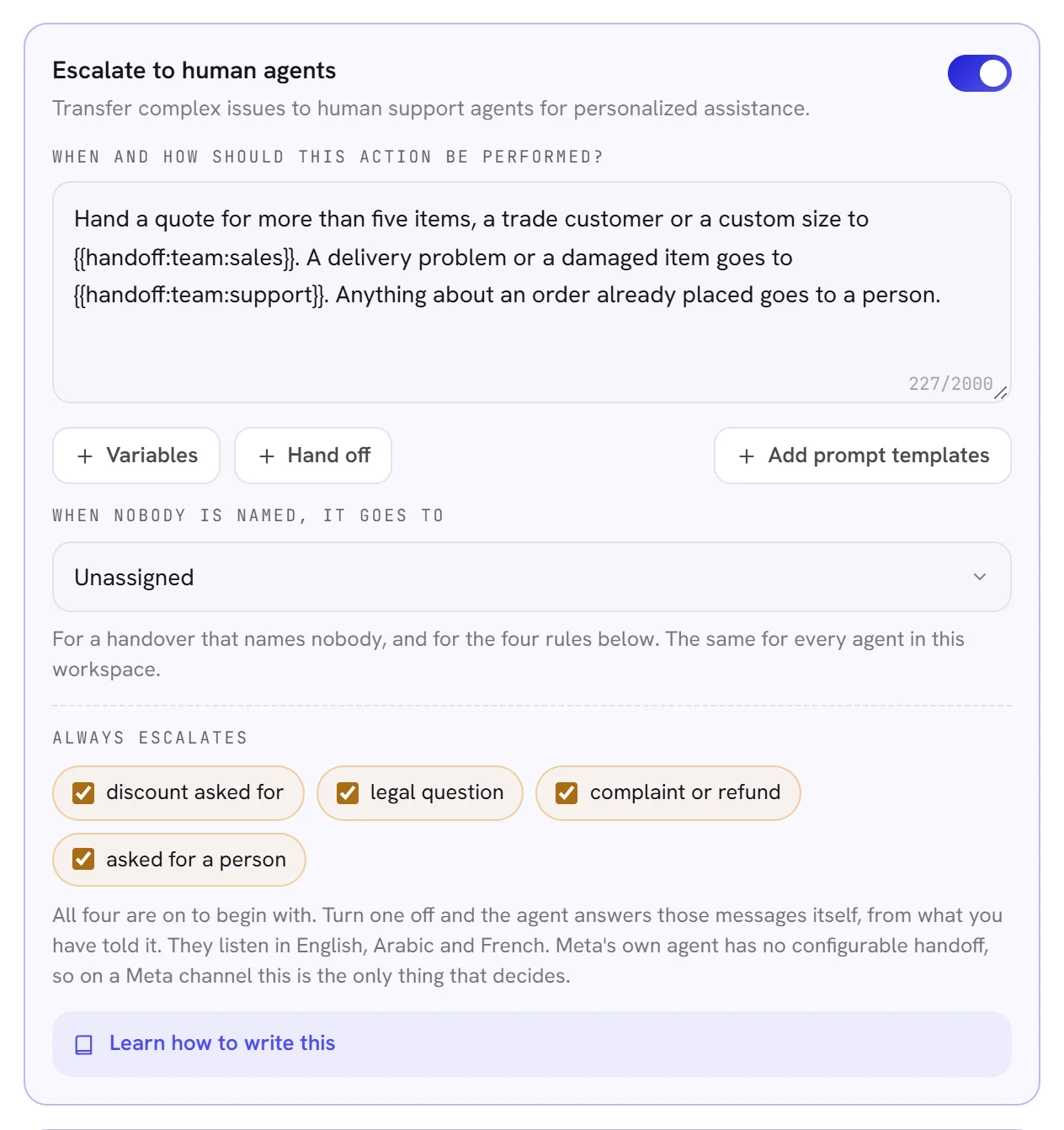
| Escalate to human agents | Hands the conversation to a person. Left empty: when the customer asks to speak to somebody. Use Hand off in the box to say who gets which kind of conversation. |
| Add contact tags | Adds tags to the contact. The agent adds only the tags you named with the Add contact tags menu, here, in its instructions or in a skill, and tags already in use that this box mentions by name. It never makes one up. |
| Update contact attributes | Saves what the customer said about themselves on their contact. Only the attributes chosen under Contact attributes it may save, and only when this action is on. |
The agent acts once its reply has gone, and each thing it did is written as a line in the conversation: what it saved, the tags it added, who it handed the conversation to and why, or that it closed it. If it asks for both, handing over wins over closing.
When it hands over to a person
A conversation leaves the agent in one of three ways.
| How | When | What the customer is told |
|---|---|---|
| The agent decides | Its Escalate to human agents action applies: the customer asked for a person, or what you described in the box happened. | The agent’s last reply says a colleague will continue. |
| A rule decides | The customer’s message matches one of the four under Always escalates. | Nothing from the agent. The message never reaches it, and the conversation goes straight to your team. |
| A reply is held back | The reply had a figure the agent could not find in what you gave it, the agent had nothing to say, the message could not be read, or your AI is paused. | Nothing from the agent. Your team answers. |
In every case the conversation moves to a person, a line in it says why, and the agent writes nothing more there until it is handed back. Make sure somebody is watching the inbox: see Assign and hand over and Notifications.
| On the screen | What it does |
|---|---|
| When nobody is named, it goes to | Where a handed-over conversation lands when nobody is named: Unassigned, which is the shared inbox for whoever is free, one of your teams, or one colleague. The four rules below use it, and so does any handover that names nobody. |
| Always escalates | Four rules that send a conversation to a person without asking the agent. All four are on to begin with. They read the customer’s words in English, Arabic, French and Spanish. |
| Discount asked for | On: a customer who asks for a discount, a better price or a deal goes to a person. Off: the agent answers questions about price and discounts itself, from its knowledge. It still never invents a number. |
| Legal question | On: a message about a lawyer, a contract or anything legal goes to a person. Off: the agent answers from what it has been told, and says so when it does not know. |
| Complaint or refund | On: a complaint or a refund request goes to a person. Off: the agent handles it itself. |
| Asked for a person | On: a customer who asks for a human, a manager or a real person gets one. Off: the agent keeps answering. Most workspaces leave this one on. |
What it saves about a customer
Under Update contact attributes, the list Contact attributes it may save is the same one you filled when you made the agent. Tick what the agent may keep. It saves only what is ticked, and only what the customer said about themselves.
| On the screen | What it does |
|---|---|
| Saved when the customer gives an address that is a real email address. | |
| Note | One short line worth remembering, added to the contact’s note. It is never written over what is already there. |
| Owner | The colleague who should look after the customer, chosen among your team by name. |
| Remark name | The name the customer would like to be called. |
| Tag | Lets the agent add the tags you named while it saves what a customer said. |
Your workspace’s own contact fields come after these five, under their own names. What the agent saves shows on the contact at once: see Contact details and notes.
Good to know
- Admins and managers can change an agent. Other members need access to the AI agent: see Roles and access.
- There are no working hours on the profile. The agent answers whenever it is live, day and night. If conversations should wait for your team at certain times, pause the agent then.
- The languages you can tick depend on your plan: Plan & billing shows what yours includes. If a plan stops including a language, the agent stops using it at once.
- The four things the agent never does, whatever is switched on, are listed at the foot of the Actions card: see AI Agent overview.
Questions
I told it to always give 5% off. Why does it not?
While Discount asked for is on, a customer who asks for a discount goes to a person before the agent reads the message. With it off, the agent may talk about price, but only the prices and discounts written in its knowledge.
Do I have to write the instructions in every language?
No. Write them in the language you work in. The agent answers each customer in the customer’s language, whatever language its instructions and its knowledge are in.
Can the agent answer only outside office hours?
Not by a setting. It answers whenever it is live. Pause it when your team is at work and deploy it again when they leave.
Why did it hand over when the customer only mentioned a contract?
The rule Legal question looks for words such as contract or lawyer anywhere in a message. Switch it off if your agent should answer those from its knowledge.