Where to look
Three places say how an agent is doing: the figures on the list of agents, the agent’s Performance page, and its Recommendation page, which lists the questions it could not answer. Open AI Agent, choose Edit on the agent’s card, and choose the page in the side column.
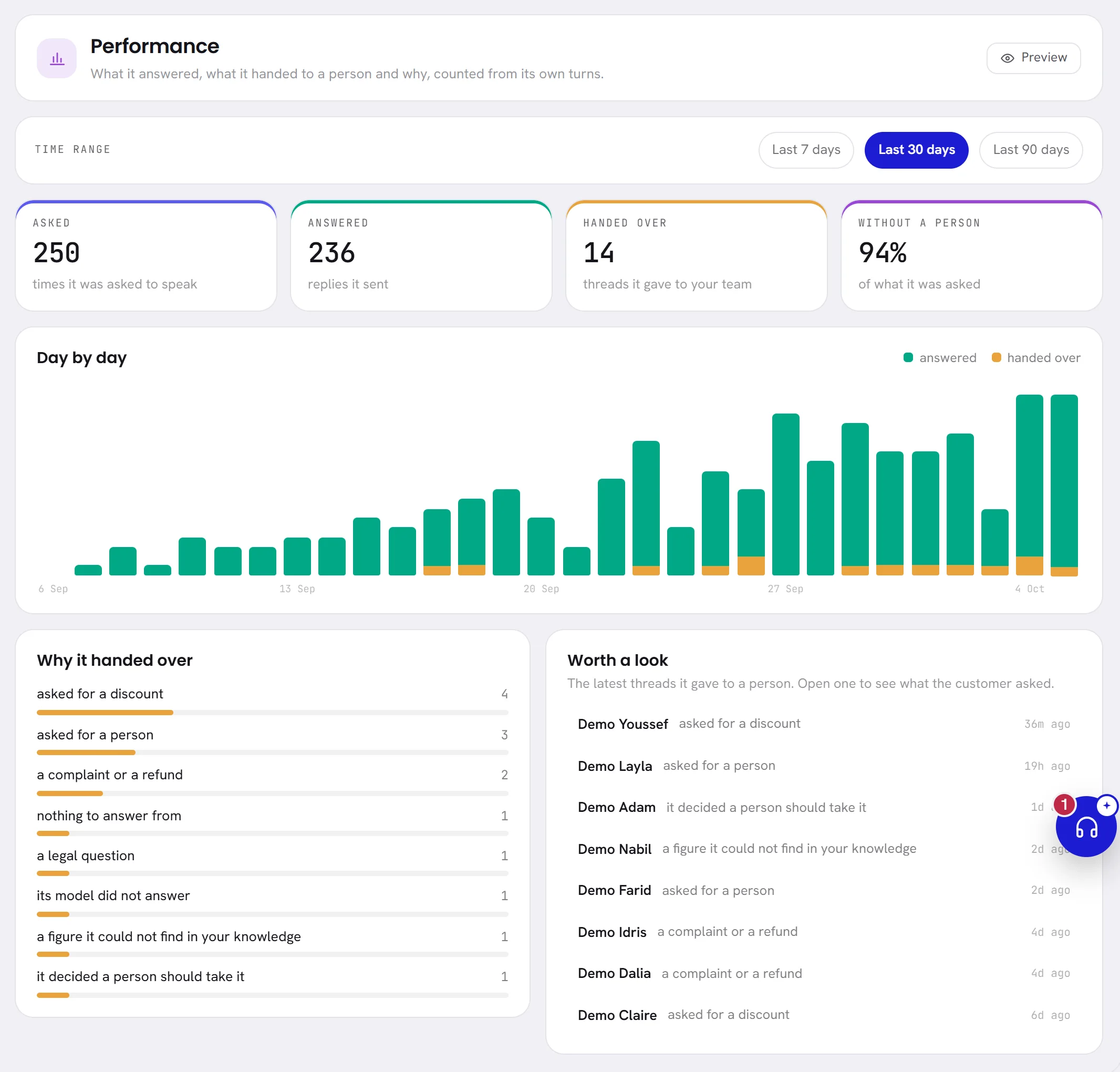
What is counted
Every message a customer sends that the agent has to deal with is one turn: one time it was asked to speak. A turn ends in one of two ways. Either the agent answered, or the conversation went to a person. The two always add up to everything it was asked, so neither figure can look better by leaving the other out.
- Messages the agent stays out of are not turns: a conversation a person already holds, a customer who opted out, a message that arrives while no agent is live.
- A turn belongs to the agent that took it, from the day it goes live.
- A day is a day on your workspace’s clock.
The Performance page
| On the screen | What it does |
|---|---|
| Time range | The period shown: Last 7 days, Last 30 days or Last 90 days. The page opens on the last 7 days. |
| Asked | The times it was asked to speak: its turns in the period. |
| Answered | The replies it sent. |
| Handed over | The times it gave the conversation to your team instead of answering. |
| Without a person | Of what it was asked, the share it answered. |
| Day by day | One bar for each day, as tall as that day’s turns: green for answered, amber for handed over. Point at a bar for the two figures. |
| Why it handed over | Each reason with the number of times, the most frequent first. |
| Worth a look | The eight latest conversations it gave to a person: the customer, the reason, and how long ago. Click one to open it in the inbox. |
When the agent was asked nothing in the period, the page says so instead, for example Nothing in the last 7 days. Every time it is asked to speak is counted, from the day it goes live.
Why it handed over
| Reason | What happened | What you can do |
|---|---|---|
| asked for a discount | The rule Discount asked for matched the customer’s message. | Switch the rule off if the agent should answer about prices from its knowledge. |
| a legal question | The rule Legal question matched. | Switch it off if the agent should answer those from its knowledge. |
| a complaint or a refund | The rule Complaint or refund matched. | Usually nothing: these are for a person. |
| asked for a person | The customer asked for a human, and the rule Asked for a person is on. | Nothing. Check that somebody answered quickly. |
| it decided a person should take it | Its action Escalate to human agents applied. | Read the conversation. If it hands over too soon or too late, change what the action’s box says. |
| a figure it could not find in your knowledge | Its reply held a number that is not in what you gave it, so the reply was not sent. | Add the figure to the knowledge, if it is right. |
| nothing to answer from | It wrote no reply. | Add knowledge for that question. |
| something it cannot read | The message had no words in it: a video, a document, a sticker, a location. | Nothing: a person answers those. |
| its model did not answer | The AI did not answer that time, and the customer was not kept waiting. | Nothing. If it happens often, write to us. |
| the AI balance ran out | Your AI wallet was empty. | See Top up your AI wallet. |
| the day’s spending limit | The agent reached the most your plan lets it use in one day. | It answers again the next day. See Plan limits. |
| the free trial ended | The trial ended and no plan was chosen. | See Choose or change a plan. |
| our team turned the AI off | Our team paused the AI for your workspace. | Write to us. |
| the workspace was suspended | The workspace is suspended. | Write to us. |
The figures on the list of agents
Each card on the list of agents carries Answered, Chats and Handoffs: the same counting as this page, since the agent was created and not for a period. The four tiles above the cards are about all your agents together. AI Agent overview describes each one.
The questions it could not answer
The Recommendation page lists what customers asked that the agent could not answer, in the customer’s own words, from the last 60 days. A question asked several times in the same words is listed once, with the number of times. The newest comes first, 20 a page.
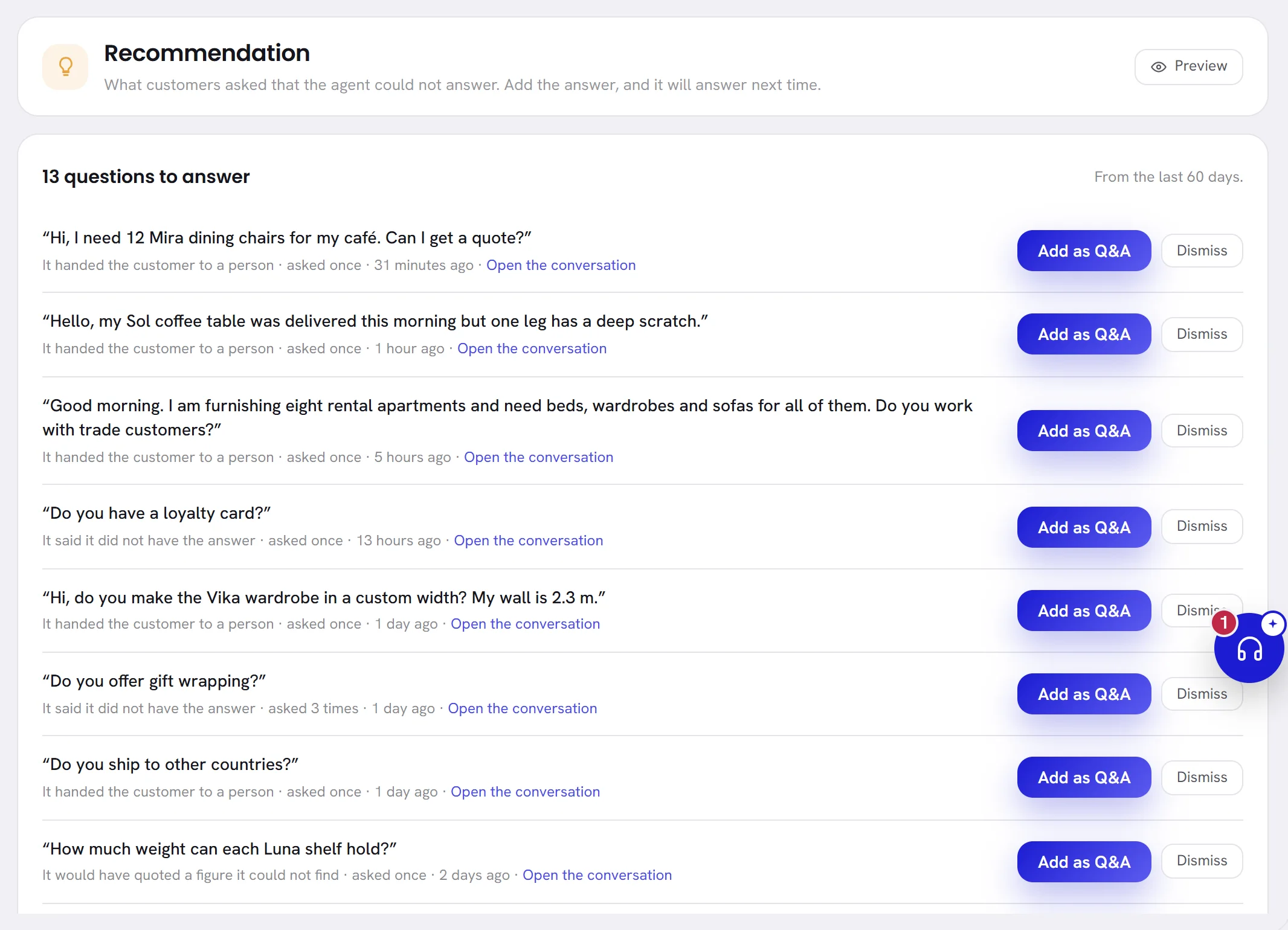
The top of the list gives the total, for example 13 questions to answer, and the period. Under each question a line says why it is there:
| On the screen | What it does |
|---|---|
| It said it did not have the answer | The agent told the customer it did not have that information, and carried on with the conversation. |
| It handed the customer to a person | The agent decided that a person should take the conversation. |
| It would have quoted a figure it could not find | Its reply held a number that is not in its knowledge, so the reply was held back and a person took over. |
| It had nothing to answer from | It wrote no reply, and a person took over. |
| Open the conversation | Opens the conversation in the inbox, to read the question where it was asked. |
| Add as Q&A | Opens a window with the question filled in, for you to write the answer. |
| Dismiss | Puts the question aside: it leaves the list, and nothing else changes. |
Conversations that one of the rules under Always escalates sent to a person are not listed. A discount or a complaint goes to a person on purpose, and an answer would not change that.
Add a missing answer
Open Recommendation and find the question.
Choose Add as Q&A.
A window opens with the customer’s question in Question.
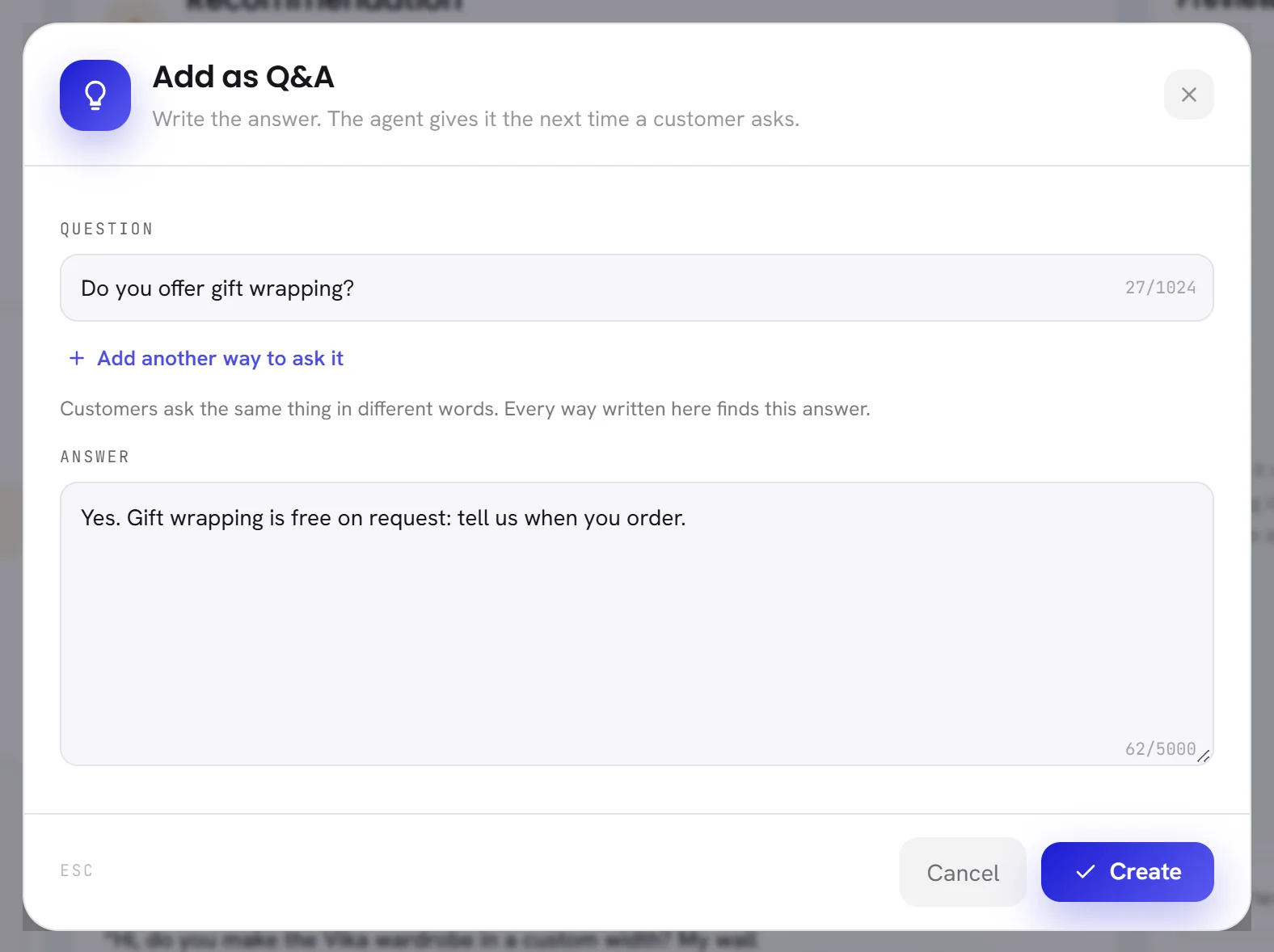
Tidy the question, and add other ways of asking it.
Customers’ own words can be long. Shorten the question to what is asked, and use Add another way to ask it for other wordings.
Write the Answer and choose Create.
The page says Question and answer added. The agent answers it from now on. The question leaves the list, and the new item is on the Knowledge page.
A weekly look
- Read Without a person and Why it handed over. A reason that grows week after week is the one to work on.
- Open two or three conversations under Worth a look and read what the customer asked.
- Empty the Recommendation page: answer what should be answered and dismiss the rest.
- On Knowledge, filter on Failed and deal with what could not be read.
Good to know
- Admins and managers can open these pages. Other members need access to the AI agent: see Roles and access.
- A note at the foot of the page says that turns taken before agents were counted one by one belong to nobody here: replies from that time are not in these figures.
- What the agent used, in tokens and in money, is on AI usage: see AI usage overview. Delivery, replies and your team’s figures are on Reports: see Reports overview.
- A Recommendation page with nothing on it says Nothing to add yet.
Questions
Why do the card and the Performance page show different figures?
The card counts since the agent was created. The page counts the period you chose.
Why is “Handed to a person” above the list different from the agent’s handoffs?
The tile counts the conversations assigned to a person that had activity in the last 30 days, including those a colleague took over by hand. The agent’s own figures count only the times it handed a conversation over.
A question I answered is on the list again. Why?
It was asked again and the agent still could not answer, usually because it was worded differently. Add that wording to the same question as another way to ask it.