What a contact is
A contact is one person, known by their WhatsApp number. In your workspace one number is one contact: the same number cannot be added twice. A contact keeps the person’s name, number and email, their tags, where they came from, whether they agreed to be written to, and the one conversation you have with them.
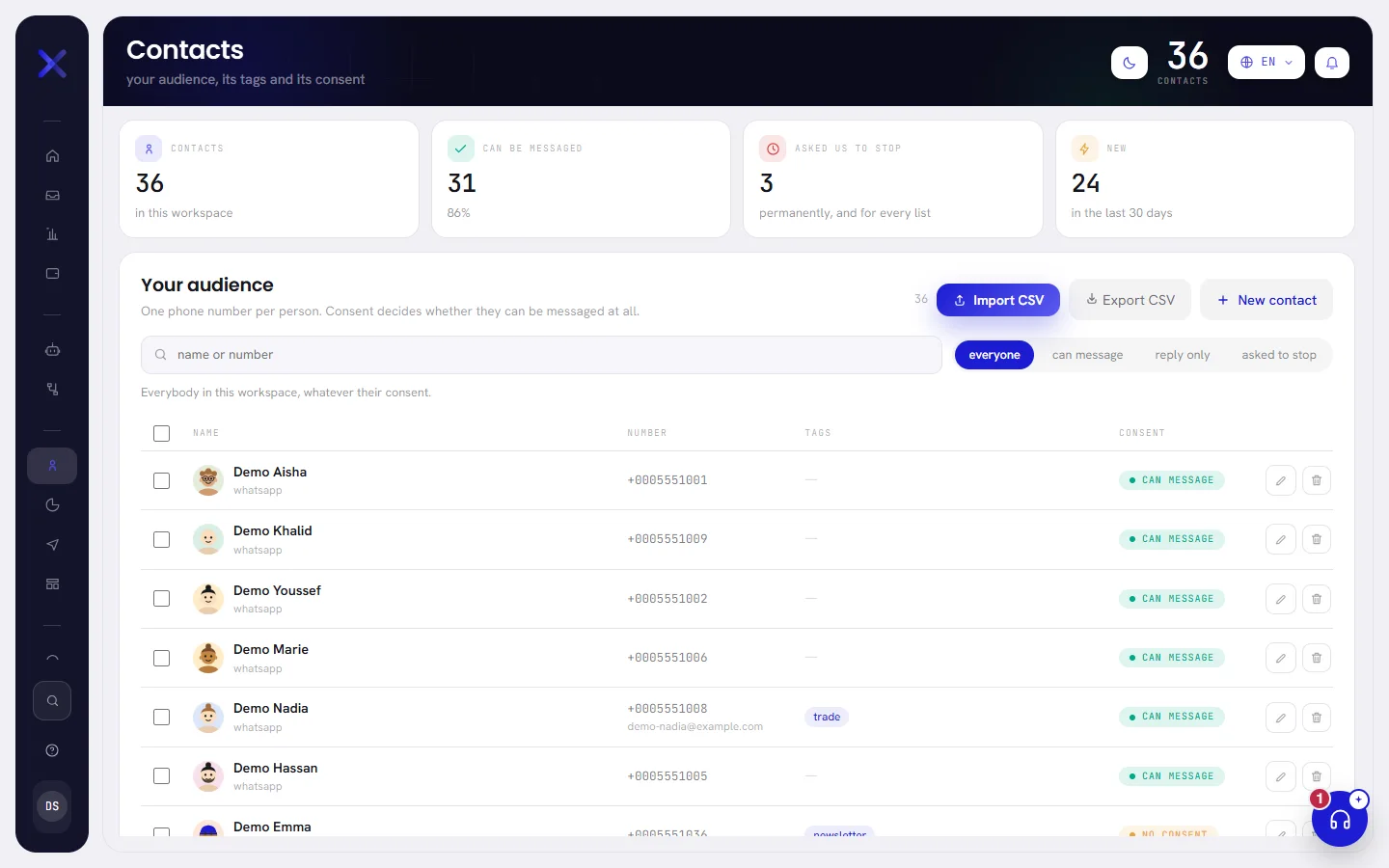
Open Contacts in the menu to see everybody, find somebody, add or import people, export the list, or remove contacts.
How a contact is created
You do not have to create contacts yourself. Most of them arrive by writing to your number.
| How | Consent it starts with | Under the name, the list says |
|---|---|---|
| Somebody writes to your number for the first time | Can message | whatsapp |
| You add one person with New contact | Can message if you tick the box, No consent if you do not | added by hand |
| You import a file with Import CSV | No consent | import, or what the file’s own column says |
| A number shared with the WhatsApp Business app brings its earlier conversations across | Can message, or Opted out if they once wrote a word that asks to stop | whatsapp_history |
| The same number brings its address book across | No consent | whatsapp_history |
| You write to somebody new from the WhatsApp Business app on that phone | Can message | Nothing |
A person who writes to you is given the name on their WhatsApp profile. A name you typed yourself is never replaced by it.
What each consent means, and what the app sends to whom, is in Consent and opt-outs. Adding one person is in Add and edit contacts, a file in Import contacts.
Read the list
The list shows 50 contacts a page, the one added most recently first. It cannot be sorted another way.
| On the screen | What it does |
|---|---|
| Name | The contact’s name, or no name when there is none. Under it, in grey, where the contact came from. |
| Number | The WhatsApp number in international form. Under it, the email address if the contact has one. |
| Tags | The first three tags. When there are more, a last one counts them: +2. A dash means no tag. |
| Consent | One of three badges: Can message in green, No consent in amber, Opted out in red. |
| Edit contact | The pencil at the end of a row. It opens the contact to change what you know about them. |
| Remove | The bin at the end of a row. It removes this one contact, after asking you to confirm. |
When the list is longer than one page, a line under it says where you are, for example Showing 1–50 of 180 contacts, with Back and Next to turn the page.
Search and filter
To find one person, type part of their name or of their number in the box that reads name or number, then press Enter.
The search looks at names and numbers only. It does not look at emails or tags.
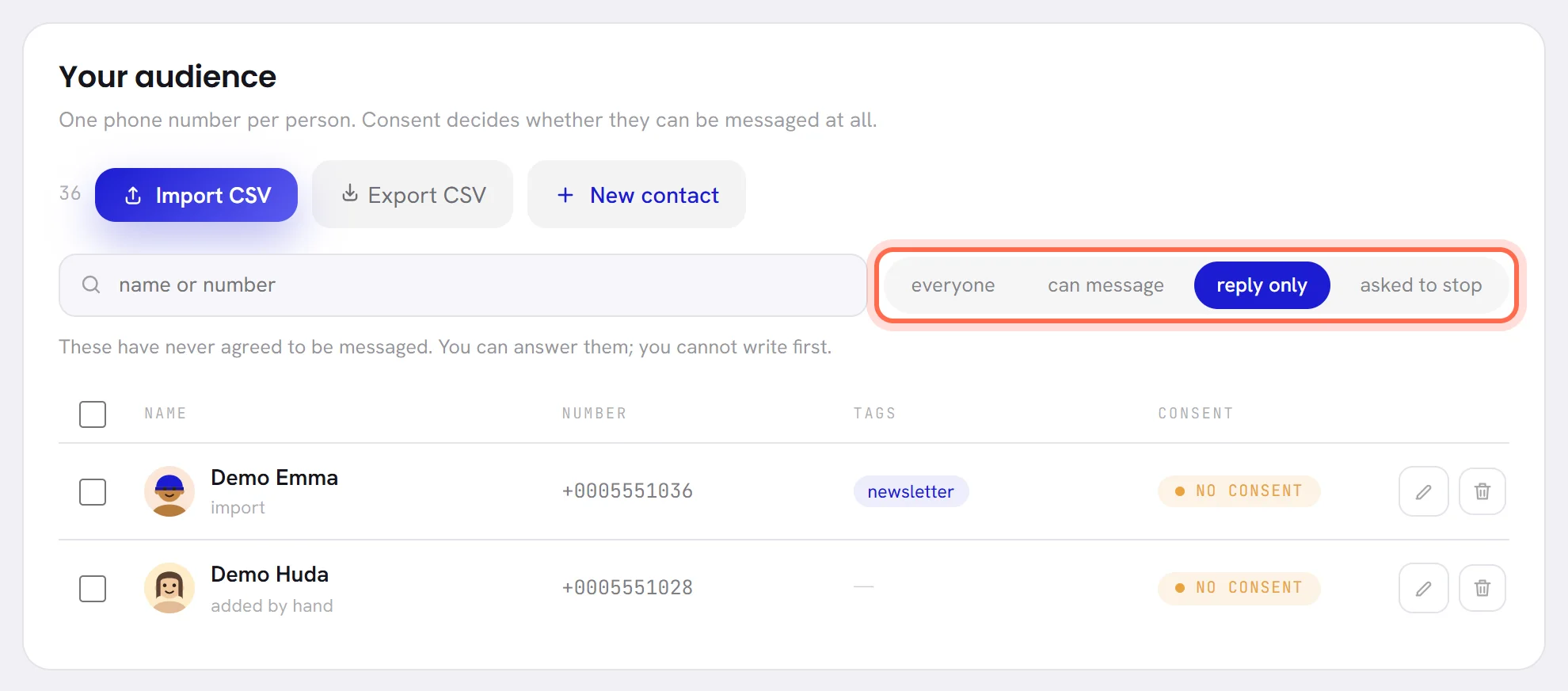
To see one kind of consent, click a filter beside the search box.
A sentence under the box says what the chosen filter means.
| On the screen | What it does |
|---|---|
| everyone | Every contact, whatever their consent. |
| can message | Contacts marked Can message: the ones a campaign reaches. |
| reply only | Contacts marked No consent: they never agreed to be written to, and never asked you to stop. Nothing is sent to them as long as they carry that mark: see the three states. |
| asked to stop | Contacts marked Opted out. Nothing is sent to them again. |
When nothing matches, the list says Nothing matches that. A workspace that has no contact yet says No contacts yet.
There is no filter by tag on this screen. To see everybody who carries a tag, build a segment with the rule for a tag.
Select several contacts and remove them
Removing is the one thing you can do to several contacts at once.
Tick the box at the start of each row you want.
The box at the top of that column ticks every row of the page you are on, 50 at most. A bar appears above the list with the number of contacts selected.
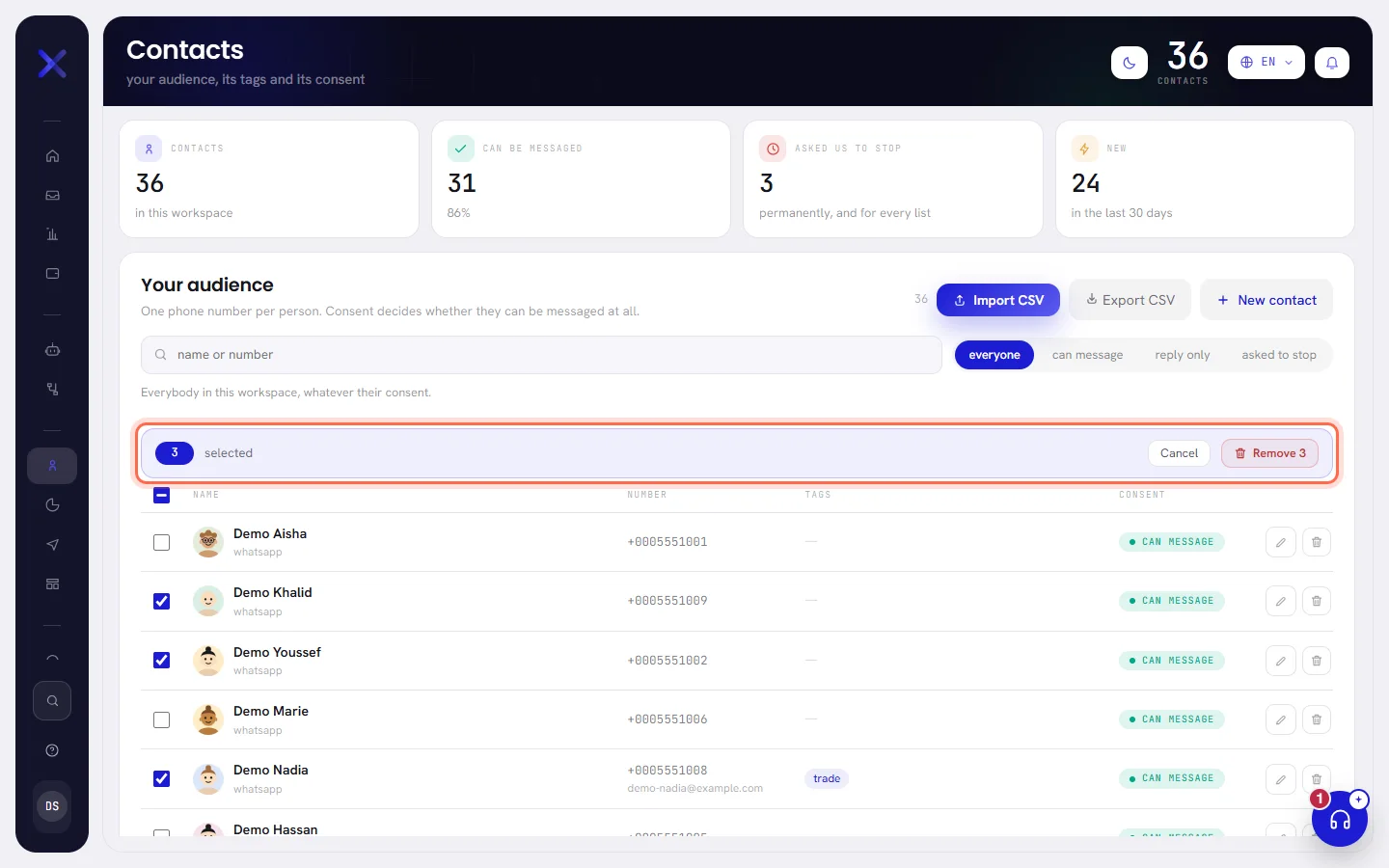
Click the red button of the bar, for example Remove 3.
Cancel in the bar unticks everything instead.
Confirm.
The app asks once more, with the number of contacts, then removes them. A line above the list says how many were removed.
Everything on the screen
| On the screen | What it does |
|---|---|
| Contacts | How many contacts the workspace has. The same figure is at the top right of the screen. |
| Can be messaged | How many are marked Can message, and their share of all your contacts. |
| Asked us to stop | How many opted out. |
| New | How many were added in the last 30 days. |
| Import CSV | Opens the import window, to bring in a file of contacts or a list you paste. See Import contacts. |
| Export CSV | Downloads every contact as a file. See Export contacts. |
| New contact | Opens the window that adds one person by hand. See Add and edit contacts. |
| name or number | The search box. |
The four filters, the columns of the list and the two buttons of each row are described in the sections above.
Good to know
- Who can open it: people whose access includes Contacts and segments. With the roles as they come, an org admin and a manager have it and an agent does not. See Roles and access.
- It needs nothing else: you can add and import contacts before a number is connected.
- Contacts are part of every plan. Your plan does not count the contacts you keep; it counts the contacts you exchange messages with in a month. See Plan limits.
- Adding, editing, importing, removing and exporting contacts are written to the workspace’s activity log, with who did it.
Questions
How do I open a contact’s conversation?
From the Inbox, not from here: search the name or the number there. See Find a conversation. In a conversation, the name at the top opens the contact’s details, with a button to edit the contact.
Can I find a contact from another screen?
Yes. Search in the menu finds a contact by name or number from any screen, and opens it ready to edit.
Why does a contact say “no name”?
Nobody gave one: the file it came from had no name for that row, or it was added by hand without one. Open it with the pencil and type the name.
Why did the same person not appear twice after an import?
A number is one contact. A file row with a number you already have updates that contact; it does not create a second one.