The five blocks
A workflow is made of five kinds of block. Click a block on the canvas to open its panel; the panel’s Save puts your choices on the block.
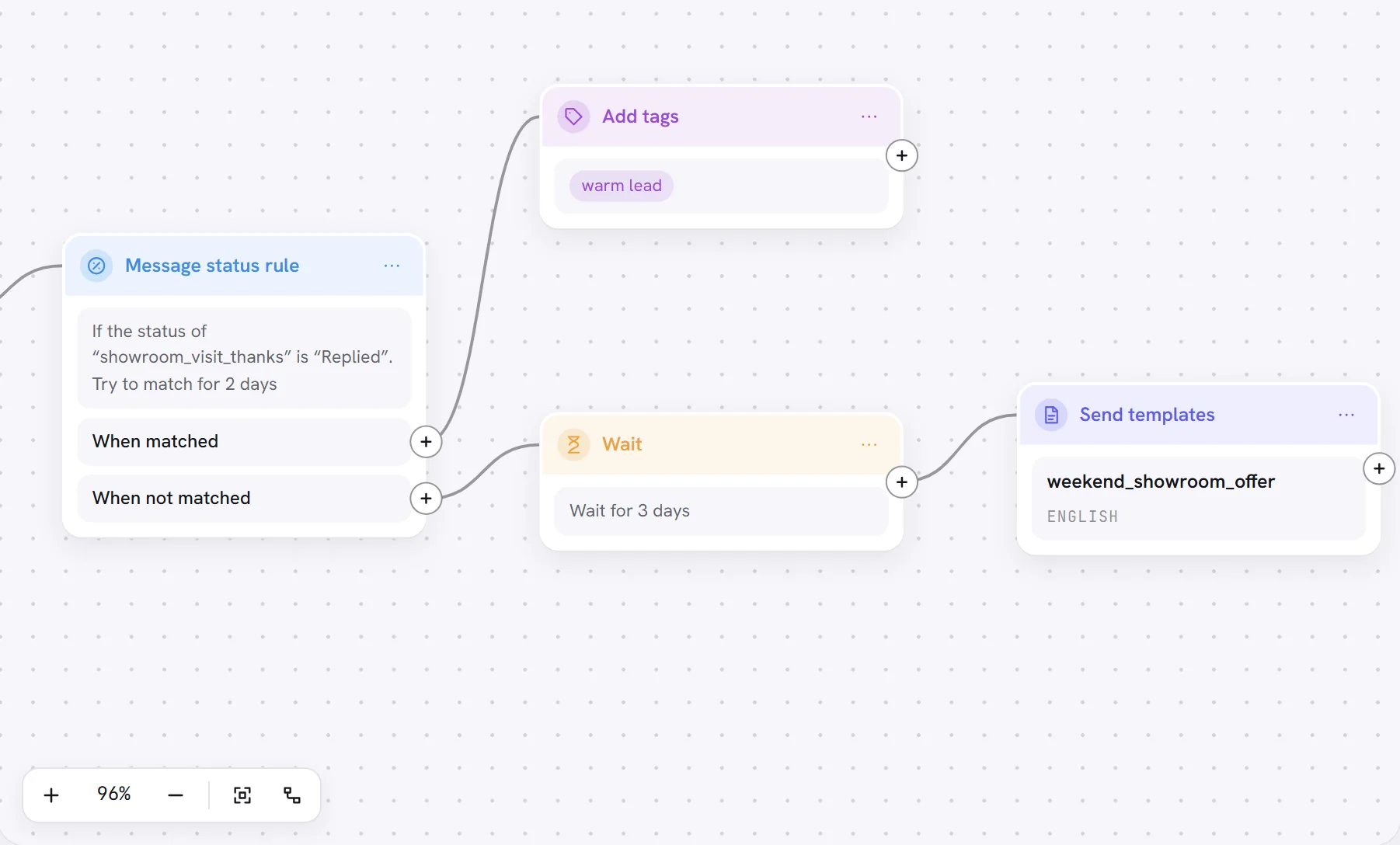
| Block | What it does | Ways out |
|---|---|---|
| Trigger | Decides who enters and when, which number sends, what takes a contact out early and what counts as the goal. | One |
| Send templates | Sends one approved template to the contact. | One |
| Update tags | Puts one or more tags on the contact, or takes them off. | One |
| Wait | Holds the contact for a time you set. | One |
| Message status rule | Checks whether a template sent earlier was delivered, read or answered. | Two: When matched and When not matched |
These are all the blocks there are. No step hands a conversation to a person or to your AI agent, and none sends free text: a workflow writes with templates, and a contact’s reply is answered in the Inbox.
Trigger: who enters
The first part of the panel, Entry trigger, decides who comes into the workflow.
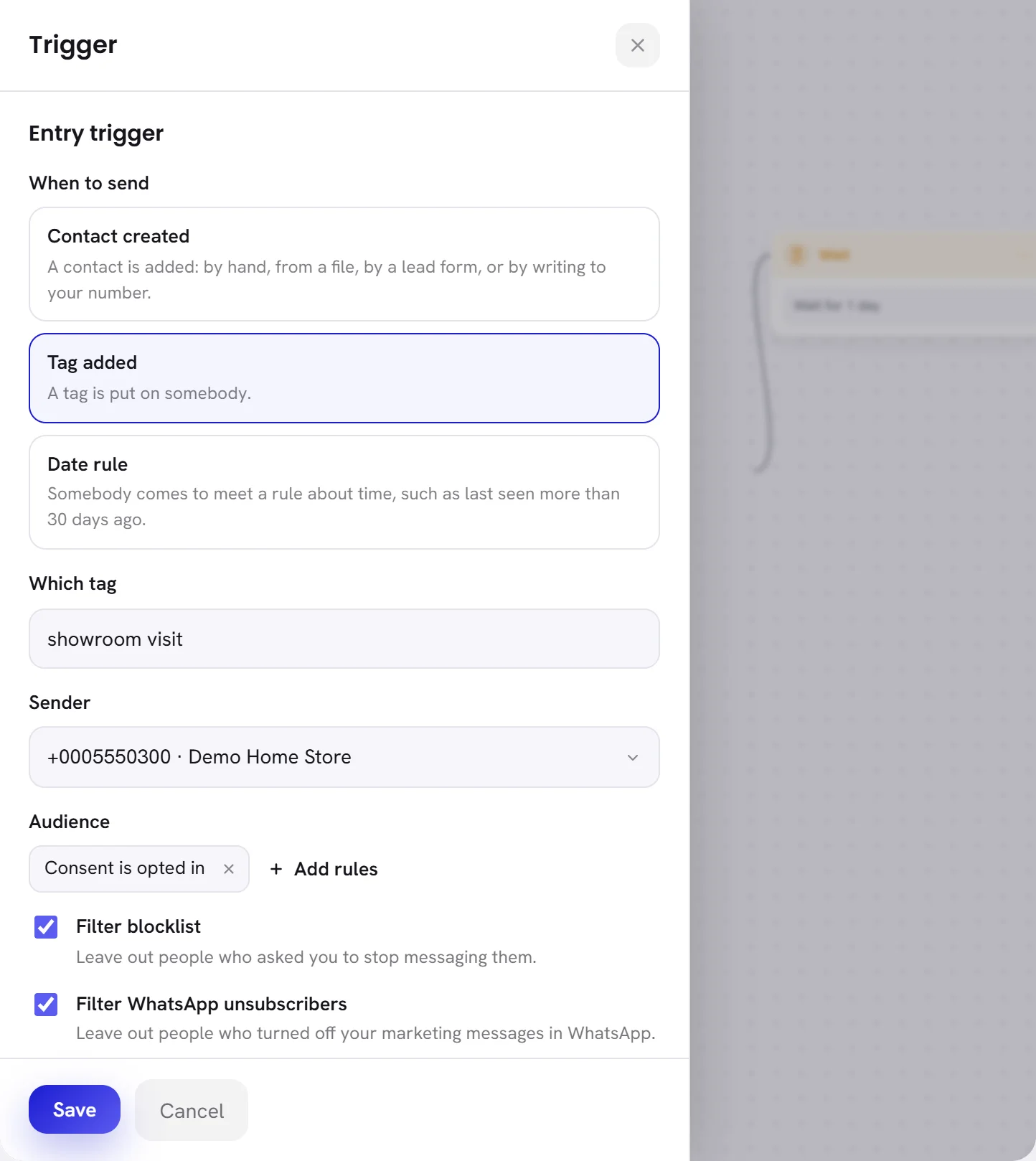
| On the screen | What it does |
|---|---|
| When to send | What lets a contact in: one of the three choices below. |
| Contact created | A contact is added to your workspace: by hand, from an imported file, or because somebody wrote to your number for the first time. |
| Tag added | A tag is put on a contact, by a person, by your AI agent, by an import or by another workflow. Type the tag under Which tag; capital letters make no difference. |
| Date rule | A contact comes to meet a rule about time, built from Last seen and Created: for example, last seen more than 30 days ago. The workflow looks every minute. |
| Sender | The WhatsApp number every message of this workflow is sent from. It is required. With no number connected the panel says No WhatsApp number is connected yet. |
| Audience | Rules a contact must also meet to enter. With none, the block says Everyone. |
| Filter blocklist | Ticked, contacts who asked you to stop messaging them do not enter. |
| Filter WhatsApp unsubscribers | Ticked, contacts who turned off your marketing messages in WhatsApp do not enter. |
| Enter rules | Enter once, first time the person matches the rules: a contact goes through this workflow once, ever. Enter every time the person matches the rules: a contact can enter again each time the trigger fires for them, but not while they are still inside. |
- Both filters are ticked on a new trigger. Leave them ticked unless you have a reason.
- With a date rule, Enter every time the person matches the rules cannot be chosen. The panel says A date rule lets each person in once.
- Contacts that arrived with a number’s earlier chats or its address book (their source is WhatsApp history) never enter through Contact created or Tag added.
- Whatever the trigger lets in, the panel reminds you: Only people who agreed to hear from you are sent anything. A contact without consent can enter and take the steps, but receives nothing. See Opt-in and opt-out.
Trigger: exit rule and goal
Scroll down the same panel for Exit trigger and Goal. Both are optional.
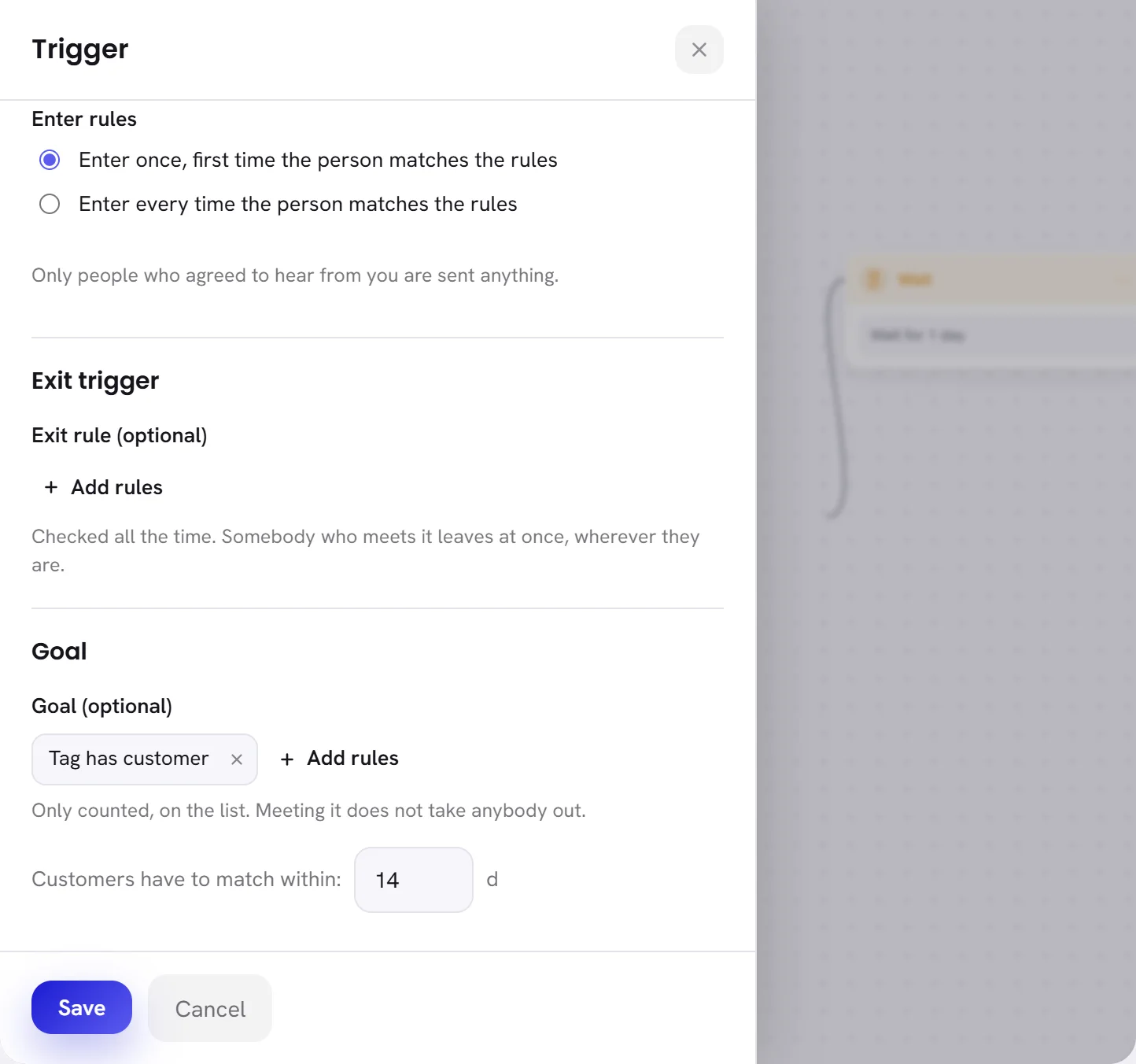
| On the screen | What it does |
|---|---|
| Exit rule (optional) | Rules that take a contact out at once, wherever they are in the workflow. They are checked before every step, and every minute while a contact waits. |
| Goal (optional) | Rules that mean the workflow did its job, such as the contact having a tag your team gives to buyers. Meeting the goal is only counted, under Goal completed on the workflow’s card. It does not take the contact out. |
| Customers have to match within | How many days after entering a contact has to meet the goal for it to count: from 1 to 90, and 3 unless you change it. |
How rules are written
The audience, the exit rule, the goal and the date rule are all written the same way.
Press Add rules.
A small form opens under it.
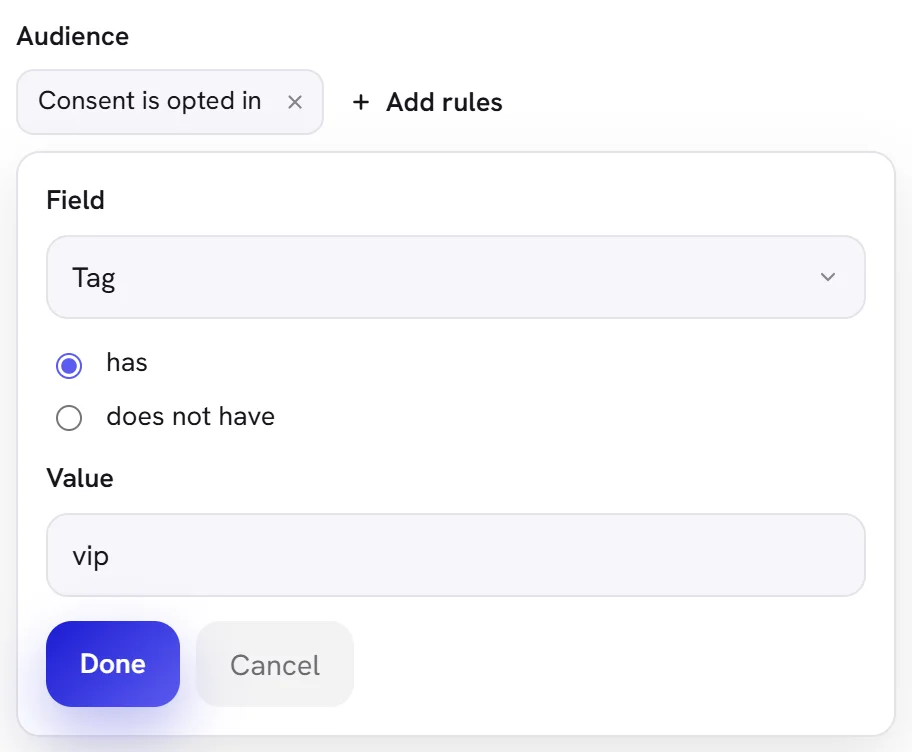
Choose the Field, then the comparison, then the Value.
For Contact field, type the column’s name under Which field first.
Press Done.
The rule becomes a chip that reads as a sentence, such as “Tag has vip”. Click a chip to change it. Its × removes it.
With two rules or more, choose All of these or Any of these.
The chips are joined by “and” or by “or” to match.
| Field | Comparisons | Value |
|---|---|---|
| Source | is, is not | Where the contact came from. Pick from the suggestions: Manually added, File import, WhatsApp message, WhatsApp history, or any other source your contacts carry. |
| Tag | has, does not have | One tag. The tags your contacts already have are suggested. |
| Last seen | less than, more than | A number of days since the contact last wrote to you. more than also matches contacts who never wrote. |
| Created | less than, more than | A number of days since the contact was added. |
| Consent | is | opted in, opted out or never asked. |
| Language | is, is not | The contact’s language: English, Arabic or French. |
| Contact field | is, contains, has any value | A column you imported with your contacts. has any value needs no value. |
| Name | contains | Part of the contact’s name. |
| Number | starts with | The first characters of the number, for example +971. |
A date rule offers Last seen and Created only. One set of rules holds up to 20. When you pick a suggestion for Source, the box shows its short code (import for File import); the chip shows the full name again.
Send templates
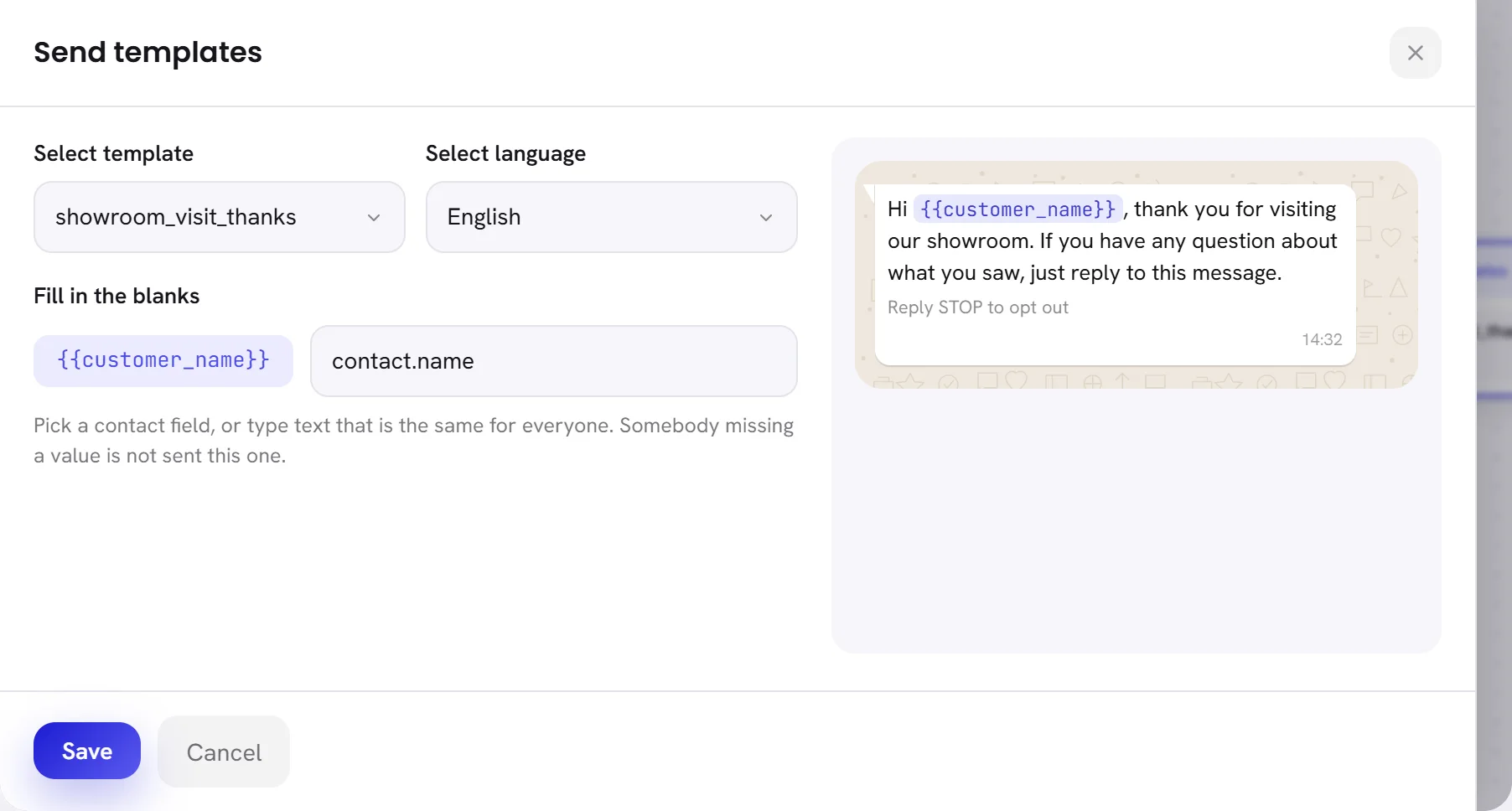
Sends one approved template to the contact, from the trigger’s Sender.
| On the screen | What it does |
|---|---|
| Select template | The template to send, by name. Only templates Meta has approved are listed. |
| Select language | The language of that template. When the template exists in one language, it is chosen for you. |
| Fill in the blanks | One box for each variable of the template. Pick a contact field from the suggestions (their name, their first name, their number, their email, their language or a column you imported), or type words that are the same for everyone, up to 120 characters. A picked field shows as a short code, such as contact.name. |
| Image or file | Shown when the template was approved with a picture, a video or a document at the top. Upload file takes the file to send with it: JPG, PNG, WEBP, PDF or MP4, up to 5 MB. |
The right side of the panel shows the message as a phone shows it. Until a template is chosen it says Select a template to preview.
- Choose the trigger’s Sender first. Without it the panel says Unable to find available templates. Please select a sender in the trigger first.
- With no approved template the panel says No approved template yet. Meta must approve one before a workflow can send it. See Template categories and review.
When a contact reaches the step:
- The template is sent whether or not the contact’s 24-hour window is open. This is why a workflow writes with templates.
- A contact gets the message of a block once. The same block never sends twice to the same contact in one run.
- During your workspace’s Quiet hours the step waits, and sends when they end. They are set under Notifications in Settings: see Notification settings.
- If WhatsApp cannot take the message, the workflow tries three times, five minutes apart, then moves on.
- If Meta cannot charge your WhatsApp account, or your free trial has ended with no plan active, the step waits and tries again every 15 minutes. Nothing is lost. See Add a payment method at Meta.
In these cases nothing is sent and the contact moves on to the next step:
- The contact has not agreed to hear from you, or has opted out. See Opt-in and opt-out.
- The template is a marketing template and the contact turned off marketing messages from your business in WhatsApp.
- One of the blanks has no value for this contact, for example a contact with no name.
- The template is no longer approved, or the number is no longer connected.
- The contact has no WhatsApp number to send to.
Wait
| On the screen | What it does |
|---|---|
| Wait for | Three boxes, marked d, h and m: days, hours and minutes. Up to 365 days, 23 hours and 59 minutes. A new block is set to 1 day, and the time must be more than zero. |
- The time counts from the moment the contact reaches the step. On the canvas the block reads, for example, Wait for 3 days.
- The workflow looks every minute, so a wait ends within a minute of its time.
- Quiet hours do not stretch a wait. They hold the Send templates step that comes after it.
Message status rule
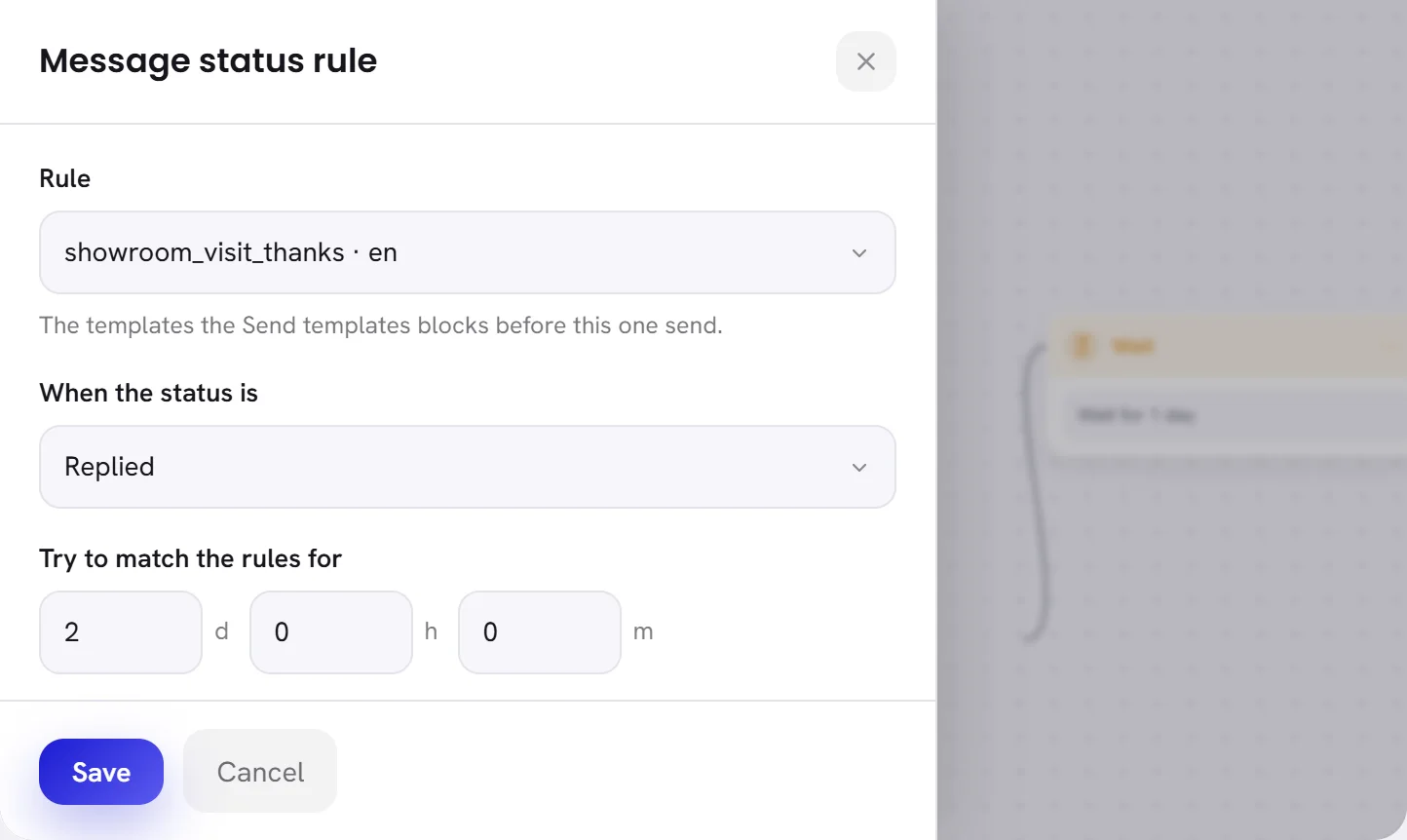
Looks at a template that an earlier Send templates block sent to this contact, and sends the contact one of two ways.
| On the screen | What it does |
|---|---|
| Rule | Which template to look at. The list holds the templates of this workflow’s Send templates blocks. Choose one that is sent before this block, on the same path. |
| When the status is | Delivered: the message arrived on the phone. Read: the contact opened it. Replied: the contact wrote anything back after it was sent, whether words, a button or a voice note. |
| Try to match the rules for | How long to wait for that status, in days, hours and minutes. A new block is set to 3 days. |
| When matched | The way out a contact takes once the status is reached, within a minute of it. The workflow does not wait for the time to run out. |
| When not matched | The way out a contact takes when the time runs out first. A contact the template was never sent to leaves this way too. |
On the canvas the block reads as a sentence: If the status of “showroom_visit_thanks” is “Replied”. Try to match for 2 days. A new rule added after a Send templates block watches that block’s template without being told.
Limits
| What | Limit |
|---|---|
| Blocks in a workflow | 60 |
| Rules in one audience, exit rule, goal or date rule | 20 |
| Tags in one Update tags block | 10, of 40 characters each |
| Typed text in a blank | 120 characters |
| File for a template’s header | 5 MB: JPG, PNG, WEBP, PDF or MP4 |
| A Wait, or the time of a Message status rule | 365 days, 23 hours and 59 minutes |
| Days to meet the goal | 1 to 90 |
| Contacts a date rule lets in | 200 a minute |