What a team is
A team is a group of people who share a queue of conversations: sales, support, deliveries. A conversation handed to a team waits there for whoever is free, in place of waiting for one named person.
A role says what somebody may do. A team says what they work on. A person can be on several teams or on none, and being on a team changes what they see in the inbox and nothing else.
What a team is used for
- In the inbox, a conversation can be handed to a team. It sits under On a team until somebody takes it, and the people on the team see it even when they do not see everyone’s conversations. See Assign and hand over.
- In the inbox, Show one team keeps one team’s queue on the screen.
- Your AI agent can hand a conversation to a team, when its instructions name that team. See Agent profile and instructions.
- In Reports, Desks gives the figures team by team. A team is called a desk there. See Team and campaign reports.
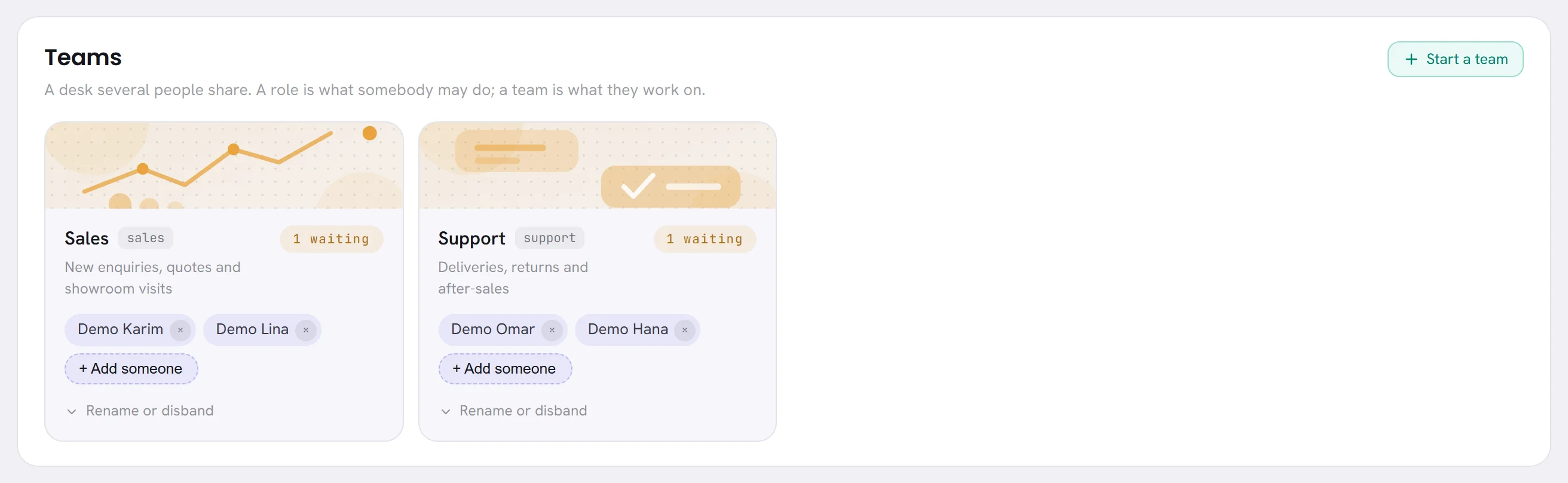
A team’s card
- Its name and, beside it in grey, the word your AI agent hands over to. That word is made from the first name you give the team and never changes, even when you rename the team.
- What the team is for.
- How many conversations are waiting: on the team, and not yet taken by a person. The badge turns amber when there are any.
- The people on it, each with a cross to take them off.
- + Add someone, to put a person on it.
- Rename or disband.
A team with nobody on it says so in amber: nothing can be handed to it.
Start a team
On Team, press Start a team.
Type its name under What to call it.
For example, Sales.
Say what it is for under What it is for.
This is optional. It is shown on the team’s card.
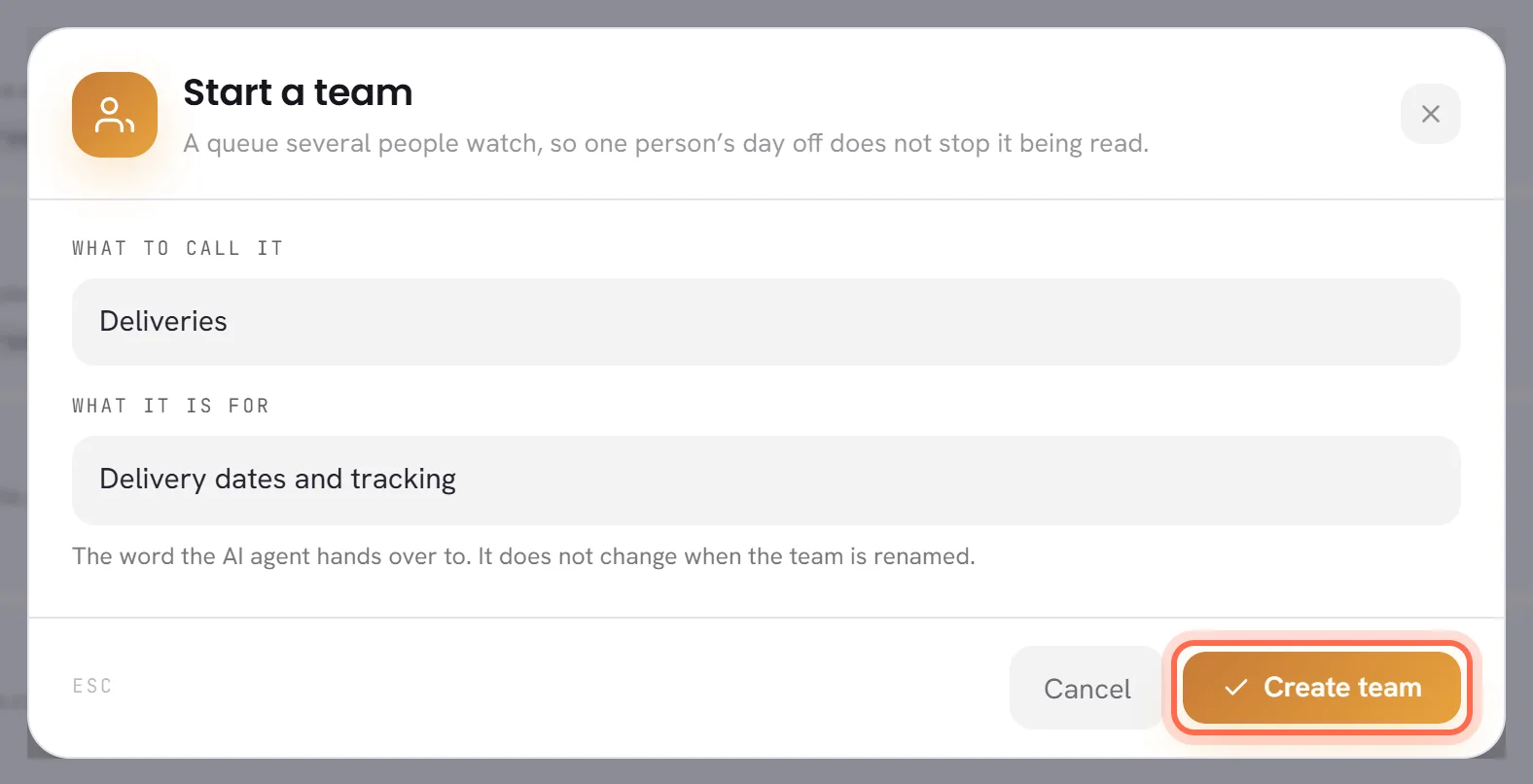
Press Create team.
The team appears among the cards, with nobody on it yet.
Give each team its own name. The word your agent hands over to is made from the name, and a second team with the same name gets a number at the end of that word.
Put people on a team, and take them off
On the team’s card, open + Add someone and choose a person.
They are on the team at once. The list holds everybody in the workspace who is not on this team yet.
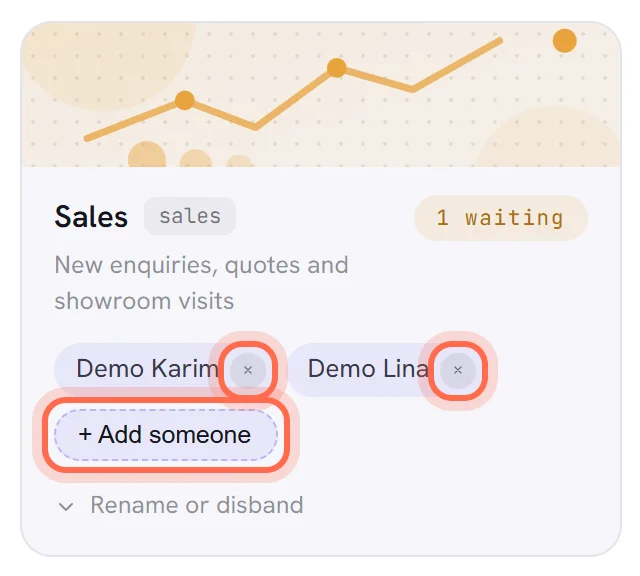
To take somebody off, press the cross beside their name.
They are off the team at once. The conversations they hold stay theirs.
Rename a team
On the team’s card, open Rename or disband.
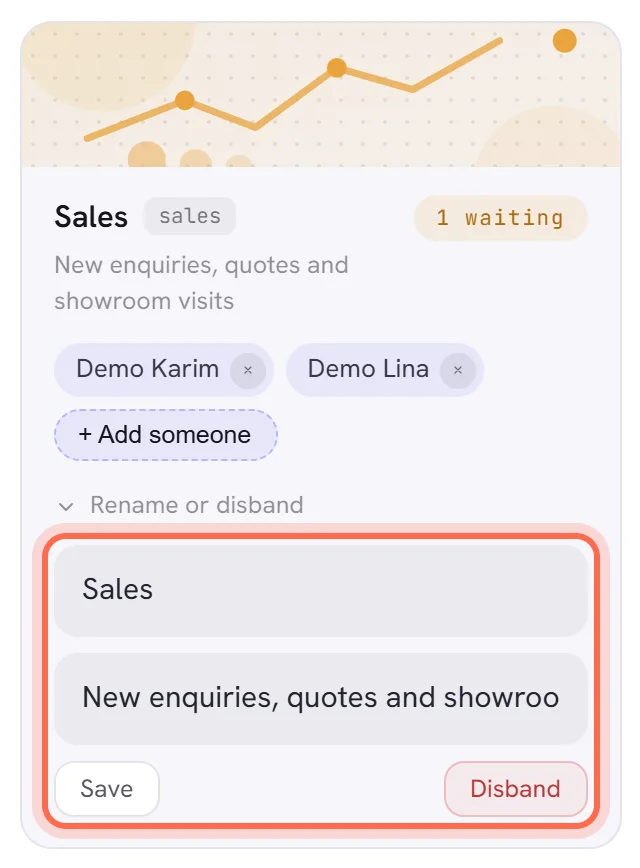
Change the name, or what the team is for.
Press Save.
The word your agent hands over to stays the same, so its instructions keep working.
Disband a team
On the team’s card, open Rename or disband and press Disband.
In the pop-up, press Disband to confirm.
The pop-up says what happens: the conversations the team holds go back to the shared inbox. Nothing is deleted, but the queue is gone.
Good to know
- Who can start, change and disband teams: people whose access includes The team.
- Teams are listed by name, twelve to a page.
- Every change to a team is written in the activity log.