Who can write in a conversation
Only whoever holds a conversation writes in it, so a customer never reads two voices at once. What you find at the bottom of a conversation depends on who holds it.
| Who holds it | At the bottom of the conversation | What to do |
|---|---|---|
| Your AI agent | A line such as Demo Maya is answering this thread. and the button Take over. | Select Take over. The conversation becomes yours and the reply box appears. |
| You | The reply box. | Write. |
| Nobody yet | The reply box. | Choose me in the assignment menu at the top, then write. See Assign and hand over. |
| A colleague | The reply box, but a reply is refused. | If the conversation should be yours, choose me in the assignment menu first. |

Send a reply
Open the conversation in Inbox.
Type in the box that says Type your reply…
The box holds one paragraph. A message can be up to 4,096 characters, the most WhatsApp takes.
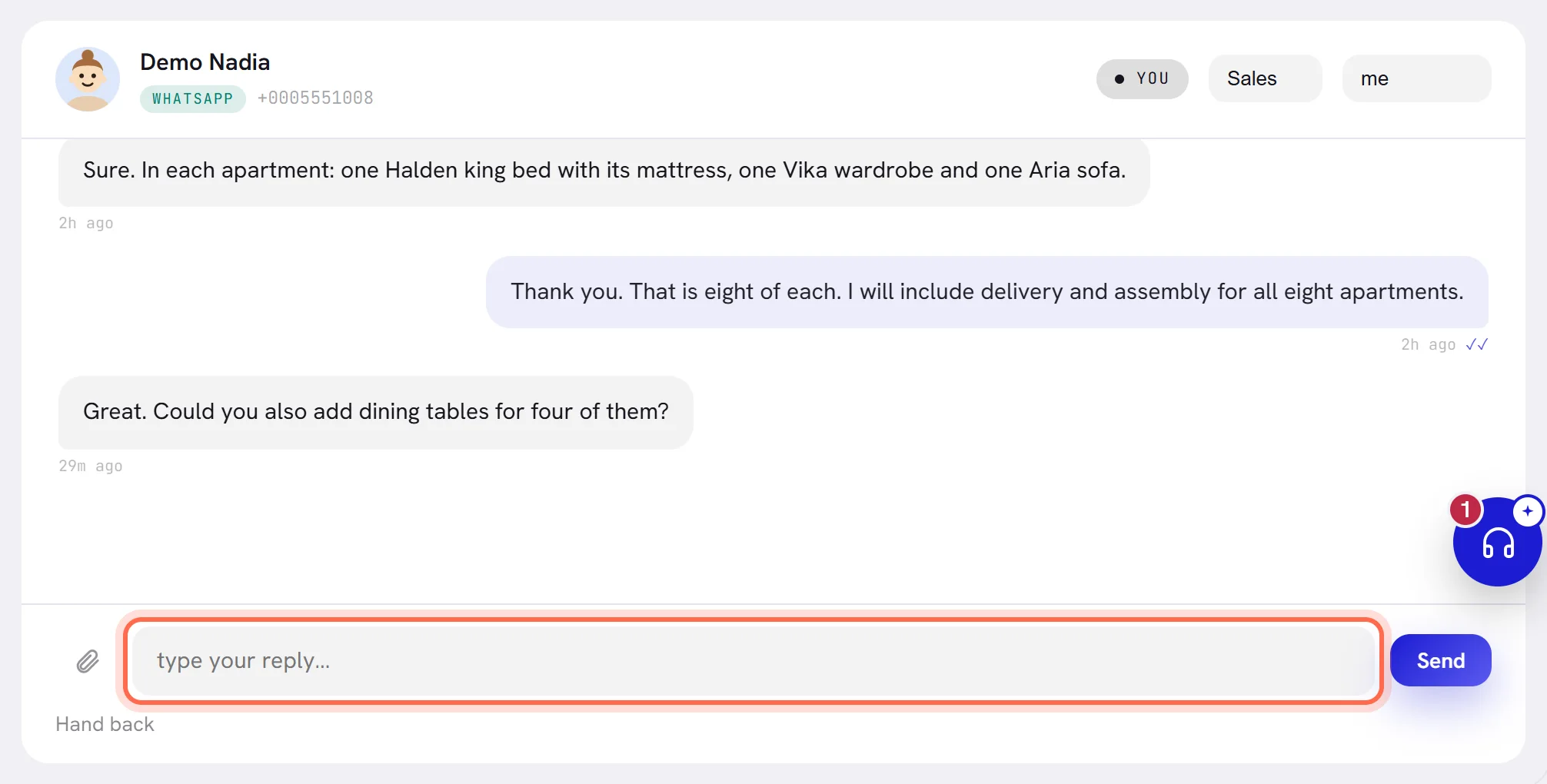
Select Send, or press Enter.
The message joins the end of the conversation with the mark ◌. It turns into ✓ when WhatsApp has the message, and ✓✓ when it reaches the customer’s phone.
Send a picture or a file
Select the paperclip, Attach a file, and choose the file.
One file goes with each message.
The reply area does not show which file you chose. It goes when you select Send.

Type a caption in the reply box if you want one.
A caption is kept up to 1,024 characters. A file can go with no words at all.
Select Send.
| Kind | Files that can be sent |
|---|---|
| Pictures | JPG, PNG, WebP |
| Documents | PDF, Word (.doc, .docx), Excel (.xls, .xlsx) |
| Video | MP4 |
| Audio | MP3, OGG |
A file can be up to 16 MB. Once sent, a picture is shown in the conversation, audio and video play there, and a document shows its name and size.
Everything in the reply area
| On the screen | What it does |
|---|---|
| Attach a file | The paperclip. Opens your computer’s file chooser. |
| Type your reply… | The reply box. Enter sends what is in it. |
| Send | Sends the words, the file, or both. |
| Hand back | Under the reply box. Gives the conversation back to your AI agent. See Assign and hand over. |
| Take over | Shown in place of the reply box while the agent holds the conversation. Makes it yours. |
When the 24-hour window is closed
WhatsApp lets a business write freely only within 24 hours of the customer’s last message. After that, only an approved template can reach them. The 24-hour window explains the rule.
A conversation whose window is closed says so in two places: Window closed beside the customer’s number at the top, and, where the reply box was, the notice The 24-hour window is closed.
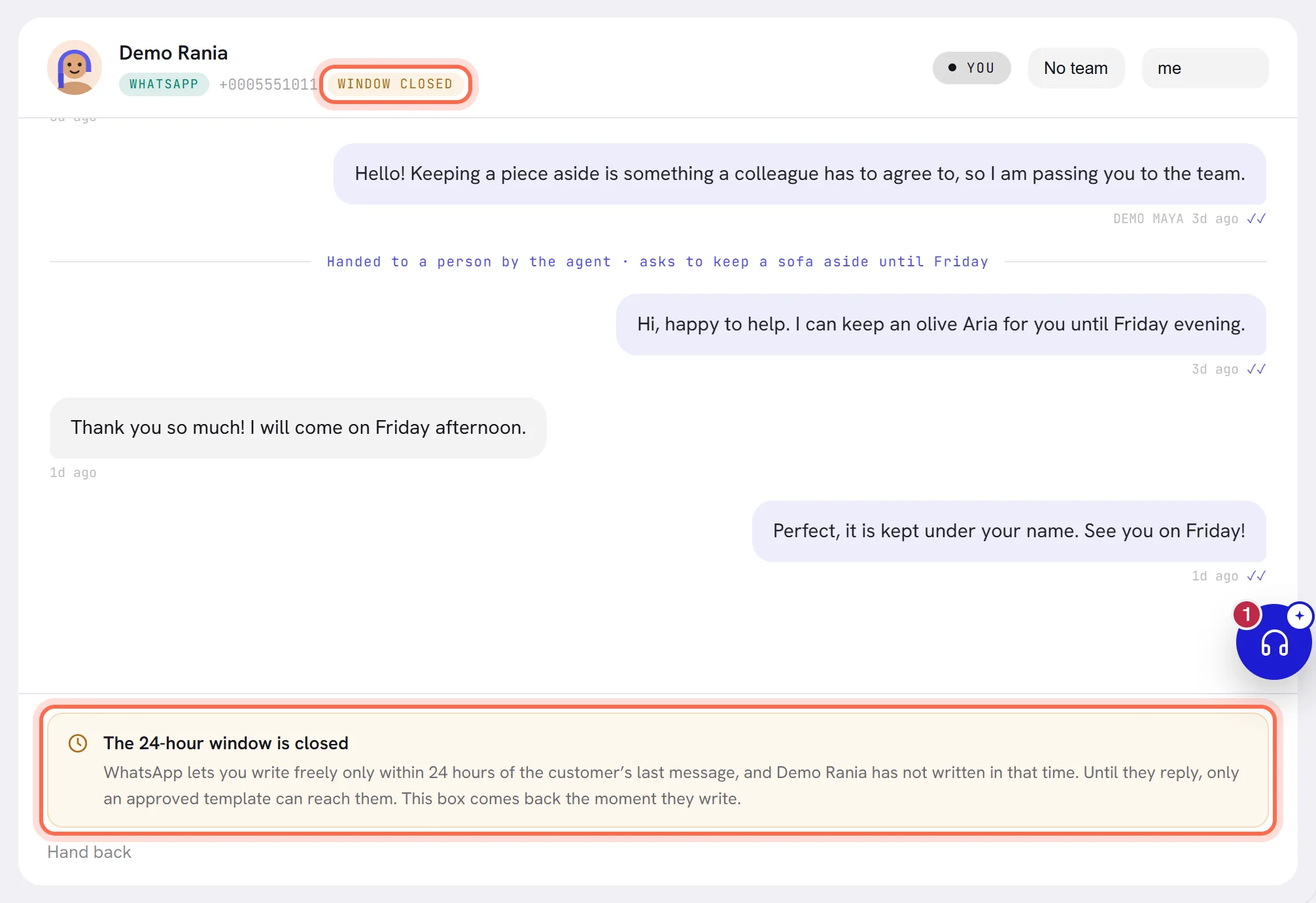
From here there are two ways forward:
- Wait for the customer. The reply box comes back the moment they write, and you have 24 hours from that message.
- Send an approved template. The inbox does not send templates: reach the contact with a campaign or a workflow. See Create a campaign and Build a workflow.
When a reply does not go
A reply can be stopped at two moments: before it leaves the screen, and on its way to the customer.
Before it is sent, a line in red appears above the reply box, and what you typed stays in the box. A file has to be chosen again.
| On the screen | What it does |
|---|---|
| The AI agent is answering this conversation. Take it over first, then write. | The conversation went back to the agent after you opened it. Select Take over. |
| Somebody else is handling this conversation. It has to be assigned to you before you can write in it. | The conversation is a colleague’s. Choose me in the assignment menu at the top if it should be yours. |
| Not sent: the 24-hour window is closed. Only an approved template can reach this customer until they write back. | The window closed after you opened the conversation. |
| That message is longer than WhatsApp allows. | More than 4,096 characters. Send it as two messages. |
| That file is too large to send. 16 MB is the limit. | Choose a smaller file. |
| WhatsApp will not carry that kind of file. | The file is not one of the kinds listed above. |
After it is sent, a message that could not be delivered is marked Not delivered in red, with the reason under it. When WhatsApp cannot be reached, xconversions tries the message again a few times before it gives up. The reasons are written in English:
| The reason says | What it means, and what to do |
|---|---|
no connected number to send from; connect one in Channels | Your workspace has no connected number. See Connect a WhatsApp number. |
A reason ending in reconnect it in Channels | The number the reply would go from is no longer connected. See Reconnect a number. |
the contact has opted out | Nothing can be sent to this contact: their details show asked to stop or reply only. See Contact details and notes. |
the thread changed hands before this could send | The conversation was not yours when the message left: it had gone back to the agent, or the agent had closed it. Choose me in the assignment menu and send again. |
the service window has closed | The 24 hours ran out before the message left. |
WhatsApp could not charge this account, so its payment method needs attention | Meta could not bill your WhatsApp account. See Add a payment method at Meta. |
WhatsApp could not deliver it: the number may not be on WhatsApp, or has not accepted its latest terms (131026) | The problem is on the customer’s side. There is nothing to fix on yours. |
A number in brackets at the end of a reason is WhatsApp’s own error code. Give it to support when the reason does not tell you what to do. More causes are in Messages are not sending.
Good to know
- Everybody in the workspace can reply in a conversation they can open, once it is theirs.
- A reply goes out from the number the customer last wrote to.
- The reply area takes words and files. It has no emoji picker and does not record voice notes: an emoji typed from your keyboard is sent as it is, and a recording can be attached as an audio file.
- A message cannot be changed or removed once it is sent.