Before you start
- You need access that includes The team.
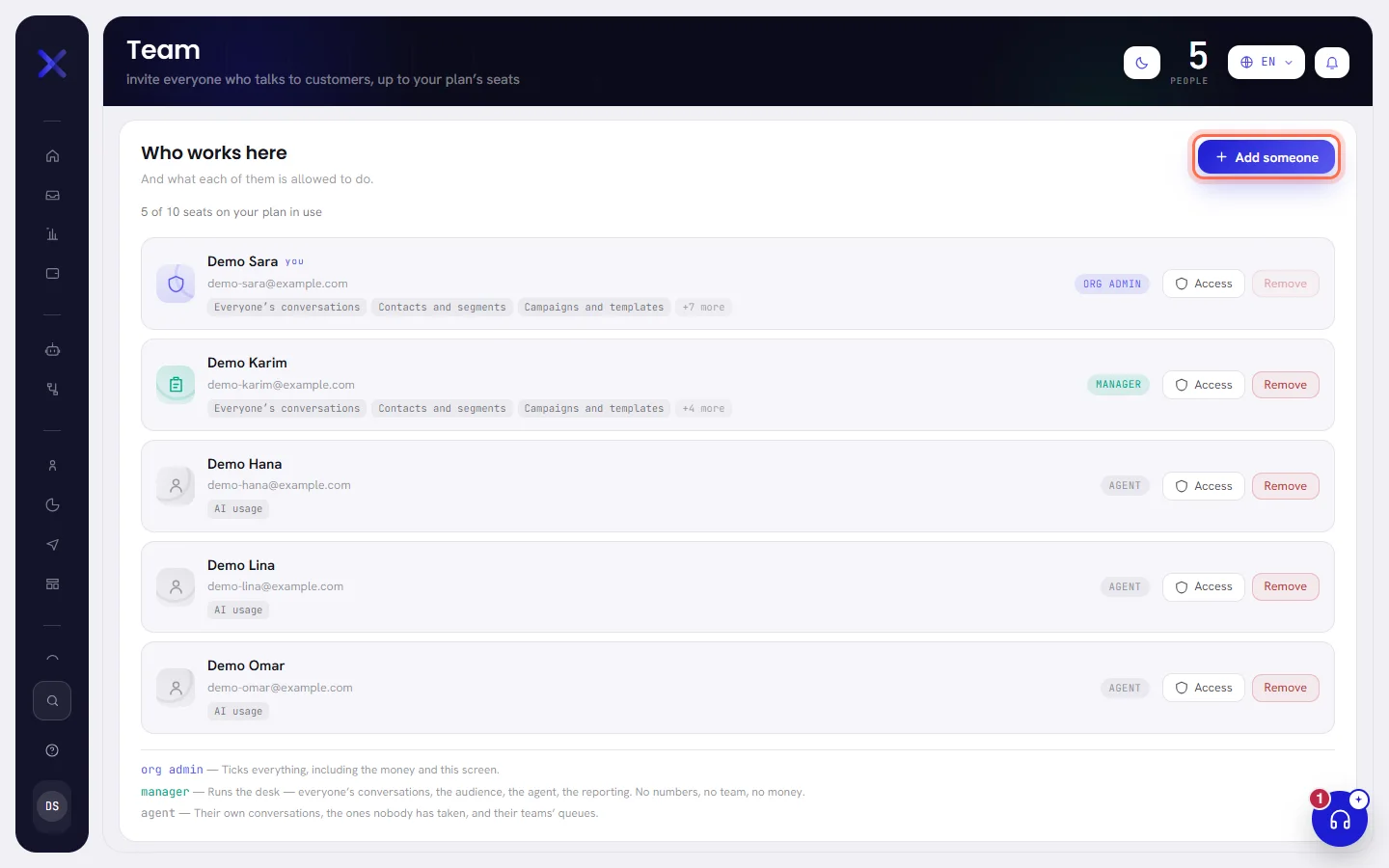
- Your plan needs a free seat. The line at the top of the Team screen says how many are in use.
- The person needs an email address that has no xconversions account yet. One address is one account, and an account belongs to one workspace.
Add someone
Open Team and press Add someone.
Under Who they are, type their Name and their Work email.
The line under the two boxes says what happens when you finish: the person gets an email with their password.
Press Next.
The window moves on to What they may do. Back returns to the first step, with what you typed.
Choose their Role.
Each role has a line saying what it gives: Org admin, Manager or Agent. Choosing one ticks its boxes in the list under it.
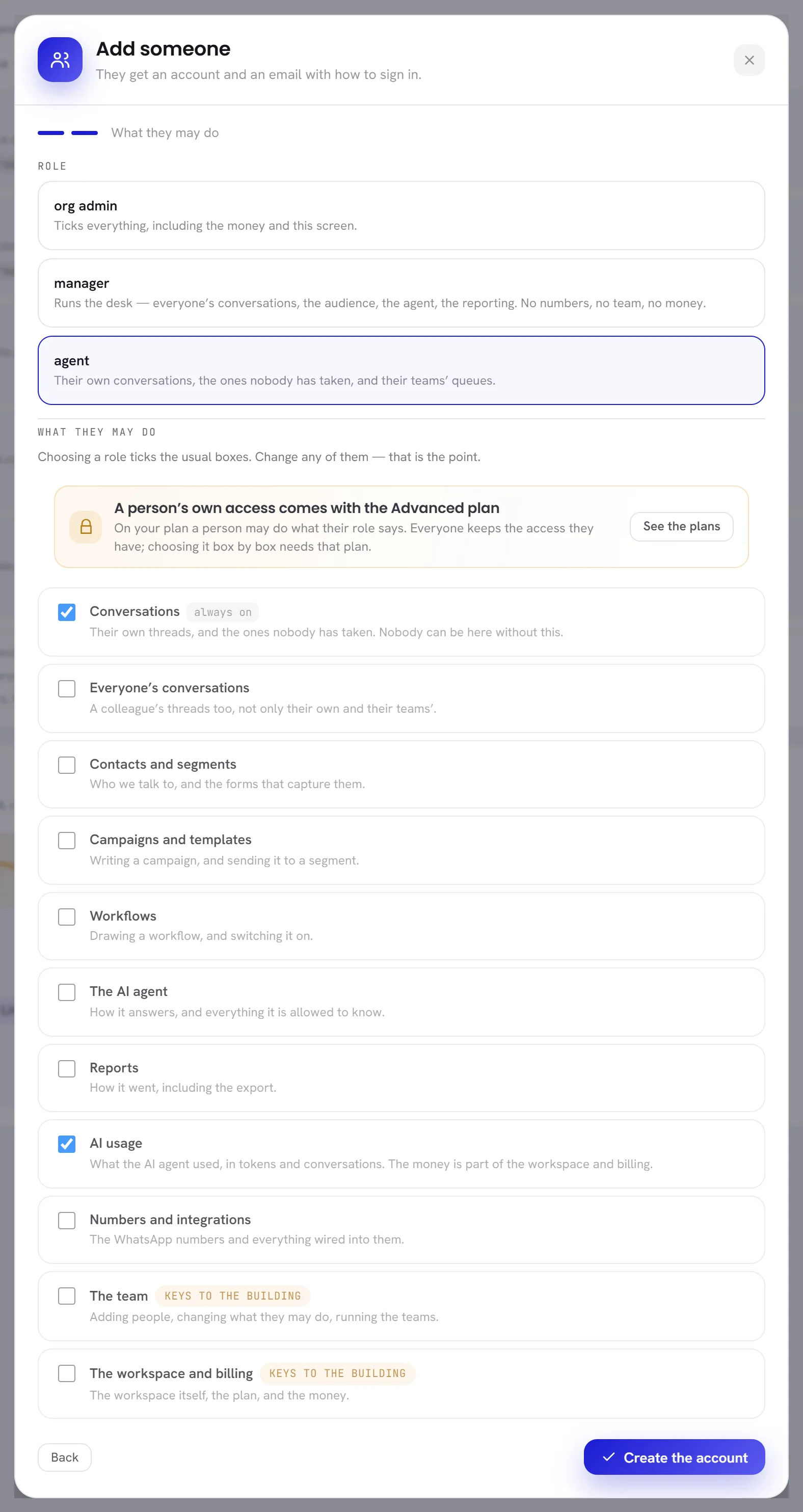
Check the list of what they may do.
The boxes say exactly what the person may open. When your plan allows it, tick or untick any of them: the person is then marked Tailored.
Conversations is always on. The team and The workspace and billing are marked keys to the building: somebody who holds one of them can give themselves the rest.
Each box is explained in Roles and access.
Press Create the account.
The account is made at once. The person is on the list, and holds a seat.
After you add them
A note at the top of the Team screen says what happened to the email.
| The note says | What it means |
|---|---|
| That the email was sent to their address. | The person has an account, and the email carries their password. There is nothing to pass on. |
| That they have an account, but no email reached them. | The email could not be sent. The note shows their email address and their password, each with a Copy button: give them to the person yourself. The password is shown this once and is not kept. |
The email they receive
The email’s subject is your workspace’s name and the word “account”. It says who added them, and gives:
- The email address they sign in with.
- A password that was made for them.
- A Sign in button.
- A request to change that password once they are in.
Their address counts as confirmed: there is no second email to click. They sign in on the sign-in screen, then change their password under Security in Settings. See Sign in and password.
If they did not get the email, or lost it
There is no button to send the email again. The person opens the sign-in screen, presses Forgot your password? and types their address: a link to choose a new password is sent to them.
An invitation cannot be cancelled either, because none is waiting: the account exists as soon as you press Create the account. To undo it, remove the person.
If adding is refused
| What you see | Why | What to do |
|---|---|---|
| Under the email box: the email has already been taken. | That address already has an xconversions account: in another workspace, as the owner of a workspace of their own, or in yours before they were removed. | Use another address for them. If you need a removed person back with the same address, write to support. |
| A banner saying that every seat is in use, and Add someone switched off. | Your plan has no room. | See Plan limits. |
| A line saying that a person’s own access comes with a plan. | You changed boxes by hand on a plan that does not allow it. | Choose the role and leave its boxes as they are: see Roles and access. |
Remove somebody
Before you remove a person, hand their open conversations to somebody else and take them off their teams. Removing them does neither for you.
On Team, press Remove on the person’s line.
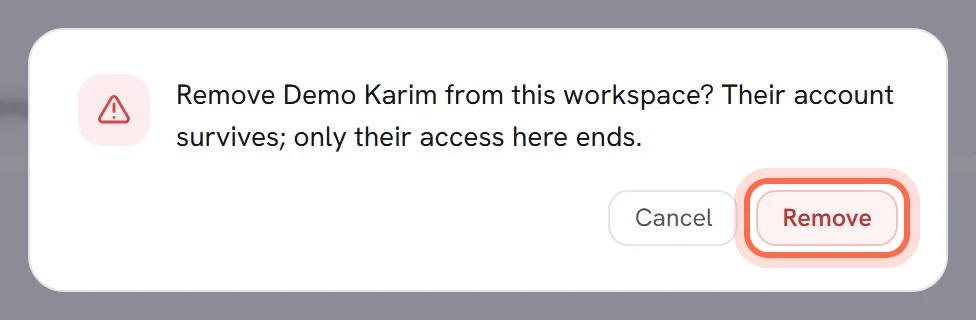
In the pop-up, press Remove to confirm.
The pop-up says that their account survives, and that only their access to this workspace ends. Cancel leaves everything as it was.
What happens then:
- The person is off the list at once and can no longer open your workspace. Their seat is free.
- The conversations assigned to them stay assigned to them. People who see everyone’s conversations can open them in the inbox and hand them to somebody else: see Assign and hand over.
- Their account still exists, so their address cannot be added again.
You cannot remove yourself: ask somebody else who can open the Team screen. And the last person who can open the Team screen cannot be removed: give that access to somebody else first.
Good to know
- Who can add and remove people: those whose access includes The team.
- Everybody in the workspace holds a seat, whatever their role.
- Adding and removing are written in the activity log.