What a workflow is
A workflow is a set of messages and follow-ups that send themselves. It starts with a trigger, the thing that lets a contact in: a contact is created, a tag is added to a contact, or a rule about time comes true. After the trigger come the steps each contact takes, one after another: send an approved template, add a tag, wait, or check whether a message was delivered, read or answered and go one way or the other.
You draw a workflow once, on a canvas, and switch it on. From then on it runs for every contact the trigger lets in, each at their own pace, until you switch it off.
- Welcome new contacts. When a contact is added, send a first template. If there is no reply after three days, send a second one: one message for those who read the first, another for those who did not.
- Follow up a tag. When your team or your AI agent puts the tag
showroom visiton a contact, wait a day, send a thank-you template, and tag the contactwarm leadif they answer within two days. - Win back quiet contacts. When a contact has not written to you for 30 days, send them a template.
The Workflows screen
Open Workflows in the menu. Each workflow of your workspace is a card. The one changed most recently comes first, and a page holds 25.
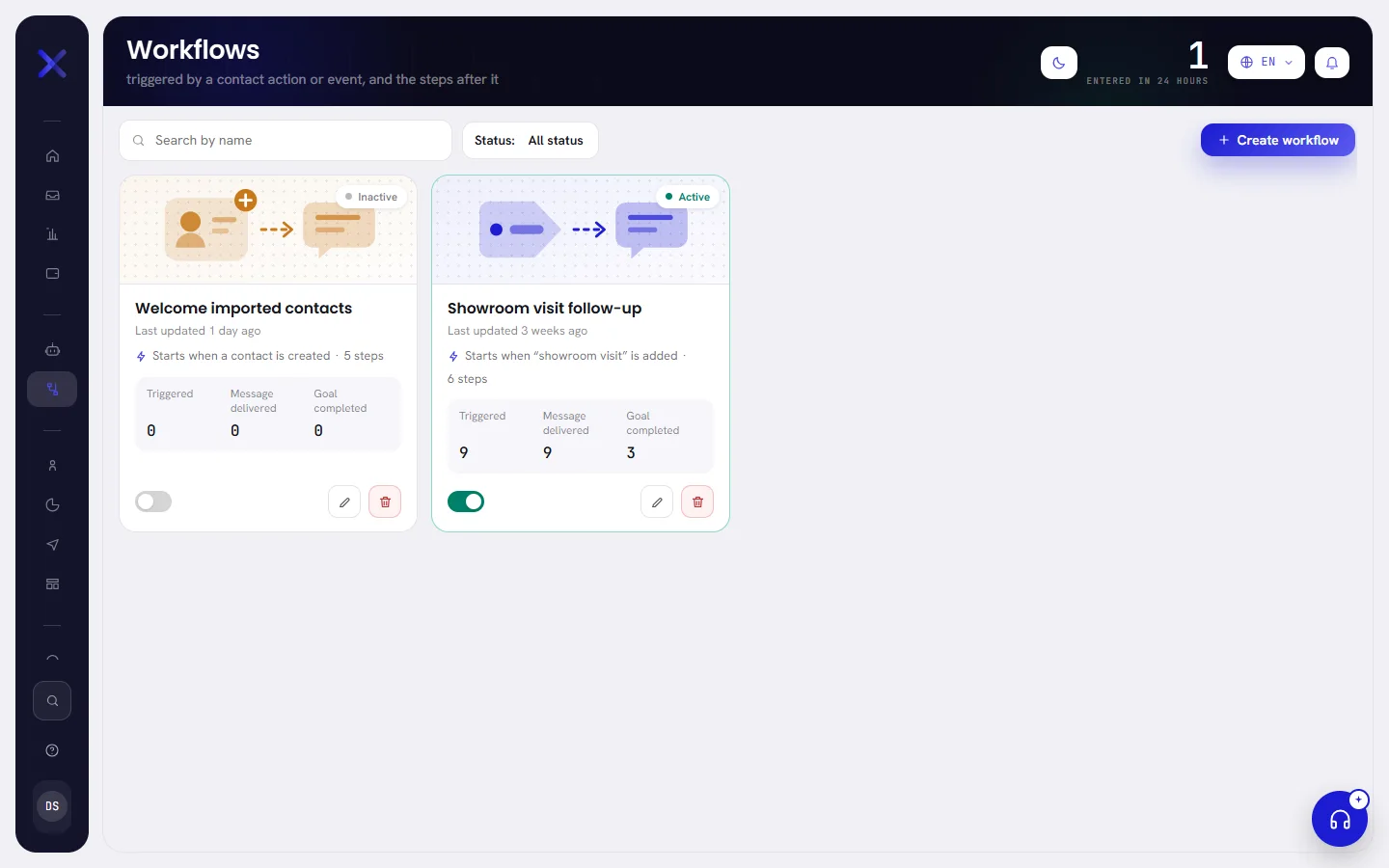
| On the screen | What it does |
|---|---|
| Search by name | Type part of a workflow’s name. The list narrows as you type. |
| Status | Shows every workflow (All status), only those that are on (Active) or only those that are off (Inactive). It applies as soon as you choose. |
| Create workflow | Starts a new workflow, from scratch or from a template. See Build a workflow. |
| Entered in 24 hours | The figure at the top right of the screen: how many times a contact entered any of your workflows in the last 24 hours. |
When a search or a filter finds nothing, the screen says No workflow matches that. Clear the search box and set Status back to All status to see everything again.
What a card shows
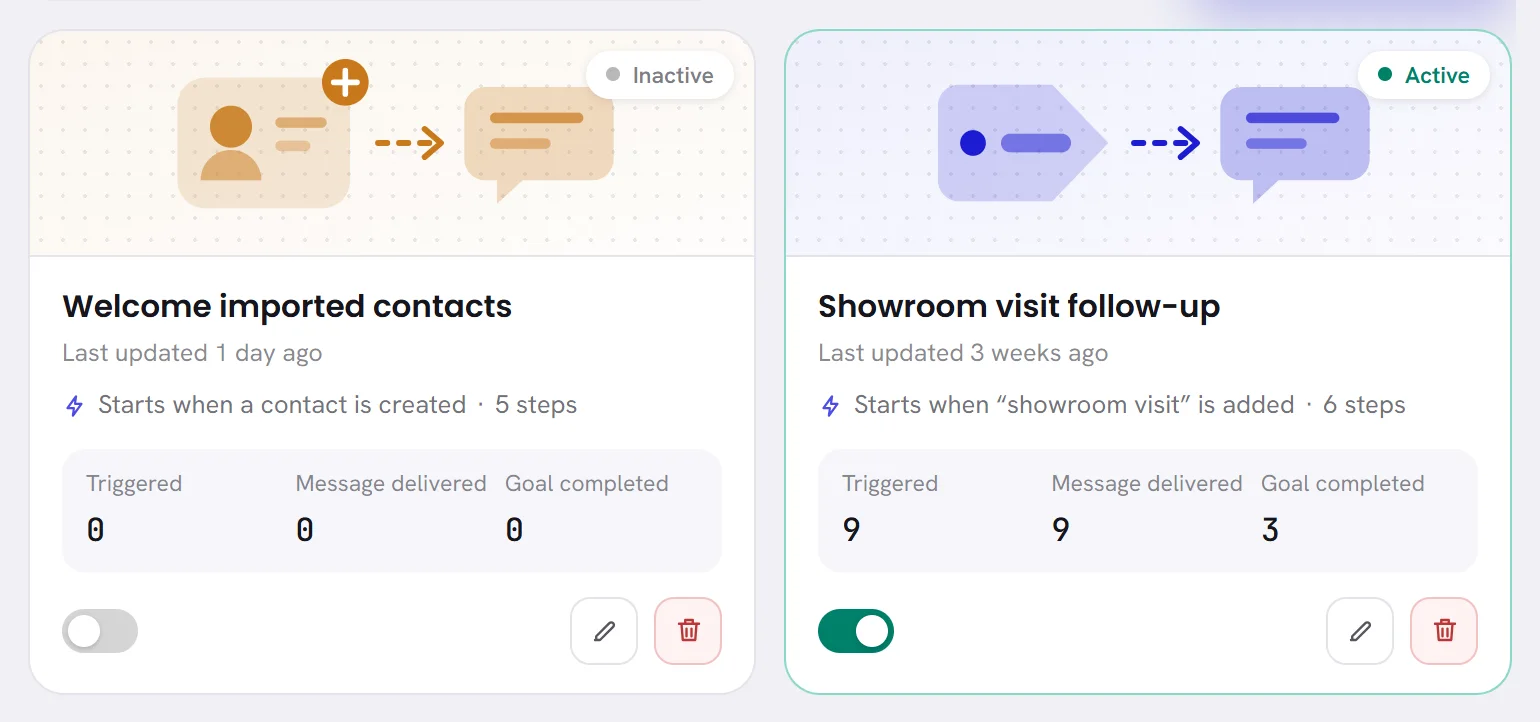
The picture at the top of a card shows what starts the workflow (a new contact, a tag, a date) in a colour of its own, so a page of cards can be told apart at a glance.
| On the screen | What it does |
|---|---|
| Active | The badge when the workflow is on: its trigger lets contacts in and its steps run. |
| Inactive | The badge when it is off. Nobody enters and nobody is inside. A new workflow is inactive until you switch it on. |
| Last updated 3 weeks ago | When the workflow was last saved or switched on or off. Hold the pointer over it for the date and time. |
| Starts when “showroom visit” is added | What lets a contact in. It reads Starts when a contact is created, Starts when a tag is added or Starts on a date rule for the other triggers, and No trigger yet while the workflow has none. |
| 6 steps | How many blocks follow the trigger. No steps yet means there is nothing after it. |
| Triggered | How many times a contact has entered this workflow. |
| Message delivered | How many of its messages arrived on a contact’s phone, read or not. |
| Goal completed | How many times a contact met the workflow’s goal in time. It stays at 0 for a workflow with no goal. |
| Switch on | The switch at the foot of the card, when the workflow is off. It works only when nothing is missing from the workflow. |
| Switch off | The same switch when the workflow is on. The app asks first, because everybody inside leaves. |
| Edit | The pencil. Opens the workflow on its canvas. Clicking the picture or the name does the same. |
| Delete workflow | The bin. Deletes the workflow and its figures, after asking. |
What each figure counts, and how to see what happened to each contact, is in Run and follow a workflow.
Switch a workflow on or off
To switch a workflow on, press the switch at the foot of its card.
A message confirms that the workflow is on and the badge turns to Active. If something is still missing, the canvas opens instead and says This workflow has problems to fix first. See Build a workflow.
To switch it off, press the switch again, then Switch it off.
Everybody inside the workflow leaves where they are, and nobody new comes in until you switch it on again. Read what switching off does before you use it as a pause.
Before your first workflow
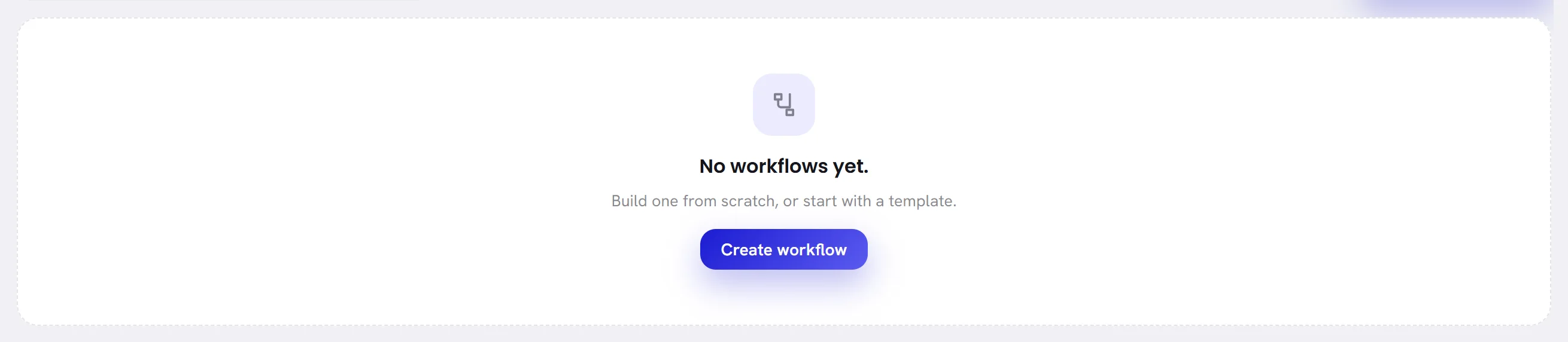
With no workflow yet, the screen says No workflows yet. and offers Create workflow.
- A workflow sends from one of your WhatsApp numbers. Connect one first: Connect a WhatsApp number.
- A workflow can only send templates Meta has approved. Have at least one: Create a template.
- A workflow only sends to contacts who agreed to hear from you. See Consent and opt-outs.
Good to know
- Your plan. Workflows depends on your plan. When your plan does not include it, a notice with a lock sits at the top of the Workflows screen and of every canvas, and names the plan that does. Create workflow is not shown, a workflow cannot be saved, and one that is off cannot be switched on. What you already have stays as it is: a workflow that is on keeps running, and you can still switch it off or delete it. Whoever manages the plan sees See the plans in the notice. Plan & billing in Settings lists Workflows under Features.
- Who can open it. Admins and managers. An admin can give this access to one more person, or take it away: it is the Workflows box in that person’s access. See Roles and access.
- Not the same as a campaign. A campaign sends one template to a segment once, at a time you choose. A workflow keeps running: each contact enters when the trigger fires for them.