What the Team screen is for
The Team screen lists everybody who works in your workspace, with what each of them is allowed to do, and under them the teams they work in. Open it from Team in the menu, or go straight to it.
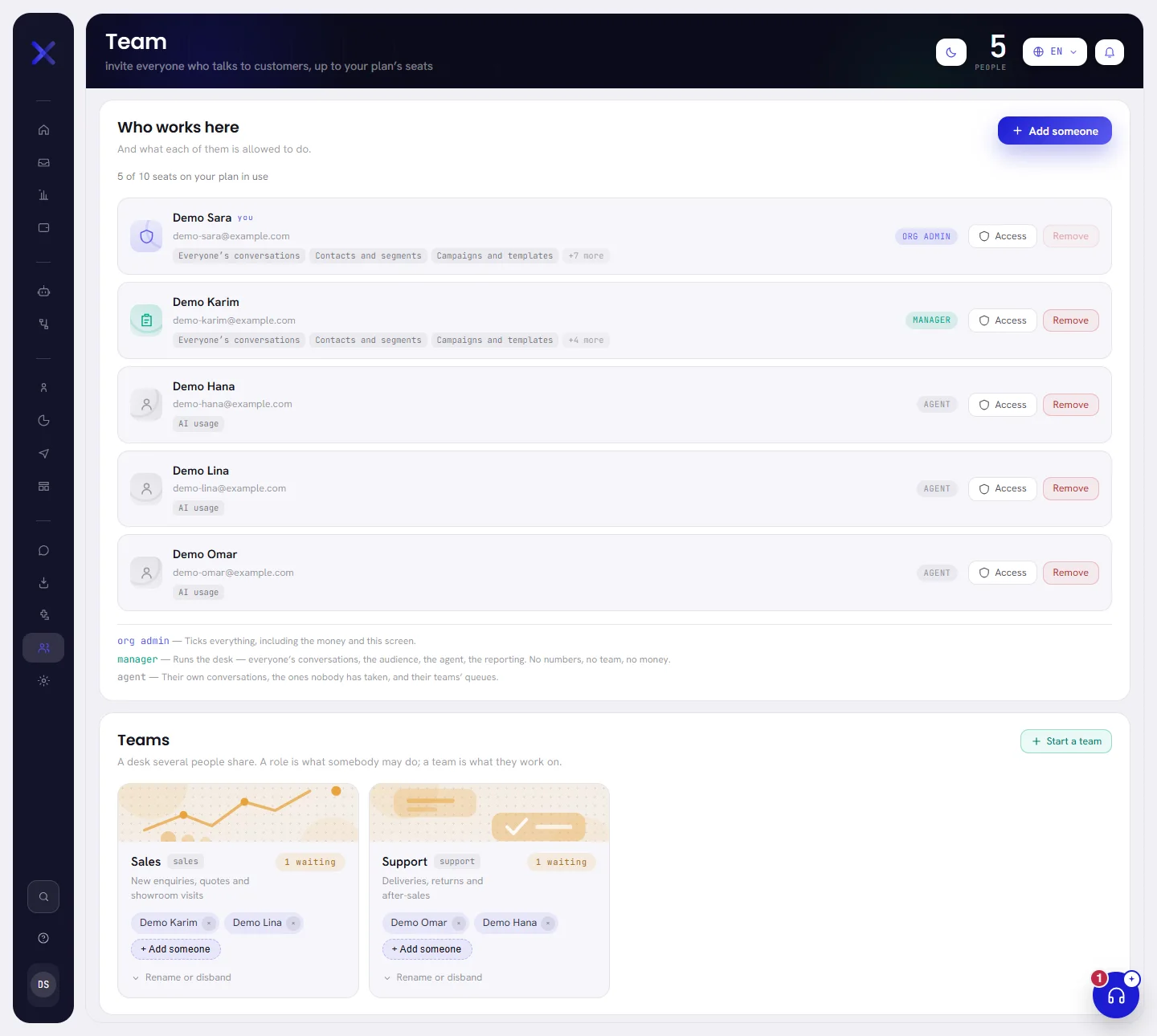
The band gives the number of people in the workspace.
The list of people
Who works here has a line for each person: org admins first, then managers, then agents, fifty to a page.

On a line:
- Their picture, or a drawn badge while they have not added one.
- Their name. Your own line is marked you.
- Their email address, which is what they sign in with.
- What they may open beyond their own conversations: the first three, then how many more. Somebody with nothing more is marked conversations only.
- Their role: Org admin, Manager or Agent.
- Tailored, when their access is not exactly what their role gives.
| On the screen | What it does |
|---|---|
| Add someone | Opens the window to add a person: see Add a team member. It is switched off when every seat of your plan is taken. |
| Access | Opens the person’s access window, to change their role and what they may do: see Roles and access. |
| Remove | Takes the person out of the workspace, once you confirm in a pop-up: see Remove somebody. It is switched off on your own line. |
Under the list, three lines sum up what each role gives.
How many people your plan allows
Under the heading, a line says how many of your plan’s seats are in use. Everybody on the list holds one. When all are taken, the line becomes a banner and nobody more can be added: see Plan limits.
There are no invitations waiting
xconversions does not send an invitation that waits to be accepted. A person you add has an account at once and is on the list at once. What you see after adding somebody is a note at the top of the screen saying whether their email went: see After you add them.
The teams
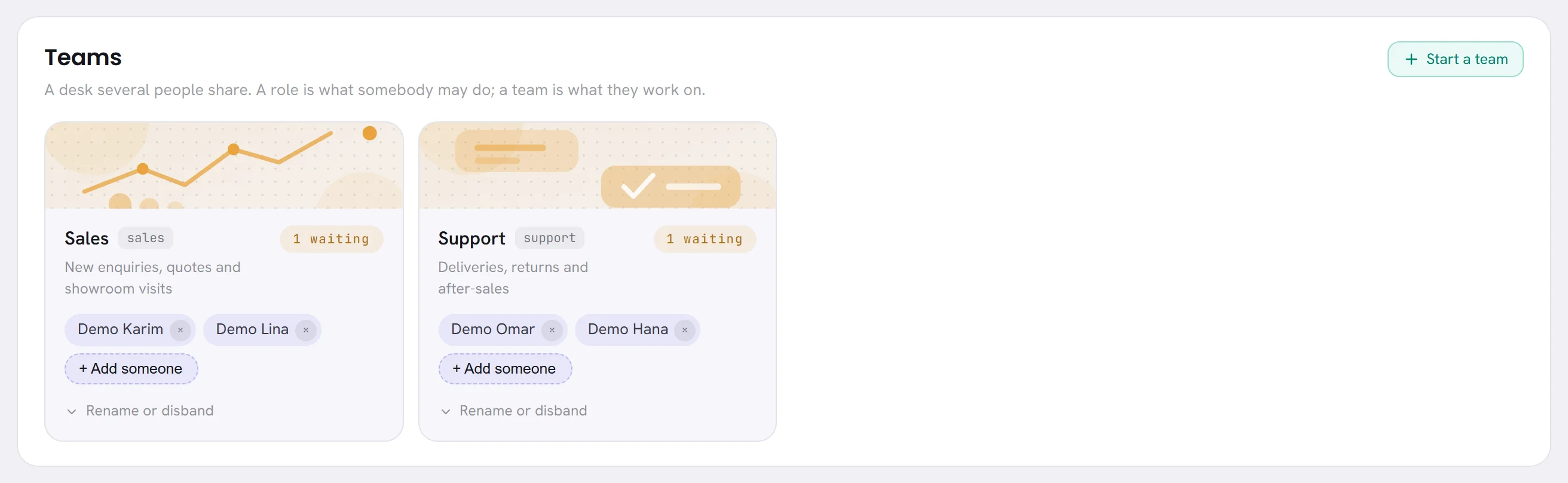
Teams is the second card. A team is a group of people who share a queue of conversations, such as sales or support. Each team’s card gives its name, what it is for, how many conversations are waiting on it, and who is on it. See Teams.
Good to know
- Who can open the screen: people whose access includes The team. With the usual roles, that is an org admin. The others do not have Team in their menu.
- A role says what somebody may do. A team says what they work on. The two are set apart, on the same screen.
- Adding and removing people, changing access and every change to a team are written in the activity log.