What the inbox is
The Inbox is where every conversation on your WhatsApp number lives. Each contact has one conversation, and everything said to them is in it: what the customer wrote, what your AI agent answered, what your team replied, and the templates a campaign or a workflow sent them.
Open Inbox from the menu. The list of conversations is on one side, and the conversation you select opens beside it. The contact’s details open in a window over the conversation when you select their name.
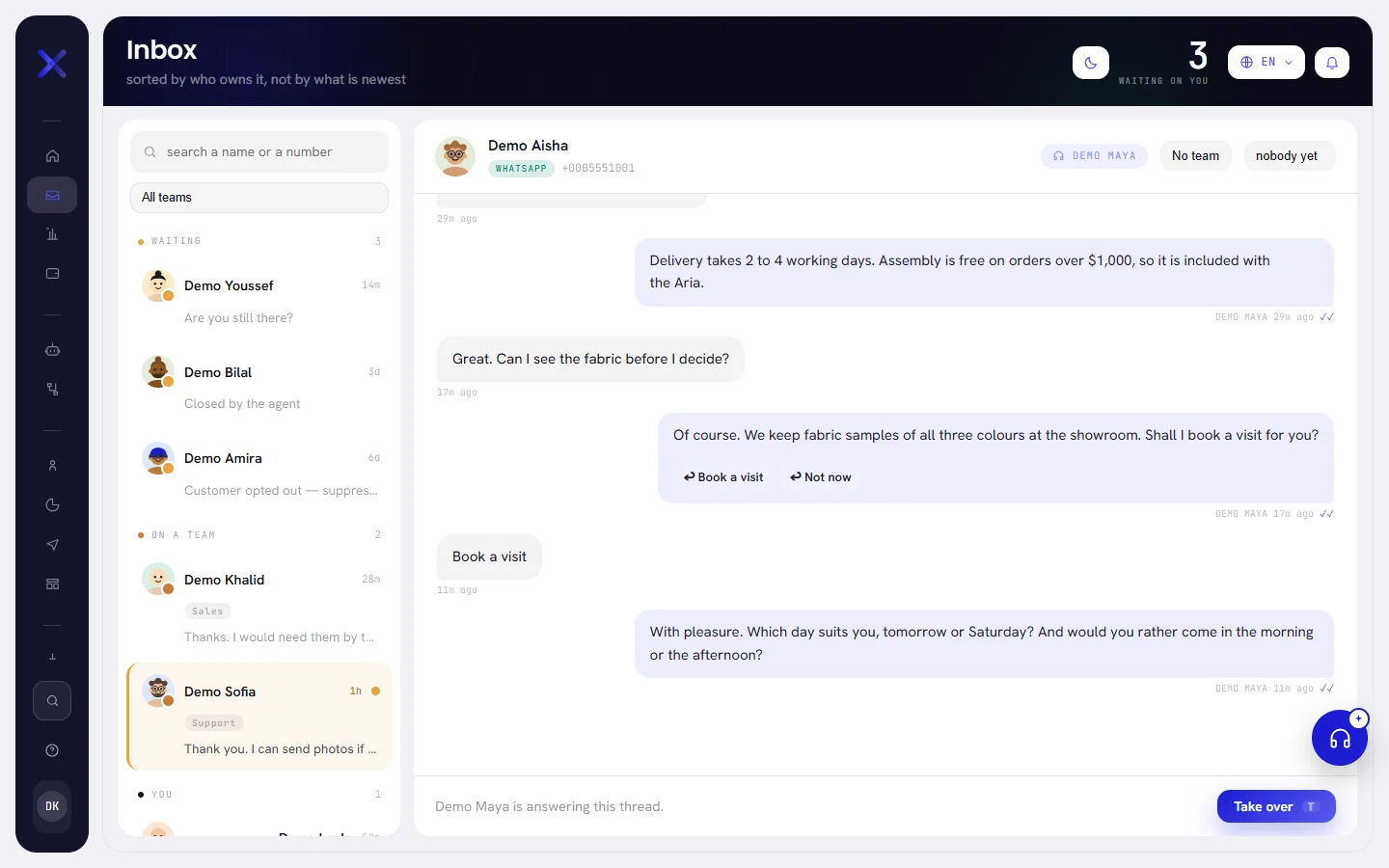
The figure at the top of the screen, Waiting on you, counts the conversations in your workspace that were handed to a person and that nobody has taken yet.
The list of conversations
The list is grouped by who holds each conversation, not by date, so what needs a person is at the top. Inside a group, the conversation with the most recent message comes first, and the number beside the group’s name counts the conversations under it.
| Group | Its colour | What is in it |
|---|---|---|
| Waiting | Amber | Handed to a person, and nobody has taken it. Start here. |
| On a team | Brown | Handed to a team, and nobody on that team has taken it yet. |
| You | Black | Assigned to you. |
| A colleague | Green | Assigned to somebody else in your workspace. |
| The name of your AI agent | Violet, with a headset | Your AI agent is answering. With no agent live, the group is called AI agent. |
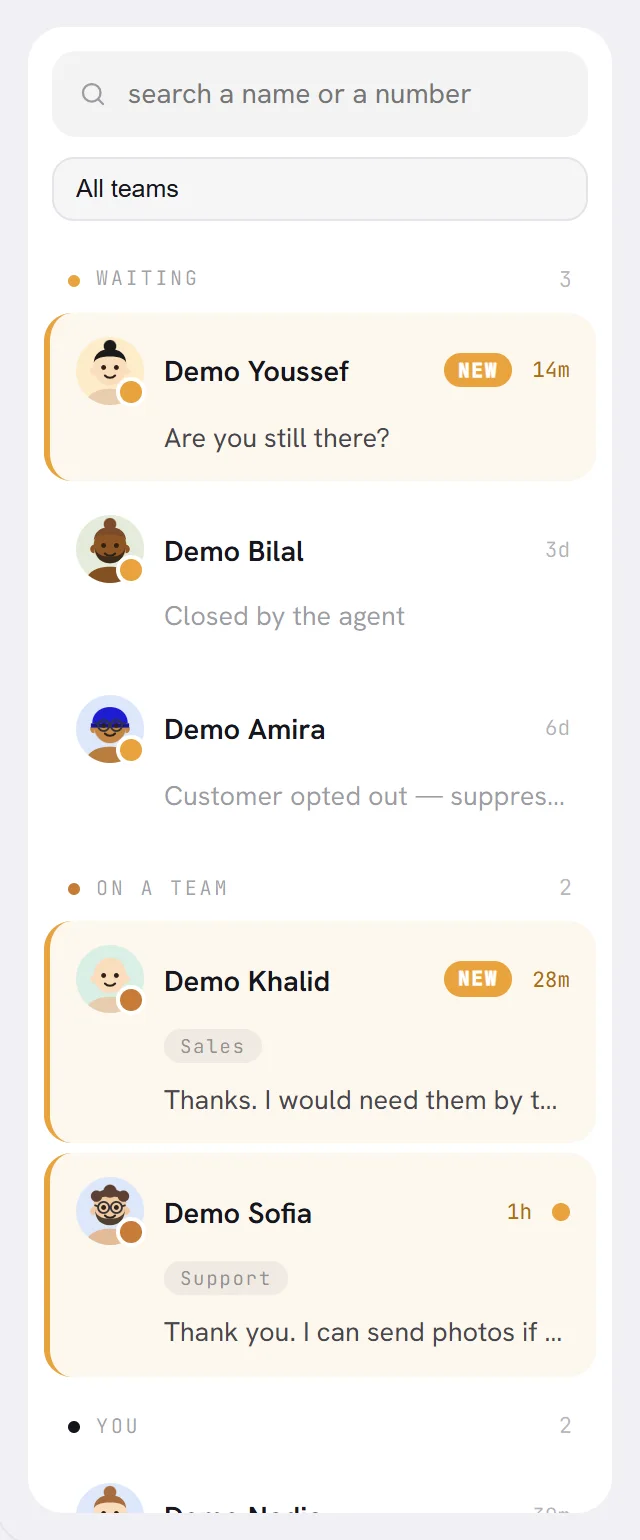
Each row is one conversation:
| On a row | What it tells you |
|---|---|
| The picture and its dot | A drawn face for the contact, not their WhatsApp photo. The dot on it is the colour of who holds the conversation. |
| The name | The contact’s name, as WhatsApp gave it or as you saved it. |
| New | You have never opened this conversation, and it started in the last two days. |
| The time | How long ago the last message was: 13m, 1h, 3d. |
| An amber dot | The customer has written since you last opened the conversation. |
| A team’s name | The team the conversation belongs to, when it belongs to one. |
| The last line | The start of the last message. For a message with no words, it says what arrived: a photo, a voice note, a file. |
A row marked New or with the amber dot stands out on an amber background until you open it. Those marks are yours alone: a colleague who opens the conversation does not clear them for you.
The list shows the 150 conversations with the most recent messages. When there are more, a line at the foot of the list says how many are left out, for example 12 older conversations are not listed. Search to find one. See Find a conversation.
The open conversation
Select a row to open its conversation. Until you do, the other side of the screen says Pick a conversation to read the thread.

| At the top of a conversation | What it is |
|---|---|
| The contact’s picture and name | Select it to see who this is: consent, tags and details. See Contact details and notes. |
| WhatsApp and the number | The channel, and the customer’s number. |
| Window closed | Shown when more than 24 hours have passed since the customer last wrote. See Reply to a customer. |
| The coloured chip | Who holds the conversation: the agent’s name, Waiting, On a team, You, or the colleague’s name. |
| The team menu | The team the conversation belongs to, or No team. It is there once your workspace has a team. |
| The assignment menu | Who the conversation is assigned to: nobody yet, me, or a colleague. See Assign and hand over. |
A conversation opens with its 50 most recent messages. When it holds more, a link above them, such as Show 120 earlier messages, loads the rest. A long conversation opens at the top of what is loaded: scroll down to reach the latest message. The reply area is at the bottom: Reply to a customer describes it.
How messages are drawn
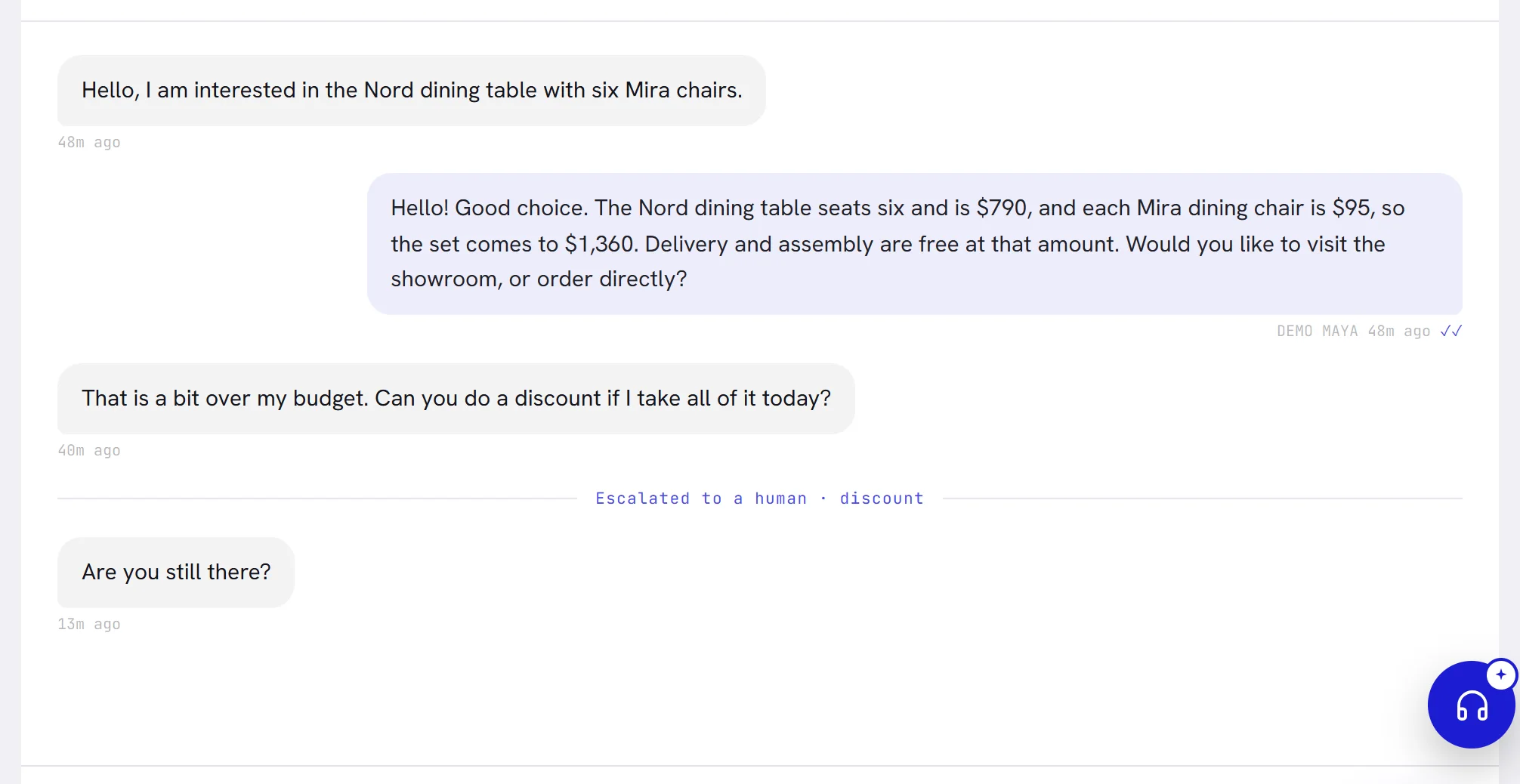
| What it is | How it looks |
|---|---|
| A message from the customer | A grey bubble on the left, with how long ago it arrived under it. |
| A reply from your AI agent | A blue bubble on the right. Under it: the agent’s name in capitals, the time and the delivery mark. Buttons or a link the agent sent with its reply are shown under its words, as the customer saw them. |
| A reply from a person | The same blue bubble, with the time and the delivery mark and no name. On a number shared with the WhatsApp Business app, what somebody typed on the phone is drawn the same way. |
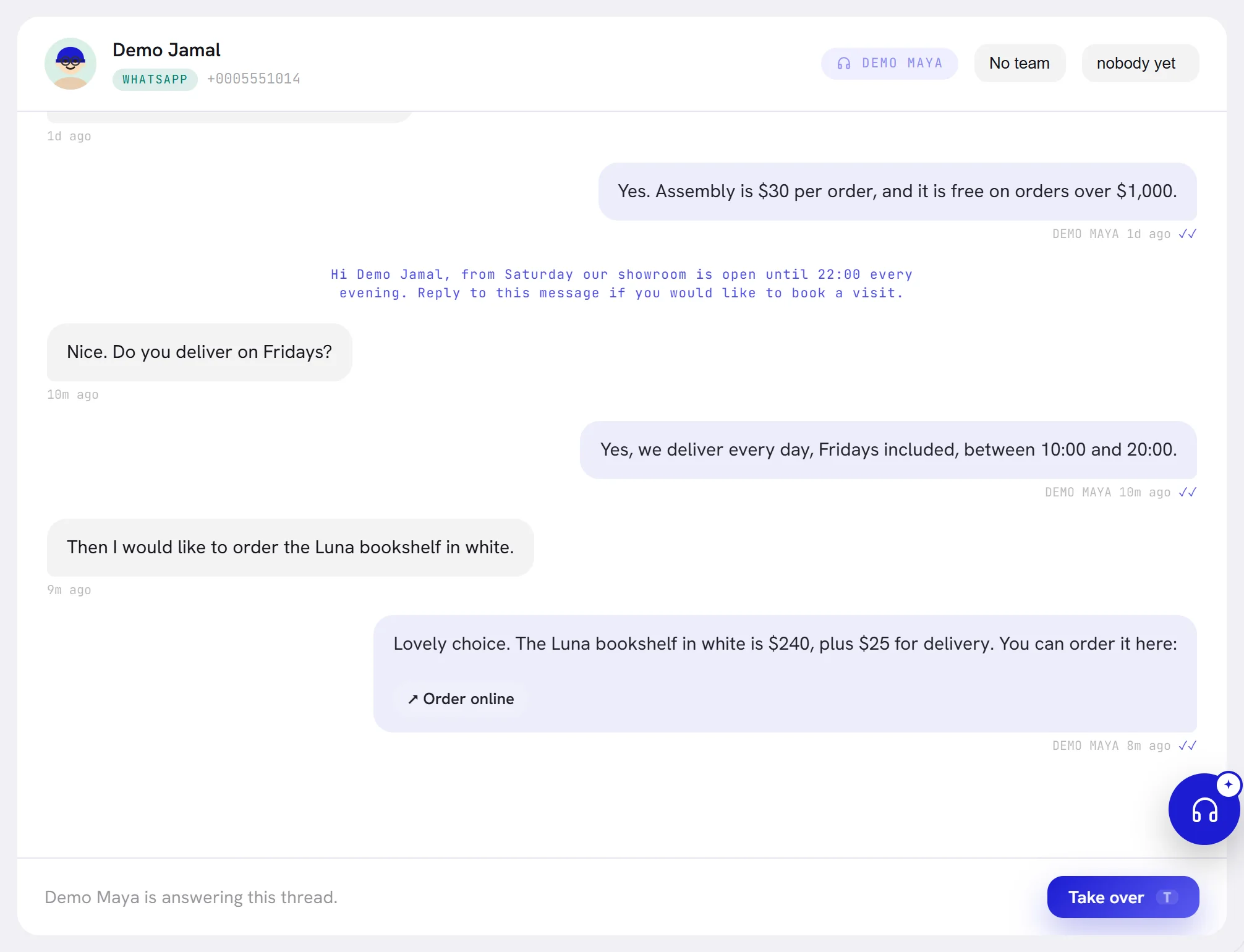
| A template from a campaign or a workflow | A line of small violet text across the middle of the conversation: the words the customer received. |
| Something that happened | The same kind of line: the agent handed the conversation to a person and why, closed it, tagged the contact or saved a detail, or the customer asked to stop. These lines are always in English. |
A photo is shown in the conversation and opens full size in a new tab when you select it. A voice note or any other audio plays in place, and so does a video. Another file shows its name and size, and opens when you select it. For something this screen cannot show, a line in italics says what arrived: a pinned location, a contact card, a reaction. When a file could not be fetched from WhatsApp, the message says The file could not be downloaded. Open WhatsApp to see it.
Messages you, your team and the agent send carry a delivery mark beside the time:
| Mark | When you point at it | What it means |
|---|---|---|
| ◌ | Waiting to send or On its way | The message has not reached WhatsApp yet. |
| ✓ | Sent | WhatsApp has the message. |
| ✓✓ | Delivered or Read | It reached the customer’s phone. The two look the same: point at the mark to see which. |
| Not delivered | The reason | Written in red, with the reason under the message. See Reply to a customer. |
With a contact whose language is Arabic, the words inside each bubble read right to left, whatever language you read the app in. The bubbles keep their sides.
The inbox keeps itself up to date
You do not reload the inbox. While its tab is in front, it checks every three seconds whether anything changed, and redraws the list and the open conversation when something did: a new message, a conversation changing hands, one tick becoming two.
What you are typing is left alone. If you had scrolled up to read an earlier message, the conversation stays where you were.
A tab in the background stops checking and catches up the moment you come back to it. The number on the bell is also written in the browser tab’s title, so you see it from another tab: see Notifications.
Before the first message
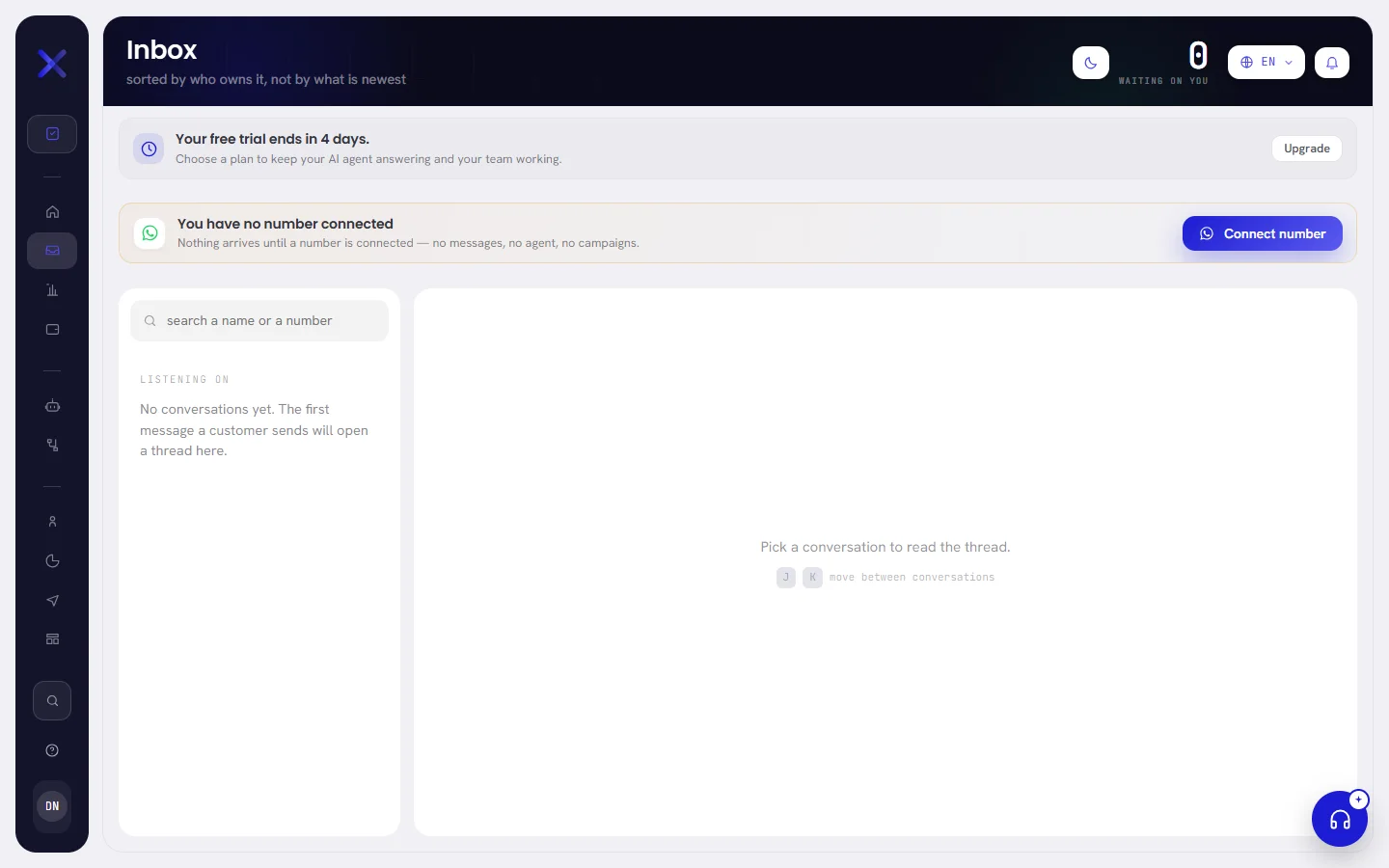
A workspace nobody has written to yet shows an empty list and the words No conversations yet. The first message a customer sends will open a thread here.
Nothing can arrive until a WhatsApp number is connected. Until then, the people who can manage numbers see You have no number connected above every screen, with the button Connect number. See Connect a WhatsApp number.
Good to know
- Who sees which conversations. Everybody in the workspace can open the inbox. A person whose access includes Everyone’s conversations sees all of them; admins and managers have it to begin with. Without it, a person sees the conversations assigned to them and the ones assigned to nobody that are on no team or on one of their teams, which includes those the agent is answering. They do not see a colleague’s. Access is set on Team: see Roles and access.
- One conversation per contact. A customer who writes again months later continues the same conversation, with its history above.
- Nothing is deleted from here. Messages are kept for as long as the workspace exists. A conversation goes only when its contact is removed on Contacts.
- Several numbers. A reply goes out from the number the customer last wrote to.
- On a phone. The list fills the screen. Selecting a conversation replaces it, and the arrow at the top of the conversation goes back to the list.