The statuses, one by one
The status is the badge in the corner of a template’s card, and the line under its name when you open it. It says where the template stands with Meta, and so whether it can be sent.
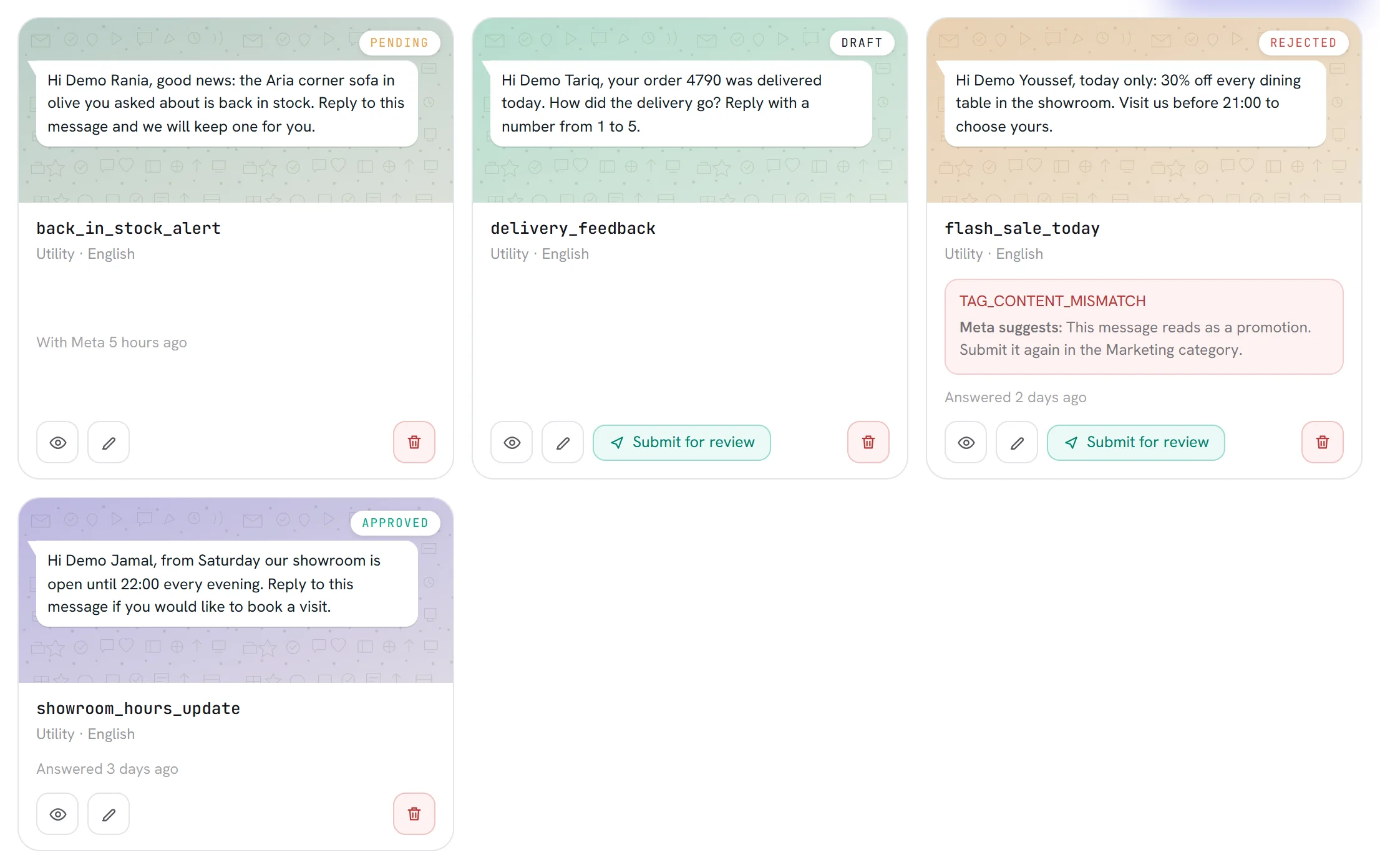
Four of them are the ones you meet every day.
| Status | What it means | Is it sent? | What you can do |
|---|---|---|---|
| Draft | Written here and never sent to Meta. | No | Change anything, submit it, delete it. |
| Pending | With Meta, which has not answered yet. The card says since when. | No | Wait. You can delete it. |
| Approved | Meta approved it. | Yes | Use it in campaigns and workflows. Editing it sends it back to Meta. You can delete it. |
| Rejected | Meta refused it. The card gives Meta’s reason. | No | Edit it and submit it again, or delete it. |
The others are Meta’s own decisions about a template that is already there. They are rare.
| Status | What it means | Is it sent? | What you can do |
|---|---|---|---|
| Paused | Meta paused it because customers reacted badly to it. | No | Edit it, which sends it back to Meta, or delete it. |
| Disabled | Meta switched it off for good, after repeated poor quality. | No | Nothing. It cannot be edited or deleted. |
| Flagged | Meta is looking at it after complaints. It goes on working meanwhile. | Yes | It cannot be edited. You can delete it. |
| In appeal | A rejection was contested at Meta, and Meta has not answered. | No | Wait. You can delete it. |
| Reinstated | An appeal that succeeded. | Yes | Edit it, which sends it back to Meta, or delete it. |
| Deleting | Meta is deleting it. | No | Nothing. |
| Deleted | It was deleted at Meta. | No | Nothing. It stays listed here. |
| Archived | Meta put it in its archive. | No | You can delete it. |
| Unarchived | Meta took it out of its archive. It is sent again once it reads Approved. | No | You can delete it. |
| Locked | Meta locked it, usually while it looks into the account. | No | You can delete it. |
| Limit reached | The WhatsApp Business account holds as many templates as Meta allows it. | No | Delete templates you no longer use. |
- A new campaign or workflow offers only the templates that read Approved. One that is Flagged or Reinstated goes on being sent where it was already chosen.
- When a template stops being sendable, nothing is sent with it: a campaign skips the people it had not written to yet, with the reason
the template is no longer approved, and a workflow skips the step. - An appeal is made at Meta, in WhatsApp Manager. The app shows where it stands; it has no button to start one.
How a status reaches you
You do not have to ask. Meta tells the app when it decides, and the card changes: the badge, and under the name Answered with how long ago. As a safety net, the app also asks Meta for the state of every template twice a day, so a decision that did not arrive is caught within hours.
- Meta usually answers a new template within minutes; sometimes it takes a day. See Template categories and review.
- The bell at the top of the screen tells you when a template is approved or rejected. See Notifications.
- There is no button to refresh a status by hand.
A rejected template
Meta’s reason is shown word for word, in a red box on the card and at the top of the template’s window. It is often a short code, such as TAG_CONTENT_MISMATCH. When Meta adds advice, the card shows it after Meta suggests.
Open the template and read the reason.
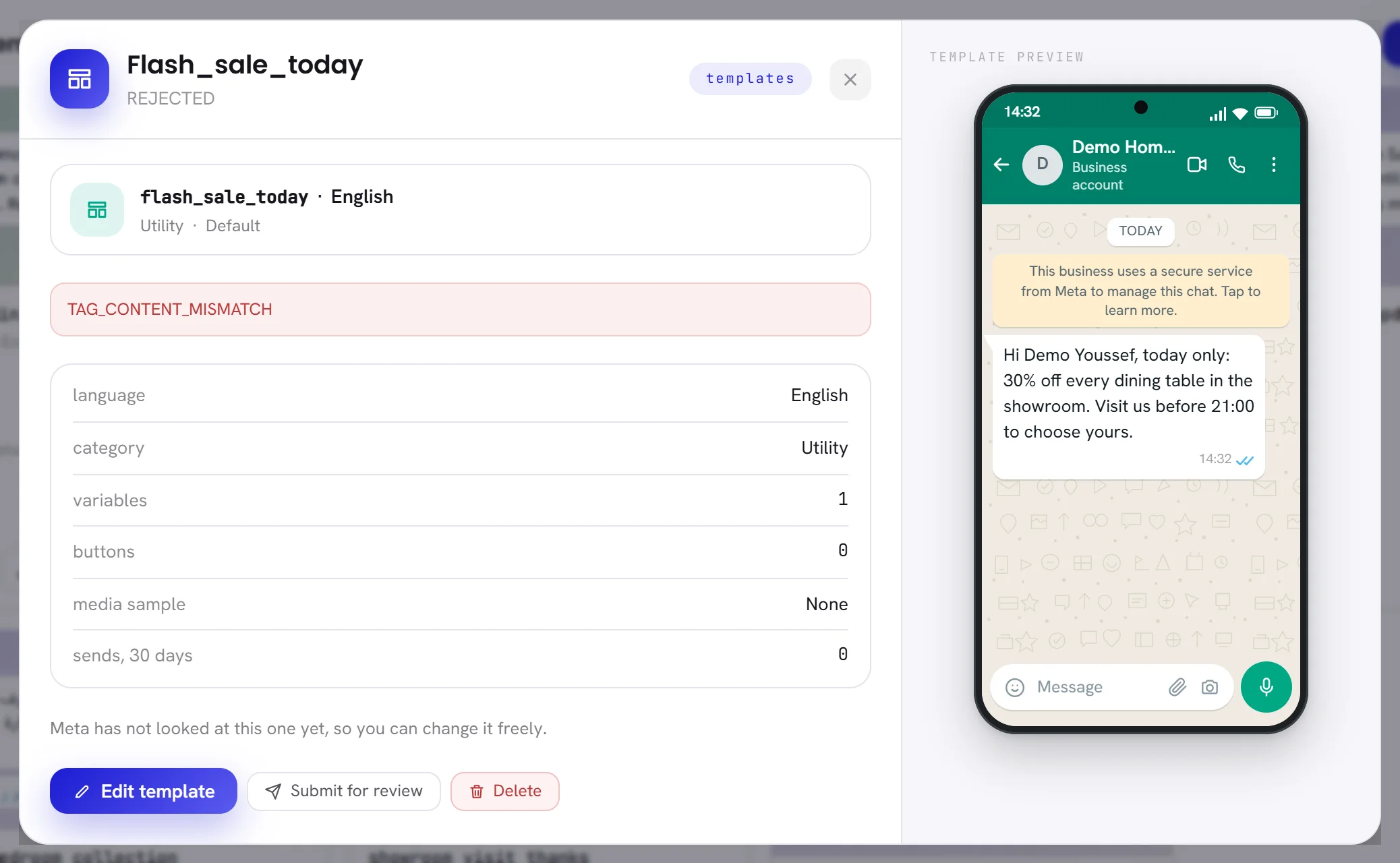
Click Edit template, and correct what Meta names.
For a rejected template every part can be changed, the category included.
Go to the last step and click Submit for review.
The template is Pending again, and Meta’s earlier reason is cleared.
If you have not changed anything and only want to send it again, Submit for review on the card does it in one click. The usual reasons and their cures are in A template was rejected.
Edit a template
The pencil on a card, and Edit template in a template’s window, open it on step 2 of the window that wrote it. A sentence under the title says what a change will cost.
| Status | What editing does |
|---|---|
| Draft | Everything can be changed, as often as you like. Meta is not involved until you submit it. |
| Rejected | Everything can be changed. Submitting sends it back to Meta. |
| Approved, Reinstated, Paused | The name, the language, the category, the kind of media sample and the header are locked: Meta knows the template by them. The body, the footer, the buttons and the samples can change. Saving sends it back to Meta at once, and it stops being sent until Meta approves it again. |
| Pending | Do not edit it. A change cannot be sent while Meta is reviewing: wait for the answer. |
| Any other status | A change cannot be sent to Meta. The app answers with a sentence such as A DISABLED template cannot be edited. |
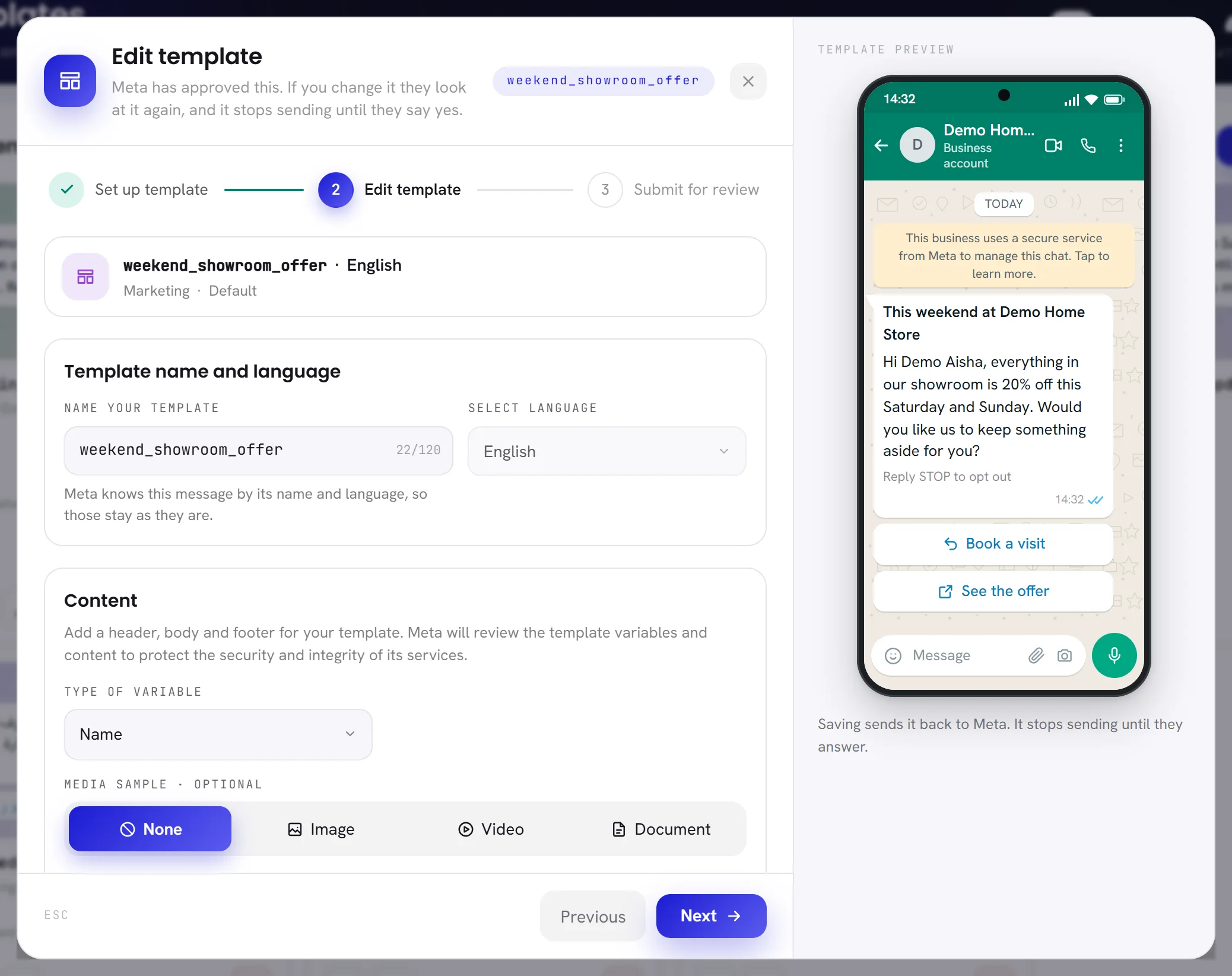
- An approved template has no Save as draft: the last step has one button, Submit for review.
- Meta takes one edit of a template in 24 hours, and 10 in 30 days. Past that the app refuses and says when the next edit is possible.
- When an edit is refused, for that reason or by Meta, your new words stay saved here, but Meta still holds and sends the version it approved. Open the template and click Submit for review when the time has passed.
Delete a template
Click the red bin on the template’s card, or Delete in its window.
The app asks you to confirm and says what goes with the template. For an approved one: Meta’s approval, and with it a new review if you ever write the same words again. When workflows still send the template, it says how many will stop.
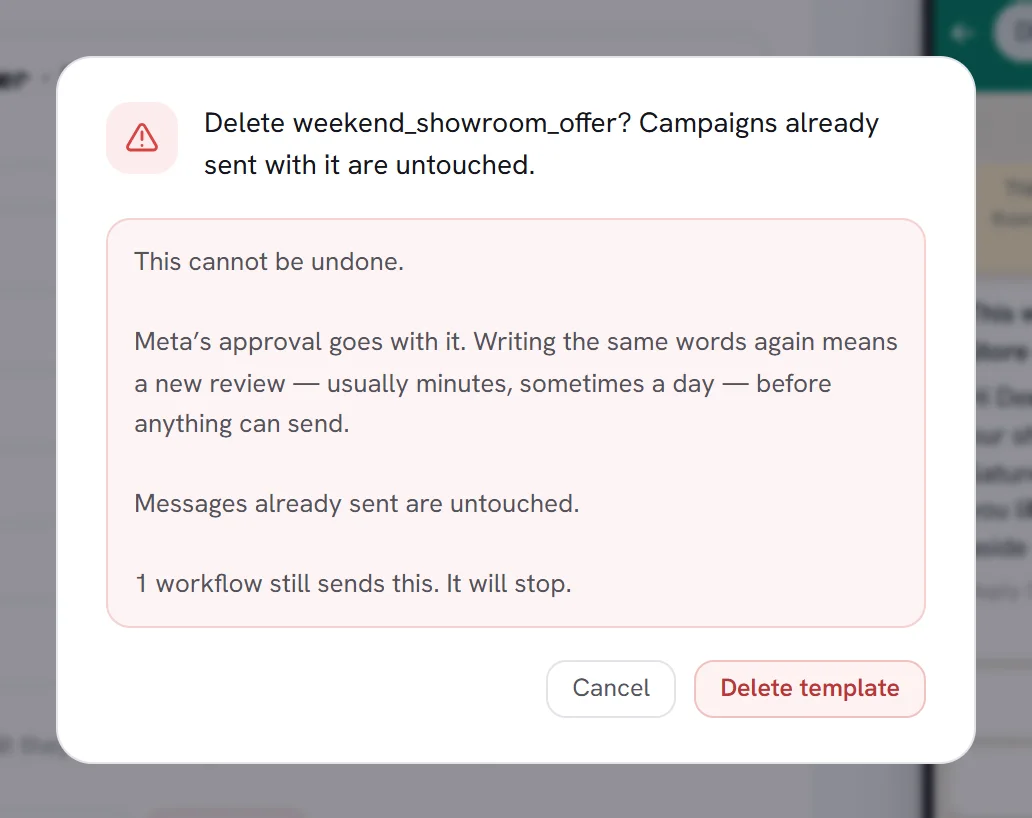
Click Delete template.
The template is deleted at Meta first, then here. If Meta refuses, nothing is deleted and the app says why.
- Messages already sent with the template stay where they are, in the conversations and in the results of past campaigns.
- A campaign that was still sending it, or was scheduled with it, skips the people it had not reached. A workflow skips the step that sent it.
- Meta keeps the name of a deleted template for 30 days. A new template with the same name is refused until then, and the app gives the day the name comes free. A draft that never went to Meta frees its name at once.
- A template that reads Disabled, Deleting or Deleted cannot be deleted here.
When Meta changes the category
Meta decides what a template is. When it reads a template sent as Utility as an offer, it can file it under Marketing and approve it, where it would otherwise reject it. The app lets Meta do that, because a rejection would cost you a day. Meta can also move a template that has been approved for months.
- The line under the template’s name always shows the category Meta holds today.
- When Meta moved a template to Marketing, the card says so in amber, for example
Meta moved this from Utility to Marketing. - The category decides what WhatsApp charges for each message: see What WhatsApp charges.
- From then on the app treats it as a marketing template: it is no longer sent to customers who switched off marketing messages in WhatsApp. See Consent and opt-outs.
- It does not gain the opt-out footer by itself. Edit the template to add one.
Quality
Meta rates an approved template by how the people who receive it react. When Meta has given a rating, the card shows Quality with Good, Slipping or Poor. A template rated Poor is close to being paused. Why ratings fall and how to raise them is in Messaging limits and quality.
Questions
My template has been pending for hours. Is it stuck?
Most answers come within minutes, some take a day. The app also asks Meta twice a day in case an answer was lost. After more than a day, write to us with the template’s name.
Can I use a template while it is pending?
No. Only an approved template can be chosen in a campaign or a workflow.
Why can I not delete a template marked Deleted?
It is already gone at Meta, and the app refuses to delete it a second time. It stays in the list and in the counter of templates.
I edited an approved template and my campaign stopped. Why?
The edit sent the template back to Meta, and it cannot be sent while it is Pending. The campaign skips people until the template is approved again.