The Desks tab
Open Reports and choose Desks. A desk is one of your teams: the tab gives each team the figures that the Replies tab gives the whole workspace. See Teams.
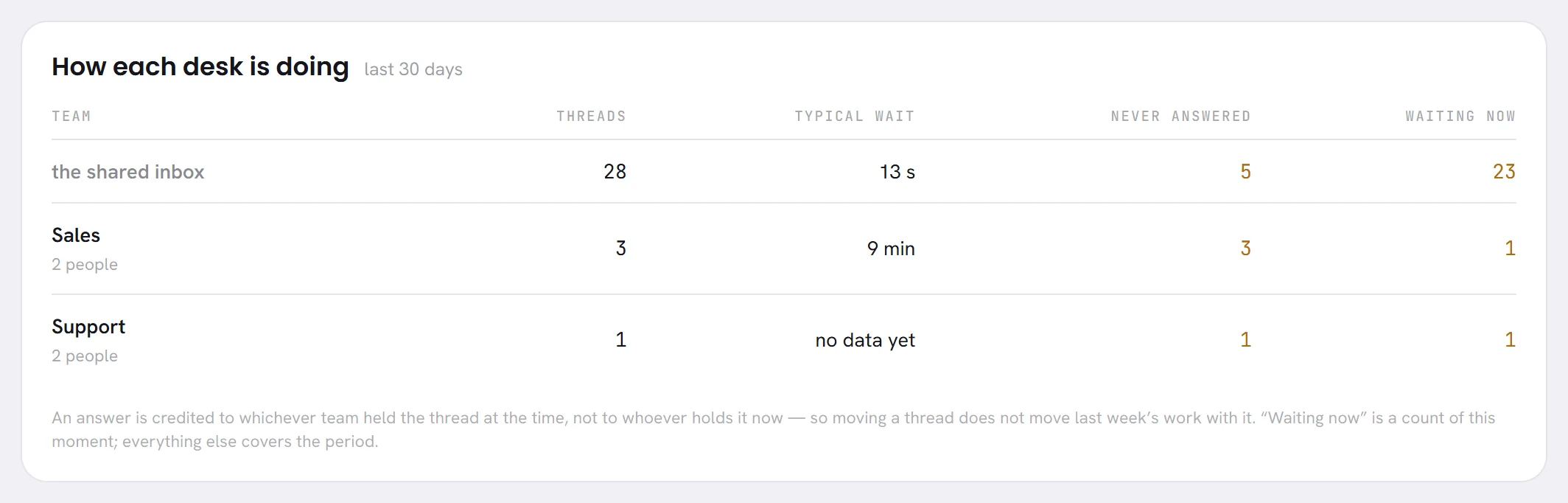
The panel How each desk is doing has one line for each team, the busiest first, and one for the shared inbox: the conversations that are on no team. Under a team’s name is how many people are on it. A team that reads nobody on it has nobody to answer for it.
| On the screen | What it does |
|---|---|
| Team | The team’s name, and how many people are on it. |
| Threads | Conversations on this desk whose last message falls in the period. |
| Typical wait | The middle value of how long customers waited for an answer while this desk held their conversation. It reads no data yet when the desk answered nothing. |
| Never answered | Customer messages of the period that arrived while this desk held the conversation and have had no answer since. |
| Waiting now | Open conversations on this desk that nobody has taken, at this moment. |
How the desk figures are counted
- Two clocks share one table. Waiting now is a count of this moment. Everything else covers the period.
- A wait is credited to the desk that held the conversation when the customer’s message arrived, not to the desk that holds it now. Moving a conversation does not move last week’s work with it.
- Threads goes by the desk a conversation is on today.
- A wait is measured as on the Replies tab: see How the wait is counted.
- Past 5,000 customer messages in the period, only the most recent 5,000 are measured, and the panel says so.
- The figures that ask for attention are in amber: messages never answered, conversations waiting, and a team with nobody on it.
With no team yet, the tab says There are no desks yet, so there is nothing to break down. and offers Set up a desk, which opens the Team screen.
The Campaigns tab
Choose Campaigns. The panel Campaigns in this period lists the campaigns launched in the period, the most recent first, six at most.

Each line reads, from left to right:
- The campaign’s name.
- Its status: scheduled, sending, paused, sent or cancelled.
- How many messages were sent, out of how many people the campaign was for, as
18 / 21. - Skipped and the number of people who did not get it, whether they were left out or their message failed. A dash when there is nobody.
Drafts are not listed, and neither is a campaign you removed from the Campaigns screen. When no campaign was launched in the period, the panel says No campaign went out in this period.
The tab does not show replies or cost. For those, open the campaign’s own results from the Campaigns screen: see Campaign results.
Download the figures
Choose the period at the top right.
The file covers that period. It holds the figures of every tab, whichever tab is open.
Press Download.
The browser saves a CSV file named like
xconversions-report-month-2026-10-05.csv: the period, then the day you downloaded it.
Open the file in a spreadsheet.
It is plain text in UTF-8, written so that Arabic names read correctly in Excel. It has no formulas and no formatting.
What the file holds
The file is a list of blocks. Each block starts with a line that holds its title, and ends with an empty line.
| Block | Its lines |
|---|---|
| PERIOD | covering and the period; generated and when the file was made, in UTC. |
| reports | One line for each headline figure: its name, its value, same span before, and its value in the period before. |
| what became of what we sent | One line for each outcome with its number of messages: still queued, sent unconfirmed, delivered, read, never sent. |
| why messages did not send | One line for each reason, with its number of messages. |
| how long people waited | The typical, fastest and slowest wait, in seconds so that a spreadsheet can work with them; then answered and never answered. |
| permission to message | New consenting, opted out, opted out in the period before, how many contacts can be messaged now, and contacts in total. |
| how each desk is doing | A line of column names, then one line for each desk: team, people on it, threads, typical wait in seconds, answered, never answered, waiting now, closed in period. The panel’s note follows. Only when you have teams. |
| campaigns in this period | One line for each campaign, with no column names: name, status, sent, did not get it, audience. Only when a campaign was launched in the period. |
| what this screen does not claim to know | The sentence from the foot of the screen. |
Two desk columns are in the file and not on the screen. answered is the number of customer messages that got an answer while the desk held the conversation. closed in period is the number of the desk’s conversations that were closed in the period. An empty cell for a typical wait means that the desk answered nothing.
The file does not hold the What WhatsApp cost panel.
Good to know
- Desks, Campaigns and Download depend on your plan: see Tabs that depend on your plan.
- Anybody whose access includes Reports can download the file, on a plan that has the download. There is no separate right to export.
- Each download is written to the activity log.
- The file is worked out at the moment you press the button, from the same figures as the screen.
Questions
Why does the Campaigns tab show only six campaigns?
It lists the six launched most recently in the period. Every campaign you have is on the Campaigns screen, each with its own results page.
Can I get a line for each message or each recipient?
No. The file holds totals for the period. A campaign’s recipients are listed, person by person, on its results page.
A conversation moved from one desk to another. Where is it counted?
Under Threads, on the desk it is on today. Each of its waits stays with the desk that held it when the customer wrote.