How access works
What a person may open in xconversions is a list of permissions. A role is a ready-made list: choosing a role fills the list in. On a plan that allows it, the list can then be changed for one person, box by box.
| On the screen | What it does |
|---|---|
| Org admin | Everything, including the money and the Team screen. Whoever opens a workspace is its first org admin. |
| Manager | Runs the desk: everyone’s conversations, the contacts, the campaigns, the workflows, the AI agent and the reports. No numbers, no team, no money. |
| Agent | Their own conversations, the ones nobody has taken, and the queues of their teams. |
What each role may do
| Permission | What it opens | Org admin | Manager | Agent |
|---|---|---|---|---|
| Conversations | The Dashboard, the Inbox with their own conversations and the ones nobody has taken, search, the bell, the Help panel, and their own Settings. Always on, for everybody. | Yes | Yes | Yes |
| Everyone’s conversations | In the inbox, colleagues’ conversations too, and every team’s queue. | Yes | Yes | No |
| Contacts and segments | Contacts and Segments. | Yes | Yes | No |
| Campaigns and templates | Campaigns and Templates. | Yes | Yes | No |
| Workflows | The Workflows screen. | Yes | Yes | No |
| The AI agent | AI Agent: its profile, its knowledge, its skills and its preview. | Yes | Yes | No |
| Reports | The Reports screen, with its download. | Yes | Yes | No |
| AI usage | The AI usage screen, in tokens and conversations. The money needs the last permission of this table. | Yes | Yes | Yes |
| Numbers and integrations | Channels: connecting, reconnecting and disconnecting WhatsApp numbers. | Yes | No | No |
| The team | Team: adding and removing people, their access, and the teams. | Yes | No | No |
| The workspace and billing | The workspace’s own settings, Activity log, choosing a plan, the money of the AI wallet (the balance, top-ups and receipts), and the Ledger. | Yes | No | No |
Two permissions are marked keys to the building: The team, because whoever runs the Team screen can give themselves everything else, and The workspace and billing, which holds the workspace and the money.
Change somebody’s role or access
On Team, press Access on the person’s line.

Choose a Role.
The boxes under What they may do move to that role’s list. Choosing a role again puts its own list back.
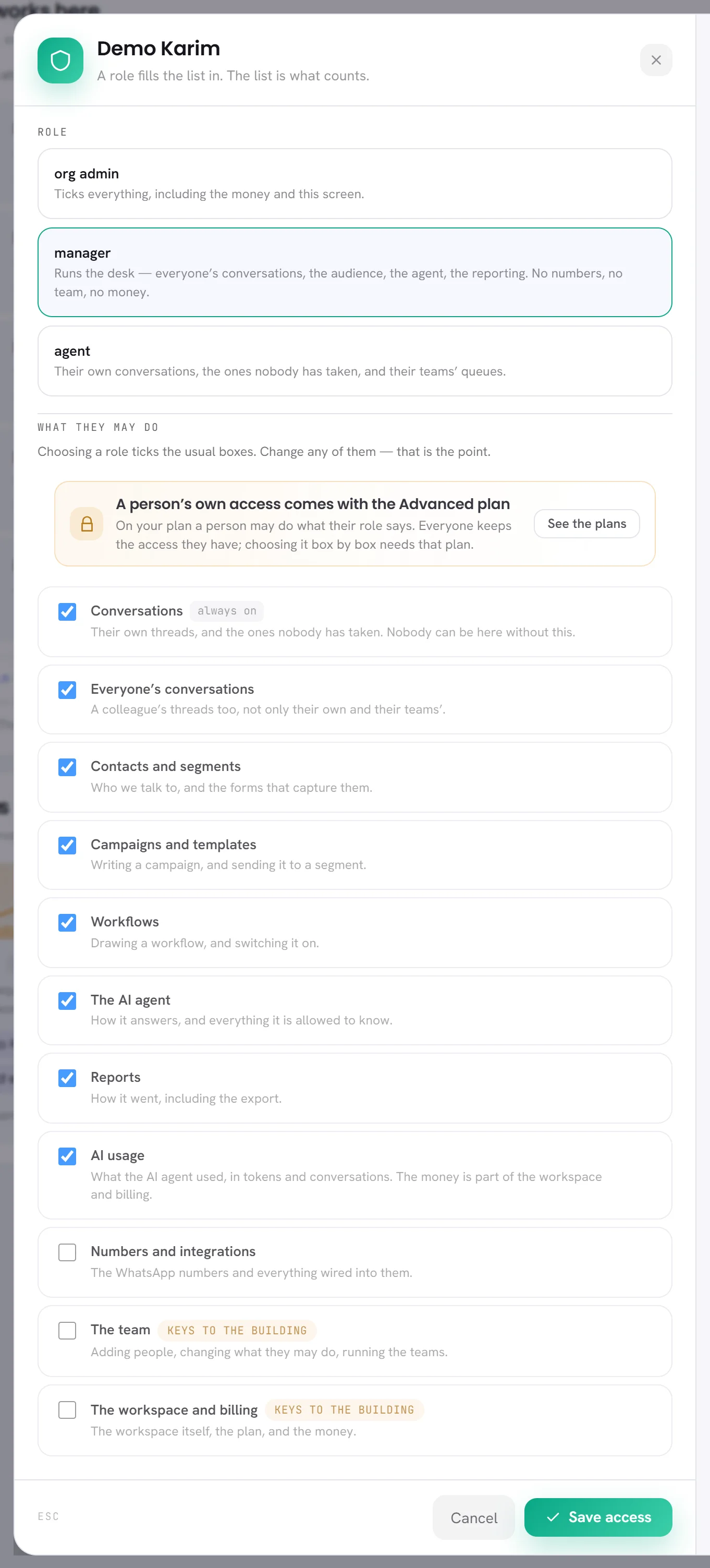
Tick or untick boxes, if your plan allows it.
Tailored appears beside the heading as soon as the list differs from the role’s.
Beside the list, What this opens names the screens the ticked permissions open.
Press Save access.
The change applies at once: the person’s menu follows the next time one of their screens loads.
When you open your own access, the window reminds you that taking something away takes it away from you.
The last person who can open the Team screen cannot give that up: the window refuses, and says that somebody has to be able to run the screen.
A person’s own access depends on your plan
Changing boxes by hand is the feature Custom roles and permissions. On a plan without it, a banner in the window names the plan it comes with, the boxes follow the role and cannot be ticked, and a person may do what their role says. Somebody who was given a list of their own while the plan allowed it keeps it. See Plan limits.
What somebody without access sees
- The screen is not in their menu, and search does not offer it.
- If they open its address anyway, a page says that they do not have access to it, and that somebody who manages the team can give it.
- In the inbox, a conversation that is not theirs to see is not listed.
- On AI usage, somebody without the money sees tokens: see If you do not see money.
- On Plan & billing, somebody who cannot choose a plan sees the plans, and a line saying who can.
Good to know
- Who can change access: people whose access includes The team.
- Every change of access is written in the activity log.
- A person’s own profile, password and notifications are always theirs: see Your profile.