What the ledger is
The Ledger lists everything your workspace was charged and everything it paid, a line each, the newest first: what your AI agent used, each top-up of the AI wallet, each payment for your plan, and any credit, refund or correction. Every line opens what is behind it.
Open it from Ledger in the menu, under AI usage, or go straight to it. The dashboard’s card Open the ledger leads there too, and so does the same link under AI wallet on Plan & billing.
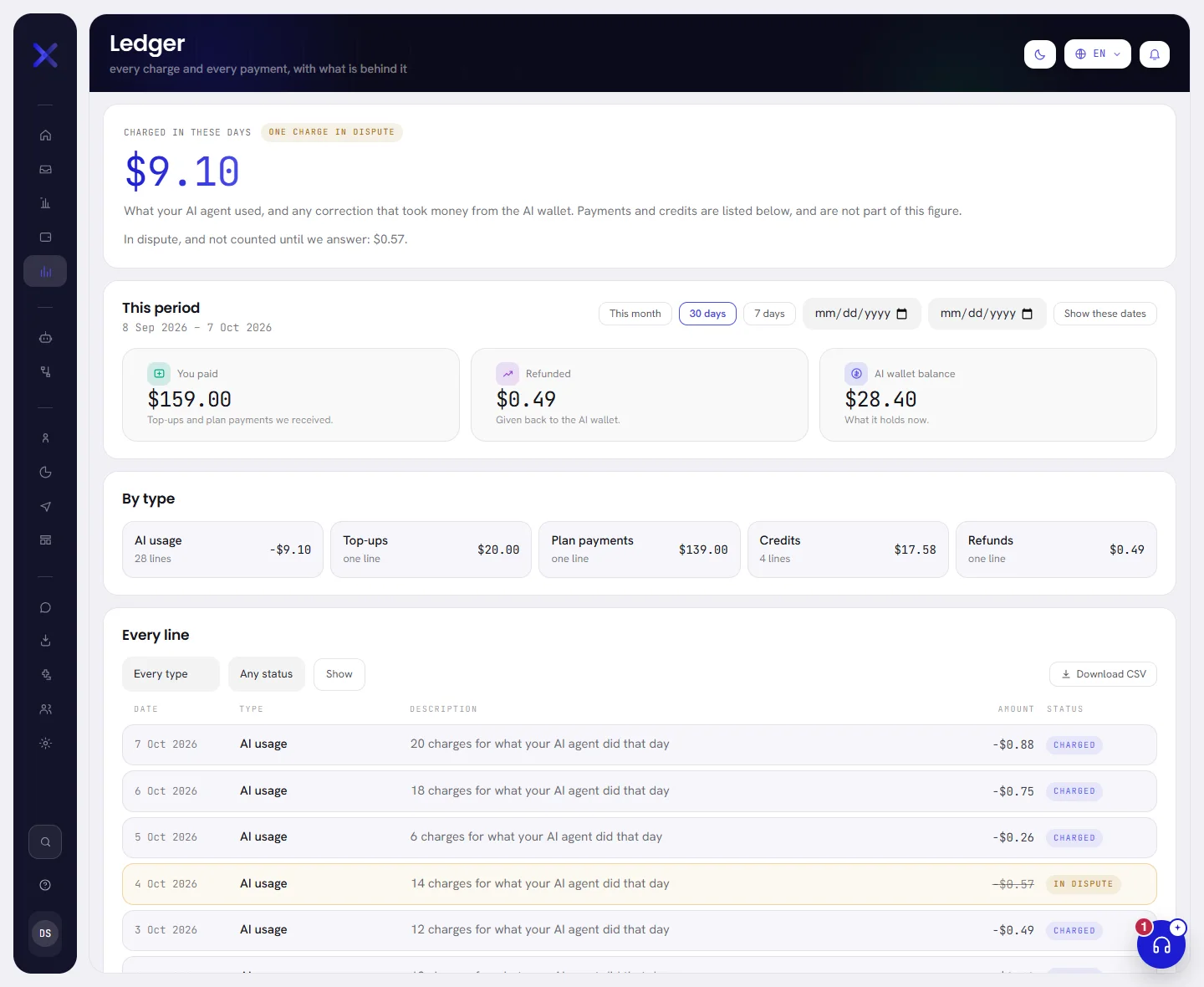
What was charged
The first card, Charged in these days, is one figure: what your AI agent used in the days shown, plus any correction that took money from the AI wallet.

- Payments and credits are not part of it. They are in the figures and the lines below.
- A charge you disputed is left out until we answer. The badge beside the title says how many are waiting, and a line under the figure gives their amount. See Dispute a charge.
Choose the days
Everything on the screen is for one stretch of days: this month so far, until you choose another.
Press This month, 30 days or 7 days.
The figures and the lines change at once. The first and last day are written under This period.

For other dates, fill the two date boxes and press Show these dates.
The first box is the first day, the second is the last. A range ends today at the latest and covers a year at most. If the dates cannot be used, for example the first is after the last, the screen shows the last 30 days.
Under the buttons are three figures:
| On the screen | What it does |
|---|---|
| You paid | The top-ups and the plan payments we received in the days shown. |
| Refunded | What we gave back to the AI wallet in the days shown. |
| AI wallet balance | What the wallet holds now, rounded down to the cent. This figure does not change with the days. Before the wallet opens it says No data. |
Days are counted on your workspace’s time zone, set in Workspace settings. The days are part of the page’s address, so a view can be bookmarked or sent to a colleague.
Each type, added up
By type adds up the lines of the days shown, one card for each type that has any: how many lines, and what they come to. Press a card to see only its lines.

| On the screen | What it does |
|---|---|
| AI usage | What your AI agent was charged, a line for each day. |
| Top-ups | Bank transfers into the AI wallet. |
| Plan payments | What we received for your plan. |
| Credits | Money put into the wallet without a payment: the free credit, the AI usage your plan includes each month, and what is left of it when the month ends, taken back. |
| Refunds | Money we gave back to the wallet. |
| Corrections | Corrections made by our team, either way. |
A charge in dispute is left out of these sums as well.
The lines
Every line lists the lines of the days shown, the newest first, fifty to a page.
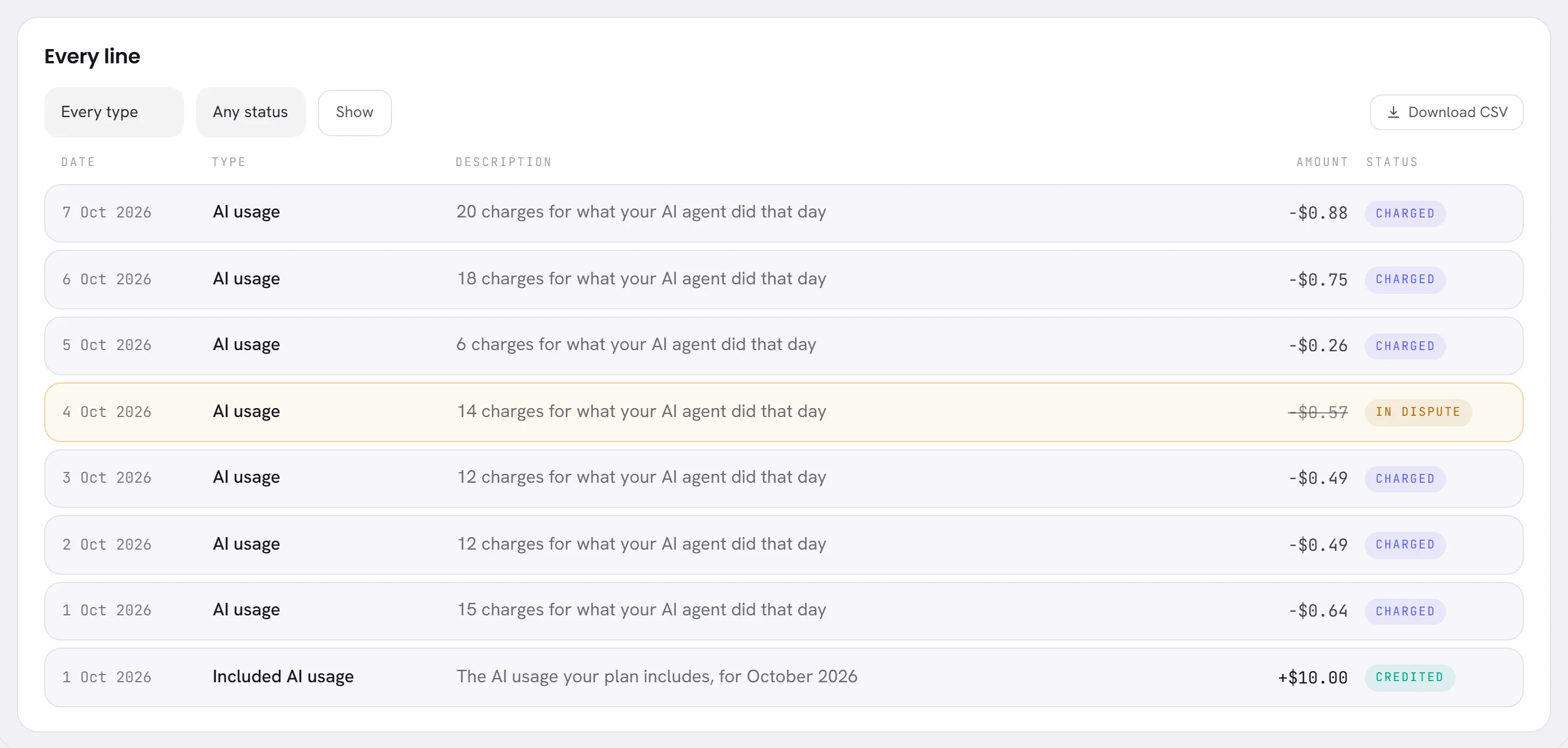
| On the screen | What it does |
|---|---|
| Date | The day of the line, on your workspace’s time zone. |
| Type | What kind of line it is: see the list below. |
| Description | What it was for: how many charges that day, a transfer’s reference, the plan and the days a payment covers, or the note our team wrote. |
| Amount | A minus sign is money out of the AI wallet, a plus sign is money into it. A plan payment has no sign: it is paid to us and never passes through the wallet. |
| Status | Where the line stands: see the second list below. |
The types of line:
| On the screen | What it does |
|---|---|
| AI usage | One line a day: everything your AI agent was charged that day, added up. |
| Top-up | A bank transfer that arrived and was added to the AI wallet, with its reference. |
| Plan payment | A payment we received for your plan: the plan, whether it is paid by the month or for the year, and the days it covers. |
| Plan payment undone | A plan payment that was written down by mistake, taken back by a line of its own. Both lines stay on the ledger. |
| Free credit | The credit a wallet opens with, once. |
| Included AI usage | The AI usage your plan includes for the month, added as the month begins. |
| Included AI usage, unused | What was left of it when the month ended, taken back. |
| Refund | Money we gave back for a charge. |
| Correction | A correction made by our team, with the note they wrote for you. |
Where a line stands:
| On the screen | What it does |
|---|---|
| Charged | Taken from the AI wallet. |
| Paid | A payment we received. |
| Credited | Put into the AI wallet without a payment. |
| Expired | Included AI usage that was not used, taken back as its month ended. |
| In dispute | A charge you disputed that we have not answered yet. Its amount is struck through and it is in none of the figures. |
| Refunded | A charge we gave money back for. The money is a line of its own, Refund. |
| Undone | A plan payment written down by mistake, and the line that takes it back. |
An amount is written to the cent. An amount under one cent keeps its decimals, so that it does not read as nothing. Point at any amount to see it to a fraction of a cent.
Press a line to see what is behind it: See what is behind a line.
Narrow the list
Choose a type in the first menu, a status in the second, or both.
The first menu says Every type and the second Any status until you choose.

Press Show.
The list keeps only the lines that match. The figures above it do not change: they are always those of the days shown.
Press Clear filters to see every line again.
When no line matches, the card says so. Clear the filters, or choose other days.
Download the lines as a CSV file
Choose the days, and narrow the list if you want only part of it.
Press Download CSV.
The file’s name is
ledger-followed by the first and the last day. It opens in any spreadsheet.
The file holds the same lines as the screen, narrowed the same way, the newest first.
| On the screen | What it does |
|---|---|
| Date | The day for a day’s AI usage, the date and time for any other line. |
| Type | The type of the line. |
| Description | What it was for. |
| Amount | The amount as a plain number with every decimal: negative when money left the wallet. |
| Currency | The currency of the line. |
| Status | Where the line stands. |
When there is nothing yet
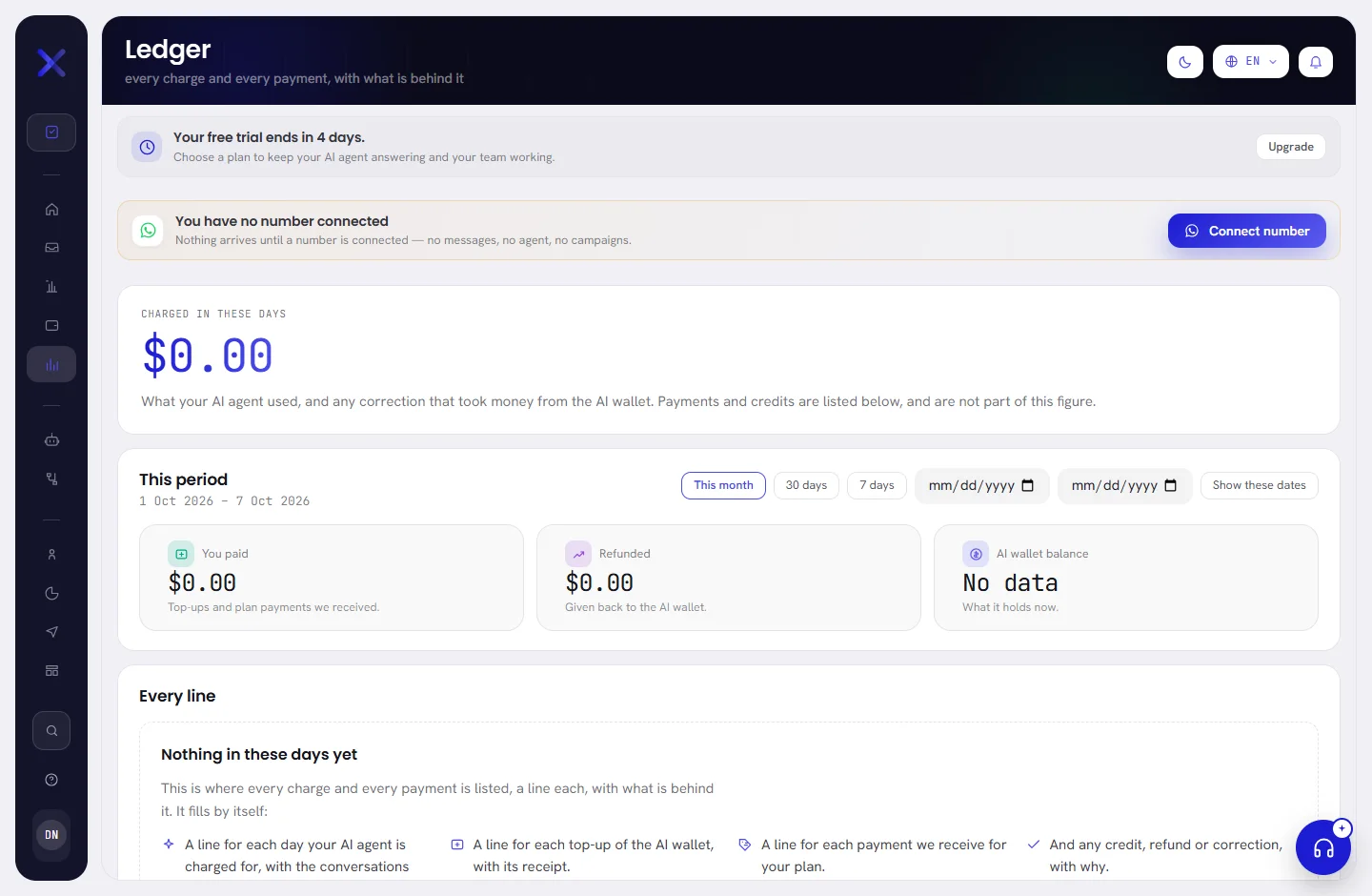
In a new workspace, or for days in which nothing moved, the card says Nothing in these days yet and lists what will appear. Show the last 30 days looks further back.
What is not on the ledger
- What WhatsApp charges for your messages. Meta bills you directly for those, on the payment method of your WhatsApp Business account: see What WhatsApp charges.
- A top-up you asked for that has not arrived yet. It is in Top-ups on the AI usage screen, marked Waiting for payment, and becomes a line here when we receive it.
- A plan you asked for and have not paid yet. It is on Plan & billing: see Choose or change a plan.
Good to know
- Who can open it: people whose access includes The workspace and billing, which an org admin has.
- A line is never changed or removed. A mistake is put right by another line, and both stay.
- The wallet’s lines are in the wallet’s currency, and a plan payment is in the currency your plan is priced in. When the two differ, a figure that adds both shows the two amounts side by side.
- The same wallet lines, with the balance after each one, are in Wallet history on the AI usage screen: see Receipts and wallet history.
Questions
Why is a day of AI usage one line?
Your agent is charged for each piece of work, which can be hundreds a day. The ledger adds a day of them into one line. Open the line to see the conversations it was charged for.
Why does the figure at the top not change when I narrow the list?
Narrowing is a way to find a line. The figures are always those of the days shown.
I paid for my plan and I do not see the payment.
A plan payment appears when our team has received the transfer and written it down. If your bank shows the transfer as sent and the line is still missing, write to support with your bank’s confirmation.
Is what Meta charges for WhatsApp messages on the ledger?
No. The ledger is what you are charged by us and what you paid us. Meta bills its own charges to you directly: see What WhatsApp charges.